Adobe Photoshop is a powerful and versatile image-editing software that can be a cornerstone for artists, designers, and photographers alike. While its vast array of tools and features can seem daunting, a wealth of tutorials exists to demystify its capabilities, making it accessible for beginners and offering continuous learning opportunities for seasoned professionals. Whether your goal is to refine a photograph, create intricate digital art, or explore the bleeding edge of AI-powered image generation, Photoshop's extensive tutorial landscape provides a roadmap for every ambition.
Getting Started with Photoshop: Essential Tutorials for Beginners
For newcomers to the world of digital imaging, Photoshop tutorials are an invaluable resource for quickly grasping the fundamental operations of the software. These foundational lessons often begin with the absolute basics, such as understanding the user interface and navigating the various toolbars.
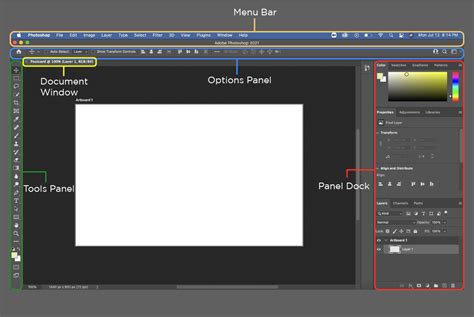
A crucial early step in any Photoshop journey is comprehending the concept of layers. Layers are the building blocks of most Photoshop projects, allowing for non-destructive editing and the seamless combination of multiple elements. As one of the most fundamental parts of the software, mastering layers is key to unlocking Photoshop's versatility. Without them, work is sure to look flat. Tutorials dedicated to layers often break down how to create, manage, and manipulate them, providing a solid foundation for all subsequent digital art endeavors.
Another essential skill for beginners is image resizing. While it might appear straightforward - simply navigating to Image > Image Size and inputting desired dimensions - the nuances of image resolution, DPI, and the impact of resampling on image quality are critical. Tutorials on this topic delve into the distinction between resizing an image and resizing a canvas, offering guidance on how to avoid compromising image quality.
Photoshop Layer Masks Explained in 2 Minutes
Beyond basic manipulation, beginners will find tutorials covering fundamental editing tasks. This includes introductory guides on how to edit your first photo, focusing on common adjustments like exposure, contrast, and color correction. Understanding how to use tools like the Burn tool for selectively darkening areas and the Dodge tool for lightening specific regions are also fundamental skills that many beginner tutorials address.
Harnessing the Power of AI in Photoshop: Generative Fill and Expand
Recent advancements in Adobe Photoshop have seen the integration of powerful Artificial Intelligence features, revolutionizing how users create and modify imagery. Among the most impactful are Generative Fill and Generative Expand, both powered by Adobe Firefly AI.
Generative Fill allows users to generate new imagery, remove unwanted elements, or modify existing ones using simple text prompts. This AI technology operates by creating new elements on separate layers, ensuring that the original image remains untouched and allowing for individual manipulation of generated content. Furthermore, the AI automatically adds details like reflections and shadows, ensuring seamless integration with the existing scene.
To utilize Generative Fill, users can activate the Contextual Task Bar (Window > Contextual Task Bar), select an area of the image with a tool like the Lasso or Pen tool, type a descriptive text prompt, and click "Generate." Photoshop then provides several options, allowing the user to cycle through and select the most suitable result.
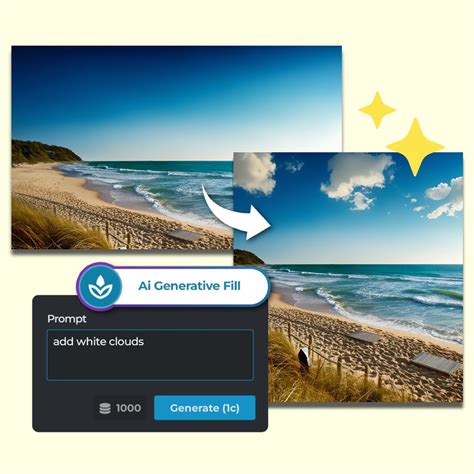
Similarly, Generative Expand leverages Firefly AI to extend the dimensions of an image beyond its original borders. This is particularly useful when a photo is too narrow or short for its intended placement. By selecting Generative Expand from the Task Bar, choosing desired crop proportions, and dragging the crop handles, users can instruct Photoshop to fill the expanded area with AI-generated visuals that logically extend the existing scene. The tool also offers multiple generated options to choose from.
Advanced Techniques and Creative Exploration
Once the fundamentals are grasped, Photoshop opens up a universe of advanced techniques and creative possibilities.
Mastering Selections and Masks
The ability to perform precise selections and utilize layer masks is paramount in Photoshop. While AI-powered tools like the Subject Select tool can automate much of this process by automatically selecting the main subject of an image with a single click, manual refinement is often necessary. Tutorials on the Refine Edge tool are essential for handling complex selections, particularly for subjects with intricate details like frizzy hair or foliage. The Refine Edge box tool, in particular, is designed to simplify these challenging tasks.
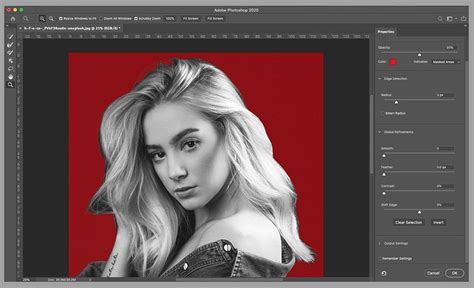
Layer masks are indispensable for non-destructive editing and are fundamental to achieving professional-looking results. They allow for the precise control of layer visibility, enabling artists to blend images seamlessly, create complex compositions, and isolate elements without permanently altering the underlying pixels. Tutorials on layer masks often emphasize their role in ensuring that work doesn't appear "flat."
Exploring Brushwork and Digital Painting
Photoshop's Brush tool is incredibly versatile, offering a vast array of customization options for creating unique strokes and effects. Tutorials dedicated to the Brush tool often guide users through the various icons and settings within the Brush palette, demonstrating how to achieve specific artistic outcomes.
For those interested in digital painting, Photoshop provides a robust environment. Tutorials on digital painting workflows often emphasize that many traditional painting techniques translate directly to the digital canvas, with core principles like composition, color theory, and perspective remaining crucial.
Text Effects and Layer Styles
The creation of compelling text effects is another area where Photoshop tutorials excel. From simple glowing neon text to complex 3D text effects, a variety of guides are available. These tutorials often leverage layer styles, a powerful feature that allows for the application of effects like shadows, bevels, and glows to text and other layers, adding depth and visual interest. Techniques for creating effects like embroidery text, graffiti text, and even text submerged in water are explored.
Photoshop Layer Masks Explained in 2 Minutes
Compositing and Image Manipulation
Compositing images into a single, cohesive piece is a highly creative and rewarding aspect of Photoshop. Tutorials on this subject cover everything from shooting and building composites to achieving convincing results. This often involves techniques for harmonizing color and lighting across multiple images and mastering tools like Smart Objects and Clipping Masks.
Specific tutorials focus on creating fantastical scenes, such as a Northern Lights composite or an enchanting fairy from a single source image. The ability to blend modes is also critical for compositing, as it allows for sophisticated interactions between layers to achieve a wide range of visual effects.
Special Effects and Stylistic Transformations
Photoshop is a playground for creating a myriad of special effects. Tutorials guide users through:
- Anaglyph effects for vintage 3D imagery.
- Particle dispersion effects, where subjects appear to break apart into particles.
- Tilt-shift effects, creating a miniature model look.
- Aging photographs to achieve a vintage or sepia-toned aesthetic.
- Colorizing black and white images and selectively reintroducing color.
- Creating pop art effects, such as the Andy Warhol style.
- Recreating vintage Instagram filters without needing a smartphone.
- Generating realistic snow or rain effects.
- Achieving a "glitched" or VHS tape aesthetic.
- Applying a "rubber stamp" effect to images.
- Creating double exposure effects.
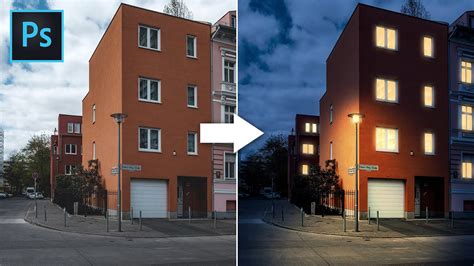
- Transforming day scenes into night scenes.
Retouching and Enhancement
For photographers, Photoshop offers powerful tools for image retouching and enhancement. Tutorials cover:
- Retouching lips and repairing skin imperfections using tools like the Spot Healing Brush.
- Achieving silky smooth skin through techniques like Frequency Separation.
- Removing shadows from photos.
- Utilizing Neural Filters, such as the Smart Portrait filter for adjusting eye direction.
- Enhancing portraits using the Face-Aware Liquify tool for subtle facial adjustments.
- Improving image quality using tools like Curves for tonal adjustments and Camera Shake Reduction for blurry images.
Beyond Basic Editing: Design, Illustration, and Video
Photoshop's utility extends beyond photo manipulation into graphic design, illustration, and even basic video editing.
Graphic Design Elements
Tutorials are available for creating essential design elements, such as:
- UI elements for user interfaces.
- Frames and borders for photographs, often in combination with Lightroom.
- Style frames for motion graphics, capturing the look and feel of an animation in a still image.
- Icons with a glossy finish or in isometric perspective.
While Photoshop is not the ideal tool for logo design (Illustrator is generally preferred), tutorials do cover how to add fonts and utilize features like 'Match Font' to find specific typefaces.
Illustration and Digital Art
Photoshop serves as a powerful tool for illustrators. Guides cover:
- Digital painting workflows for creating various art styles, from portraits to fantasy landscapes.
- Drawing and inking sketches by hand and then bringing them into Photoshop for coloring and refinement.
- Creating comic art, with tutorials even demonstrating how to emulate the styles of specific artists or comic universes.
- Vector shape layers and combining them with raster images for unique editorial illustrations.
- Creating custom brushes to enhance workflow and creativity.
Photoshop Layer Masks Explained in 2 Minutes
Video Editing Capabilities
While not its primary function, Photoshop does include some basic video editing tools. Tutorials can guide users on how to incorporate simple animations or edit short video clips within the software.
Staying Current: New Features and Beta Versions
Adobe consistently updates Photoshop, introducing new features and refining existing ones. Tutorials focusing on the latest releases, such as Photoshop 2024 and beta versions like Photoshop 26.0, are crucial for staying up-to-date. These often highlight new AI-powered tools, improvements to existing features like Generative Fill, and new functionalities such as working with 3D objects via the Substance 3D Viewer. Keeping an eye on these updates ensures users can leverage the most cutting-edge capabilities of the software.
The journey of mastering Photoshop is an ongoing one, with an ever-expanding library of tutorials catering to every skill level and creative aspiration. From the fundamental building blocks of layers and masks to the cutting-edge capabilities of AI-driven generation, Photoshop remains an indispensable tool for digital creativity.