The CorelDRAW file format, denoted by the .cdr extension, is proprietary to CorelDRAW software. This means that to open and fully utilize files saved in this format, you generally need to have CorelDRAW itself, or compatible Corel applications like CorelDESIGNER or CorelCAD. While this might seem restrictive, there are various methods and considerations for accessing and working with CDR files, whether you are a seasoned CorelDRAW user or need to interact with these files from other software.
Opening CDR Files Within CorelDRAW
For users who have CorelDRAW installed, opening a CDR file is a straightforward process. The method you employ can depend on whether the CorelDRAW application is already running.
If CorelDRAW is not currently active, the simplest approach is to locate the .cdr file in your file explorer and double-click it. This action will launch CorelDRAW and automatically open the selected file.
If CorelDRAW is already open, and you haven't recently worked on the file in question, you can navigate to the File menu and select Open. Then, browse to the location of your CDR file and select it.
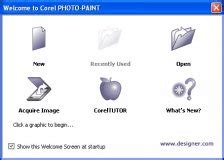
A convenient feature for frequent users is the Welcome Screen. When CorelDRAW launches, the Get Started tab often displays thumbnails of up to 15 of the most recent files you have worked on. Simply double-clicking on the desired file's thumbnail from this screen will open it directly.
Version Compatibility: A Crucial Consideration
A significant factor when opening CDR files is version compatibility. CorelDRAW files are not backwards compatible. This means that if you attempt to open a CDR file that was created with a newer version of CorelDRAW than the one you have installed, you will encounter an error and be unable to access the file.
To overcome this limitation, the recommended workaround is to open the file in the version it was created in, or a newer version. Once opened, you can then use the Save As command to save the file in an older version format. This ensures that the file can be opened by users with earlier versions of CorelDRAW.
Converting CDR Files to Other Formats
Often, there is a need to convert a CDR file into a different format for use in other applications or for different purposes. CorelDRAW provides two primary methods for achieving this: exporting and using the Save As command.
When using the Save As command within CorelDRAW, you can select a different file format from the Save As type dropdown menu. It's important to note that this dropdown primarily lists vector formats.
For conversion to raster formats (like JPEG, PNG, or GIF), the Export command is the appropriate choice. The Export command offers a comprehensive list of supported file formats, encompassing both vector and raster options. Within the export dialog, such as the Export to PNG dialog, you have the ability to set specific parameters for the output file, allowing for fine-tuning of the conversion process.
Sysinfo CDR Converter | Export Multiple CDR Files into PDF, JPEG, PSD etc
Importing Other Formats into CorelDRAW
The reverse scenario, importing files from other formats into CorelDRAW and saving them as CDR, is also a common requirement. CorelDRAW is designed to open or import a wide range of file formats, making it a versatile tool for graphic design workflows.
Accessing CDR Files Without CorelDRAW: Viewers and Limitations
The proprietary nature of the CDR format means that opening CDR files directly in non-Corel applications like Adobe Illustrator or Adobe Photoshop is not possible. These programs do not natively recognize the CDR file structure.
To address this, you would typically need to export the CDR file from CorelDRAW into a compatible format. For instance, to bring a CDR file into Adobe Illustrator, you would first export it from CorelDRAW as an AI, EPS, or PDF. Similarly, for Adobe Photoshop, you would export as an AI, EPS, PSD, or PDF.
However, for users who do not have CorelDRAW installed but need to view CDR files, specialized viewers are available. These viewers offer limited capabilities, primarily focused on displaying the content of the CDR file. While they can be useful for a quick look, they do not provide the full editing functionality of CorelDRAW.
CDRViewer for macOS
A notable example of a viewer is CDRViewer, which has been developed to address the need for opening CorelDRAW files on macOS. Previously, opening CDR files on iMacs was a significant challenge, as CorelDRAW versions for Mac were discontinued after version 11. This application aims to provide a simple and easy-to-use solution. CDRViewer reportedly uses minimal libraries for processing and offers a straightforward interface. Users can open a CDR file, zoom in, and, if desired, save it in another format. CDRViewer is available as free-to-use software.
CDRViewer Specifics:
- Developer: Abdusodiq Saidov
- Size: 10.5 MB
- Category: Graphics & Design
- Compatibility: Requires macOS 11.0 or later.
This application can be instrumental in viewing CorelDRAW files across various global locations, from major cities like Bangalore, Toronto, London, and Paris, to regions across the USA, Australia, India, Japan, and many more.
PrintLab Studio: A Professional Alternative
For more advanced functionality beyond basic viewing, PrintLab Studio is presented as the Pro version of CDRViewer. This professional version offers enhanced features, including the ability to export opened CDR files to vector formats such as SVG and PDF. This makes it a more productive tool for designers who need to integrate CDR content into workflows that utilize these widely compatible vector formats. The developers encourage users to share ideas and feature requests.
Importing Multiple CDR Files
CorelDRAW Graphics Suite is designed to handle multiple files simultaneously. If you need to open or import several CDR files at once, you can do so by navigating to their location, selecting the desired files (using the SHIFT or CTRL keys for multiple selections), and then initiating the import process.
The Cost of CorelDRAW and Alternatives
The official and most comprehensive way to work with CDR files is, of course, using CorelDRAW. For those who do not currently possess the software, acquiring it involves a purchase. The cost of a new license can be around 400 USD. However, it is sometimes possible to purchase older versions of CorelDRAW, such as X5 or X6, at a significantly reduced price. Some versions, like X7, are mentioned as official, and file dialogs might indicate support for versions 7 through X4.
While alternatives like Inkscape can import CDR files, it's important to be aware that they may not support as many features as CorelDRAW itself. The fidelity of the import can vary depending on the complexity of the original CDR file and the specific features used.
Geographical Accessibility of CDR File Viewing
The ability to view CDR files, even with the help of viewers, extends globally. Whether you are in the United States, India, Japan, Australia, New Zealand, Nigeria, the Philippines, France, Italy, Thailand, Pakistan, the Netherlands, Nepal, Portugal, Algeria, Uganda, the Czech Republic, Argentina, Yemen, Croatia, or numerous other countries, and in cities ranging from Bangalore and Toronto to London and Paris, the tools and methods discussed can be applied. The reach of these solutions spans across continents and diverse geographical locations.