Photoshop CS5, a powerful tool for creative professionals, can sometimes present users with frustrating glitches and bugs. While Adobe officially supports only the current and prior versions of its software, a significant number of users still rely on older, stable versions like CS5. This article delves into common issues encountered with Photoshop CS5 and provides comprehensive troubleshooting steps, drawing from user experiences and technical knowledge to help you get back to creating.
Display Anomalies and Window Management Issues
One of the more perplexing issues reported by Photoshop CS5 users involves document windows appearing outside the visible screen area upon opening or creation. This can render a new project inaccessible without manual intervention. Similarly, problems with screen modes, such as the inability to switch between windowed and full-screen views, can lead to a frozen interface where the document window becomes unresponsive, often accompanied by a grayed-out appearance of the entire application.
A recurring observation in such cases is that these display bugs can be temporarily resolved by actions that seem to reset or reinitialize the application's display handling. These include:
- Connecting a second monitor: The act of introducing an additional display often prompts Photoshop to re-evaluate its window placement and display settings, bringing the document windows back into view.
- Changing the screen resolution: Similar to connecting a second monitor, altering the system's screen resolution can trigger a recalibration of how Photoshop renders its interface and documents.
- Resetting Photoshop Preferences: Manually deleting Photoshop's preference files and then relaunching the application will result in new, default preferences being created. Initially, this often restores normal functionality, with new preference files being generated. This suggests that corrupted preference files are a significant culprit for these display issues.
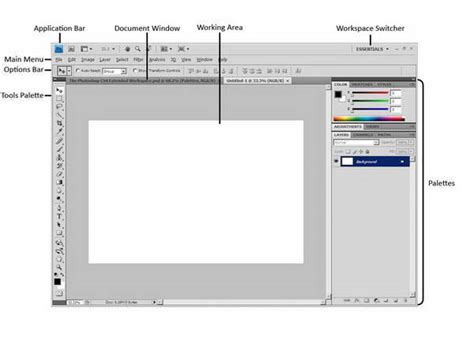
The temporary nature of these fixes - working only until Photoshop is closed and relaunched - is a key indicator that the underlying problem lies in how the application stores and recalls its display and windowing configurations. The fact that these issues can arise even after upgrading to the latest available patch for CS5 (12.0.4) points to a potential deeper conflict within the software or its interaction with the operating system. One user reported that these problems began after connecting their MacBook Pro to a television, raising the possibility of an interaction with Mac OS X display drivers or system-level display management.
Performance Degradation and Unresponsiveness
Beyond display glitches, users of Photoshop CS5 Extended have reported significant performance degradation. Symptoms include sluggishness, an inability to display actual frames in the animation bar (crucial for GIF creation), slow dragging of elements like PSD files or fonts, and general unresponsiveness. This can be particularly disheartening for users who rely on the software for demanding tasks such as creating animated GIFs for platforms like Tumblr.
Several factors can contribute to such performance issues:
- Corrupted Font Cache: A damaged font cache file, often named
Adobefnt*.lst(e.g.,Adobefnt10.listfor InDesign), can cause applications to crash, freeze, or quit unexpectedly during startup or when using the Type tool. These.lstfiles are essential for Adobe applications to quickly access and store information about available fonts. If one becomes corrupted, it can disrupt font-related operations and impact overall stability. Searching for and deleting these files (after backing them up) can resolve such issues. - Third-Party Font Conflicts: The use of unstable or incompatible third-party fonts is a well-documented cause of crashes and hangs in Photoshop, particularly when interacting with the Type tool or the Character panel. If Photoshop exhibits erratic behavior when selecting text or making the Character panel visible, a rogue font is a prime suspect.
- Background Applications and System Resources: Applications running in the background can consume valuable system resources, preventing Creative Suite 5, CS5.5, and CS6 products from launching or operating smoothly. It's advisable to close unnecessary applications before launching Photoshop.
- Insufficient Memory Allocation: The amount of RAM allocated to Photoshop plays a critical role in its performance. While Adobe provides recommendations, users often find that allocating a significant portion of their available RAM (e.g., two-thirds after the OS has taken its share) to Photoshop can improve responsiveness, especially when working with large files or complex operations.
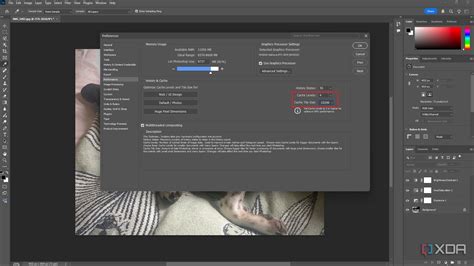
- Graphics Acceleration Issues: While graphics acceleration can significantly boost performance, an unsupported or improperly configured graphics card can lead to instability. Users might experience issues related to graphics processing. Trying to disable hardware acceleration altogether and observing the impact can help diagnose if the graphics card is contributing to the problem. If disabling it resolves the issue, re-enabling it and experimenting with the "Advanced…" options within the graphics processor settings might yield a more stable configuration.
Installation and Activation Problems
While not strictly "glitches" in the same vein as display bugs, issues related to installation and activation can prevent users from accessing Photoshop CS5 altogether.
- Serial Number and Activation: Adobe's activation system relies on valid serial numbers. If an upgrade serial number is entered without a qualifying product being detected on the system, the installer will prompt the user to locate it. Revoked serial numbers might be accepted by the serial number panel, but they will be denied during the activation process. Registering the product with an Adobe ID is also a crucial step for many users.
- Trial Version Expiration: Adobe Support generally cannot assist users whose trial versions have ended prematurely.
- Corrupted Installation Files: Errors during installation can sometimes be caused by missing or modified files. Disk clean-up utilities like CleanMyMac or MacKeeper, if not kept up-to-date or used cautiously, can inadvertently remove essential files required by Photoshop.
General Troubleshooting Strategies
When faced with persistent issues in Photoshop CS5, a systematic approach to troubleshooting is essential.
- Reset Preferences: As noted earlier, corrupt preferences are a common cause of many problems. Resetting them by deleting the relevant preference files is often the first step.
- Reset Workspace: If specific tools or panels are behaving erratically, resetting the current workspace to its default settings (e.g., "Essentials") can often resolve layout or display issues within the workspace.
- Check for Plug-in Conflicts: Third-party plug-ins can sometimes cause instability. To test this, move all third-party plug-ins from the application's Plug-Ins folder to a temporary location (like the Explorer on Windows or Finder on Mac). If Photoshop launches and functions correctly, then a conflicting plug-in is the cause. Reintroduce plug-ins one by one, restarting Photoshop after each addition, to identify the problematic one.
- Compatibility Mode (Windows): For Windows users, ensure that Photoshop is not running in compatibility mode. In the Compatibility tab of the application's properties, deselect all options under Compatibility Mode, Settings, and Privilege Level, as these can cause errors with Adobe Creative Suite products.
- Create a New User Account: Corrupt user profiles or network policies can sometimes interfere with Photoshop's launch. Creating a new local administrative account on your system can help rule out these as the cause of a failed launch.
- Safe Mode (macOS): On macOS, starting the system in Safe Mode disables all third-party extensions and startup items. This can help determine if a system extension or startup item is conflicting with Photoshop.
- Utilize the Discover Panel: If tools are missing from the Toolbar, it might be due to workspace customization. Resetting the Toolbar customization to default or using the Discover panel within Photoshop can help locate and identify missing tools. The keyboard shortcut Command/Control + F can open a search dialog where you can type the name of the tool you're looking for.
- Adobe Support Advisor: For installation-related issues, the Adobe Support Advisor (an AIR application) can help identify and resolve problems.
- Graphics Processor Settings: Experiment with disabling and re-enabling graphics acceleration, and adjust the advanced settings if necessary.
- Reinstallation: If all other troubleshooting steps fail, a clean reinstallation of Photoshop CS5 might be necessary. This involves uninstalling the software, manually deleting any remaining preference and cache files, and then reinstalling from the original installation media.
How To Fix Scratch Disk Error In Photoshop - Full Guide
While Photoshop CS5 is no longer the latest iteration, and features like its legacy 3D capabilities have been removed in newer versions, it remains a capable tool for many. By understanding the common glitches and employing these systematic troubleshooting methods, users can often overcome the hurdles and continue to leverage its power for their creative endeavors. The key often lies in identifying whether the issue stems from corrupted application settings, conflicts with system resources or third-party software, or fundamental problems with the installation itself.