A well-designed website is more than just an aesthetically pleasing online presence; it's a critical tool for brand representation, visitor engagement, and ultimately, driving conversions and sales. Overcomplicating web design can alienate users, while a simple yet effective design can captivate. The key lies in creating a cohesive and intuitive user experience where every element feels purposeful. For optimal readability on screens, sans-serif fonts are generally preferred. A properly designed website allows your business to shine online, fostering a positive experience that encourages visitors to become loyal customers. This tutorial delves into leveraging CorelDRAW's powerful features, including its web-based counterpart, CorelDRAW Web, to achieve these design goals.
Bridging the Gap: CorelDRAW Web and Desktop Integration
CorelDRAW Web works in tandem with its desktop application, offering designers unparalleled flexibility to work from virtually anywhere. This synergy brings many of the familiar vector tools for graphic design from CorelDRAW directly into a web-based format. A significant advantage of CorelDRAW Web is its ability to save files to the cloud, ensuring seamless access across both web and desktop versions.
Consider a scenario where you're in an on-site client meeting. CorelDRAW Web becomes invaluable, allowing for on-the-go adjustments or last-minute client requests without the need for the full desktop suite. This real-time collaboration and editing capability can significantly streamline the design process and enhance client satisfaction. Furthermore, the advanced text and font handling capabilities within CorelDRAW Web make it easy to create visually appealing layouts that resonate with your brand's identity.
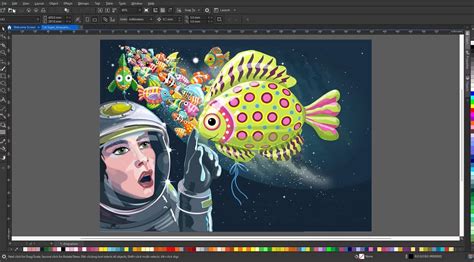
The seamless integration means you can open and edit any project started in CorelDRAW Web within the CorelDRAW desktop application, and vice versa. This bidirectional workflow provides the freedom to design anytime, anywhere, adapting to your schedule and location.
Navigating the CorelDRAW Workspace: Essential Tools and Features
Understanding the CorelDRAW interface is fundamental to efficient design. The CorelDRAW Toolbox is the central hub, containing a comprehensive collection of key tools for drawing and editing images. A thorough review of these tools is essential for any aspiring CorelDRAW user.
Mastering Object Manipulation and Selection
Productivity in CorelDRAW can be significantly boosted by mastering fundamental object manipulation techniques. Do you know all the ways to duplicate an object? Or how to select a specific object within a large, complex group? These are crucial skills that a CorelDRAW Master can help you develop.
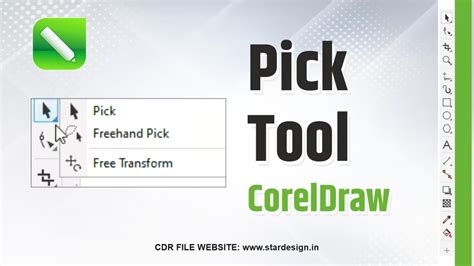
The Pick tool group is your starting point for object manipulation. This tutorial introduces you to its functions, teaching you how to select, move, and transform objects, along with valuable tips and shortcuts.
When dealing with intricate designs, precise positioning is paramount. CorelDRAW offers various tools to help you position objects with precision and ease, including guidelines, align and distribute options, and live guides. These features ensure that your elements are perfectly placed, contributing to a polished final product.
Advanced Shaping and Transformation Techniques
CorelDRAW's shaping tools are powerful instruments for transforming objects. You can weld or combine objects, use one object to trim another, and explore a multitude of other possibilities to sculpt your designs.
The Edit Shape tool group, comprising seven distinct tools, allows for intricate manipulation of object outlines and forms. Learning to effectively utilize these tools can elevate your designs from basic to sophisticated.
For precise removal of unwanted areas, CorelDRAW's Crop and Eraser tools are invaluable. They enable you to quickly remove sections of objects, images, or even entire designs. Similarly, the Virtual Segment Delete tool is perfect for removing sections of lines or curves between intersection points with other objects, offering a clean and efficient way to refine vector paths.
Perspective and Dimensionality
Creating realistic depth and dimension is often a key design requirement. CorelDRAW's perspective drawing tools simplify the process of drawing objects or scenes in perspective, eliminating the need for complex grid setups. This feature is particularly useful for architectural visualizations, product mockups, and creating a sense of three-dimensional space.
To add immediate depth to your design elements, CorelDRAW's shadow tools are incredibly effective. You can easily apply and fine-tune effects like drop shadows or inner shadows, giving your objects a more prominent and dimensional appearance. For a more pronounced 3D effect, the Extrude tool can be used to give objects a three-dimensional appearance, allowing you to add, edit, copy, modify, and enhance extrusions on objects and text. The Block Shadow tool offers another way to add depth, with adjustable settings for depth, color, and more, providing a distinct visual impact.
How to Make a 3d Gold Text Design in CorelDRAW.
Working with Text and Typography in CorelDRAW
Typography plays a crucial role in web design, influencing readability, brand perception, and overall aesthetic. CorelDRAW offers robust tools for managing and styling text.
Understanding Text Types and Formatting
CorelDRAW distinguishes between artistic text and paragraph text, each suited for different design applications. Artistic text is ideal for headlines, logos, and short phrases, while paragraph text is designed for longer blocks of copy. Both offer a wide array of formatting options accessible through the Text tool and the Text docker.
Learning how to use CorelDRAW’s variable fonts allows for fine-tuning the look of text by adjusting properties such as width, slant, and weight, offering unprecedented control over typographic details.
Creative Text Effects and Styling
Beyond basic formatting, CorelDRAW enables the creation of unique and engaging text effects. You can explore various effects using the Interactive Effects and Shape toolboxes.
To create visually striking titles, the Text tool, Fountain Fill tool, and PowerClip can be combined to achieve a mosaic text effect. For a more rugged aesthetic, CorelDRAW can be used to add a funky, distressed look to your text. The interlaced effect can give the appearance that text and objects are intertwined or woven together, adding a sophisticated layer to your designs.
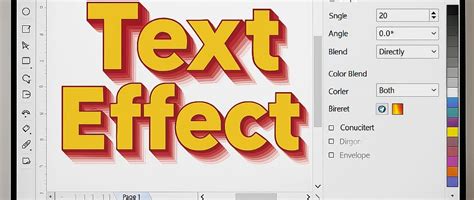
For a classic design element, learn how to create a poster with a halftone effect on the background, a technique often associated with print media but adaptable for digital use. To imbue your text and objects with a sense of richness, explore creating a bronze metallic effect.
Enhancing Designs with Color and Effects
Color is a powerful design element, and CorelDRAW provides comprehensive tools for its application and manipulation.
Color Management and Application
A foundational understanding of color theory is essential for effective design. This tutorial introduces color theory, an overview of RGB and CMYK color modes, and the color management tools available in CorelDRAW.
The Color Eyedropper tool allows you to sample exact colors from your design or imported images, ensuring color consistency. The Attributes Eyedropper takes this a step further by allowing you to copy attributes from one object to another.
For filling objects and enclosed areas, the Interactive Fill and Smart Fill tools are indispensable, enabling the application of solid colors, patterns, and textures. Creating a multi-color gradient fill, also known as a fountain fill, can add depth and visual interest to shapes, text, and other objects. Quickly and easily apply and edit outlines, transparencies, and fills using the Object Properties and Edit Fill tools.
Applying Filters and Non-Destructive Effects
CorelDRAW offers a wide array of filters and effects to enhance your designs. The Adjustments docker and Adjust menu provide easy access to a variety of filters and effects that can be applied to an entire image or specific areas.
The Gaussian Blur lens and enhanced drop shadows with Gaussian blur feathering (available in PHOTO-PAINT, often integrated with CorelDRAW) can add subtle yet impactful visual enhancements. CorelDRAW's non-destructive effects allow you to experiment and achieve desired looks without altering your original artwork, offering a flexible and iterative design process.
Furthermore, CorelDRAW's Art Style effects leverage artificial intelligence to replicate popular artistic genres, enabling you to imbue your designs with distinct stylistic qualities.
Organizing and Managing Your Designs
Efficient organization is key to managing complex design projects and collaborating effectively.
Digital Asset Management
CorelDRAW provides tools to streamline the management of your project's digital assets. The Pages docker and Multipage View allow you to easily view, manage, and edit all your project's pages in a single, organized interface.
The Objects docker is another vital tool for managing objects, layers, and pages within your CorelDRAW documents, offering a hierarchical view of your design elements.
Collaboration and Asset Synchronization
For design teams, staying in sync is paramount. CorelDRAW's Assets docker facilitates the syncing and sharing of symbols, ensuring that all team members are working with the most current assets. This prevents inconsistencies and streamlines collaborative workflows.
Leveraging Templates and Resources
CorelDRAW offers a robust template system and access to a wealth of resources to accelerate your design process.
Template Workflow and Management
A thorough understanding of the template workflow in CorelDRAW can save significant time and effort. This includes knowing where to download free templates and how to effectively organize and manage your template library for quick access.
Font Management
Choosing the right fonts is crucial for any design. Learn about the various types of fonts, where to find free fonts, and how to download and install fonts from external sources onto your PC or Mac. CorelDRAW's Font Manager provides an efficient way to manage your font library and keep your collections organized. The Insert Character docker can help you filter and add specific characters and symbols to your designs.
Clipart and Asset Integration
CorelDRAW supports the integration of clipart to enhance your designs. You can learn how to customize clipart to perfectly suit your designs by changing colors, lines, and shapes, adding texture and fills. You can even learn how to create your own custom clipart from a photo using the powerful PowerTRACE feature. This feature is also instrumental in converting JPG to vector, producing images that can be enlarged without losing quality. CorelDRAW’s enhanced PowerTRACE feature utilizes upsampling and JPEG artifact removal to convert low-resolution bitmaps into scalable vector images. Furthermore, tutorials are available to guide you on using clipart in your CorelDRAW projects and where to download thousands of free clipart images.
Practical Design Applications: From Logos to Vehicle Wraps
CorelDRAW's versatility extends to a wide range of practical design applications, enabling professionals and hobbyists alike to create impactful visuals.
Brand Identity and Business Collateral
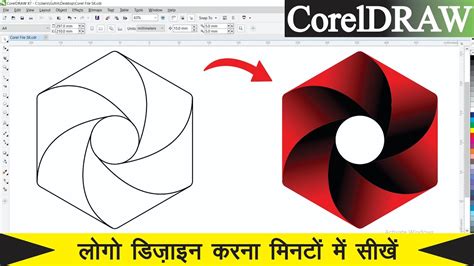
Creating an effective and professional logo is essential for brand recognition, and CorelDRAW provides the tools to design a logo that suits your unique business needs. For business communications, learn how to design a professional letterhead with step-by-step instructions from CorelDRAW Masters. Designing a business card is also made accessible, with guidance on document setup, adding text, and incorporating logos and QR codes.
Print and Digital Layouts
CorelDRAW Masters offer expert advice on creating various print and digital layouts. This includes designing a custom magazine cover, a process that is beneficial for both professional and personal projects. For corporate communications, a guide to designing a poster introduces key tools and techniques. Creating a professional brochure is made easier with helpful tips covering document setup to print-ready PDFs. Designing a magazine layout from document setup to a finished, print-ready PDF is also detailed.
Specialized Design Projects
For those looking to make a statement, learn how to design a custom vehicle wrap using a CorelDRAW template, a process that can significantly boost business promotion. Designing a sign is another practical application, with step-by-step guidance provided. For the food service industry, a process for designing a restaurant menu is shared, including tips for document setup, design assets, and printing considerations.
Advanced Techniques and Productivity Boosts
Beyond the fundamentals, CorelDRAW offers advanced features and techniques to enhance efficiency and creative output.
Precision Alignment and Snapping
Achieving pixel-perfect alignment is crucial for professional results, especially in web design. Learn how to design clean, crisp web graphics using Pixels view and enhanced features such as align to pixel grid and pixel snapping.
Iterative Design and Object Isolation
CorelDRAW’s Focus Mode allows you to isolate an object, or group of objects, making it easy to work on only those specific elements of your artwork without distraction. This is invaluable when dealing with complex compositions.
Streamlining Repetitive Tasks
The Find and Replace docker in CorelDRAW is a powerful utility that allows you to search a document for specific objects and then easily make page-wide modifications or replacements. This can save immense amounts of time when making global changes to a design.
Utilizing Stylus and Tablet Input
For artists and designers who prefer a more tactile approach, CorelDRAW supports pressure, bearing, tilt, and rotation of your stylus. Learning to control these aspects can unlock a new level of expressiveness and precision when working with a variety of tools and effects.
Symmetry and Mirrored Designs
CorelDRAW’s Symmetry Mode can significantly speed up your design workflow, whether you are creating a simple mirrored image or a complex kaleidoscope effect. This feature is ideal for symmetrical patterns, intricate mandalas, and symmetrical logos.
Curve Manipulation and Node Editing
Mastering curve drawing tools is fundamental to vector graphics. This tutorial covers how to use different types of nodes to edit and manipulate curves effectively. The revamped node editing features in CorelDRAW make it easier than ever to identify different node types and work with them efficiently.
Conclusion: Empowering Your Creative Vision with CorelDRAW
CorelDRAW, complemented by the flexibility of CorelDRAW Web, provides a comprehensive suite of tools for designers of all levels. From mastering fundamental drawing and shaping techniques to implementing advanced effects and managing complex projects, this tutorial has explored a vast array of functionalities. By leveraging these features, you can create visually compelling websites, impactful brand collateral, and a wide range of professional designs, ensuring your online presence is not only accurate to your brand but also engaging and effective in driving your business goals.