In the realm of graphic design, understanding file formats is as crucial as mastering your chosen software. While the ubiquitous Scalable Vector Graphic (SVG) is a common sight, it's merely one player in a diverse landscape of vector file types. For designers working with powerful tools like CorelDRAW or Adobe, encountering various vector formats - including proprietary ones like CDR (CorelDRAW's native format) and AI (Adobe Illustrator's) - is a certainty. Even if you're not a direct user of these specific programs, the widespread adoption of proprietary formats means they are generally well-supported across most graphic design applications. As you navigate your design career, a solid grasp of these different vector files will become indispensable.
The fundamental distinction between vector file types lies in their data storage methods. At their core, all vector formats utilize a text-based system, employing mathematical equations to define and display graphic properties. These equations are intrinsically linked to points on a Cartesian plane, a mathematical coordinate system. When values within these equations are altered, mathematical rules ensure that all associated values maintain precise proportions, guaranteeing scalability without quality degradation. Despite this shared underlying principle, subtle yet significant differences exist in how various file types store this data.
The Core of CDR: CorelDRAW's Proprietary Vector Format
The CorelDRAW file format, identified by the .cdr extension, is a proprietary format developed by Corel Corporation. It is the native file format for CorelDRAW, a popular and robust vector graphics design program. CDR files are specifically engineered for seamless compatibility within the CorelDRAW suite of products, offering users a familiar and intuitive design experience. When working with CDR files, you'll find that all the functionalities and design elements of other vector formats are preserved, contributing to an efficient and user-friendly workflow.
CDR files are designed to store scalable vector graphics, making them exceptionally well-suited for a wide array of design projects. This includes detailed illustrations, intricate graphic designs, and especially logos, where the ability to resize artwork without any loss of clarity is paramount. The format is capable of storing various design elements, encompassing text, shapes, lines, and even bitmap images that have been enhanced with filters or special effects. As the primary format for CorelDRAW, CDR files are optimized for scalability, ensuring that designs remain crisp and clear regardless of their size, whether intended for print media or digital displays. The powerful vector capabilities inherent in the CDR format allow for the creation of precise designs, supporting multiple colors and complex shapes with ease.
Understanding the CDR File Structure and Evolution
The internal structure of a CDR file has evolved over time, reflecting advancements in CorelDRAW's capabilities. Early versions of CorelDRAW files utilized an undocumented proprietary format, with the first two bytes of the file spelling "WL" in ASCII. This indicated the file's origin and format.
Later iterations of the CDR format adopted a structure based on the Resource Interchange File Format (RIFF). In this RIFF-based structure, the first four bytes of the file are dedicated to the "RIFF" signature, a common marker for RIFF-compliant files. Further into the file, specific bytes contain version identifiers. For instance, up to version 15 of CorelDRAW, a four-character identifier "vrsn" would appear at offset 12, followed by a 32-bit integer specifying the chunk size (2 in this case), and then the chunk content.
From version 16 onwards, the structure saw a slight modification. At offset 12, the four-character identifier "fver" is present, followed by a 32-bit integer indicating a chunk size of 16. The chunk content then follows. Crucially, within this chunk, the byte preceding the very last byte of the chunk contains the major version number of the CorelDRAW file, while the byte immediately before that holds the minor version number. This detailed internal structure allows CorelDRAW to accurately interpret and render the design elements within the file.
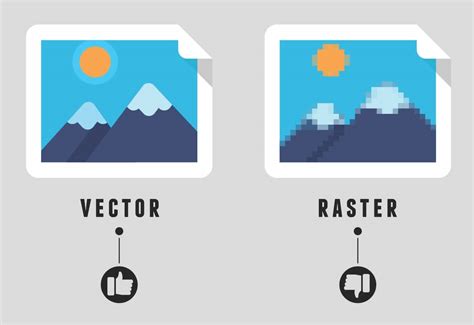
CorelDRAW files are also compressed and stored, much like a Zip file. This compression helps to reduce file sizes, making them easier to manage and transfer. This is in contrast to raster files, which store images as a grid of pixels. As raster images are resized, these pixels are stretched or enlarged, leading to a noticeable loss of clarity and sharpness. Vector files, like CDR, bypass this issue entirely by relying on mathematical descriptions.
Beyond the Native: Opening and Interacting with CDR Files
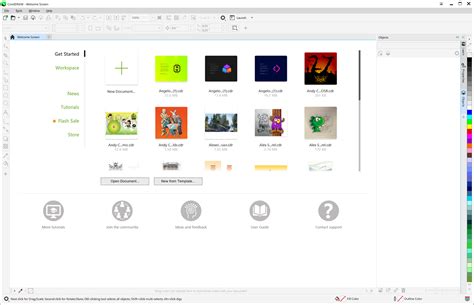
While CorelDRAW is the primary software for opening and editing CDR files, the format's widespread use has led to support in other applications. To open a CDR file, the most straightforward method is to launch CorelDRAW on your device. If the program is already running, you can typically double-click the CDR file directly from your file explorer, which should automatically open it in CorelDRAW. Alternatively, within CorelDRAW, you can navigate to "File" > "Open" from the menu bar, and then browse your device to locate and select the desired CDR file.
However, if you encounter issues, such as the file not opening, it's important to ensure that your version of CorelDRAW is compatible with the file's format. Newer versions of CorelDRAW might create files that are not backwards compatible with older versions. Additionally, verify that the file itself is not corrupted. If problems persist, reinstalling CorelDRAW or updating to the latest version can often resolve compatibility issues.
For designers who don't have CorelDRAW, several other programs can open CDR files. These include Adobe Illustrator, a leading vector graphics editor, and Inkscape, a popular and free open-source vector graphics editor. For simply viewing CDR files, applications like XnView can be useful. It's important to note that while these programs can open CDR files, some CorelDRAW-specific features or effects might not be perfectly rendered or editable in external software due to the proprietary nature of the format.
Opening CDR Files on Different Platforms
CorelDRAW files created on Windows can generally be opened on Mac versions of CorelDRAW, and vice versa, thanks to Corel's cross-platform development. When importing multiple CDR files at once, you can launch CorelDRAW, go to "File" > "Import," and then select multiple files by holding down the SHIFT or Ctrl key before clicking "Open."
Converting and Exporting CDR Files: Ensuring Compatibility
The versatility of the CDR format extends to its ability to be converted into a wide range of other file types, ensuring compatibility with various software and output needs. CorelDRAW provides two primary methods for this conversion: "Save As" and "Export."
When converting to other vector formats, such as AI (Adobe Illustrator), EPS (Encapsulated PostScript), or PDF (Portable Document Format), it is recommended to use the "Save As" option. This method generally preserves the file's scalable quality and vector-based nature.
For converting CDR files into raster formats like JPG (JPEG), PNG (Portable Network Graphics), or TIFF (Tagged Image File Format), the "Export" function is the preferred choice. This option allows you to specify resolution and image quality settings, which are crucial for raster images as they are pixel-based and do not inherently scale without loss of quality.
Interoperability with Adobe Products
While CDR files cannot be opened directly in Adobe Illustrator, they can be readily exported from CorelDRAW into AI, EPS, or PDF formats, making them compatible with Illustrator. Similarly, Adobe Photoshop does not natively support CDR files. However, you can still work with CDR designs in Photoshop by first opening the CDR file in CorelDRAW and then exporting it to a format that Photoshop can recognize, such as AI, EPS, PSD, or PDF. Be aware that during this conversion process, some CorelDRAW-specific features or effects might be lost or altered.
Leveraging CDR for Design and Beyond
The primary application of the CDR file format is for creating and editing vector graphics. This makes it an ideal choice for a multitude of design tasks, including logo design, the creation of detailed illustrations, and the development of complex graphics for both print and digital media. Designers can fully exploit the format's scalability, ensuring that their artwork maintains its quality across different applications. The precise vector capabilities of CDR allow for intricate designs, supporting a broad spectrum of colors and complex shapes with a high degree of control.
To convert a raster image, such as a JPEG, into a CDR file, you would first import the JPEG into CorelDRAW. Then, you can utilize CorelDRAW's PowerTRACE tool to vectorize the image. This process converts the pixel-based raster image into scalable vector graphics. After adjusting the tracing settings for optimal accuracy, you can save the file in the CDR format.
Similarly, converting an AI (Adobe Illustrator) file to CDR involves importing the AI file into CorelDRAW. Once imported, the design can be edited directly within CorelDRAW. The file can then be saved using the "Save As" option in the CDR format, making it accessible for future edits within the CorelDRAW environment.
The CDR format also offers flexibility for converting existing documents. You can convert a PDF to CDR by importing the PDF file into CorelDRAW, making any necessary edits, and then using the "Save As" function to save the document in the CDR format.
Beyond Graphic Design: Other Uses of the CDR Extension
It's important to note that the ".cdr" extension is not exclusively used for CorelDRAW image files. While the CorelDRAW Image, a vector graphic format, is the most common association, the CDR extension can also represent other file types, each with distinct purposes:
- Macintosh DVD/CD Main files: These files are typically associated with disk image data for CDs or DVDs on macOS.
- Raw Audio CD Data files: These files store uncompressed audio tracks and may also use the CDR extension.
- Crash Data Retrieval (CDR) format: This is a specialized format used by systems like the Bosch Crash Data Retrieval System to capture information from vehicle crash events.
To open these other types of CDR files, specific software is required. For disk image CDR files, DiskImageMounter (on Mac), HFSExplorer (on Windows), and ImgBurn are suitable tools. For viewing crash data CDR files, the Bosch Crash Data Retrieval System is necessary.
What Are The Common Vector File Types? - Drawing and Painting Academy
File Formats in the Broader Design Ecosystem
The world of graphic design is populated by a variety of vector file formats, each with its own set of benefits and compatibilities. As a vector designer, your role involves discerning the most appropriate file type for a given task, considering client requirements, desired output, and the capabilities of different software.
Beyond the CDR format, other significant vector file types include:
- SVG (Scalable Vector Graphics): This is the most common vector format for web design and is officially the open standard for the World Wide Web. SVGs are perfect for displaying vectors on the web due to their browser support and ability to display on any screen size with clarity. However, printing is not SVG's strongest suit; converting to PDF or EPS is often recommended for print outputs.
- AI (Adobe Illustrator Artwork): This is the proprietary file type specific to Adobe Illustrator, intended to functionally replace older formats like EPS.
- EPS (Encapsulated PostScript): Predating SVG by over 15 years, EPS was created by Adobe in 1982 for incorporating images into large-format printing. Its goal was to provide a lossless format for enlarging text and resizing images without affecting quality, making it ideal for artistic typography in posters and billboards. EPS files are open source and widely used in professional printing. Though a legacy technology, many outputs still utilize this file type, and it remains an excellent choice for sharing vector artwork like logos and icons with clients or printers.
- PDF (Portable Document Format): A versatile standard for documents, forms, and graphics, PDF is compatible with both vector and raster graphics, though more commonly associated with vectors. PDFs are a great option for print or displaying finished documents digitally, but they are not ideal for later editing of designs. The PDF format stores various types of objects, including vector graphics, in a single document. However, PDF files primarily store raw binary code in a protected format, which can make it challenging to isolate specific images from within a PDF file.
The Distinction Between Vector and Raster
It's crucial to differentiate vector files from raster files. While vector files store data as mathematical equations, raster files store images as a grid of pixels. This fundamental difference dictates how each format behaves when resized. As vector graphics are scaled, the mathematical equations are recalculated, ensuring that lines and shapes remain sharp and clear. In contrast, resizing raster images causes the pixels to be enlarged or duplicated, leading to a loss of clarity and the appearance of jagged edges or blurriness. Understanding this distinction is vital for choosing the right format for your design needs. If you only have raster images but require the scalability of vectors, learning how to vectorize an image is an important skill to acquire.
Security and CDR: A Dual Identity
Interestingly, the CDR extension has a dual identity, extending beyond its role as a CorelDRAW file format. It also represents a security technology known as Content Disarm and Reconstruction (CDR). This technology offers a proactive approach to cybersecurity, focusing on neutralizing threats by removing potentially harmful elements from documents.
Unlike traditional security tools that rely on detecting known malware signatures, CDR operates on a detection-free principle. It disarms any executable content within files, regardless of whether it's identified as malicious or not. The process involves analyzing incoming documents, identifying and removing embedded code, macros, scripts, or active content that could be exploited. The remaining safe content is then reconstructed to match the original document's appearance and structure, ensuring secure file access without compromising functionality. This "Content Sanitization" feature is key to CDR technology, maintaining usability while removing malicious code. CDR offers proactive protection against document threats through safe delivery and zero-day protection, thereby maintaining business continuity.
While the CDR file format in CorelDRAW is essential for designers and illustrators who rely on vector graphics for professional design work, the CDR security technology provides a robust layer of defense against cyber threats.
Final Thoughts on File Format Selection
The choice of file format in graphic design is not arbitrary; it's a strategic decision that impacts the quality, scalability, and intended use of your artwork. CorelDRAW's native CDR format excels in providing a powerful and intuitive environment for creating and editing vector graphics, offering unparalleled control and scalability within its ecosystem. However, understanding how to convert and export CDR files to other common formats like AI, EPS, SVG, and PDF ensures that your designs can be shared, edited, and utilized across a broader spectrum of applications and platforms. Whether you're working on intricate illustrations, marketing materials, or web graphics, selecting the right file format - and knowing how to leverage the strengths of each - is a cornerstone of effective digital design.
To open a CDR file in CorelDRAW, you can typically double-click it from your file explorer or use the "File" > "Open" menu within the software. If you need to convert a CDR file to other formats, CorelDRAW's "Save As" and "Export" options are your primary tools. For vector outputs, "Save As" to formats like AI or EPS is recommended, while "Export" to JPG or PNG is suitable for raster outputs.
In summary, the CDR file format is a cornerstone for CorelDRAW users, offering a robust platform for vector design. However, its utility is amplified by the ability to seamlessly integrate with other file formats, ensuring that creative projects can reach their full potential across diverse digital and print landscapes.