Texture plays a pivotal role in design, adding depth, realism, and tactile appeal to digital creations. This tutorial delves into the art of creating realistic fabric textures within Adobe Photoshop, focusing on applications like curtain designs, but with principles applicable to a wide array of projects. We will explore techniques for generating seamless fabric patterns, from the simple elegance of linen to the intricate weave of cotton knits, and even innovative approaches like creating a curtain that mimics a brick wall.
The Foundation: Understanding Texture in Design
Texture, as a design element, is crucial for enhancing visual appeal. It provides a sense of depth and realism that flat graphics often lack. In digital art, replicating the subtle variations and patterns found in real-world materials like fabric can elevate a design from ordinary to extraordinary. This is particularly true for elements like curtains, where the drape, weave, and material significantly influence the overall aesthetic of a scene or graphic.
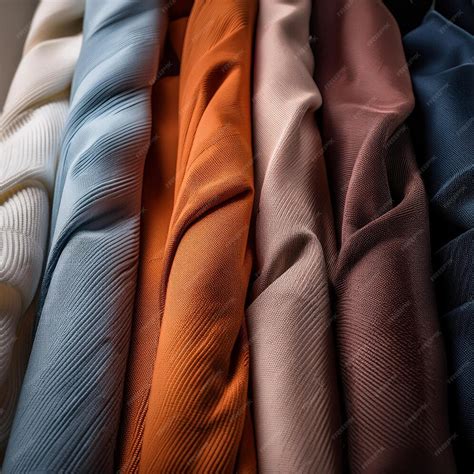
Seamless Linen Texture: A Step-by-Step Approach
Creating a repeatable linen texture is surprisingly straightforward and can be achieved in just a few steps, making it ideal for large files where the texture needs to tile seamlessly without visible seams.
Method 1: Utilizing Photoshop's Texturizer Filter
A quick way to generate a fabric-like texture involves leveraging Photoshop's built-in filters.
- New Document Setup: Begin by creating a new file in Photoshop using
File > New(Ctrl+N). A canvas size of 450x450 pixels with a black background is a good starting point. - Applying the Texturizer: Navigate to
Filter > Texture > Texturizer. This filter allows you to apply various textures to your current layer. - Enhancement and Customization: After applying the Texturizer, you can further enhance the texture according to your specific needs. This might involve adjusting contrast, brightness, or applying other filters to refine the look.
- Color Variation: To give your fabric a different hue, experiment with the
Hue/Saturationadjustment. This is a versatile tool for recoloring your generated texture to match your project's color scheme.
Method 2: Brush-Based Linen Creation
For a more organic and customizable linen texture, especially for detailed work or specific applications like drawing apps, a brush-based method can be employed.
- Initial Sketching: Open Procreate or a similar drawing application, or even Photoshop. Select a dark color. Using a sketching brush like the 6B pencil, draw a straight line down your canvas. You can refine this line by snapping it into place and adding a taper at both ends for a more natural appearance.
- Brush Preset Creation: In Photoshop, open your exported line drawing. Use the
Rectangular Marquee Toolto select your line. Then, navigate toEdit > Define Brush Presetto transform this line into a custom brush. - Brush Settings Adjustment: With your new brush created, it's time to fine-tune its settings in the
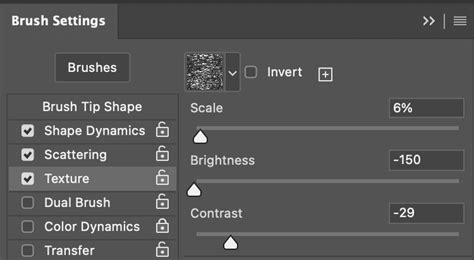
Brush Settingspanel to mimic linen's texture:- Brush Dynamics:
- Increase
Size Jitterto around 78%. - Adjust
Angle Jitterto a subtle 1%. - Set
Roundnessto approximately 76%. - Ensure
Flip X JitterandFlip Y Jitterare turned on.
- Increase
- Brush Dynamics:
- Pattern Preview and Application: Create a new document in Photoshop, ideally matching your usual pattern dimensions. Activate the
Pattern Previewmode. Create a new layer above the background. Using your newly adjusted brush, paint across the canvas. Maintain some inconsistencies to achieve a more natural look. - Adding to Patterns Panel: Once satisfied with the texture, add it to your
Patternspanel by clicking the plus sign. - Applying to Designs: When applying this texture to your artwork, experiment with different blending modes such as
Soft LightorOverlayto achieve the desired effect. Adjust theOpacityto control the texture's intensity. Remember, this texture is designed to be repeating, so it should seamlessly integrate with your pattern dimensions.
By following these steps, you can create and apply a beautiful linen texture that enhances the visual depth of your work and imparts a unique, tactile quality.
Crafting Cotton Knit and Tweed Textures
Beyond linen, Photoshop offers robust tools for creating other fabric textures, such as cotton knits and tweed. These textures are incredibly versatile, serving as excellent backgrounds for graphics related to craft, sewing, DIY themes, fashion, and home decorating.
Method 1: Linen Texture (Crosshatch Variation)
This method builds upon the principles of creating a woven effect, resulting in a simple yet effective linen texture.
- Document Setup: Create a new document, for instance, 3000x3000 pixels at 72 resolution in RGB mode, 8-bit. Ensure your document is set to 8-bit.
- Base Color Fill: Unlock the background layer. Select a base color, for example,
F5D294. PressXto make this the background color. Fill the layer with this color usingCommand + Delete(Ctrl+Backspace on PC). - Motion Blur for Lines: Go to
Filter > Blur > Motion Blur. Set theDistanceto 90 pixels. This can be adjusted for a stronger or less pronounced effect. - Creating the Weave:
- Duplicate the layer.
- Select the top layer and go to
Edit > Transform > Rotate 90°. This creates a vertical line pattern. - Reduce the opacity of the top layer to about 50% so you can see both layers. This interweaving of horizontal and vertical lines creates the characteristic woven effect of linen.
- Adding Noise for Realism: To achieve a stronger look or to add more variation, you can add noise. The variation of the crosshatching can also be changed by altering the length of the motion blur for one or both layers.
Method 2: Tweed or Knit Fabric Texture
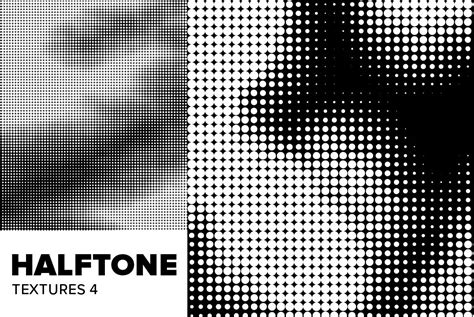
This technique uses Photoshop's Half tone Pattern filter to create a more textured, knit-like appearance.
- New Layer and Color Setup: Add a new layer. Set the background color to a base color, for instance, red. For the top color, choose a dark shade that isn't pure black, acting as a shadow or darker area to add depth.
- Fill with Base Color: Fill the layer with the bottom color using
Command + Delete(Ctrl+Backspace on PC). - Half tone Pattern Application:
- Go to
Filter > Sketch > Half tone Pattern. - For a subtle jersey knit, a
Sizeof 1 or 2 is recommended. For a thicker knit or tweed, increase theSizeto around 4. KeepContrastat 5 and thePattern Typeset toLine. - Ensure
Monochromaticis selected.
- Go to
- Creating the Knit Effect:
- Duplicate this layer. One copy will be for the horizontal pattern, the other for the vertical.
- Select the layer intended for the vertical pattern. Go to
Edit > Transform > Rotate 90°. This will make it a vertical pattern, resembling yarn. - Turn off the visibility of the top layer and select the horizontal layer. Apply
Filter > Blur > Motion Blurwith aDistanceof 5 pixels. You can adjust this to 10 pixels if desired, ensuring the yarn fiber effect is still visible.
- Combining and Blending:
- Turn the top layer back on.
- Select the top layer and change its
Opacityto 50%. This blending of the two directional patterns creates the knit texture. The darker base color adds depth to the fabric.
These methods provide a solid foundation for creating realistic fabric textures. Remember, you can download digital paper packs featuring these textures from resources like the PrettyWebz shop, which offer these designs in various beautiful colors.
Applying Textures to Curtains and Artwork
The principles of applying textures extend beyond simple background patterns to more complex elements like curtains within a scene.
Basic Curtain Texture Application
- Isolate the Curtain: The first step is to isolate the curtain element onto its own layer.
- Place Texture Layer: Drag your chosen texture into the document and place it above the curtain layer.
- Clipping Group: Create a clipping group by holding
Alt(Option on Mac) and clicking between the texture layer and the curtain layer. This confines the texture's effect to the boundaries of the curtain. - Blending Modes and Opacity: Experiment with layer blending modes.
Multiplyis often a good starting point for textures, butSoft LightorOverlaycan also yield excellent results. Adjust theOpacityof the texture layer to control its intensity. - Detailing: For intricate curtains with elements like frills or ropes, you may need to isolate each section onto its own layer and apply the texture and adjustments individually to achieve the most realistic look.
- Color Adjustment: To change the color of the applied texture, add a
Hue/Saturationadjustment layer above the texture layer and create a clipping group for it as well.
How to make a curtain mockup - Photoshop Tutorial
Advanced Technique: Brick Wall Curtain
An innovative application of texture involves transforming a curtain into a different material, such as a brick wall.
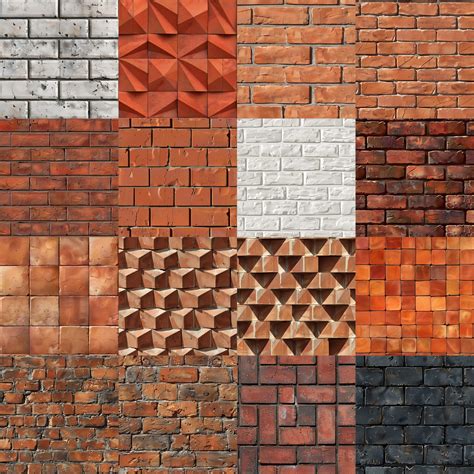
- Initial Setup: Begin with an image of a person opening a curtain. Place an image of a brick wall behind the curtain layer.
- Selection and Placement: Select the curtain layer and use the
Lasso Toolto make a selection of the curtain's shape. Move the brick wall layer on top while the selection is still active. - Desaturation and Adjustment: Desaturate the curtain layer and reduce its
BrightnessandContrastto help it blend with the brick texture. - Color Correction and Blending:
- Duplicate all layers and merge them into a single layer.
- Apply a
Gaussian Blurwith a radius of approximately 50 pixels to soften the edges and create a more unified look. - Set the blending mode of this blurred layer to
Multiply.
- Adding Wavy Effect: To give the brick curtain a more natural, wavy appearance, repeat the steps but use the original curtain image. Reduce the opacity of this layer and set its blending mode to
Multiply. - Edge Detailing: Create a new layer and use a brush tool to color the edges of the canvas black, which can help frame the effect.
- Adding Scenery: To complete the scene, duplicate all layers and merge them. Include a picture of scenery behind the brick curtain, perhaps a screenshot from an animated series, to provide context.
These techniques demonstrate the power of Photoshop in manipulating textures and creating unique visual effects. By combining different filters, brushes, and layer adjustments, designers can achieve highly realistic and imaginative results, whether they are working on simple patterns or complex scene compositions.
Further Exploration and Resources
The journey into creating digital textures is vast. Photoshop offers a rich ecosystem of tools and possibilities. For those interested in expanding their skill set, exploring tutorials on creating various background textures can significantly build a designer's asset collection. Subscribing to newsletters from design resources can provide notifications about new tutorials, tips, and bonus content, often accompanied by helpful template and pattern files. Platforms like YouTube also host extensive playlists dedicated to Photoshop techniques, offering visual guidance and inspiration. Engaging with these resources empowers creators to build stunning marketing designs and enhance their overall digital art proficiency.