Encountering audio issues in DaVinci Resolve, particularly when sound mysteriously disappears from one channel, can be a frustrating experience for editors and sound designers. This problem, where audio plays only on one side through headphones or speakers, can stem from various sources, ranging from simple setting misconfigurations to more complex file format issues. Understanding these potential causes and knowing how to address them is crucial for a smooth post-production workflow.
Understanding Mono vs. Stereo Audio in DaVinci Resolve
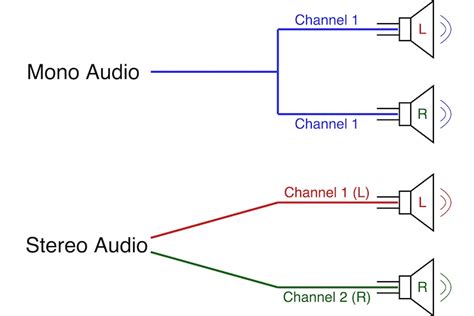
At the heart of many audio playback discrepancies lies the fundamental difference between mono and stereo audio. Mono audio utilizes a single channel, capturing sound as a unified signal. This is often employed in scenarios where precise sound separation is not a critical requirement, such as voiceovers for narration or simple sound effects. Stereo audio, on the other hand, employs two distinct channels - left and right - to create a sense of spatialization and depth. This format is ubiquitous in music production, film soundtracks, gaming, and general multimedia applications, where a richer, more immersive listening experience is desired.
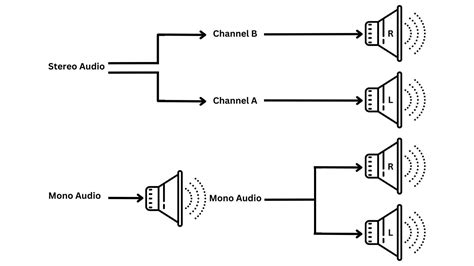
The key difference, therefore, lies in the number of channels used. While mono audio can be effectively converted to stereo, and vice versa, the process and implications differ. Converting mono to stereo involves duplicating the single channel or using artificial processing to create a sense of width. Conversely, converting stereo to mono involves summing the left and right channels into a single signal. This conversion is often necessary when playing stereo audio on mono-playback systems. In such cases, the stereo audio may be downmixed to mono, which can potentially lead to a loss of spatial separation and localization, as the distinct left and right elements are merged. DaVinci Resolve, with its comprehensive toolkit, offers robust tools and options to facilitate these conversions, allowing users to adapt their audio to suit various playback environments and creative intentions. The choice between mono and stereo audio formats is not a matter of inherent superiority but rather a decision based on the specific context and the desired outcome. Quality, in this regard, is subjective and depends entirely on the specific context and requirements of the project.
Common Causes of One-Sided Audio Playback
One of the most frequent culprits behind audio playing exclusively in one ear is incorrect channel panning settings within DaVinci Resolve. The software provides granular control over audio channel panning, a feature that allows users to precisely adjust the balance of sound between the left and right channels. If a track is panned too far to one side, or if a channel is inadvertently muted or set to zero volume, the audio will consequently only be heard from the opposite speaker or headphone.
Incorrect Panning and Channel Assignment
To troubleshoot this, the first step involves verifying that the audio tracks are appropriately assigned to the left and right channels. Within the DaVinci Resolve Fairlight page, each audio clip on the timeline has its own set of properties that can be adjusted. Users can examine the pan controls for each individual track or clip. A common mistake is accidentally setting the pan knob to an extreme, such as fully left or fully right, or inadvertently assigning a mono source to only one of the stereo channels.
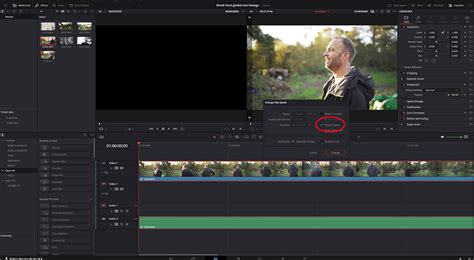
It is also essential to confirm that the track itself is routed correctly within the mixer. Each track in Fairlight has output assignments, and ensuring these are set to the master stereo output is crucial. Sometimes, a track might be routed to an auxiliary bus or a specific output that is not active or is configured as mono, leading to the one-sided playback issue.
Mono Audio Mistakenly Identified as Stereo
Another prevalent issue arises when a mono audio recording is mistakenly identified or mapped as stereo. In digital audio, a mono file contains a single channel of audio information. When this mono file is imported into a project and treated as a stereo track, DaVinci Resolve will often allocate the entire mono signal to one of the stereo channels (typically the left channel), leaving the other channel empty. This results in the audio playing only from one side.
This misidentification can occur during the import process or due to settings within the audio clip's properties. DaVinci Resolve allows users to reconfigure the channel mapping of audio clips. By right-clicking on an audio clip in the media pool or on the timeline and selecting "Clip Attributes," users can access options to change the channel configuration from stereo to mono, or to re-map the channels if necessary. Correctly identifying the source audio as mono and ensuring it's treated as such, or intentionally converting it to stereo if desired, resolves this common problem.
Advanced Troubleshooting and Solutions
Beyond basic panning and channel assignments, several other factors can contribute to one-sided audio playback. These may require a deeper dive into audio settings and file formats.
Audio Format Conversion
Compatibility issues can sometimes arise when dealing with various audio file formats. If DaVinci Resolve is encountering difficulties interpreting a specific audio file, it might lead to playback errors, including channel dropouts. In such scenarios, considering converting the audio file to a different, widely compatible format, such as WAV or AIFF, using reliable audio conversion software can be a highly effective troubleshooting step. These lossless formats are generally well-supported across different operating systems and editing software, minimizing the chances of import or playback conflicts.
How To Convert Audio Song To Video - Detailed Tutorial
Capturing clear, balanced audio right from the start is paramount. Investing time in proper microphone placement, gain staging, and monitoring during the recording phase significantly reduces editing headaches down the road. When your tools work flawlessly, creativity flows naturally, free from the tedious technicalities of building everything from scratch across different tools.
Checking System Audio Settings
While less common within the software itself, it's always prudent to ensure that the computer's operating system audio settings are not contributing to the problem. Occasionally, system-level audio configurations might inadvertently create a stereo imbalance or route audio incorrectly. Checking the sound output settings in Windows or macOS to confirm that the selected playback device is functioning correctly and that no unusual balance settings are enabled can rule out external factors.
Plugin Interference
Third-party audio plugins, while powerful creative tools, can sometimes introduce unexpected behavior. If you are using any audio plugins on your tracks within DaVinci Resolve, try temporarily disabling them to see if the one-sided audio issue resolves. If disabling a plugin rectifies the problem, it indicates that the plugin itself might be the source of the conflict, and you may need to update it, reconfigure its settings, or seek an alternative.
Leveraging DaVinci Resolve's Toolkit for Audio Control
DaVinci Resolve is designed with a complete toolkit to bring your ideas to the screen without friction, and this extends to its robust audio editing capabilities. The Fairlight page, in particular, offers a professional-grade audio post-production environment that addresses a wide array of audio challenges.
Utilizing the Fairlight Page for Fine-Tuning
The Fairlight page provides comprehensive control over every aspect of your audio. Beyond basic panning, you can access detailed channel routing, bus assignments, and effects processing. For instance, if you suspect a specific channel is being dropped, you can use the mixer to solo individual channels or examine the signal flow through various buses. This allows for a systematic isolation of the problem.
For users who need to convert mono audio to stereo, Fairlight offers tools to achieve this. You can duplicate a mono track and pan each instance to the left and right, or utilize stereo widening plugins. Conversely, if you have a stereo track that needs to be mono, you can use a utility plugin to sum the stereo channels into a single mono output. This flexibility ensures that you can adapt your audio to any requirement.
The Importance of a Structured Workflow
The information provided by MotionVFX, though related to visual effects, highlights a broader principle in creative software: "When your tools work flawlessly, creativity flows naturally." This sentiment is equally applicable to audio editing. A structured workflow, where audio is properly managed from import to export, minimizes the chances of encountering issues like one-sided playback. This includes:
- Organized Media Import: Ensuring audio files are correctly identified by DaVinci Resolve upon import.
- Pre-Edit Checks: Briefly listening to audio clips before adding them to the timeline to catch obvious problems.
- Track Management: Properly configuring track types (mono, stereo, surround) and their routing from the outset.
- Regular Auditing: Periodically checking audio levels and channel assignments throughout the editing process.
Saying goodbye to technical limitations holding you back means understanding and mastering the tools at your disposal. While MotionVFX focuses on visual elements, their emphasis on a seamless creative experience is a valuable reminder for audio editors to ensure their technical foundation is solid.
Conclusion: Proactive Audio Management for Seamless Editing
While technical glitches like audio playing in only one ear can occur in DaVinci Resolve, they are often resolvable with a methodical approach. By understanding the nuances of mono and stereo audio, meticulously checking panning and channel assignments, and leveraging the powerful tools within the Fairlight page, editors can effectively troubleshoot and prevent such issues. Moreover, adopting proactive audio management practices, from initial recording to final mix, ensures a more fluid and creative editing experience, allowing for the seamless realization of your vision on screen.