DaVinci Resolve has emerged as Hollywood's premier solution for a comprehensive post-production workflow, encompassing editing, visual effects, motion graphics, color correction, and audio post-production. Available for Mac, Windows, and Linux, this powerful software is trusted by professionals and enthusiasts alike. This guide delves into the world of DaVinci Resolve effects, providing a tutorial-style exploration of its capabilities, from fundamental editing techniques to advanced visual effects and audio mixing, with a particular focus on leveraging its extensive effects packs.
The Foundation: Editing in DaVinci Resolve
At its core, DaVinci Resolve is an exceptional editing platform. The Edit page is where the initial assembly of your project takes place. Blackmagic Design certified training programs are meticulously designed to equip both new users and established professionals with the creative skills needed to work faster and more efficiently. These hands-on lessons are invaluable for learning how to cut interviews, dramatic scenes, documentary material, and music videos. The curriculum expands upon the fundamental features of the Edit page, offering insights into advanced editing workflows.
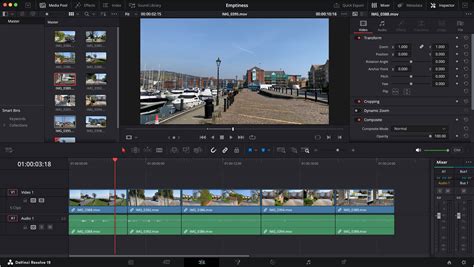
For those working with multiple camera angles, DaVinci Resolve offers robust multicam editing capabilities. This feature is essential for efficiently syncing and cutting between different camera sources, a common requirement in live events, documentaries, and sports broadcasting. The software also includes specialized editor panels designed for multi-cam editing, ideal for news cutting and live sports replays, featuring buttons for extremely fast camera selection and editing.
Enhancing Your Visuals: Effects on the Edit Page and Beyond
While the Edit page handles the core assembly, DaVinci Resolve's true power in visual enhancement lies in its dedicated Fusion and Color pages. However, even on the Edit page, users can begin to enhance their projects with visual effects. This includes the application of transitions, which are crucial for smoothing changes between shots or scenes, creating dynamic wipes, and introducing graphics.
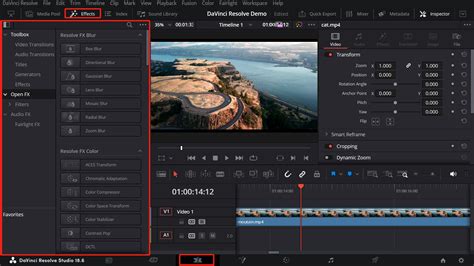
Adding transitions in DaVinci Resolve is a straightforward process. After importing your footage and creating a timeline, navigate to the Effects Library, typically found in the upper left-hand corner of your workspace. Within the Effects Library, you'll find a "Video Transitions" folder containing all installed video transitions. Simply select the desired transition, drag it to your timeline, and drop it between or over the clips you wish to connect. A transparent box will appear, indicating the transition's placement. It's important to ensure your clips have sufficient duration to accommodate the transition; if a white box appears, it suggests a clip may be too short. Once applied, transitions can be easily adjusted in length, color, or effects, or even swapped out entirely.
Beyond the built-in options, DaVinci Resolve supports the integration of custom transition templates. These can be created in external motion graphics programs like After Effects or downloaded from various online resources. Installing new transitions involves navigating to the Fusion page, selecting the "Effects Library," then "Templates," and finally "Edit." From there, clicking the icon with three small dots (…) opens a menu where you can select "Show Folder." This reveals the template folders, into which you can drag and drop unzipped transition template folders. A restart of DaVinci Resolve is then required to recognize the new additions.
Several free transition template packs are available to enhance your DaVinci Resolve projects. These include:
- Motion Blur Swipe Template: A modern alternative to traditional fades or wipes, mimicking a smartphone swipe.
- Distort and Twist Transition: A dynamic effect that spins the first clip before revealing the second.
- Vertical Split Frame Transition: Splits the frame vertically and swipes clips out before bringing in new ones.
- Twist Wheel Transition: Similar to the Distort and Twist but uses concentric circles.
- Horizontal Split Frame Transition: The horizontal counterpart to the Vertical Split Frame transition.
- Radial Twist Transition: Offers a swirling effect that carries over from the outgoing to the incoming clip.
- Box Quote Story Transition: Ideal for social media, featuring an animated text field and fading text.
- Seamless Transitions Pack (MrAlexTech): Offers a variety of dissolves and wipes.
- The ResolveX Transitions Pack: A collection of basic transitions, with additional packs available for purchase.
- Light Leaks Transitions Pack: Utilizes stunning light leak effects for transitions.
For more complex visual effects, the Fusion page is DaVinci Resolve's node-based compositing environment. This powerful tool allows users to create cinematic visual effects and motion graphics directly within Resolve, eliminating the need for external applications and the import/export of large media files. The Fusion page offers a true 3D workspace and advanced tools for common compositing tasks. With DaVinci Resolve Studio, features like 3D camera tracking and Universal Scene Descriptor (USD) nodes further simplify the transition from 2D to 3D compositing. This training guide provides a practical introduction to these advanced tools and techniques.
Free packs of DaVinci Resolve video effects are readily available to augment your creative toolkit. These include:
- Smoke FX from CinePacks: For adding realistic smoke effects to your projects.
- CinePacks Free Drug FX Sample Pack: Contains psychedelic accents and video transitions, perfect for music videos.
- Fredo Bang Effect Tutorial: Demonstrates how to add a clone transition.
- Fire Video Effects Pack: Includes fire effects and smooth transitions.
- Paint Overlay Video Effects Pack: Offers a variety of paint-themed overlays.
- Film Overlays and Scratches Pack: Provides authentic film textures for a vintage look.
- Muzzle Flash Overlays and Gun Effects: For creating cinematic action scenes.
MotionVFX also offers a free pack for DaVinci Resolve, showcasing the quality of their professional tools that empower editors globally. Their products, like mTuber 3 for YouTube content, mDocumentary for storytelling, and mMusic Video 2 for music videos, are designed to streamline workflows and enhance visual impact.
The Art of Color Correction
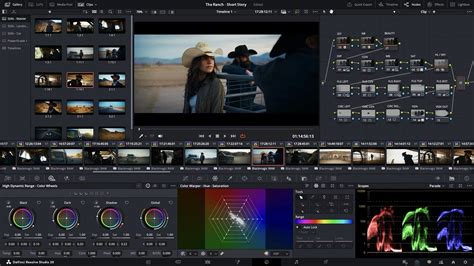
The Color page in DaVinci Resolve is where professionals transform footage into stunning cinematic images. This page introduces users to the powerful color correction tools used by Hollywood colorists, offering advanced features for refined color grading, including the ability to add windows for targeted adjustments. Official Blackmagic Design hands-on training guides offer detailed instruction on using these tools through practical exercises.
Furthermore, users can enhance their footage with free LUTs (Look-Up Tables). While these provide a starting point for color enhancement, they can be tweaked and adjusted within DaVinci Resolve to achieve a completely customized look for any project. Beginners can find resources like a beginner's guide to color grading in DaVinci Resolve 17, often accompanied by free LUT downloads.
Mastering Audio Post-Production
Audio is as critical as visuals in storytelling, and DaVinci Resolve's Fairlight page is a professional audio post-production powerhouse. It offers incredibly fast audio editing for sound engineers working under tight deadlines. Used by Hollywood and broadcasters, the large Fairlight consoles simplify mixing projects with a massive number of channels and tracks, offering quick access to virtually every Fairlight feature.
Better Audio in DaVinci Resolve for Beginners! - Clear Dialogue, Mixing, Music & More!
The training extends to essential audio tasks such as recording a simple voiceover track and utilizing ADR (Automated Dialogue Replacement) tools to replace dialogue. For more advanced audio work, DaVinci Resolve facilitates working with channel mapping and linked groups. The software also embraces the world of immersive audio with built-in Dolby Atmos tools within Fairlight. The Fairlight studio console is available with legs for both a flat 0º angle and a slightly angled 8º working surface, and also includes blank 1/3rd wide bays for custom console configurations.
The comprehensive training available for DaVinci Resolve covers the art of sound editing, sweetening, recording, mixing, and mastering, equipping users with the skills needed to deliver polished audio.
Hardware Acceleration and Collaboration
To further enhance workflow speed and creative control, Blackmagic Design offers hardware solutions like the DaVinci Resolve Mini Panel and the larger Fairlight Studio Consoles. The Mini Panel provides immediate tactile control over color grading, allowing for refined adjustments and the creation of windows. The full-sized QWERTY editor keyboard, in a premium metal design with a metal search dial and extra edit keys, is built for efficiency.
For collaborative workflows, DaVinci Resolve supports secure streaming of work sessions in up to 4K resolution, video chat, and live collaboration, all within a single platform.
The Training Ecosystem
Blackmagic Design fosters a robust training ecosystem through its Training Partner Program. This initiative aims to attract skilled training organizations and educational institutions, collaborating with strategically chosen onsite training companies, online partners, and academic institutions. MotionVFX Academy is highlighted as a perfect support system for both beginner editors and professional video editing experts, emphasizing their commitment to providing resources that empower users.
In essence, DaVinci Resolve offers a complete, integrated solution for all aspects of post-production. Its intuitive design, coupled with extensive training resources and powerful effects packs, enables users to achieve professional-grade results, from intricate visual effects and precise color grading to immersive audio mixing.