In the realm of photography, creativity is an indispensable element for achieving truly exceptional image quality. Once the shutter clicks, the journey doesn't end; it transitions into the crucial phase of image enhancement. For both novices and seasoned professionals in the world of Photoshop, there exists a vast landscape of creative possibilities to explore. This article presents a curated collection of beginner-friendly Photoshop projects and techniques designed to infuse your photographs with a fresh, innovative, and artistic flair. Regardless of your current skill level, these ideas will empower you to transform your images from ordinary to extraordinary.
Embracing the Power of Monochrome and Texture
The advent of color photography, while revolutionary, has also highlighted the enduring artistic merit of monochromatic imagery. For those seeking something distinct and visually arresting, focusing on the intricate patterns and textures within a photograph can yield remarkable results. By employing Photoshop's editing tools, you can effortlessly imbue your images with a timeless, colorless aesthetic that emphasizes form and detail. This approach allows the inherent structure of the subject to take center stage, creating images with a profound and lasting impact.
The Art of Double Exposure: Blending Realities
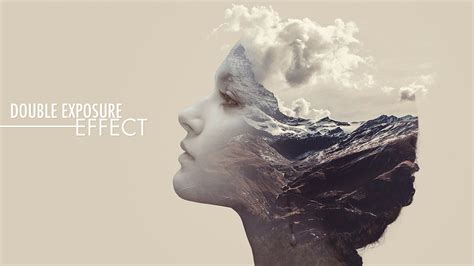
Double exposure, a technique historically employed in film photography to craft captivating, layered images, finds a powerful digital extension in Photoshop. This experimental approach involves blending two or more photographs to create a single, surreal composition. A classic application involves merging eye-catching photographs within the silhouette of a human profile, resulting in an ethereal and dreamlike effect. Photoshop's intuitive editing capabilities make it remarkably accessible to achieve these incredible double exposure effects, allowing for a unique blend of narrative and visual artistry.
Mimicking Lens Flare for Dramatic Glaze
While modern high-quality lenses often feature anti-reflection coatings, the intentional addition of lens flare can dramatically enhance a photograph's visual appeal. Photoshop's lens flare tools allow you to imbue your images with a captivating makeover, providing an intense and dramatic glaze. This effect can add a sense of realism or a stylized, cinematic quality, drawing the viewer's eye and adding depth to the composition. It's a simple yet effective way to introduce a professional polish to your images.
The Allure of the Paint Trickle Effect
The paint trickle effect is a particularly striking manipulation that often works exceptionally well with portrait photography. This technique involves creating the illusion of paint dripping down from areas of the subject, adding an artistic and somewhat abstract dimension to the image. It can lend a raw, expressive quality to portraits, making them more dynamic and visually engaging.
Color Treatment for Stunning Double-Effect Gestures
Popular among fashion and portrait photographers, color treatment offers a sophisticated method to achieve stunning double-effect gestures within your images. This involves manipulating the color palette of an image to create specific moods, enhance details, or introduce stylized color combinations. By thoughtfully applying color treatments, you can imbue your photographs with a unique personality and a high-fashion aesthetic.
Cinemagraphs: Bringing Stillness to Life
Cinemagraphs possess a magical influence on photography, offering a captivating blend of still imagery and subtle motion. This effect allows for a single element within an image to be animated, creating a mesmerizing loop that draws the viewer in. While often mistaken for GIFs, cinemagraphs are distinct in their focus on a singular, subtle movement within an otherwise static frame, creating a sophisticated and engaging visual experience.
How to make a Cinemagraph in Photoshop
Surreal Miniatures: Crafting Fantastical Worlds
The charisma of the surreal miniature effect lies in its ability to transform ordinary scenes into fantastical realms. This technique is ideal for portraying fantasy elements or crafting dreamlike scenarios. By manipulating scale and perspective, you can create miniature worlds within your photographs, inviting viewers into a realm of imagination and wonder.
Digital Watercolor: The Painterly Touch
The familiar concept of watercolor painting can be beautifully translated into the digital realm using Photoshop. This technique involves the judicious use of digital watercolor brushes to create painterly effects on digital portraits or any chosen image. Beginning with a digital portrait, you can embark on a journey of digital painting, mimicking the soft textures and fluid transitions characteristic of traditional watercolors.
Retro 3D Photos: A Nostalgic Revival
The retro 3D photo effect offers a remarkable way to imbue modern digital pictures with a nostalgic charm. While historically requiring specialized film studio expertise, Photoshop now makes it accessible to convert digital images into captivating retro 3D photographs. This effect evokes a sense of vintage aesthetics, reminiscent of early 3D photography, adding a unique visual dimension to your work.
The Striking Color Splash Effect
The Color Splash Effect is a popular and visually arresting technique that selectively retains color in an otherwise monochromatic image. By highlighting specific colorful elements against a black-and-white background, this effect creates a dramatic contrast, drawing immediate attention to the chosen focal points. It’s a powerful tool for emphasizing subjects or adding a dramatic flair to your photographs.
Recreating the Grainy Texture of Film Photography
The transition from film to digital photography has been driven by affordability and convenience. However, the distinct grainy texture of film photography retains a certain aesthetic appeal. Photoshop allows you to recreate this authentic retro effect without the need for traditional film rolls and old cameras. By applying grain and adjusting tones, you can achieve a vintage feel that harks back to the golden age of photography.
Pop Art Transformation: Bold Graphics and Halftones
Photoshop empowers you to transform your photographs into vibrant works of pop art. Through a combination of digital painting and photo manipulation, you can achieve brilliant pop art effects. This process involves understanding how to alter graphic features, create halftone structures, and employ desaturation methods to emulate the iconic style of pop art.
The Illuminating Infrared Effect
For photographs that demand to be in the limelight, the infrared effect offers a perfect solution. This process of adding an infrared effect is surprisingly simple and easy to implement in Photoshop. The result is a distinct and significant impact on your pictures, often creating an ethereal or otherworldly appearance. You can choose to embrace subtle, elusive effects or go for a more pronounced transformation.
Mastering Bokeh for Blurred Backgrounds
The bokeh effect is essential for achieving a shallow depth of field, resulting in a beautifully blurred background that isolates the subject. While often achieved during the shooting process with specific lenses, Photoshop's bokeh tools and filters can be used to simulate or enhance this effect. This allows you to draw attention to your subject by artfully softening the background.
How to make a Cinemagraph in Photoshop
Collage Art: Merging Multiple Images into One
Collage art in Photoshop is a creative technique that involves the skillful combination of multiple images or elements to form a cohesive single composition. This process can incorporate photographs, illustrations, text, and abstract shapes, layered and blended to create something entirely new. The beauty of collage lies in its boundless potential for storytelling and visual expression.
Whimsical Composites: Humorous and Unrealistic Surrealism
Photoshop excels at creating humorous and unrealistic surrealism through image compositing. By combining two or more images, often utilizing layer masks for precise blending, you can construct scenes that defy reality. The key to a successful composite lies in ensuring the elements appear to exist within the same scene, with consistent lighting and perspective.
The Droste Effect: Infinite Reflections
The Droste effect, characterized by a picture within a picture that repeats infinitely, creates a dreamlike and captivating visual. This effect is achieved when the core image contains a frame or border, such as a television screen, painting, or mirror, which then displays a smaller version of the same image, continuing the recursion.
Embracing Glitch Art: Digital Imperfections as Art
Glitches, the jumpy, pixelated digital blunders reminiscent of analog technology, have been embraced as a unique artistic style. The glitch effect adds abstract, retro, and contemporary visuals to your work, offering a trendy and visually intriguing aesthetic. It’s a way to celebrate the imperfections of digital media and transform them into art.
Wrapped Text: Dynamic Typography
Wrapped text is a widely recognized effect seen across various media, from advertisements to book covers. While it may appear complex, involving the meticulous alignment of text to curve around objects, Photoshop offers tools and techniques to achieve this dynamic typographic effect with greater ease.

Image Mosaics: A Symphony of Pixels
The image mosaic technique involves combining or merging multiple images to create a larger, unified picture. This process often involves raster images, which are produced through scanning or shooting. When mosaicked together, these datasets can overlap, creating intricate patterns and detailed compositions where each small image contributes to the overall artwork.
Enhancing Portraits with Dispersion Effects
The dispersion effect, famously seen in superhero-themed imagery, allows for the dramatic disintegration of a subject into particles. This visually striking technique can add a dynamic and powerful element to portraits, making them appear as if they are dissolving into waves of energy or being teleported.
Vintage Photo Effects: A Journey Through Time
Vintage photo effects in Photoshop are designed to give modern photographs the aged appearance of images from a bygone era. A crucial step in achieving this look involves adjusting the color palette, often by desaturating colors, adding sepia tones, or introducing subtle color shifts. This process evokes nostalgia and adds a timeless quality to your images.
High Dynamic Range (HDR): Expanding Photographic Possibilities
The pursuit of high-quality images often leads to exploring High Dynamic Range (HDR) photography. HDR techniques allow photographers to capture and process images with a greater range of light and shadow detail than is possible with standard capture methods. This involves shooting multiple exposures of the same scene at different brightness levels and then merging them in post-processing. Photoshop offers powerful tools for tone-mapping these images, extending the dynamic range to produce strikingly realistic or surreal results. Learning to shoot and merge for HDR can unlock a new level of detail and visual impact in your photographs.
How to make a Cinemagraph in Photoshop
Understanding Image Resolution and Organization
Before diving into complex edits, a fundamental understanding of image resolution is crucial. Image resolution dictates the level of detail an image can hold, impacting its suitability for various applications, from web display to large-format printing. In conjunction with editing, efficient photo organization is paramount. Tools like Adobe Lightroom offer robust cataloging and collection management features, allowing you to organize your existing photo library with ease. Learning to clean up and organize your catalog prevents the frustration of lost files and makes accessing your images for projects much more streamlined.
Decoding Image Adjustments: Dehaze, Clarity, and Texture
In both Lightroom and Adobe Camera Raw (ACR), specific sliders offer nuanced control over image appearance. The Dehaze slider is invaluable for reducing atmospheric haze or adding contrast to foggy scenes. Clarity enhances mid-tone contrast, making details pop, while Texture specifically targets finer details without affecting larger tonal areas. Understanding when and how to use these tools effectively can significantly improve the overall polish of your images.
Achieving Silky Smooth Skin with Frequency Separation
For portrait retouching, achieving smooth, flawless skin without sacrificing natural texture is a key skill. The modern method of Frequency Separation in Photoshop allows for this precise control. By separating the image into high-frequency (texture) and low-frequency (color and tone) layers, you can retouch blemishes and smooth skin tones independently, leading to high-end, natural-looking results.
The Art of Particle Dispersion
The particle dispersion effect is a popular Photoshop tutorial that allows you to create visually dynamic images where parts of a subject appear to dissolve or disperse into particles. This technique often involves sophisticated masking and brushwork to achieve a convincing effect, such as a person transforming into waves of particles as if being teleported.
Transforming Day into Night: A Cinematic Illusion
Creating a convincing "day for night" effect in Photoshop is a valuable skill for filmmakers and photographers alike. This process involves several steps to alter the lighting, color balance, and overall mood of an image to simulate a nighttime scene. With step-by-step instructions and accompanying video guides, mastering this transformation can add a dramatic cinematic quality to your photographs.
Unlocking the Power of Layer Blending Modes
Layer Blending modes are fundamental to advanced Photoshop editing, dictating how layers interact with each other. Understanding the functionality of each blend mode-from Multiply and Screen to Overlay and Soft Light-opens up a world of creative possibilities for compositing, color correction, and special effects. Comprehensive guides and free PDF ebooks are available to demystify these powerful tools.
Seamlessly Merging Images with Layer Masks
Collaging and montaging images often rely on the precise blending of elements. Layer masks are instrumental in this process, allowing you to selectively reveal or conceal parts of a layer without permanently altering the original image. Mastering the use of layer masks enables seamless transitions between images, creating sophisticated composites and montages.
Eliminating Unwanted Shadows
Shadows can sometimes detract from the intended impact of a photograph. Photoshop offers straightforward techniques for removing unwanted shadows, allowing you to salvage otherwise excellent shots. By understanding how to manipulate light and shadow in post-processing, you can ensure your subjects are always well-lit.
The Versatility of Layer Masks
Layer masks are a cornerstone of non-destructive editing in Photoshop. They provide precise control over the visibility of layers, allowing for intricate edits and complex compositions. Beyond simply hiding or revealing, layer masks can be used for selective adjustments, color grading, and creating sophisticated visual effects. Learning to effectively use layer masks is essential for any serious Photoshop user.
Smart Objects: Non-Destructive Flexibility
Smart Objects are a powerful feature in Photoshop that enable non-destructive editing. When an image or layer is converted into a Smart Object, transformations, filters, and adjustments applied to it can be modified or removed at any time without degrading the original image data. This makes them invaluable for reusable, reproducible, and flexible editing workflows.
Building Foundational Skills with Expert Guidance
Embarking on the journey of learning Photoshop can initially seem daunting. However, with the right tutorials and a structured approach, anyone can master this powerful image editing software. Numerous free online resources cater to various skill levels and interests, providing step-by-step lessons taught by Photoshop experts. Building real skills requires consistent practice and a methodical approach to learning.
Navigating the Photoshop Interface
Understanding the Photoshop interface is the key to unlocking your creative potential. At the top, the Options Bar dynamically changes based on the selected tool, providing context-specific controls. On the right side of the screen, panels for layers, color, adjustments, and more offer access to the software's extensive features. Photoshop also utilizes a system of workspaces, which are preset layouts optimized for different tasks, allowing you to tailor your environment for photo editing, graphic design, or other specific workflows.
Customizing Your Toolbar and Shortcuts
The toolbar in Photoshop is highly customizable, allowing you to tailor it to your specific needs. You can drag tools in or out of the toolbar and even create tool groups by dragging one tool onto another. Furthermore, keyboard shortcuts are invaluable for speeding up your workflow. Photoshop allows you to create custom shortcuts through the Edit > Keyboard Shortcuts menu, further streamlining your editing process.
Essential Photoshop Tools for Beginners
Photoshop offers a vast array of powerful tools for image editing and graphic design. For beginners, understanding a few key tools forms the foundation of many tasks:
- Brush Tool: Essential for painting, drawing, and retouching. Select it from the toolbar or press 'B'. Brush presets allow you to save and quickly access favorite settings.
- Crop Tool: Used to resize and reshape images. It offers preset aspect ratios for common print and web sizes.
- Pen Tool: Creates precise paths and selections, crucial for isolating specific areas of an image for edits. These paths can be converted into selections.
- Object Selection Tool: A more automated tool that complements the Pen Tool, offering quicker selections for distinct objects.
The Power of Layers and Masks
Layers and masks are the backbone of flexible editing in Photoshop. Layers are akin to transparent sheets stacked on top of each other, with each layer holding different elements of an image. The Layers panel, typically found on the right side of the screen, is where you manage these layers. Clicking the "New Layer" button adds a blank layer for independent editing.
Layer masks allow you to selectively hide or reveal parts of a layer. Adding a layer mask to a selected layer reveals it where the mask is white, hides it where it's black, and shows it partially where it's gray. This non-destructive approach is fundamental to advanced editing.
Clipping masks take this a step further by allowing one layer to shape the visibility of another. The content of the top layer will only be visible within the boundaries of the layer below it, a technique that works exceptionally well with text.
Enhancing Photos with Retouching Tools
Photoshop provides powerful tools for enhancing and retouching your photos:
- Spot Healing Brush: Ideal for removing small blemishes and imperfections with a single click.
- Clone Stamp Tool: Allows you to copy pixels from one area of an image and paint them onto another, useful for removing larger objects or repairing textures.
- Dodge and Burn Tools: Used to selectively lighten (Dodge) or darken (Burn) specific areas of an image, helping to sculpt light and shadow.
- Liquify Filter: A versatile tool for reshaping parts of an image, useful for subtle adjustments to form or for more artistic distortions.
Color Correction and Grading for Mood
Basic adjustments like Brightness/Contrast and Levels are essential starting points for image correction. For more precise control over image contrast and color balance, the Curves adjustment offers unparalleled flexibility. The Hue/Saturation adjustment allows for specific color tweaks, while Color Grading involves adding mood and atmosphere to your photos by shifting colors towards warm or cool tones using tools like the Color Balance adjustment.
Sharpening for Crispness
Sharpening enhances edge contrast, making images appear crister and more defined. For a controlled sharpening effect, the Smart Sharpen filter is highly recommended. High Pass sharpening is another effective technique that can be used to selectively sharpen details.
Advanced Effects: Double Exposure and Text Styles
Photoshop's capabilities extend to creating stunning visual effects. Double exposure effects, as mentioned earlier, blend two images for a dreamy look. Using layer masks and Blend If sliders provides fine-tuned control over how images merge. Text effects can make your designs stand out, with options like drop shadows for depth and combined layer styles for complex, eye-catching treatments.
Sky Replacement for Dramatic Impact
Replacing the sky in an image can dramatically alter its mood and atmosphere. By adding a new sky image as a layer below your main photo and using masks to blend them, you can achieve realistic or fantastical results. Incorporating subtle color casts from the new sky into your main image using a Color Balance adjustment layer enhances the realism.
Mastering Complex Selections and Masking
Complex selections and masking are critical skills for professional-looking edits. The Select and Mask workspace offers advanced tools for refining selections, especially for tricky areas like hair or fur, using the Refine Edge Brush. The Pen Tool provides absolute precision for creating paths around objects. After creating a basic selection, refining its edges is crucial. Adjusting the Radius slider helps Photoshop better detect the edge, and for extremely complex selections, Alpha Channels can be utilized. The final refined selection can then be outputted as a layer mask.
Leveraging Free Resources for Skill Development
Numerous free resources are available to help you improve your Photoshop skills. Step-by-step guides, YouTube channels, and practical projects offer accessible learning pathways. Tackling one new tutorial each week is a steady approach to building proficiency. YouTube, in particular, is a treasure trove of high-quality, free content, with channels dedicated to specific areas like photo editing and digital art. Creating playlists of tutorials you want to try personalizes your learning journey.
The Importance of Practice and Patience
Applying your learned skills to real projects is key to improvement. As you gain confidence, gradually tackle more complex projects, such as creating photo collages or designing posters. Joining online Photoshop communities can provide project ideas, challenges, and peer support. Learning Photoshop can seem daunting, but beginner-friendly tutorials focus on fundamental tools and techniques with clear visuals, making the process more approachable. Dedicate time to hands-on practice, and remember to be patient with yourself.
Choosing the Right Version and Learning Resources
For beginners, the latest version of Photoshop is generally recommended for access to the most up-to-date features. If cost is a concern, Adobe Photoshop Elements offers a more streamlined and affordable alternative. Before diving into advanced projects, mastering the basics is essential, as even the most complex digital artworks are built upon simple actions. Free courses are readily available for learning Photoshop from the ground up, often taught by certified instructors who share valuable tips and tricks.
Creative Text Effects: Beyond the Ordinary
Text effects offer a fun and expressive way to enhance designs. Tutorials exist for creating a wide range of styles:
- 3D Text: Creating three-dimensional text effects, often inspired by popular media.
- Flaming Text: Using photographic elements to set text ablaze.
- Frozen Text: Emulating the icy aesthetic of the Disney movie "Frozen."
- Cloud Text: Generating text that appears to be made of clouds.
- Embroidery Text: Mimicking the look of stitched embroidery.
- Graffiti Text: Recreating the urban art style of graffiti.
- Glass Text: Producing a transparent, glass-like appearance.
- Medieval Lettering: Crafting stylish, historical-inspired text.
- Natural Text: Creating text effects that appear organic.
- Cartoon Text: Achieving a playful, cartoonish look.
- Felt Text: Simulating the texture of felt.
- Floral Typography: Combining text with floral elements for elegant designs.
- Tattoo Font: Creating stylish text that resembles tattoo lettering.
Exploring Image Manipulation and Artistic Styles
Beyond text, Photoshop allows for a vast array of image manipulation and artistic style transformations:
- Mirroring Images: Flipping images to create symmetrical or abstract compositions.
- Comic-Look Images: Transforming portraits into a comic book style.
- Glitched VHS Effects: Recreating the retro aesthetic of old VHS tapes.
- Paint-Drip Effects: Simulating the artistic look of dripping paint.
- Falling Snowflakes: Adding realistic snow to winter scenes.
- Futuristic Collages: Creating vibrant, sci-fi-inspired collages.
- Isometric Icons: Designing icons with an isometric perspective.
- Dramatic Photo Portraits: Enhancing portraits with cinematic lighting and effects.
- Surreal Creatures: Combining elements to create fantastical beings.
- Afrofuturistic and Japanese Art Fusion: Merging distinct artistic styles.
- Superhero Designs: Creating imagery inspired by comic book heroes.
- Vaudeville Posters: Recreating the distinctive style of early 20th-century posters.
- Movie Posters: Designing stylish movie posters using stock imagery.
- Typographic Posters: Creating powerful posters using grids and typography.
- Contemporary Posters: Combining filters and elements for modern designs.
- Bitmap Mode Effects: Utilizing Photoshop's Bitmap mode for unique graphic styles.
- Rave Aesthetic: Emulating the vibrant and energetic rave visual style.
- Pop Art Style: Recreating the iconic look of Roy Lichtenstein.
- Glossy Icons: Designing professional-looking, glossy icons.
- Character Design: Developing unique character visuals.
- Digital Painting: Creating artwork from scratch using digital brushes.
- Lips as Instruments of Emotion: Focusing on conveying emotion through detailed lip rendering.
- Retro Artistic Styles: Drawing inspiration from historical art movements.
- ASL Alphabet Art: Creating digital paintings inspired by sign language.
- Zodiac Icons: Designing playful cartoon icons for astrological signs.
- Mascot Design: Creating custom character mascots.
- Gradients: Mastering the use of gradients for backgrounds and effects.
- Rubber Stamp Effect: Transforming images to resemble rubber stamps.
- 3D Anaglyph Images: Creating stereoscopic images with red and cyan filters.
- Gradient Backgrounds: Designing visually appealing backgrounds with gradients.
- Abstract Backgrounds: Creating unique abstract visuals using Photoshop.
Project Ideas for Every Skill Level
Whether you're a complete beginner or looking to expand your repertoire, these project ideas offer a starting point:
- Drawing a Mermaid Tail: A fun project for practicing the Pen Tool and photo manipulation.
- Creating a Live Galaxy: A cosmic endeavor that pushes creative boundaries.
- Instagram Stories and Filters: Designing engaging content for social media.
- Glitch Effects: Experimenting with digital imperfections for a trendy look.
- Halftone Patterns: Applying retro patterns to images.
- Mastering Masks: Essential for any complex Photoshop work.
- Haunted Images: Creating eerie and atmospheric visuals.
- Tattoo Designs: Applying artistic concepts to image elements.
- Movie Poster Design: A classic project for honing compositing skills.
- The Orton Effect: Adding a dreamy glow to landscape images.
For those seeking quick, high-impact results, premium Photoshop actions and brushes can provide cool effects in just a few clicks.
Creative Actions and Brushes for Enhanced Workflow
A variety of specialized Photoshop actions and brushes can significantly enhance your creative workflow and deliver professional results:
- Double Exposure Actions: Quickly create compelling double exposure effects.
- Sand Effect Actions: Add a dramatic sand-like texture to your images.
- Comprehensive Brush Sets: Versatile brushes that are easy to use and offer a wide range of creative possibilities.
- Retro Look Brushes: Imbue your images with a vintage aesthetic.
- Realistic Effect Brushes: Achieve lifelike textures and appearances.
- Dispersion Effect Tools: Dissolve and disperse parts of your photos for dynamic compositions.
- Watercolor and Vintage Painting Actions: Apply professional painting effects with ease.
- Splatter Stamp Brushes: Add artistic splatter effects to your designs.
These tools, combined with dedicated practice and exploration of the techniques outlined above, will empower you to embark on a rewarding creative journey with Photoshop.