The world of digital content creation is constantly evolving, and with it, the tools that empower creators. For those looking to harness the power of professional video editing software on Linux, DaVinci Resolve presents a compelling, albeit sometimes complex, option. This article delves into the intricacies of running DaVinci Resolve on Linux, exploring installation methods, the burgeoning scripting capabilities, and how to optimize your workflow for both beginner and advanced users.
The Linux Challenge: Getting DaVinci Resolve Up and Running
Installing DaVinci Resolve on Linux is not as straightforward as on Windows or macOS. The official support for Linux is primarily focused on specific enterprise distributions, often requiring a more hands-on approach for users on other systems.
davinci-box: A Containerized Solution for Linux Users
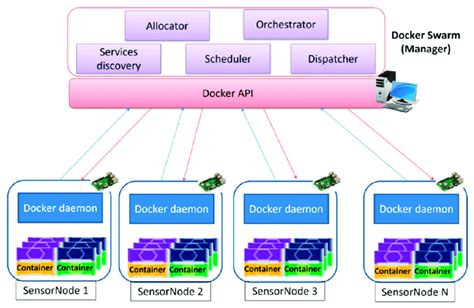
One of the most promising avenues for Linux users is the use of containerized environments. The davinci-box project, inspired by the work of bluesabre on GitHub, aims to provide a self-contained package with all the necessary dependencies to install and run DaVinci Resolve on Linux. This approach abstracts away much of the system-level complexities, offering a more streamlined installation experience.
The davinci-box project is primarily built for Fedora Atomic, but its community support extends to other distributions such as Arch Linux, NixOS, Debian, and their derivatives on a best-effort basis. For Debian, Ubuntu, and Linux Mint users facing difficulties with davinci-box, an alternative solution is the MakeResolveDeb script by Daniel Tufvesson.
Hardware Considerations: GPU Support and Drivers
A critical component of DaVinci Resolve's performance is GPU acceleration. The choice of GPU and its compatibility with Linux drivers significantly impacts the user experience.
- AMD GPUs: For AMD users, ROCm (AMD's official compute package) is the primary driver solution. While modern AMD GPUs, such as the RX 6000 series and above, generally work out of the box with ROCm, older series (RX 5000 and prior) may have limited support or stability issues. Testing has been conducted with AMD RX 6600XT and RX 9070 GPUs, and Intel Core Ultra 5 125H with integrated Intel Arc graphics.
- NVIDIA GPUs: NVIDIA users face a different set of requirements. The
nvidia-container-toolkitis essential for enabling GPU support within containers. If you are using a Universal Blue image like Bluefin, this toolkit might already be pre-installed. Additionally, users may need to implement an SELinux policy to grant containers access to the GPU. This is detailed in guides that specifically address adding SELinux policy modules. - Intel GPUs: For integrated Intel graphics, the
intel-compute-runtimeis utilized.
It's important to note that davinci-box has seen limited testing with DaVinci Resolve Studio, and users are advised to proceed with caution.
System Configuration Essentials
Before diving into the installation, certain system configurations are crucial for a smooth experience:
- User Permissions: Your user account in the host system may need to be a member of the 'render' and 'video' groups to ensure proper access to hardware resources.
lshwInstallation: Thesetup.shscript withindavinci-boxrelies on thelshwutility to detect the GPU. Ensurelshwis installed on your system.
Audio and Multi-GPU Systems
- Audio: DaVinci Resolve utilizes ALSA for audio. This necessitates that your host system provides a PipeWire server for proper audio management.
- Multi-GPU:
davinci-boxincludesswitcheroo-controlto manage multi-GPU systems. This is particularly useful for laptops or desktops with both integrated and dedicated GPUs, allowing you to prioritize the more powerful dedicated GPU.
Elevating Your Editing Skills with DaVinci Resolve
DaVinci Resolve is not just a powerful editing tool; it's a comprehensive post-production suite renowned for its industry-leading color grading capabilities. Used in the creation of countless Hollywood films, television shows, and commercials, it offers a professional-grade experience.

Whether you are a beginner looking for quick techniques to enhance your skills or an experienced professional seeking to leverage its advanced features, DaVinci Resolve provides a platform for growth. The project files are typically organized into folders, facilitating a structured approach to learning and production. In today's digital landscape, where micro-content dominates social media marketing, the importance of high-quality editing and visually appealing videos cannot be overstated. Subpar editing can lead to a diminished audience, making tools like DaVinci Resolve indispensable for elevating your social media game.
Unleashing the Power of DaVinci Resolve Scripting
For those who wish to automate tasks, create custom workflows, or extend the functionality of DaVinci Resolve, the Scripting API offers a powerful gateway. Supported by both Lua and Python, the API allows for deep integration and control over various aspects of the software.
Scripting Fundamentals
- Language Support: DaVinci Resolve supports user scripts written in Lua and Python.
- Execution: Scripts can be executed via the interactive Console window within DaVinci Resolve or through command-line options.
- Permissions: Script execution permissions can be configured in Resolve Preferences, allowing for control over whether scripts can be invoked from the local network or only from the console.
- Script Placement: Scripts are organized into specific folders to be accessible within different parts of the application:
Utility: For scripts accessible on all pages.ComporTool: For scripts available on the Fusion page.- Folders named after individual pages (e.g.,
Edit,Color,Deliver): For page-specific scripts.
How to Learn Davinci Resolve Scripting
The resolve Object and Core Functions
The resolve object serves as the fundamental entry point for interacting with DaVinci Resolve via its scripting API. This object provides access to a wide array of functionalities, enabling granular control over projects, timelines, media, and more.
Project Management:
CreateProject(projectName, mediaLocationPath): Creates a new project.SaveProject(): Saves the current project.DeleteFolder(folderName): Deletes a specified folder.ImportProject(filePath, projectName=None): Imports a project from a file.ExportProject(projectName, filePath, withStillsAndLUTs=True): Exports a project.RestoreProject(filePath, projectName=None): Restores a project from a backup.
Timeline Manipulation:
SetCurrentTimeline(timeline): Sets the active timeline.AddTrack(trackType, subTrackType)orAddTrack(trackType, newTrackOptions): Adds new audio, video, or subtitle tracks.DeleteTrack(trackType, trackIndex): Removes a track.AppendToTimeline(clip1, clip2, ...)orAppendToTimeline([clips])orAppendToTimeline([{clipInfo}, ...]): Adds clips to the current timeline.DeleteClips([timelineItems], Bool): Removes clips from the timeline, with an option for ripple delete.CreateCompoundClip([timelineItems], {clipInfo}): Creates a compound clip from selected items.CreateFusionClip([timelineItems]): Generates a Fusion clip.SetSetting(settingName, settingValue): Modifies timeline settings.
Media Pool Operations:
GetFileList(folderPath): Retrieves a list of files in a directory.AddItemListToMediaPool(item1, item2, ...)orAddItemListToMediaPool([items...])orAddItemListToMediaPool([{itemInfo}, ...]): Imports media into the Media Pool.ImportMedia([items...])orImportMedia([{clipInfo}]): Imports media files.
Rendering and Exporting:
AddRenderJob(): Adds a render job to the queue.SetRenderSettings({settings}): Configures render settings.RenderWithQuickExport(preset_name, {param_dict}): Initiates a quick export.ExportCurrentFrameAsStill(filePath): Exports the current frame as a still image.ExportLUT(exportType, path): Exports LUTs.
Color Grading and Nodes:
GetNodeGraph(layerIdx): Retrieves the node graph for a clip.CopyGrades([tgtTimelineItems]): Copies color grades between clips.AssignToColorGroup(ColorGroup): Assigns a clip to a color group.ResetAllNodeColors(): Resets all node colors.
Audio and Transcription:
AutoSyncAudio([MediaPoolItems], {audioSyncSettings}): Synchronizes audio with video.TranscribeAudio(): Transcribes audio content.ClearTranscription(): Removes audio transcriptions.SetVoiceIsolationState(trackIndex, {VoiceIsolationState}): Controls voice isolation settings for audio tracks.
Metadata and Markers:
SetName(name): Sets the name of various elements (clips, timelines).SetMetadata(metadataType, metadataValue)orSetMetadata({metadata}): Manages metadata for clips.AddMarker(frameId, color, name, note, duration): Creates markers on timelines or clips.UpdateMarkerCustomData(frameId, customData): Updates custom data for markers.DeleteMarkersByColor(color): Removes markers based on color.
The Model Context Protocol (MCP) Server
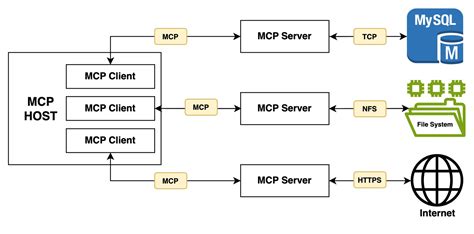
A significant development in DaVinci Resolve scripting is the advent of the Model Context Protocol (MCP) server. This server provides comprehensive coverage of the DaVinci Resolve Scripting API, offering two modes:
- Compound Server: Exposes 27 tools that group related operations by action parameter, designed for efficiency with LLM context windows.
- Granular Server: Provides 342 individual tools for advanced users who require fine-grained control.
The MCP server facilitates interaction with DaVinci Resolve through its scripting interface, with clients requiring explicit user confirmation before executing scripts. This ensures a layer of safety and control for users.
Scripting API Updates and Considerations
- Node Indexing: From version 16.2.0 onwards, the
nodeIndexparameter for functions likeSetLUT()andSetCDL()is 1-based instead of 0-based. fusion_compTool: A newfusion_comptool has been introduced, offering 20 actions that expose the full Fusion composition node graph API.- Sandbox Path Redirect: The
_resolve_safe_dir()function has been enhanced to handle sandbox paths on macOS, Linux, and Windows, improving write capabilities in restricted directories. grab_and_exportFunctionality: Thegrab_and_exportaction forgallery_stillssimplifies the process of grabbing stills and exporting them as image files along with companion.drxgrade files. This function requires the Gallery panel to be visible on the Color page. It also ensures zero file accumulation by reading exported files into the response and then deleting them from disk.- Testing Status: While the MCP server aims for comprehensive coverage, a small percentage of methods may remain untested against a live DaVinci Resolve instance.
DaVinci Resolve Studio 19.3.3 Activation Toolkit
For users seeking to unlock the full potential of DaVinci Resolve Studio, the Activation Toolkit, particularly for version 19.3.3, serves as a launchpad. This toolkit focuses on intelligent workflow enhancements and optimized user experiences, supporting creative journeys across Windows, Mac, and Linux. It's important to remember that this repository is intended for research, educational, and evaluation purposes, and users must adhere to all applicable software licensing agreements and intellectual property rights. Unauthorized commercial use or distribution of proprietary software is strongly discouraged.
The world of video editing on Linux is becoming increasingly accessible, with projects like davinci-box and the robust Scripting API empowering users to create professional-grade content. By understanding the nuances of GPU support, system configurations, and the extensive scripting capabilities, Linux users can fully leverage the power of DaVinci Resolve.