An Encapsulated PostScript (EPS) file is a cornerstone in the world of vector graphics, primarily serving as a robust format for the distribution and sharing of vector artwork. Akin to the more commonly known Scalable Vector Graphics (SVG), EPS files possess the inherent advantage of resolution independence, meaning they can be scaled to any size without a degradation in clarity or picture quality. This is a critical distinction from raster or bitmap images, which, when enlarged, tend to become blurry and pixelated.
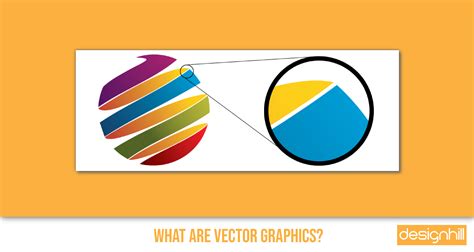
Beyond pure vector shapes, EPS files also have the capacity to incorporate images in raster format and text, which can be either raster or vector. This versatility contributes significantly to their enduring popularity, especially given the powerful editing features that are characteristic of vector graphic formats. The ability to manipulate colors, shapes, and the precise positioning of elements within a graphic with relative ease is a key benefit for designers.
The Core Question: CorelDRAW and EPS Compatibility
The central question for many graphic designers and illustrators is whether CorelDRAW can open EPS files. The direct answer is yes, CorelDRAW can open EPS files. However, the nuance lies in the version of CorelDRAW and the specific content of the EPS file.
CorelDRAW, a powerful and popular vector graphics application, offers robust support for the EPS format. Users can typically import EPS files directly into CorelDRAW, allowing for subsequent editing and manipulation. This makes CorelDRAW a viable and often preferred alternative to subscription-based software like Adobe Illustrator, especially for those who prefer a one-time purchase model.
It is important to note that compatibility can sometimes be version-dependent. As mentioned, you may encounter limitations when attempting to import certain EPS files into CorelDRAW versions older than X5. For users working with more recent versions of CorelDRAW, opening and editing EPS files is generally a straightforward process.
Understanding the EPS File Format
To fully appreciate how CorelDRAW handles EPS files, it's beneficial to understand the format itself. EPS, which stands for Encapsulated PostScript, predates the SVG format by over 15 years. It was created by Adobe in 1982 with the primary goal of incorporating images into large-format printing. The aspiration was to provide a lossless format that allowed text to be enlarged and resized without compromising image quality, a crucial development for designers working on posters and billboards that featured artistic typography.
At its core, like all vector formats, EPS relies on mathematical equations to define graphics. These equations correlate to points on a Cartesian plane, and as values within these equations are altered, mathematical rules ensure that all values remain in exact proportion. This fundamental principle allows for infinite scalability without loss of detail.
Key Features and Advantages of EPS Files
The enduring presence of EPS in professional workflows can be attributed to several key features:
- Versatility: EPS files are designed to be read by a wide array of applications and programs. The vast majority of vector-based design programs, including industry leaders and capable open-source alternatives, offer support for EPS files.
- Embedded Previews: A significant advantage of EPS files is their inclusion of an embedded preview image, typically in a raster (bitmap) format. While this does increase the file size, it greatly enhances versatility. Programs that may not natively support EPS editing can often still display this preview, allowing for visual identification and basic understanding of the file's content.
- Support for Mixed Content: Although fundamentally a vector file format, EPS has the capacity to contain not only vector shapes but also bitmap/raster images and text elements. This means a single EPS file can be used to combine photographic elements with vector illustrations, making it a flexible choice for complex designs like flyers or marketing materials.
Limitations and Considerations with EPS Files
Despite its strengths, the EPS format is not without its drawbacks and considerations:
- Raster Content Issues: When an EPS file includes embedded bitmap or raster images, there can be printing issues. This is because bitmaps are created at specific resolutions. If this resolution is not appropriate for the intended printed document size, it can lead to a loss of quality.
- Limited Editing in Page Layout Applications: While many graphic design and page layout applications can open and view EPS files, not all of them support editing. Software primarily focused on page layout might allow you to see the EPS content but prevent you from making changes to details like colors or text. This necessitates transferring the file to a dedicated vector editing application for modifications.
- Proprietary Format Nuances: While EPS is a widely supported format, it's worth noting that some vector file formats are proprietary. For instance, the CDR file format is native to CorelDRAW, and AI is specific to Adobe Illustrator. Although these proprietary formats are often widely supported across different design programs, there can be subtle differences in how they are interpreted. For example, CorelDRAW's and Illustrator's coloring meshes can differ, potentially causing issues when transferring files between the two programs. If a mesh has a clipping mask in Illustrator, it might vanish when opened in CorelDRAW, requiring manual reapplying of masks.
Image File Formats Explained: JPEG, PNG, GIF & More! | Which to Choose?
Alternatives and Related Vector Formats
While EPS remains relevant, the landscape of vector file formats has evolved, offering various alternatives, each with its own strengths and use cases.
- Scalable Vector Graphics (SVG): As mentioned, SVG is a very common vector format, particularly for web design. It's the officially recognized open standard across the World Wide Web. SVGs are excellent for displaying vectors on screens, supporting a wide range of browsers and screen sizes with inherent clarity. However, printing is not SVG's strongest suit; converting to PDF or EPS is often recommended for print readiness.
- Portable Document Format (PDF): PDF is a versatile standard file format that can accommodate various types of content, including vector graphics, raster images, and text. While PDFs are compatible with vectors and often associated with them, they are not ideal if you plan to extensively edit your designs later, as they can store raw binary code in a protected format, making isolation of elements challenging. PDFs are a great option for presenting finished designs or for print.
- Adobe Illustrator (.AI): The AI file type is specific to Adobe Illustrator and was intended by Adobe to functionally replace the older EPS files.
- CorelDRAW (.CDR): As previously noted, CDR is CorelDRAW's native file format, designed for optimal compatibility within the CorelDRAW suite.
Opening and Importing EPS Files in CorelDRAW
For users who need to open or import an EPS file into CorelDRAW, the process is generally straightforward:
- Open CorelDRAW: Launch the CorelDRAW application.
- Navigate to File > Open: From the top menu, select "File" and then "Open."
- Select the EPS File: Browse to the location of your EPS file and select it.
- Import Option (Alternative): Alternatively, you can use "File > Import / Place." This will bring up a file browser where you can select your EPS file.
When you open or import an EPS file into CorelDRAW, the software will interpret the vector data and render it within the workspace. If the EPS file contains embedded raster images, these will also be imported.
Viewing EPS Files Without Editing Software
If your primary need is simply to view an EPS file rather than edit it, there are free and accessible options:
- Adobe Acrobat: While primarily known for PDFs, Adobe Acrobat can often open and display EPS files, providing a quick preview.
- GSview: This is a free application specifically designed for viewing PostScript files, including EPS.
- Right-Click "Open With": In many operating systems, you can right-click on an EPS file and choose "Open with…" followed by selecting a compatible viewer like Adobe Acrobat or GSview.
It's crucial to remember that attempting to open an EPS file in a raster-based program like Adobe Photoshop will result in the image being rasterized, meaning it will be converted into pixels. While Photoshop can open EPS files, this conversion means the image loses its vector scalability and becomes resolution-dependent, negating one of the primary benefits of the EPS format.
In conclusion, CorelDRAW is a capable software for opening and editing EPS files, offering a robust solution for designers who work with this widely used vector graphics format. Understanding the nuances of the format and the capabilities of different software versions ensures a smooth workflow for all your design needs.