DaVinci Resolve has rapidly transformed from a specialized tool for professional colorists into a comprehensive post-production suite, excluding image editing. Blackmagic Design's software engineers have strived to ensure DaVinci Resolve offers robust performance, often exceeding that of competitors like Premiere Pro and Final Cut Pro. However, there may still be instances where users encounter laggy playback, indicating that the software could be performing better. If you frequently find yourself questioning, "Why is DaVinci Resolve so laggy?", this article aims to provide clarity and practical solutions. We will explore common reasons for performance lag and offer fixes to achieve smoother playback in DaVinci Resolve.
How to Identify DaVinci Resolve Lag
Before delving into solutions, it's crucial to accurately define and identify performance lag within DaVinci Resolve. Essentially, lag is a tangible slowdown that you experience during editing. When you initiate playback, does the timeline start immediately, or is there a noticeable buffer? If it's the latter, that's a clear sign of performance lag. This sluggishness can also manifest when performing edits. With DaVinci Resolve lagging, the responsiveness of your actions will be compromised; deletions might be delayed, and even the process of importing video clips can feel as slow as a dial-up internet connection.
Beyond obvious stuttering, another reliable indicator of smooth Resolve operation is the frames per second (FPS) counter, typically located in the top left of your viewing monitor.
The FPS counter provides an indicator of your video's playback smoothness. If you are editing at 24 frames per second and the indicator displays a green light during playback, DaVinci Resolve is functioning smoothly. Conversely, if pressing play causes the FPS to drop to 10 or 15, accompanied by a red light, this is a definitive sign of laggy playback. A foundational step to resolving this issue is ensuring your computer meets DaVinci Resolve's system requirements.
Seven Steps to Enhance DaVinci Resolve Performance and Eliminate Laggy Playback
1. Verify DaVinci Resolve System Requirements
A fundamental troubleshooting step, akin to restarting a device to fix a technical issue, is to confirm that your system meets the minimum system requirements for DaVinci Resolve. If you are experiencing laggy playback, it's possible that your hardware is simply not adequate for the software's demands.
Minimum System Requirements for macOS:
- macOS 12 Monterey
- 8 GB of system memory (16 GB recommended when using Fusion)
- Blackmagic Design Desktop Video version 12.0 or later
- Integrated GPU or discrete GPU with at least 2 GB of VRAM
- GPU supporting Metal or OpenCL 1.2
Minimum System Requirements for Windows:
- Windows 10 Creators Update
- 16 GB of system memory (32 GB recommended when using Fusion)
- Blackmagic Design Desktop Video 10.4.1 or later
- Integrated GPU or discrete GPU with at least 2 GB of VRAM
- GPU supporting OpenCL 1.2 or CUDA 11
- NVIDIA/AMD/Intel GPU Driver version - As required by your GPU
If your system meets these minimum requirements but DaVinci Resolve continues to lag, proceed to the subsequent steps. However, if your system falls short, an upgrade to your computer will be necessary to rectify the problem.
2. Inspect Your Graphics Card and Drivers
Before delving into settings within Resolve itself, it's essential to consider your graphics card, particularly if you are using a PC. For NVIDIA GPUs, there's a distinction between "gaming" and "studio" drivers. While these drivers share a common codebase, the studio driver undergoes more rigorous testing before release, ensuring greater stability for creative applications. Game-ready drivers are released more frequently, often coinciding with major game launches, and may not be as thoroughly tested for professional software.
Using a game-ready driver could potentially lead to an unstable installation, negatively impacting DaVinci Resolve's performance. Fortunately, switching to the studio driver is a straightforward process.
How to Switch to the Studio Driver (NVIDIA):
- Open GeForce Experience from the notification panel by right-clicking the NVIDIA icon and selecting "NVIDIA GeForce Experience."
- Navigate to the "Drivers" tab.
- Click the vertical dots next to "Check for updates" and select "Studio Driver."
After making this switch, return to DaVinci Resolve and assess if the laggy playback has improved. Moving to the studio driver can often provide the necessary performance boost for smoother operation. If lag persists, it's time to explore Resolve's internal settings.
3. Optimize DaVinci Resolve's Memory and GPU Settings
Within DaVinci Resolve's preferences, specific settings related to memory and GPU usage can significantly enhance performance. Access these by navigating to the "DaVinci Resolve" menu tab, selecting "Preferences," and then choosing "Memory and GPU."
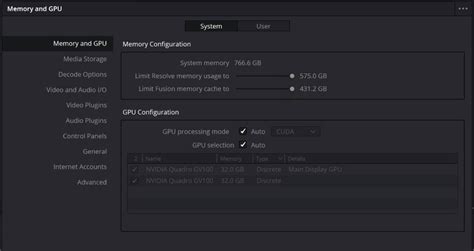
Here, you can allocate more system memory (RAM) to Resolve and ensure the GPU configuration is correctly set. In most scenarios, selecting "Auto" for both "GPU processing mode" and "GPU selection" is sufficient to prepare your system for editing. This configuration helps maximize DaVinci Resolve's performance and efficiency.
4. Upgrade Your Graphics Processing Unit (GPU)
DaVinci Resolve is a GPU-intensive application, meaning it relies more heavily on the graphics card to power the editing process compared to CPU-focused software like Premiere Pro. If Resolve is lagging, it often indicates either that your GPU needs an upgrade due to the software's demanding nature, or that your footage is too taxing for your current GPU.
If your GPU is several generations old, such as a GTX 1080, it may be time for an upgrade. Even when working with performance-friendly codecs like BRAW and editing 2K footage, an older GPU can struggle with general processing tasks due to outdated hardware. Newer models, like those in the 3080 series, offer substantial performance improvements and are becoming increasingly accessible.
The "Speed Test" tool provided by Blackmagic Design can help determine what Blackmagic footage you can edit without issues. While primarily focused on BRAW users, it offers valuable insights into your current system's GPU capabilities by benchmarking its performance.
How do Graphics Cards Work? Exploring GPU Architecture
5. Adjust Timeline Resolution to Mitigate Lag
Even with a modern GPU, working with high-resolution, high-data-rate footage from cameras like the RED V-RAPTOR demands considerable processing power. Often, even the most capable GPUs may struggle to process such footage in its native format, leading to lag.
When encountering this issue, adjusting the timeline resolution to 1080p can significantly improve DaVinci Resolve's performance. Even if your final delivery target is 6K, working with a 1080p timeline allows Resolve to generate a preview at a much lower resolution than the source, thereby enhancing playback performance and making the editing process smoother and more efficient.
It's important to note that this practice should be a standard part of your workflow, not just a temporary fix for lag. Maintaining lower timeline resolutions consistently ensures a more responsive and efficient editing environment.
Steps to Change Timeline Resolution:
- Right-click on the timeline file within the media pool to open the "Timeline Settings" menu.
- Select "1920 x 1080 HD" from the "Timeline Resolution" drop-down menu and click "OK."
6. Modify Preview Resolution for Enhanced Performance
For exceptionally data-rich footage, such as the heavy 6K files from a Panasonic S1H, even downscaling to a 1080p timeline might not be sufficient for efficient decompression. In such cases, adjusting the preview resolution offers another effective solution to combat lag.
Steps to Adjust Preview Resolution:
- Navigate to the top menu bar and select "Playback" > "Timeline Proxy Resolution."
- Choose "Half" or "Quarter." This adjustment creates a proxy preview by reducing the resolution displayed during playback.
It is crucial to understand that depending on the original footage's scale, reducing the preview resolution to a quarter on a 4K or 1080p timeline could significantly degrade visual quality. This might make detailed editing more challenging, as you won't be seeing the true quality of the footage. While not an ideal solution for final quality assessment, it is a highly effective method for improving DaVinci Resolve's playback speed.
7. Utilize Optimized Media and Proxy Media
If you are still experiencing playback issues and Resolve remains laggy after implementing the previous steps, the next course of action is to address the media files themselves. This involves generating lower-resolution file formats that are more conducive to playback and editing. DaVinci Resolve offers two primary methods for achieving this: generating Optimized Media or Proxy Media.
Both processes achieve a similar goal: they create a playable and editable version of media files that are too dense for your system to handle efficiently. The distinction lies in how they create these adjusted files.
When faced with a choice, opting for proxy media during the initial editing phase is often preferred. A fluid editing experience is generally more critical during the first draft than scrutinizing fine details.
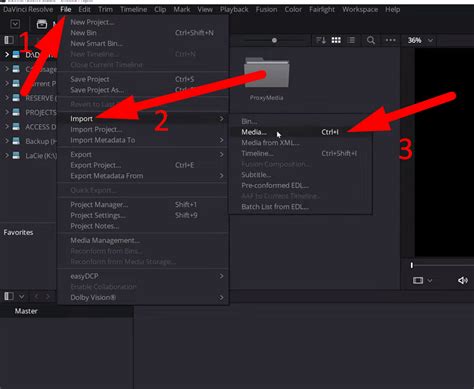
You can enable either of these settings by right-clicking a media file within the media pool and selecting either "Generate Proxy Media…" or "Generate Optimized Media."
Optimized Media
Optimized Media generates a media file that is easier to play back by transcoding the original files into a more editing-friendly format. This process retains high quality and stores the files in a user-specified location. Although it can maintain your original, potentially large-scale resolution (e.g., 8K), your computer can handle it more easily because it avoids inter-frame compression issues.
You can fine-tune the settings for optimized media by going to "DaVinci Resolve" > "Preferences" > "User" > "Playback Settings." Here, you can select the resolution and format for the optimized media, balancing quality and performance according to your specific needs.
Proxy Media
Proxies are lower-resolution versions of your original clips, specifically designed to be lightweight and easy to edit, particularly when working with high-resolution footage. While using proxies may result in a loss of clarity and potentially some color shifts, their primary purpose is to transform heavy footage into manageable, lightweight versions with a minimal footprint.
Note: Be aware that when creating optimized media, Resolve stores these files on your system's storage. If you have limited disk space, this could become an issue.
You can also specify the settings for proxy media under "DaVinci Resolve" > "Project Settings" > "Master Settings" > "Optimized Media and Render Cache."
It's important to remember that when utilizing proxy media or optimized media, you are no longer working within the original color space and codec of the camera-generated file. Consequently, if you are using optimized media or proxy media on the Color page, you are not grading the true version of your footage. Before proceeding to color grading, you should disable the use of optimized media. This can be done in the playback menu by either disabling proxies or unchecking the "Use Optimized Media if Available" setting.
Additional Performance Enhancements
Beyond the core troubleshooting steps, several other features and settings within DaVinci Resolve can further improve performance. Enabling "Performance Mode" in the preferences can significantly enhance editing, mixing, and color grading experiences on computers with lower-end specifications. While this mode prioritizes performance over visual fidelity, it can be disabled if high-quality visual output on your monitor is paramount during editing.
The "Render Cache" feature is another valuable tool. When enabled, DaVinci Resolve can pre-render sections of your timeline, especially those with complex effects or grading, storing these rendered frames as cache files. This significantly speeds up playback by allowing the software to access pre-rendered frames instead of processing them in real-time. You can choose between "None," "Smart" (Resolve automatically caches clips), or "User" (you manually select which clips to cache) modes for the render cache. The "Smart" mode is generally recommended for a good balance of automation and performance.
Furthermore, the "Render in Place" feature allows you to render specific clips or sections of your timeline with all their applied effects and grading into a new, rendered clip. This can be particularly useful for sections that are consistently causing playback issues. You can also specify the exact content that "Render in Place" should process.
Finally, clearing out unnecessary render cache media files periodically can free up valuable disk space and contribute to improved DaVinci Resolve playback performance.
The transition to DaVinci Resolve has been driven by its powerful capabilities, and while performance lag can be a hurdle, these troubleshooting steps provide a comprehensive approach to ensuring a smoother, more efficient post-production workflow.