DaVinci Resolve, a powerful and comprehensive post-production software, offers a robust suite of tools for video editing, color correction, visual effects, and audio post-production. Among its many features, the Fairlight audio engine stands out as a professional-grade digital audio workstation (DAW) integrated directly into the Resolve ecosystem. However, like any complex software, users may occasionally encounter issues, particularly with the Fairlight engine loading. This article aims to explore common causes for Fairlight engine loading problems in DaVinci Resolve and provide actionable solutions, drawing upon user experiences and technical insights.
Understanding the Fairlight Engine in DaVinci Resolve
The Fairlight page within DaVinci Resolve is a dedicated environment for audio mixing, mastering, and sound design. It provides advanced functionalities such as multi-track recording, intricate mixing consoles, sophisticated audio effects, and precise control over audio elements. The "Fairlight engine" refers to the underlying processes and resources that enable these audio functionalities to operate smoothly and efficiently. When this engine fails to load or experiences performance issues, it can significantly disrupt the audio post-production workflow. These loading issues can manifest in various ways, from prolonged loading times to outright crashes or an inability to access Fairlight's features altogether.
The Crucial Role of GPU Drivers
One of the most frequently cited solutions for a variety of DaVinci Resolve issues, including those affecting the Fairlight engine, is ensuring that your GPU (Graphics Processing Unit) drivers are up to date. Software updates, whether for DaVinci Resolve itself or for your operating system, can sometimes introduce incompatibilities or require newer driver versions to function optimally.
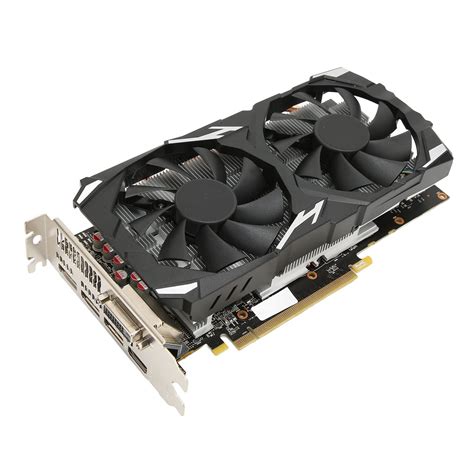
A user's experience highlights this directly: "I've noticed a couple of times I've had a issue after an Resolve update and a GPU driver update resolved the issue." This suggests a direct correlation between updated drivers and the stability of Resolve's various components, including the Fairlight engine. In some instances, a newly released GPU driver might even introduce problems. The same user shared, "I also think once I had to roll back a GPU driver and wait for a further update which was causing issues." This indicates that while keeping drivers updated is generally beneficial, there can be exceptions where a specific driver version is problematic, necessitating a rollback to a previous, stable version. Therefore, a first step in troubleshooting Fairlight engine loading issues should always involve checking and updating your GPU drivers from the manufacturer's website (NVIDIA, AMD, or Intel, depending on your hardware).
Navigating Playback and In/Out Point Functionality
While the core topic is Fairlight engine loading, a related user query touches upon essential editing functionalities that, while not directly causing engine loading issues, are fundamental to efficient workflow and might indirectly influence user perception of performance. The user expressed a desire for a simple "play in and out" function, similar to what's available in Adobe Premiere Pro.
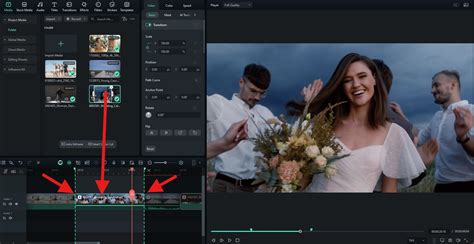
In Premiere Pro, this functionality allows editors to quickly mark a section of a clip using "in" and "out" points and then play only that selected segment. This is crucial for precisely selecting desired portions of footage for editing. The user described their workflow: "You drag the clip to the source window. Play it, sometimes a few times, to find the section you want to add to your timeline. You mark it with in and out, and you PLAY THE IN AND OUT, to make sure you have exactly what you want. Sometimes you may involve dragging the In or Out points to make adjustment." They noted that in Resolve, the primary method they found was to "mark the in and out in source and drop it to the timeline. THEN you do your adjustment there."
The observation about Premiere Pro's monitor windows hiding playback buttons if they are not wide enough is also relevant. This suggests that UI elements and their visibility can be context-dependent. While DaVinci Resolve offers extensive customization, understanding these nuances is key. The user further elaborated on timeline adjustments: "If you want to move the beginning of the last clip left or right, you need to move that clip away from the the rest of the timeline, otherwise you would be moving the two clips (shortening the right would lengthen the left clip)." This points to a potential learning curve in mastering Resolve's timeline manipulation, which, while separate from engine loading, is part of the overall user experience.
It's worth noting that while the user might perceive a lack of a direct "play in to out" button in the same way as Premiere Pro, Resolve offers robust methods for defining and working with in and out points. Double-clicking a clip in the Media Pool places it in the Preview window, where in and out points can be set. These points can then be used to insert or append the clip to the timeline. The ability to perform many editing tasks across different pages of Resolve, as the user themselves acknowledged ("What you can do in Fairlight, you can do in the Edit page and some things in the Cut page"), suggests that functionality is often integrated rather than isolated.
System Resource Management and Configuration
Beyond GPU drivers, the overall performance and stability of DaVinci Resolve, including the Fairlight engine, are heavily dependent on system resources. Insufficient RAM, a struggling CPU, or slow storage can all contribute to loading issues and general sluggishness.
RAM and System Memory
The Fairlight engine, especially when dealing with complex audio projects involving numerous tracks, plugins, and high-resolution audio, can be memory-intensive. If your system is running low on RAM, the operating system may resort to using the hard drive as virtual memory, which is significantly slower. This can lead to prolonged loading times for the Fairlight page or even cause it to become unresponsive.
CPU Performance
The Central Processing Unit (CPU) is responsible for a vast array of calculations within DaVinci Resolve, including audio processing. A CPU that is frequently maxed out by other applications or is not powerful enough to handle the demands of the Fairlight engine can result in performance bottlenecks.
Storage Speed
The speed at which your project files, cache files, and the DaVinci Resolve application itself can be accessed from your storage drives plays a critical role. Using slow hard disk drives (HDDs) for active projects, especially for audio work that involves frequent reading and writing of data, can lead to significant loading delays and playback stutters. Solid-state drives (SSDs), particularly NVMe SSDs, offer substantially faster data transfer rates, which can dramatically improve loading times and overall responsiveness.
DaVinci Resolve Configuration Settings
DaVinci Resolve itself offers a range of settings that can be optimized to improve performance and potentially mitigate Fairlight engine loading issues.
Playback Settings
Within DaVinci Resolve's preferences, there are settings related to playback and rendering that can be adjusted. For instance, the "Render Cache" settings allow you to pre-render parts of your timeline to free up processing power during playback. While this is more directly related to video playback, efficient audio processing is also a factor.
GPU Processing Mode
In the "System Preferences" > "Memory and GPU" settings, you can often select the GPU processing mode. Ensuring that Resolve is configured to utilize your dedicated GPU (if you have one) is crucial for optimal performance. For NVIDIA cards, options like CUDA are typically available. For AMD cards, OpenCL might be the choice. Choosing the incorrect or a less performant option can hinder the Fairlight engine's ability to load and function.
How to Fix Laggy Playback in DaVinci Resolve
Project Complexity and Plugin Usage
The complexity of your DaVinci Resolve project can be a significant factor in Fairlight engine loading times.
Number of Audio Tracks and Effects
Projects with a large number of audio tracks, each with multiple effects and plugins, place a substantial load on the Fairlight engine. Each plugin, especially complex ones like reverbs, compressors, or EQs, requires processing power. When Resolve attempts to load all these elements into the Fairlight engine, it can take time, and if the system resources are insufficient, it may lead to loading failures.
Third-Party Plugins
While third-party audio plugins can extend Fairlight's capabilities, they can also be a source of instability. Some plugins might not be fully optimized for DaVinci Resolve or may have compatibility issues with specific versions of Resolve or your operating system. If you suspect a plugin is causing issues, try disabling them one by one to see if the Fairlight engine loads correctly.
Troubleshooting Steps for Fairlight Engine Loading Issues
When encountering problems with the Fairlight engine loading in DaVinci Resolve, a systematic approach to troubleshooting is essential.
- Update GPU Drivers: As previously emphasized, this is often the quickest and most effective solution. Visit your GPU manufacturer's website and download the latest stable driver.
- Check System Resources: Monitor your RAM and CPU usage while DaVinci Resolve is running. If they are consistently at or near 100%, consider closing other applications or upgrading your system hardware.
- Optimize DaVinci Resolve Preferences: Navigate to "DaVinci Resolve" > "Preferences" > "System" > "Memory and GPU." Ensure your GPU is correctly selected and that "GPU Processing Mode" is set appropriately (e.g., CUDA for NVIDIA). Adjust "GPU Clip Studio Memory" and "NVIDIA GPU Clip Studio Memory" if available.
- Clear Render Cache: In the Edit or Fairlight page, go to "Playback" > "Delete Render Cache" > "All." This can sometimes resolve issues caused by corrupted cache files.
- Create a New Project: Sometimes, project-specific corruption can cause issues. Try creating a new, empty project and see if the Fairlight engine loads correctly there. If it does, you may need to import your existing project into the new one.
- Test with a New User Profile: Create a new user profile on your operating system and try running DaVinci Resolve from there. This helps rule out issues related to your user profile's configuration files.
- Check DaVinci Resolve Logs: DaVinci Resolve generates log files that can provide more detailed information about errors. These are typically found in a "DaVinci Resolve" folder within your user's application data or preferences directory. Examining these logs might offer clues as to what is failing during the Fairlight engine's initialization.
- Reinstall DaVinci Resolve: As a last resort, a clean reinstallation of DaVinci Resolve might be necessary. Ensure you back up your projects before uninstalling.
By systematically working through these potential causes and solutions, users can significantly increase their chances of resolving DaVinci Resolve Fairlight engine loading issues and restore a smooth audio post-production workflow. The integration of Fairlight into Resolve is a powerful feature, and understanding how to maintain its optimal performance is key to leveraging its full potential.