DaVinci Resolve has revolutionized the world of video post-production, transforming from a specialized, high-cost color grading system into an accessible, all-encompassing suite for editing, visual effects, motion graphics, and audio post. Its power and versatility have made it a go-to choice for professionals and aspiring creators alike. However, harnessing the full potential of this robust software demands a hardware configuration that can keep pace with its demanding workflows. This article delves into the critical hardware components that will allow you to meet, and often exceed, the DaVinci Resolve system requirements, ensuring a smooth and efficient post-production experience.
The Central Processing Unit (CPU): The Brains of Your Editing Rig
The CPU serves as the primary processing unit for your workstation, and for a complex application like DaVinci Resolve, its importance cannot be overstated. The software is meticulously engineered to leverage the power of multiple CPU cores, particularly for intensive tasks such as decoding and encoding video streams, applying intricate effects, and managing complex, multi-layered timelines.
Core Count and Clock Speed: Finding the Right Balance
For a majority of users, a CPU boasting at least 16 cores represents an ideal sweet spot. Processors like the Intel Core i9-14900K offer a compelling blend of price and performance, delivering the substantial multi-threading capabilities that DaVinci Resolve thrives upon. For those engaged in exceptionally demanding workflows, such as 8K editing, intricate color grading sessions, or complex visual effects work, exploring higher-tier options becomes a necessity. Processors from AMD’s Ryzen Threadripper series or Intel’s Xeon line, offering 24 cores or even more, are designed to tackle these monumental tasks.
While the number of cores is paramount, the clock speed of each core should not be overlooked. Higher clock speeds translate to faster execution of individual tasks. The Intel Core i9-14900K, for instance, excels in scenarios where single-core performance is critical, such as when dealing with specific codecs or third-party plugins that may not fully utilize multi-core processing.
Thermal Management: Keeping Your CPU Cool Under Pressure
High-performance CPUs generate significant heat, and effective thermal management is crucial for maintaining consistent performance and ensuring the longevity of your components. To this end, pairing your CPU with a robust cooling solution is highly recommended. This can range from a high-end air cooler to an all-in-one (AIO) liquid cooler. These solutions are designed to dissipate heat efficiently, preventing thermal throttling, which can otherwise lead to performance degradation during prolonged, intensive tasks like rendering or complex compositing.

The Graphics Processing Unit (GPU): The Powerhouse for Real-Time Performance
DaVinci Resolve stands out as one of the most GPU-intensive applications available today. The software intelligently offloads a significant portion of its most demanding computational tasks to the GPU. This includes real-time playback, the rendering of visual effects, color grading adjustments, and the final output rendering process. Consequently, the selection of the right GPU is not merely a suggestion but a fundamental requirement for achieving optimal performance and surpassing the baseline DaVinci Resolve system requirements.
NVIDIA vs. AMD: The CUDA Advantage
While both NVIDIA and AMD produce powerful graphics cards, DaVinci Resolve historically demonstrates superior performance with NVIDIA GPUs. This is largely attributed to NVIDIA's CUDA (Compute Unified Device Architecture) cores, which are extensively utilized and optimized by DaVinci Resolve for its various processing tasks.
For the majority of users, an NVIDIA RTX 4080 SUPER or the top-tier RTX 4090 will provide exceptional performance. The RTX 4090, in particular, is exceptionally well-suited for professionals working with 8K footage or those who frequently employ advanced visual effects and color grading tools.
VRAM: The Crucial Factor for High-Resolution Workflows
Video Random Access Memory (VRAM) is a critical component of your GPU, and for DaVinci Resolve, sufficient VRAM is essential. The software demands substantial video memory, especially when handling high-resolution footage (4K, 8K, and beyond) or navigating complex timelines with numerous effects and layers. It is recommended to opt for a GPU with a minimum of 16GB of VRAM for comfortable 4K editing. For 8K projects or extremely demanding visual effects work, 24GB or more of VRAM is highly advisable.
Multi-GPU Configurations: Pushing the Boundaries of Performance
For users who require the absolute highest levels of processing power and are working on exceptionally demanding projects, a multi-GPU setup can offer a significant performance boost. DaVinci Resolve is capable of leveraging multiple GPUs simultaneously to accelerate rendering times and improve playback fluidity. This configuration is particularly beneficial for professional studios or individual creators working with massive datasets and complex visual effects pipelines.
Random Access Memory (RAM): The Workspace for Your Data
RAM acts as your system's short-term memory, temporarily storing data that is actively being accessed or processed by running applications. For DaVinci Resolve, having an adequate amount of RAM is vital to prevent system slowdowns, stuttering playback, and application unresponsiveness, especially when working with large projects, multiple applications open concurrently, or high-resolution media.
Capacity: More is Generally Better
A minimum of 64GB of DDR5 RAM is recommended for most DaVinci Resolve users. This capacity provides ample headroom for 4K editing workflows and allows for smooth multitasking between DaVinci Resolve and other demanding applications such as Adobe Photoshop or After Effects. For professionals working with 8K footage, or those who habitually keep multiple large projects open simultaneously, 128GB or even more RAM might be necessary to ensure a seamless experience.
Speed and Latency: The Nuances of Performance
DDR5 RAM represents a significant advancement over its predecessor, DDR4, offering faster speeds and improved power efficiency. This makes it the preferred choice for modern, high-performance workstations. While the impact of RAM speed on overall performance might be nuanced, faster RAM can contribute to slightly improved performance in certain tasks, particularly those involving the manipulation of large datasets or complex effects processing.
ECC Memory: Ensuring Data Integrity
For mission-critical work where data integrity is of utmost importance, consider utilizing ECC (Error-Correcting Code) memory. ECC RAM possesses the capability to detect and correct the most common forms of data corruption, thereby reducing the likelihood of system crashes, data loss, or rendering errors. This is particularly relevant in high-stakes professional environments.
Storage Solutions: Speed and Capacity for Media Files
In the realm of video editing, the performance of your storage solution is as critical as its capacity. DaVinci Resolve requires exceptionally fast read and write speeds to efficiently handle large video files, especially when working with high-resolution footage.
NVMe SSDs: The Gold Standard for Active Projects
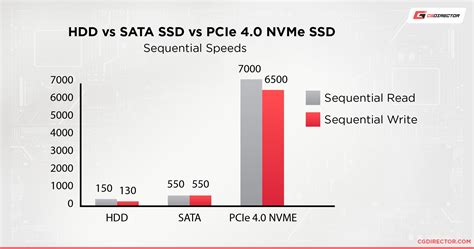
For your operating system, DaVinci Resolve installation, and crucially, your active project files, the use of PCIe Gen 4 NVMe SSDs is highly recommended. These drives offer blistering-fast read and write speeds, dramatically reducing application load times, project loading times, and enabling smooth, uninterrupted playback of high-resolution footage. A 1TB NVMe SSD serves as a respectable starting point, but for users working with very large projects or extensive media libraries, a 2TB or larger drive is a more practical choice.
SATA SSDs and HDDs: Cost-Effective Archiving
For long-term storage, archiving completed projects, and housing raw footage that isn't actively being worked on, SATA SSDs and traditional Hard Disk Drives (HDDs) offer more cost-effective solutions. While they do not match the speed of NVMe drives, they provide the necessary capacity to store vast amounts of data. A common and effective strategy involves a combination: a fast NVMe SSD for active projects and a larger SATA SSD or HDD (e.g., 4TB or more) for archiving.
RAID Configurations: Balancing Speed and Redundancy
For users who require both enhanced speed and data redundancy, implementing a RAID (Redundant Array of Independent Disks) configuration can be highly beneficial. RAID 0, for instance, increases speed by striping data across multiple drives, while RAID 1 provides redundancy through data mirroring. More advanced RAID setups, such as RAID 5 or RAID 10, offer a sophisticated balance between speed, capacity, and robust data protection.
The Motherboard: The System's Foundation
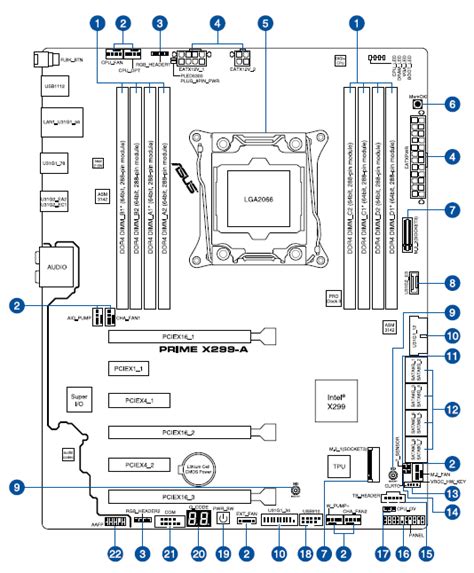
The motherboard acts as the central nervous system of your computer, connecting all components and facilitating communication between them. When selecting a motherboard for a DaVinci Resolve workstation, several key factors must be considered to ensure optimal performance and future expandability.
Socket and Chipset Compatibility
It is imperative that the motherboard is compatible with your chosen CPU. For Intel processors, motherboards featuring the latest chipsets, such as the Z790, are ideal as they typically support advanced technologies like PCIe 5.0 and DDR5 memory. For AMD CPUs, chipsets like the X670 or TRX50 are excellent choices.
Expansion Slots: Room for Growth
Video editing workstations often require the installation of multiple expansion cards, including additional GPUs, storage controllers, and specialized capture cards. Therefore, selecting a motherboard with an ample number of PCIe slots is crucial. Prioritizing slots that support PCIe 4.0 or the newer PCIe 5.0 standards will ensure future-proofing and accommodate next-generation hardware.
Connectivity Options: Streamlining Your Workflow
High-speed connectivity options can significantly enhance your workflow. Features such as Thunderbolt 4 ports, multiple USB 3.2 ports, and 10Gb Ethernet connectivity are invaluable, especially if you work with large external storage devices, high-speed network-attached storage (NAS), or require rapid data transfer to and from other devices.
VRM Quality: Stable Power Delivery
A robust Voltage Regulator Module (VRM) is essential for delivering stable and consistent power to your CPU, particularly when engaging in CPU-intensive tasks or overclocking. High-quality VRMs ensure that your processor receives clean and reliable power, preventing performance inconsistencies and potential instability.
Cooling Solutions: Maintaining Optimal Temperatures
Video editing tasks can push your system to its limits, generating substantial heat, primarily from the CPU and GPU. Effective cooling is paramount to maintaining peak performance and preventing thermal throttling, which can severely degrade your editing experience.
CPU and GPU Cooling
As mentioned earlier, high-performance CPUs necessitate robust cooling solutions, such as high-end air coolers or AIO liquid coolers. For GPUs, while most high-end cards come equipped with efficient built-in cooling systems, ensuring adequate airflow within the computer case is still crucial.
Case Selection and Airflow
The computer case itself plays a significant role in thermal management. Opting for a larger case with a well-designed airflow path, often featuring mesh front panels and multiple fan mounts, can significantly improve cooling efficiency. Ample space for cable management also contributes to better airflow by preventing obstructions.
Best PC Cases & Hardware You Can Buy, Right Now! | Airflow, Style & Performance
Power Supply Unit (PSU): Ensuring System Stability
A high-quality Power Supply Unit (PSU) is fundamental to the stability and longevity of all your computer components. Video editing workstations, especially those equipped with powerful CPUs and multiple GPUs, can draw a considerable amount of power.
Wattage and Efficiency
It is crucial to select a PSU with sufficient wattage to comfortably power all your components, with some headroom for future upgrades. For a high-end system featuring a powerful CPU and a top-tier GPU, a PSU with at least 850W is recommended. If you plan on implementing a multi-GPU setup, consider a PSU in the 1000W or higher range. Additionally, look for PSUs with an 80 Plus Gold or Platinum efficiency rating, which indicates better energy conversion and less wasted heat.
DaVinci Resolve on Apple Silicon: A New Paradigm
The advent of Apple Silicon (M1, M2, and subsequent chips) has fundamentally altered the landscape of system requirements for DaVinci Resolve, particularly for Mac users. These highly integrated System-on-a-Chip (SoC) designs offer remarkable performance and power efficiency, often outperforming conventional x86-based workstations, even at lower price points.
An entry-level M1 Mac Mini with 8GB of unified memory, for instance, can run DaVinci Resolve with surprising fluidity, capable of real-time playback of 4K media on a 4K timeline for most operations. While intensive tasks like noise reduction might present challenges at full resolution, the overall performance is exceptionally impressive for the cost. Higher-end Apple Silicon chips, such as the M1 Pro, M1 Max, and M1 Ultra, offer even greater power, making them formidable options for professional post-production workflows.
For users on the macOS platform, Apple Silicon Macs represent a compelling and often more cost-effective path to achieving excellent DaVinci Resolve performance, even for demanding tasks.
Minimum vs. Recommended: Understanding the Nuances
Blackmagic Design, the developer of DaVinci Resolve, provides both minimum and recommended system requirements. It is important to note that the "minimum" requirements are often geared towards basic functionality and may not provide a smooth experience for professional workflows, especially those involving high-resolution footage or complex effects. For professional editing and post-production, particularly in 4K and 8K resolutions, investing in hardware that significantly exceeds these minimums is essential. The hardware recommendations outlined in this guide aim to provide a framework for building a system that offers robust performance for a wide range of DaVinci Resolve users.
DaVinci Resolve Studio vs. Free Version
DaVinci Resolve is available in two main versions: the free DaVinci Resolve and the paid DaVinci Resolve Studio. While the free version offers a substantial set of professional features, Resolve Studio unlocks additional advanced capabilities. These include collaborative workflows, access to all plugins without watermarks, support for higher timeline and export resolutions (above UHD), and crucially for Windows and Linux users, hardware-accelerated encoding and decoding for common codecs like H.264 and H.265. Mac users benefit from hardware acceleration for these codecs even in the free version. For Windows and Linux users, investing in a Resolve Studio license is highly recommended to leverage GPU acceleration for these widely used, yet computationally intensive, codecs.
The choice of hardware ultimately depends on your specific workflow, budget, and the types of media you intend to work with. By carefully considering each component and aiming for configurations that meet or exceed the recommended specifications, you can build a DaVinci Resolve workstation that empowers your creative endeavors.
tags: #davinci #resolve #minimum #requirements