Replacing an existing clip in DaVinci Resolve, especially when it involves extensive edits and adjustments, can sometimes present unexpected challenges. This guide aims to demystify the process, offering clear instructions and troubleshooting tips to ensure your workflow remains smooth and your edits are preserved. Whether you're swapping out an audio file, a music track, or a video segment, understanding the correct methods is crucial for efficiency and maintaining the integrity of your project.
Understanding the "Replace Selected Clip" Operation
The desire to swap out an audio file for a newer version, or to test alternative music tracks without redoing hours of work, is a common scenario for video editors. DaVinci Resolve offers tools to facilitate this, but their application requires precision to avoid unintended consequences.
Initially, one might attempt to replace a clip by right-clicking in the media bin and selecting "Clip Operations" > "Replace Selected Clip." While this function is intended for such tasks, users have reported that it can sometimes lead to the audio resetting at each cut point on the timeline. This results in repeated segments of audio, such as the beginning of a speech playing over and over, and a general desynchronization of audio and video. This behavior, where waveforms appear to loop at each edit, can be particularly perplexing and might be mistaken for a bug. However, understanding how Resolve interprets media and edits is key to navigating this.
Why the Default "Replace" Might Fail
The core of the issue often lies in how DaVinci Resolve handles media replacement when the source files lack specific temporal references like timecode. When you use the "Replace Selected Clip" function without proper context, Resolve might not correctly map the new audio or video to the existing edit points. Instead of seamlessly integrating the new media, it can interpret the new file as starting from its beginning at each instance where the old clip was placed on the timeline. This leads to the undesirable looping effect and sync issues.
The experience described, where audio repeats "Hi welcome to the show…" after each cut, is a direct consequence of this misinterpretation. The edit points on the timeline are expecting specific temporal data from the source clip, and when that data isn't aligned or understood, the software defaults to replaying segments of the new file.
Effective Methods for Replacing Clips While Preserving Edits
Fortunately, there are more robust and reliable methods to replace clips in DaVinci Resolve that ensure your edits, color corrections, and audio adjustments remain intact. These methods focus on relinking or strategically overlaying the new media.
The Relinking Approach: A Robust Solution
One of the most effective ways to replace a media file and retain all associated edits is by "relinking" the clip. This process essentially tells DaVinci Resolve that the original media file is no longer available at its current location, and instead, it should look for a new file with the same or a similar name and structure.
How to Relink:
- Backup Your Project: Before attempting any relinking, it is highly recommended to back up your DaVinci Resolve project. This can be done by going to "File" > "Save Project" or by exporting the project file. Duplicating the timeline itself is also a prudent step.
- Locate the Old Media File: On your hard drive, find the original audio or video file that is currently being used in your project.
- Rename and Replace: Rename the new version of the file to precisely match the name of the old file. Then, move the old file to a different location or delete it, and place the newly renamed file in its original spot.
- Relaunch DaVinci Resolve: Open your DaVinci Resolve project. The software should automatically detect the new file in place of the old one.
- Verify Media: Check your timeline to ensure that all edits, audio levels, and effects are preserved and that the new media is playing correctly and in sync.
Caveats of the Relinking Approach:
While effective, this method can sometimes cause confusion if the mixing engineer or other collaborators inquire about the specific filename being used. It's a manual process that relies on precise naming conventions. Furthermore, if the project is part of a larger collaborative workflow, ensuring that all parties are aware of the filename changes is important.
Strategic Overlay and Replacement on the Edit Page
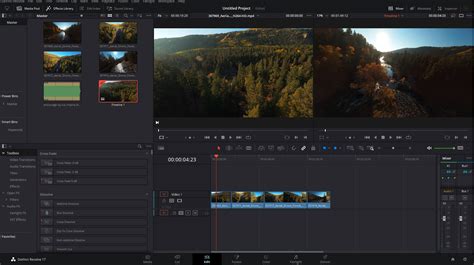
Another highly effective method involves working directly within the Edit page of DaVinci Resolve. This approach offers more control and visual feedback, especially when dealing with video clips.
Replacing Audio Tracks:
If you're replacing an audio track (e.g., a music track or a voiceover), the key is to ensure the correct track is selected and the playhead is positioned at the start of the segment you wish to replace.
- Position the Playhead: Place your playhead at the beginning of the audio clip on the timeline that you want to replace.
- Select the Target Track: In the Edit page's mixer or track headers, ensure that the audio track containing the clip you want to replace is selected. This is often indicated by a red highlight.
- Select the New Media: In the Media Pool, select the new audio file you wish to use.
- Utilize the Replace Tool: With the playhead at the start, the target track selected, and the new media chosen, click on the "Replace" tool (often found in the toolbar or accessible via a right-click context menu).
Troubleshooting Track Selection:
Users have occasionally encountered a "glitch" in certain DaVinci Resolve versions where clicking on different audio or video tracks to select them becomes unresponsive. If you experience this:
- Workaround 1 (Drag and Drop): Select the track header that is currently highlighted (e.g., A1) and drag it up or down to the desired track (e.g., A2). This can sometimes force the selection to update correctly.
- Workaround 2 (Keyboard Shortcuts): Use keyboard shortcuts to switch between tracks. For example, holding
Shift + Commandand using the up or down arrow keys can cycle through track selections. - Prerequisite: Ensure that you have an audio file selected if you are trying to switch between audio tracks, or a video track selected if you are working with video.
Once the correct track is selected, applying the Replace tool should correctly insert the new audio, preserving any keyframed volume adjustments or effects applied to the original clip.
Replacing Video Clips:
The process for replacing video clips is very similar and can be even more visually intuitive:
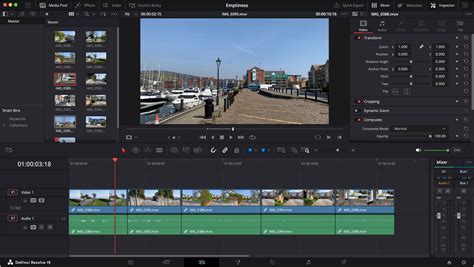
- Position the Playhead: Move your playhead to the beginning of the video clip on the timeline you wish to replace.
- Select the New Clip: In the Media Pool, select the new video clip you want to use.
- Ensure Correct Track Selection: Make sure the video track (e.g., V1) and the corresponding audio track (e.g., A1) are selected for the replacement. You might need to use the track selection workarounds if direct clicking doesn't work.
- Drag and Drop to Replace: Drag the newly selected video clip from the Media Pool directly over the existing clip on the timeline. A contextual menu will appear.
- Choose "Replace": Hover over the "Replace" option in the contextual menu and release the mouse button.
This action will replace the video clip on your timeline with the new one, crucially maintaining any color grading, effects, or keyframed adjustments that were applied to the original clip.
Advanced Considerations and Workarounds
When facing persistent issues or dealing with complex projects, a few additional strategies can be employed.
Understanding Media Identifiers
DaVinci Resolve relies on various identifiers to link media on the timeline to the source files in the Media Pool. These include filenames, reel names, and timecode. If your source media lacks consistent or accurate timecode, Resolve may struggle to correctly interpret temporal relationships during replacement operations, leading to the sync and looping issues.
The "Relink Selected Clips" Feature
A more direct method for relinking multiple clips at once exists within DaVinci Resolve. If you have several instances of the same clip that you need to replace, you can select them on the timeline, right-click, and choose "Link Clips." This opens a dialog where you can specify the new media file.
Considering the "Source Clip" vs. "Timeline Clip"
It's important to distinguish between replacing a clip in the Media Pool (which affects all instances of that clip across all timelines) and replacing a specific instance of a clip on a particular timeline. The methods described above primarily focus on replacing a clip on the timeline while preserving edits, which is usually the desired outcome when updating a specific asset.
Workaround for Unresponsive Track Selection
If the keyboard shortcut or drag-and-drop method for track selection doesn't resolve the issue, ensure that there isn't a modal dialog box open elsewhere in the interface that might be intercepting keyboard inputs. Sometimes, simply clicking back into the main timeline window can reset focus and allow keyboard shortcuts to function correctly.
18 Davinci Resolve Hacks I Wish I Knew Earlier
Avoiding Common Misconceptions
A common misconception is that replacing a clip always means starting from scratch with edits. However, DaVinci Resolve is designed to allow for non-destructive editing, meaning that edits, color grades, and audio adjustments are applied to the timeline representation of the clip, not directly to the source file itself. This allows for flexible replacement workflows.
Another misconception is that all replacement issues are bugs. While software glitches do occur, many perceived issues stem from a misunderstanding of how the software interprets media and edits, particularly when dealing with media that lacks robust temporal metadata. By understanding the underlying mechanisms, users can often find effective workarounds and utilize the software as intended.
By mastering these techniques, editors can confidently replace media assets in DaVinci Resolve, saving time and ensuring the continuity and quality of their projects, even when dealing with updated audio or video files.