DaVinci Resolve Studio stands as a singular, all-encompassing post-production solution, seamlessly integrating professional editing, advanced color correction, immersive visual effects, and sophisticated audio post-production into a single, cohesive software tool. This unified approach liberates creators from the cumbersome task of learning and switching between multiple applications, allowing them to maintain camera-original quality throughout the entire workflow. It's akin to having an entire post-production studio housed within a single, powerful application, designed to inspire creativity and facilitate the focus on producing one's best work. The software is celebrated for its incredible quality and creative tools that significantly surpass the competition, alongside the legendary audio processing capabilities of Fairlight, ensuring industry-leading sound design.
The Edit Page: Intuitive Power for All Levels
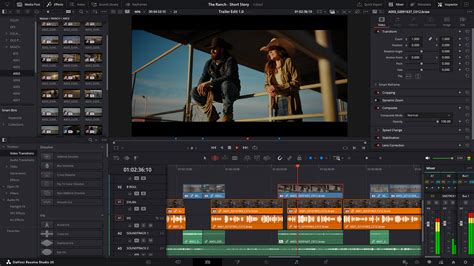
The Edit page of DaVinci Resolve Studio is meticulously engineered to be both accessible for newcomers and robust enough to satisfy seasoned professional editors. It offers a drag-and-drop editing paradigm, enabling swift story construction and effortless shot rearrangement. Complementing this are traditional three-point editing tools, a staple in the industry, providing precise control. DaVinci Resolve's performance is further enhanced by an automatic trim cursor that intelligently adapts to the user's click location on the timeline, eliminating the need to constantly switch between tools and thereby saving valuable time.
Getting media files into DaVinci Resolve is as straightforward as dragging and dropping. The media pool, situated in the top-left corner of the interface, houses all project clips. Users can import desired files by simply dragging them from their hard drive into this pool and initiating the editing process. The software even supports the import of entire folders, complete with subfolders, while meticulously preserving their original structure. DaVinci Resolve is designed to be highly compatible, working with a vast array of professional video and audio file formats, including but not limited to H.264, H.265, ProRes, DNx, Blackmagic RAW, and EXR.
Refining the desired portion of a clip is achieved by marking "in" and "out" points. Double-clicking a clip loads it into the source viewer on the left. By positioning the playhead to the desired frame and clicking the "in" and "out" buttons (or using the "I" and "O" keyboard shortcuts for enhanced speed), users can define the start and end points. Audio and video can be marked independently, facilitating the creation of split edits where audio precedes or follows the video.
Clips can be directly dragged and dropped into the timeline or the timeline viewer on the right. This viewer presents an overlay with immediate access to popular editing options, including insert, overwrite, replace, fit to fill, place on top, append at end, and ripple overwrite. This eliminates the need to memorize complex shortcut commands for common edit types. Once familiar with these edits, users can opt for toolbar buttons or keyboard shortcuts for even greater efficiency.
- Insert: This edit places a clip into the timeline at the playhead's location, pushing subsequent content to make space.
- Overwrite: A fundamental edit type, it replaces a clip on the timeline with another of identical length.
- Replace: Similar to overwrite, it substitutes an existing clip with a new one of the same duration.
- Fit to Fill: This function takes a marked portion of a clip and adjusts its speed to fill a designated duration.
- Place on Top: The selected clip is positioned on the next available video track at the playhead's current position.
- Append at End: The source clip is added to the end of the timeline, irrespective of the playhead's location.
- Ripple Overwrite: This edit replaces a shot of a certain length with one of a different length, adjusting the timeline accordingly.
Advanced Trimming and Editing Techniques
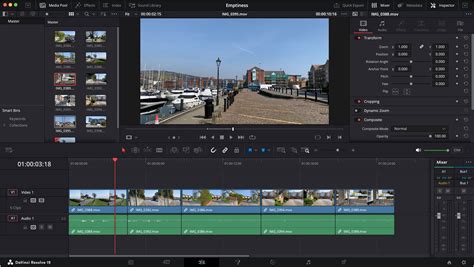
Trimming is a critical aspect of editing, allowing for precise adjustment of timing between clips. DaVinci Resolve's smart trim tool is a standout feature, contextually switching between ripple, roll, slip, and slide trimming modes based on the mouse pointer's position. This eliminates the need for manual tool selection, significantly accelerating the workflow. By simply selecting the trim icon and hovering over a clip or its edge on the timeline, the cursor transforms to indicate the available trim type.
- Roll Trim: This mode adjusts both the left and right sides of an edit simultaneously.
- Ripple Trim: This extends or shortens a clip's beginning or end, causing the timeline to ripple accordingly.
- Slip Trim: This alters the visible portion of a clip within the timeline by adjusting its "in" and "out" points without affecting its duration on the timeline.
- Slide Trim: This moves a clip's position on the timeline without altering its length. Consequently, adjacent clips will shorten or lengthen to accommodate the slide.
The stacked and tabbed timeline features offer the fastest method for moving clips and entire scenes between different timelines. By activating timeline tabs via the timeline view options icon, users can easily switch between scenes, copy clips, and paste them into other timelines. Alternatively, timelines can be stacked vertically for direct drag-and-drop operations between them.
Effects, Titles, and Keyframing for Dynamic Content
The Effects Library is a treasure trove of broadcast-quality transitions and special effects plug-ins. Accessing it via the icon in the top-left corner allows users to simply drag and drop desired effects onto clips or between them for transitions. The duration of transitions can be modified by dragging their edges in the timeline or adjusting them in the Inspector. The library boasts over 30 transitions, including wipes and dissolves, and more than 65 GPU and CPU accelerated effects such as blurs, flares, and warps.
Creating 2D or 3D titles is equally streamlined. By opening the Effects Library, users can find text generator or Fusion title templates, drag them into the timeline above video tracks, and then customize text, font, size, and color using the Inspector. Basic title generators enable the creation of simple titles and lower thirds from scratch, while the subtitle generator facilitates perfectly timed subtitle creation.
Clip settings are managed in the Inspector at the top right. Any parameter can be adjusted and animated over a clip's duration using the diamond keyframe buttons. Selecting a clip reveals its parameters; adjusting a setting, clicking the keyframe button, moving the playhead, and repeating the process allows for precise animation. On-screen controls provide intuitive animation for common transform parameters like position, size, and rotation. For more granular control, the keyframe and curve icons on animated clips open dedicated editors.
Animation extends beyond object movement; any setting can be animated over time. For instance, a clip's opacity can be animated from 100% to 0% over several seconds. While linear changes occur by default in the Inspector, the curve editor, accessible by clicking the curve icon beneath a clip, provides visual representation of keyframe positions and animation curves. Here, users can select parameters and utilize Bezier tools to craft custom ease-in and ease-out curves.
Fairlight Audio: Professional Sound Design Made Accessible
The Edit page integrates a comprehensive suite of professional Fairlight audio tools and plug-ins. Audio clip levels can be adjusted directly in the timeline via the level bar, or through the level slider in the Inspector, which also offers controls for panning, pitch, and a 4-band parametric equalizer. For track-wide adjustments, the mixer's faders provide real-time control, complete with visual meters to monitor signal levels and prevent clipping. The Effects Library further enhances audio post-production with over 25 Fairlight FX designed for dialog cleanup, hum removal, and more.
DaVinci Resolve Fairlight Overview for Beginners
Streamlined Delivery and Advanced Workflows
The Quick Export option offers the most expedient method for delivering finished projects. Accessible via the File menu, it provides one-click access to popular delivery presets. With account information configured, Quick Export can render and upload videos directly to YouTube, Vimeo, or Dropbox accounts in a single step. Custom presets can also be created by switching to the Deliver page, adjusting settings, saving the preset, and then rendering and exporting.
Beyond the fundamental editing capabilities, DaVinci Resolve Studio unlocks a vast array of features for complete creative control. This includes polished audio mixes, speed ramps, advanced editing and trimming tools for complex projects, clip transcription for text-based editing and subtitle creation, facial recognition for media organization, picture-in-picture effects, multi-cam editing, and much more.
Retiming and Motion Control
The Retime Controls command enables the creation of fast or slow-motion footage from any clip. Variable speed changes, or speed ramps, allow playback speed to dynamically alter over time. For example, an action sequence can transition from normal speed to slow motion and then back up. These speed ramps can be meticulously crafted in the timeline using the graphical curve editor for both frame position and playback speed, allowing frames to be precisely positioned and speeds adjusted between them. The quality of retimed footage can be controlled by selecting from optical flow, frame blending, and nearest frame rendering options.
Picture-in-Picture and Dynamic Zoom
Picture-in-picture effects are achievable through on-screen controls in the viewer or by adjusting clip transformation settings in the Inspector. By stacking two clips and selecting the top one, users can resize and reposition it within the frame using the on-screen controls. Animating these effects is as simple as clicking the diamond keyframe button in the Inspector, moving the playhead, and then altering the clip's position, rotation, or scale.
Dynamic Zoom offers an exceptionally easy and rapid way to reframe shots and introduce subtle push-in or pull-out animations. This feature is ideal for adding dynamism to static shots without requiring animation expertise. Simply select a clip, enable dynamic zoom in the Inspector, and then define the green box for the starting frame and the red box for the ending frame within the viewer.
Stabilization and Lens Correction
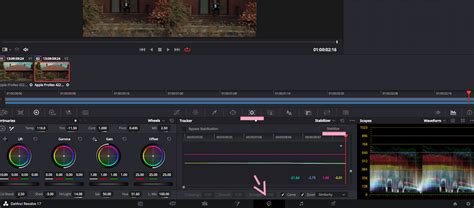
The Inspector provides built-in stabilization and lens correction controls for every clip. DaVinci Resolve employs image warping and translation to smooth out or lock down unwanted camera motion while preserving the movement of foreground objects. Options for camera lock, zoom, crop ratio, smoothing, and strength allow for precise control over the stabilization applied, from minor bump correction to complete camera lock for a static shot effect.
Smooth Cut Transition
Jump cuts, which occur when two parts of the same clip are placed adjacently on the timeline, creating a jarring visual discontinuity, can be effectively addressed with the Smooth Cut transition. This transition leverages advanced optical flow image analysis to seamlessly remove jump cuts, making them appear as a single, continuous take. It is applied in the same manner as any other transition.
Enhanced Trimming and Timeline Management
The Edit page offers a sophisticated suite of trimming tools, surpassing those found in other editing systems. Context-sensitive cursor tools and dynamic JKL trimming, which allows trimming during looped playback, provide unparalleled efficiency. Asymmetric trimming is particularly useful for quickly creating or closing gaps in the timeline by allowing simultaneous trimming in different directions. Furthermore, multiple clips, whether on the same or different tracks, can be selected and trimmed collectively. Track targeting, locking, and sync tools are conveniently located in the headers on the left of the timeline, simplifying sync management for complex multitrack edits.
Keyframing and Audio Waveform Visualization
The curve editor, accessible via the curve icon at the bottom right of each clip in the timeline, offers a visual representation of keyframe positions and animation curves. A dropdown list on the left allows selection of the desired parameter, while Bezier tools enable the creation of custom ease-in and ease-out curves.
For dialogue-heavy clips, visible audio waveforms in the source viewer simplify the marking process. Enabling audio waveform overlays through the options menu (three dots) at the top right of the viewer allows for quick navigation to specific sections of a clip based on visual cues like audio spikes and silent areas. Tape-style audio scrubbing further enhances precision by enabling dialogue comprehension even at slower playback speeds, combining with waveform overlays for rapid and accurate clip selection.
Adjustment Clips and Multicam Editing
Adjustment clips streamline the process of applying effects or color corrections across multiple clips. Functioning from the top down, any effect applied to an adjustment clip affects all clips beneath it. For example, applying an analog film look to a series of clips can be achieved by placing an adjustment clip above them, trimming it to the desired length, and then adding the analog damage effect.
While the Cut page offers rapid syncing and smart multicam tools for quick turnarounds, the Edit page provides a full multicam interface for larger, more complex projects involving numerous cameras. The multicam viewer displays all cameras simultaneously, with keyboard and mouse controls for fast cutting and switching, including separate audio or video-only options, and highly accurate syncing via audio waveform, timecode, or in/out points. Post-edit refinement of trim points and clip angles is also possible directly within the timeline.
Customization and Subtitle Support
DaVinci Resolve Studio allows for extensive customization of keyboard shortcuts, with built-in presets for shortcuts from other editing software, easing the transition for new users. Virtually every command and tool, including context-sensitive menu items, can be assigned a shortcut via the Keyboard Customization menu. The visual interface displays all available commands and their assigned shortcuts, indicating which keys are in use and which are available.
The Edit page includes an intuitive set of tools for closed captioning and subtitle creation, supporting import of timed text formats like TTML, SRT, XML, and embedded MXF/IMF subtitles. Subtitle entries can be relinked in the media pool or created from scratch without the need for third-party software. Subtitles appear in the timeline above video tracks and can be manipulated like any other media. Users can switch between subtitle tracks for different languages and add multiple captions per track, with styling options for track styles, font, color, size, and position available in the Inspector. Markers, small indicators on clips or the timeline, serve as reminders for tasks or specific points of interest.
The Mac Studio and DaVinci Resolve Studio Experience
For Mac users, particularly those new to the platform, the transition to macOS can present an initial learning curve. However, for users who have invested in a Mac Studio and intend to use DaVinci Resolve, the long-term satisfaction is often high. Embracing training resources, such as those offered at Apple Stores, can significantly ease this transition.
The software installation process on macOS typically involves downloading the DaVinci Resolve installer file, which may appear in the browser's download window or within the 'Downloads' folder in Finder. This file, often a .dmg or .zip archive, needs to be opened to launch the installer. The application itself is then typically found in the 'Applications' folder.
The Mac Studio, when paired with DaVinci Resolve Studio, offers a powerful and efficient post-production environment. System requirements for current Mac models with Apple silicon typically include 8GB of system memory (16GB recommended for Fusion workflows), macOS 14 or higher, and a display resolution of at least 1440 x 900.
The choice between the App Store version and the direct download from Blackmagic Design can be a point of discussion. Some users report greater stability and fewer issues with the direct download version, with anecdotal evidence suggesting that the App Store version may be subject to different support structures. The direct download version often receives updates sooner and is sometimes perceived as having a more robust performance profile.
For those migrating from other editing software like Final Cut Pro X, the adjustment period is typically a few weeks, after which the versatility and comprehensive nature of DaVinci Resolve become apparent, explaining its rise as a professional standard. The VFX capabilities are of exceptionally high quality, and for simpler edits, the computing power requirements are manageable, making it accessible even on less powerful Mac configurations. The Cut page, in particular, is lauded for its speed and enjoyable workflow, especially for demanding projects like feature films. The Speed Editor hardware is also considered a valuable accessory for enhancing editing efficiency.
DaVinci Resolve Studio: Features and Advantages
DaVinci Resolve Studio is distinguished by its comprehensive feature set, catering to a wide spectrum of post-production needs. The free version of DaVinci Resolve is already remarkably capable, offering extensive features often found in paid software. It supports editing and finishing up to 60 fps in resolutions up to Ultra HD 3840 x 2160, along with robust color grading tools, video collage, elastic wave audio retiming, and collaborative capabilities.
Upgrading to DaVinci Resolve Studio unlocks a significant array of advanced features and performance enhancements. This includes support for frame rates up to 120fps at resolutions as high as 32K, along with multi-GPU support for real-time playback of professional 10-bit formats and accelerated H.264 and H.265 hardware decoding and encoding. The Studio version also provides a full suite of immersive audio tools, including DaVinci Neural Engine AI for voice isolation, music remixing, and dialogue separation. It also encompasses Dolby Vision and HDR10+ grading and rendering, plus over 40 additional Resolve FX, such as AI UltraNR noise reduction, SuperScale, and de-interlacing. Workflow and media asset management integration, remote scripting API, and rendering and encoder plug-in support are also exclusive to the Studio version.
DaVinci Neural Engine and AI Capabilities
The DaVinci AI Neural Engine, a core component of DaVinci Resolve Studio, utilizes state-of-the-art deep neural networks and machine learning to power advanced features. These include facial recognition for automatic bin population based on individuals in a shot, Super Scale for high-quality image uprezzing from HD to 4K and 8K, and Speed Warp retiming with advanced optical flow for exceptionally smooth speed changes. Other AI-driven features include high-quality de-interlacing, Magic Mask for object isolation and tracking, Smart Reframe, object removal, and scene cut detection. This engine is cross-platform, leveraging the latest GPU innovations for unparalleled AI performance.
Immersive Audio and Advanced Formats
DaVinci Resolve Studio's immersive audio capabilities extend to 3D audio, supporting spatial formats and the import/export of the latest IAB and ADM files. Object-based formats like Dolby Atmos and MPEG-H utilize panning automation to create realistic audio experiences that adapt to different playback environments. Full support for Ambisonics, up to 5th order, is included, along with Dolby Atmos master production import and export options. The software also supports adding audio to video within IMF containers, enabling multiple simultaneous audio deliverables.
Professional Format Support and HDR Grading
Beyond the 8-bit formats supported by the free version, DaVinci Resolve Studio offers compatibility with a wider range of professional formats. This includes advanced AVCHD, AVC-Intra, and popular H.264 camera formats with "all-I" intraframe encoding, as well as 10-bit encoding. Dolby Vision support is comprehensive, featuring a GPU-accelerated Dolby Vision CMU and free Dolby Vision grading controls. The creation of SMPTE ST.2067 compliant IMF files for tapeless delivery to networks and distributors is supported via Kakadu or Easy DCP. Native support for unencrypted DCP files allows for testing and validation of digital cinema packages.
Resolve FX and Creative Tools
DaVinci Resolve Studio 20 introduces over 100 GPU and CPU accelerated Resolve FX, encompassing blurs, light effects, noise reduction, image restoration, lens flares, and stylization tools. Version 20 further enhances this with plugins like background defocus for portrait shots and the Film Look Creator, which allows for the application of cinematic color looks, film stocks, halation, grain, and gate weave. Improvements are also noted in face refinement, skin retouching, sub-pixel animation, and directional blur.
The DaVinci AI Neural Engine, with its cross-platform capabilities, enhances features like Magic Mask and Depth Map, and introduces new toolsets in Fusion for deep image compositing and multi-layer pipelining.
Scripting and Workflow Integration
DaVinci Resolve Studio supports both Python and LUA scripting, along with developer APIs, enabling the integration of custom workflow solutions and encoding options. Workflow integration plug-ins facilitate connectivity with local and remote asset management and automation systems.
Hardware Control Surfaces
To further enhance efficiency, DaVinci Resolve offers a range of dedicated hardware control surfaces. The DaVinci Speed Editor, for instance, features dedicated edit function keys and a high-quality search dial for rapid clip navigation and editing. The DaVinci Resolve Editor Keyboard provides a QWERTY layout with color-coded shortcut keycaps, optimized for intensive editing sessions. Color grading is significantly enhanced by DaVinci Resolve color panels, such as the Micro, Mini, and Advanced panels, offering tactile control over parameters that is impossible with a mouse and keyboard alone.
Fairlight hardware consoles, developed in collaboration with professional sound engineers, act as extensions of the software, providing intuitive, task-based designs that adapt to the user's needs. The Fairlight Desktop Console is a comprehensive mixing console suitable for various environments, while the Fairlight Studio Console components offer modularity for dedicated audio suites.
Conclusion: A Powerful and Evolving Platform
DaVinci Resolve Studio for Mac represents a pinnacle in post-production software, offering an unparalleled combination of editing, color grading, visual effects, and audio post-production tools within a single, integrated application. Its continuous evolution, marked by the regular introduction of new features, AI-powered tools, and performance enhancements, ensures its position at the forefront of the industry. The software's ability to scale from individual creators to large collaborative post-production studios, coupled with its commitment to providing a free version that is already feature-rich, makes it an exceptionally compelling choice for filmmakers, editors, colorists, and sound designers alike. The platform's ongoing development and its powerful feature set make it an indispensable tool for anyone serious about professional video and audio creation on macOS.