Adobe Photoshop is a cornerstone of digital image editing, empowering creators to craft everything from intricate illustrations to polished photographs. A crucial aspect of the creative workflow involves exporting these creations into formats suitable for various applications, and saving as a PNG is a popular choice for many. Unlike formats like JPEG, PNGs offer superior quality retention and the vital capability of transparency, making them ideal for web graphics, logos, and layered image elements. This guide will navigate you through the process of saving your Photoshop projects as PNG files, ensuring you leverage the full potential of this versatile format.
The Essentials of PNG Export
When you’re looking to export your Photoshop project as an image, saving the file as a PNG is one way to go about that process. Here’s how to do it in just a few steps. Unlike JPEGs, PNGs retain more information and can be transparent.
The most straightforward method for exporting a PNG involves utilizing Photoshop's "Quick Export" feature. This streamlined approach is designed for speed and efficiency, particularly when you need to get your work out quickly without extensive configuration.
Step 1: Accessing the File Menu
Begin by navigating to the menu bar located at the very top of your Photoshop interface. Click on the "File" option. This action will reveal a dropdown menu containing a variety of file management commands.
Step 2: Locating the Export Options
Within the "File" dropdown menu, you will find the "Export" option. This is typically situated about halfway down the list. Hovering over "Export" will often reveal a sub-menu with further options, or in some versions, it might directly lead to the export dialog.
Step 3: Executing the Quick Export
From the "Export" sub-menu, select "Quick Export As PNG." This is the most direct route to saving your image in the PNG format with default settings. Once you click this, Photoshop will immediately prompt you to choose a save location.
Step 4: Saving Your PNG File
After selecting "Quick Export As PNG," a dialog box will appear, allowing you to choose a specific location on your computer where you wish to save the file. You also have the option to name your file at this stage. Once you've selected your desired location and file name, click the "Save" button. Your project is now exported as a PNG.
Alternative Export Methods and Considerations
While "Quick Export As PNG" is efficient, Photoshop offers more granular control through the "Export As…" dialog. This method is beneficial when you need to adjust specific settings related to the PNG output.
Using the "Export As…" Dialog for PNGs
Alternatively, you can click "Export As…" instead of "Quick Export As PNG." This action opens a more comprehensive export window. Within this window, you can meticulously adjust various settings before finalizing your export. The primary advantage here is the ability to preview your export and make precise choices.
To export as a PNG using this method:
- Click "File" > "Export" > "Export As…".
- In the dialog box that appears, locate the "Format" dropdown menu.
- Select "PNG" from the available options.
- Ensure that the "Transparency" option is checked if you require a transparent background. This is crucial for logos and web graphics where the image needs to blend seamlessly with different backgrounds.
- You may also see an option for "Convert to sRGB." It is generally recommended to keep this checked for web use, as sRGB is the standard color profile for most displays and online platforms, ensuring consistent color representation.
- Click the "Export" button at the bottom of the window to proceed.
- You will then be prompted to choose a location and name for your file, similar to the Quick Export process.
Understanding PNG Properties and Use Cases
The PNG format's strengths lie in its lossless compression and support for transparency. This makes it a superior choice over JPEG for specific types of imagery.
The Advantages of PNG Transparency
Unlike JPEGs, which always have a solid background, PNGs can preserve transparency. This means that any areas of your Photoshop document that are empty or have transparent layers will remain transparent in the exported PNG file. This capability is invaluable for:
- Logos: A logo saved as a PNG with a transparent background can be placed over any color or image without a clunky white or colored box around it. If you have a logo with a shape that isn't precisely a quadrilateral, you might want the blank space to match the background color you've chosen for your site.
- Web Graphics: Icons, buttons, and other interface elements often require transparency to integrate smoothly into a website's design.
- Layered Images: When you need to composite images or elements and maintain the transparency of individual layers, PNG is the format of choice.
Lossless Compression: Preserving Detail
PNG employs lossless compression, meaning that no image data is lost during the compression process. This is in stark contrast to JPEG's lossy compression, which discards some image data to achieve smaller file sizes. For images with sharp lines, text, or areas of solid color, such as graphics and illustrations, PNG's lossless nature ensures that every detail is preserved. This is why PNGs are often preferred for design assets.
Exporting Other File Formats in Photoshop
While this guide focuses on PNG, it's useful to know how to export other common formats like JPEG and GIF.
Exporting as JPEG and GIF
If you want to export a file as a JPEG or a GIF, all you need to do is click "Export As…" instead of "Quick Export As PNG" during step 3. Then, change the format in the "Format" dropdown menu to JPEG or GIF and hit "Export."
- JPEG: Best suited for photographs and complex images with many colors and gradients. It uses lossy compression, resulting in smaller file sizes but potential loss of detail.
- GIF: Ideal for simple animations and images with limited colors (up to 256 colors). It also supports transparency, but it's typically a hard, binary transparency (either fully opaque or fully transparent, with no partial transparency).
The Importance of the PSD Format
Understanding how to save in Photoshop's native format, PSD, is crucial for preserving your work's editability.
Saving as a Photoshop Document (PSD)
Saving your file as a PSD, or Photoshop Document, will allow you to go back and work on the image while keeping all of its layers intact. This is fundamental for any ongoing design project. To save a PSD:
- Click "File."
- Select "Save As."
- Choose "On Your Computer."
- In the "Save As" dialog, ensure that "Photoshop (*.PSD)" is selected in the "Format" dropdown.
- Click "Save."
You can also save the file to the cloud if you prefer, using Photoshop's cloud saving features. This is especially useful for collaboration and accessing your files from different devices.
Preparing Your Document for Web Export
When preparing images for web use, specific settings in Photoshop are important to ensure optimal performance and appearance.
Document Setup for Web Use
The first step is to create your file. Next, from the "NEW DOCUMENT" window that appears, create your file at the size dimensions you prefer. It is important to make sure you have the document resolution set to 72ppi, (since you are intending the file for web use). Lower resolutions are standard for screens, preventing unnecessarily large file sizes.
Working with Transparent Layers
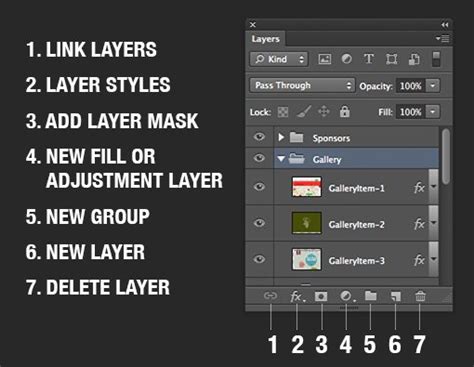
Next, from the "LAYERS" palette, make sure you are working on a transparent layer, and not a solid background layer. This ensures that when you export, the transparency is correctly maintained if you intend to use it.
Troubleshooting Common PNG Export Issues
Occasionally, users may encounter difficulties when trying to export as PNG, such as disabled filters or missing format options.
The 32-bit Issue and PNG Compatibility
One common point of confusion arises with 32-bit documents. PNG format, while versatile, does not natively support 32-bit color depth in the same way that some other formats might. If you find that your PNG export options are disabled or filters are unavailable, it's likely related to the document's bit depth.
"Nvmd, being a dolt. I remembered that PNG doesn't like 32-bit! It should still allow for .png saving if you select 'save-as'." This sentiment reflects a common realization: for standard PNG export, especially with features like "Quick Export," you might need to convert your document to an 8-bit or 16-bit format first.
To address this, you can convert your document's bit depth before exporting:
- Go to "Image" > "Mode."
- Select either "8-bit/channel" or "16-bit/channel."
- Once the bit depth is adjusted, try the PNG export process again.
The "Save for Web & Devices" Legacy Option
For users who might be more familiar with older versions of Photoshop or prefer a more detailed control panel for web optimization, the "Save for Web & Devices" option remains available.
File > Save for Web & Devices… > Then a separate box will pop up giving you the option to save as a GIF, JPEG, PNG 8, PNG 24, and WBMP.
This older dialog box offers a direct comparison of different export settings and their resulting file sizes, which can be very helpful for optimizing web assets. "PNG 8" and "PNG 24" refer to different color depth capabilities within the PNG format, with PNG 24 offering a wider range of colors and better transparency support.
How to Use the Save for the Web - Export in Photoshop
Advanced PNG Export Settings: Fine-Tuning Your Output
Beyond the basic export, Photoshop provides advanced options for tailoring your PNG files precisely to your needs.
Understanding PNG-8 vs. PNG-24
When using the "Export As…" or "Save for Web & Devices" dialogs, you'll often encounter options for PNG-8 and PNG-24. Understanding the differences is key to choosing the right one:
- PNG-8: This format supports a maximum of 256 colors and uses binary transparency. It's similar to GIF in its color limitations but offers better transparency handling for simple, flat-color graphics. It generally results in smaller file sizes than PNG-24.
- PNG-24: This format supports millions of colors and offers full alpha channel transparency, allowing for smooth, semi-transparent edges and gradients. It's the preferred choice for images requiring high fidelity and complex transparency.
For most modern web use cases where quality and smooth transparency are important, PNG-24 is the recommended choice, provided the file size is acceptable. If file size is a critical concern and the image has limited colors, PNG-8 might be a suitable alternative.
Optimizing PNGs for the Web
While PNGs are lossless, their file sizes can sometimes be larger than JPEGs. Fortunately, Photoshop offers tools to help optimize them for web delivery.
The Role of Resolution and Dimensions
As mentioned earlier, for web use, a resolution of 72 pixels per inch (ppi) is standard. However, the actual pixel dimensions of your image are far more critical for file size and loading speed. Ensure your image is sized appropriately for its intended display area on a website. There's no benefit to exporting a 4000-pixel wide image if it will only ever be displayed at 800 pixels wide.
Third-Party PNG Optimization Tools
Beyond Photoshop's built-in options, numerous third-party tools and online services specialize in further compressing PNG files without perceptible loss of quality. These tools often employ more aggressive algorithms to strip out unnecessary metadata or optimize the color palette. While not part of the Photoshop export process itself, they can be a valuable final step in the workflow for web developers and designers.
Conclusion: Choosing the Right Export Method
The process of saving as a PNG in Photoshop is versatile, offering both quick, straightforward options and detailed, customizable controls. By understanding the nuances of formats like PNG-8 and PNG-24, the importance of transparency, and the benefits of lossless compression, you can ensure your exported images meet the demands of your project. Whether you're creating a logo for a website, a graphic for social media, or a component for a digital interface, mastering PNG exports in Photoshop empowers you to deliver high-quality, visually appealing results. Remember to always consider the intended use of your image when selecting export settings, balancing quality, transparency needs, and file size for optimal performance.