The allure of transforming everyday photographs into vibrant, stylized cartoons has captivated artists and hobbyists for years. Whether you're aiming for a playful avatar, a unique social media post, or a striking piece of digital art, the ability to achieve a cartoon effect in an image editor like Adobe Photoshop is a valuable skill. This article delves into various methods for cartoonizing images using Photoshop, from intricate manual techniques to efficient automated processes, and also explores the emerging landscape of AI-powered cartoon generation.
The Power of Photoshop for Cartoon Effects
Photoshop, a powerhouse in image manipulation, offers a versatile toolkit for achieving a cartoon aesthetic. The key lies in understanding how to manipulate color, form, and line work to mimic the distinctive characteristics of cartoons. This can range from simplifying complex details to exaggerating features and applying bold outlines.
Method 1: The "Poster Edges" and Filter Gallery Approach (Photoshop CC)
This method offers a balance between speed and creative control, utilizing Photoshop's built-in filters to create a base cartoon look. It’s particularly effective for maintaining the editability of your original image through Smart Objects.
Step-by-step guide:
- Prepare Your Image: Begin by opening a high-quality, well-lit photograph in Photoshop. For optimal results, ensure the image has good contrast and clear details. A blurry or poorly lit photo will make the subsequent steps more challenging and the final outcome less satisfactory.
- Duplicate and Convert to Smart Object: Duplicate your background layer (Ctrl/Cmd + J) to preserve the original. Then, right-click on the duplicated layer and select "Convert to Smart Object." This crucial step ensures that any filters applied can be non-destructively edited later.
- Apply Poster Edges: Navigate to
Filter > Filter Gallery. Within the "Artistic" category, select "Poster Edges." Experiment with the sliders for "Edge Thickness," "Edge Intensity," and "Posterization." The goal here is to simplify the image into distinct areas of color and shape, creating a foundational cartoon look. Typically, low values for Edge Thickness and Edge Intensity, with moderate Posterization, work well to define shapes without making them too harsh. - Enhance with Other Filters (Optional): For added stylistic flair, you can apply other filters from the Filter Gallery. "Cutout" can further simplify colors and create a more graphic feel, while "Oil Paint" can smooth out textures and give a more painterly effect. The choice here depends on the specific cartoon style you're aiming for.
- Create Outline Layers: Duplicate your Smart Object layer again. On this new layer, apply
Filter > Stylize > Find Edges. This filter will highlight the edges of your image, creating a black and white outline. To refine these outlines, go toImage > Adjustments > Threshold. Adjust the slider to control the thickness and prominence of the lines. - Blend Outline Layer: Change the blending mode of the "Find Edges" layer to "Multiply." This will make the black lines visible against your color base layer while allowing the colors to show through. You may need to adjust the opacity of this layer to achieve the desired intensity of the outlines.
- Add Color, Shadows, and Highlights: Create new layers above your original Smart Object. Use a soft brush with low opacity to paint in flat colors, shadows, and highlights. This manual coloring step allows for greater control and can significantly enhance the cartoon effect, giving it a more hand-rendered feel.
- Adjust Color and Tone: Utilize adjustment layers like "Hue/Saturation" and "Levels" to fine-tune the colors, saturation, and contrast. This step is essential for achieving the bright, bold color palettes often associated with cartoons.
- Save Your Work: Save your image in a format suitable for your needs, such as JPEG for web use or PNG for higher quality.
Author's testimonial: "I appreciate this method because it allows me to experiment with filters without permanently altering my original image. Once you're comfortable with Smart Objects, it becomes a quick and effective way to achieve a clean, stylized cartoon look."
Method 2: Manual Cartoon Effect with Pen Tool & Brush
This method is more labor-intensive but offers the highest degree of artistic control, resulting in a look that is truly illustrative and unique. It's ideal for those who enjoy the process of drawing and want a hand-crafted cartoon appearance.
Step-by-step guide:
- Zoom and Trace: Zoom in closely on your subject and use the Pen Tool to meticulously trace around its main outlines. This is a time-consuming step, so take your time to ensure precision.
- Fill with Flat Color: Once the path is closed, create a new layer beneath your traced path and fill it with a base flat color. This will serve as the foundation for your cartoon.
- Paint Shadows and Highlights: Using the Brush Tool, begin painting in shadows and highlights on separate layers. Experiment with different brush sizes and opacities to create depth and form.
- Utilize Blend Modes: Flip between various layer blending modes (e.g., Multiply, Screen, Overlay) to see how they affect the interaction of colors, shadows, and highlights, helping you achieve the desired artistic effect.
- Employ Layer Masks: Instead of directly erasing, use Layer Masks to refine edges and clean up areas. This non-destructive approach allows for easier adjustments.
- Save Iterations: Regularly save different versions of your work. This is a good practice for any detailed project, as it provides backup and allows you to revert to earlier stages if needed.
- Flatten and Save: Once you are satisfied with the result, flatten a copy of your layers and save your finished cartoon illustration.
Author's testimonial: "This method requires more effort, but the results are truly commendable. Every texture looks like an original painting, not something generated by a filter. It’s perfect for anyone who enjoys drawing or wants a unique, hand-drawn cartoon look that really stands out from automatic tools."
Method 3: Batch Processing with Photoshop Actions
When faced with multiple images that require the same cartoon effect, manual repetition becomes tedious. Photoshop Actions allow you to record a series of steps and apply them to an entire batch of photos automatically, saving significant time and ensuring consistency.
Step-by-step guide:
- Record Your Process: Open a single photo and perform your preferred cartoonizing process from start to finish.
- Start Recording: Open the Actions panel (
Window > Actions). Click the "Create New Action" button and name it appropriately. Then, click "Record." Every subsequent step you take will be recorded. - Stop Recording: Once you have completed your desired cartoon effect, click the "Stop Recording" button in the Actions panel.
- Automate Batch Processing: Go to
File > Automate > Batch. In the Batch dialog box, select the action you just created. Choose the folder containing the photos you want to process and specify a destination folder for the output. - Let Photoshop Work: Click "OK," and Photoshop will automatically apply the recorded action to each image in the selected folder.
- Review and Tweak: After the batch process is complete, review the results. If any images require minor adjustments, you can make them manually or update your action with new steps.
- Rerun or Update: You can rerun the action anytime or update it with new filters or techniques as needed.
- Ideal for Bulk Edits: This method is perfect for efficiently processing large numbers of images for social media posts, marketing campaigns, or product catalogs.
Author's testimonial: "This trick saved me a ton of time. I used to repeat the same steps on every photo, and now it’s all automatic. The quality stayed the same from image to image, and I could finally finish big batches without feeling like a robot clicking filters all day."
Method 4: Cartoonizing in Photoshop CS6
For users working with older versions of Photoshop, such as CS6, the process of cartoonizing a photo remains achievable, though some filters and features might differ slightly. The core principles of simplifying colors, enhancing edges, and adjusting tones are still applicable.
Step-by-step guide:
- Open and Unlock: Open your image and unlock the background layer to make it editable.
- Apply Poster Edges: Go to
Filter > Filter Gallery. Select "Poster Edges" from the "Artistic" category. Adjust the settings to simplify the image's appearance. - Use Cutout Filter: Apply the "Cutout" filter (
Filter > Filter Gallery > Artistic > Cutout) to flatten colors into distinct areas. - Find Edges for Detail: Use
Filter > Stylize > Find Edgesto generate line work. - Strengthen Lines: Adjust "Levels" (
Image > Adjustments > Levels) or "Threshold" (Image > Adjustments > Threshold) to make the extracted lines more prominent. - Clean Up Edges: Use the Brush Tool to carefully clean up any rough or unwanted edges. Patience is key in this step.
- Add Color with Layers: Create new layers for coloring, using Layer Masks for precise control over where colors are applied.
- Save Your File: Save your cartoonized image as a JPEG or PNG file.
Author's testimonial: "I tried this process in Photoshop CS6 and really liked how flexible it worked. The filters did most of the base work, but the real magic came from cleaning and coloring by hand. It takes some practice, but the final cartoon effect looks genuinely handmade and fun to create."
Method 5: Quick Cartoonization with Photoshop Express App
For a fast and accessible cartoon effect directly on your mobile device, the Photoshop Express app is an excellent option. It requires no advanced editing skills and offers a streamlined experience.
Step-by-step guide:
- Open in App: Launch the Photoshop Express app and open the photo you wish to cartoonize.
- Browse Filters: Scroll through the available filters and select one that has a "Cartoony" feel or simply appeals to your aesthetic.
- Tweak Settings: Adjust parameters like contrast, sharpness, and clarity to enhance the cartoon effect. You should see edges becoming more defined.
- Selective Editing (Optional): If certain areas appear unusual or blurry, use the selective editing tools to make targeted adjustments.
- Adjust Brightness and Color: Fine-tune the brightness and color balance until you achieve a pleasing cartoon look. Avoid overthinking this step; focus on the overall impression.
- Save/Export: Save or export your cartoonized image as a JPEG or PNG, depending on your intended use.
- Done! Your cartoon is ready to be shared or saved.
Author's testimonial: "Photoshop Express is quick and user-friendly, ideal for casual users wanting cartoon effects on the fly. Though limited in control compared to a desktop, its filters pack a punch for easy social media content creation anytime, anywhere."
Comic Book Effects in Photoshop! (Speed Tutorial)
Troubleshooting Common Cartoonizing Issues in Photoshop
Even with the best techniques, you might encounter some common challenges. Here’s how to address them:
- Harsh Edges: To soften overly sharp edges, apply a slight Gaussian Blur or use a soft brush with low opacity to gently go over the lines.
- Blurry Effect: If your image loses clarity, use the "Unsharp Mask" or "Smart Sharpen" filters to restore edge definition. Be cautious not to over-sharpen, as this can introduce noise.
- Flat or Dull Colors: Enhance vibrancy and contrast by going to
Image > Adjustments > Vibrance. Alternatively, use a Curves adjustment layer for more precise control over color tones. - Background Interference: Use the Eraser Tool or a Layer Mask to carefully remove unwanted background elements around your subject. Zoom in and work slowly for clean edges.
- Faint Outlines: Duplicate your outline layer and set its blending mode to "Multiply" or "Overlay." Adjust the opacity until the lines are sufficiently visible without overpowering the image.
- Noise or Artifacts: To reduce unwanted grain or artifacts, apply the "Reduce Noise" filter (
Filter > Noise > Reduce Noise) or gently blur affected areas with the Blur Tool.
Exploring AI-Powered Cartoon Generation: Adobe Firefly
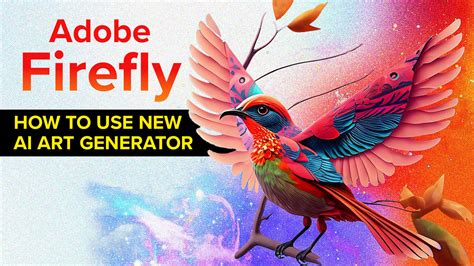
In recent years, Artificial Intelligence has revolutionized image creation, and cartoon generation is no exception. Adobe Firefly is a leading AI tool that offers a powerful and accessible way to transform images into cartoons. Unlike traditional Photoshop filters, Firefly uses AI models to interpret prompts and generate entirely new cartoon images or modify existing ones based on reference.
Key features of Adobe Firefly for cartoon generation:
- Text-to-Image Generation: Simply provide a detailed text prompt, such as "a cartoon dog riding a skateboard in the style of a 1950s comic book," and Firefly will generate an image. Including descriptive adjectives and style cues is crucial for achieving the desired outcome.
- Reference Image Guidance: While Firefly doesn't apply a "filter" in the traditional sense to alter existing photos directly, you can upload a reference image (like a selfie or a sketch) to guide the AI’s creation process. This allows for the generation of cartoon versions of your photos.
- Customization Options: Firefly offers advanced customization, allowing you to choose desired sizes, camera angles, and even specify whether you want a flat illustration or a 3D cartoon.
- Commercially Safe and Ethically Sourced: Firefly is trained on commercially safe, ethically sourced data, including Adobe Stock, licensed content, and public domain materials, making its output suitable for commercial use (adhering to Adobe guidelines).
- Seamless Integration: Firefly is designed to work seamlessly with other Adobe applications, enhancing your creative workflow.
- Free Tier Available: Adobe Firefly includes a free tier that allows you to experiment with its core image generation features, making AI cartoon creation accessible to everyone.
- Support for Multiple AI Models: Firefly leverages various leading image models, including Gemini, GPT Image, FLUX, Ideogram, and Imagen, to provide robust control over shapes, outlines, and cartoon styles. For animated previews, models like Veo and Runway can generate short motion clips.
- Enhanced Prompt Feature: For Firefly Image 4 and Firefly Image 4 Ultra, the "Enhance Prompt" feature can automatically improve your text descriptions for better results.
How to get started with Firefly:
- Log in to Adobe Firefly with your Adobe ID or create a free account.
- Choose to either upload a reference image or start from scratch with a text prompt.
- Craft a detailed description of the cartoon you want to generate, specifying style, colors, mood, and character details.
- Generate your image and explore customization options.
- Download your generated cartoon in JPEG or PNG format, with a maximum resolution of 2000x2000 pixels.
Best Photoshop AI Alternative: Pixelbin's Free AI Cartoon Generator
For those seeking an even simpler, browser-based AI solution without the complexities of Photoshop or the need for extensive prompt engineering, Pixelbin offers a free AI cartoon generator. This tool allows users to upload a photo and, with a single click, transform it into a cartoon.
Key benefits of Pixelbin's AI Cartoon Generator:
- Browser-Based: No software installation is required; it runs directly in your web browser.
- Beginner-Friendly: An intuitive interface makes it easy for anyone to use immediately.
- Free Trials: Offers up to three free trials without requiring sign-up, perfect for testing creative ideas risk-free.
- Handles Large Images: Capable of processing images up to 10MB.
- Fast and Clear Results: Generates bright, clear cartoon images in seconds with consistent color quality.
- Ideal for Quick Visuals: Great for generating visuals for social media, blogs, and marketing materials.
How to use Pixelbin:
- Upload your picture to the Pixelbin AI cartoon tool.
- Within a minute, you will receive a cartoon version of your uploaded picture.
The Evolving Landscape of Cartoon Creation
Whether you prefer the meticulous control of Photoshop, the creative freedom of AI generators like Adobe Firefly, or the simplicity of tools like Pixelbin, the ability to transform photos into cartoons is more accessible than ever. Each method offers unique advantages, catering to different skill levels and project requirements. Experimenting with these techniques will not only enhance your creative output but also provide a fun and engaging way to reimagine your photographs. The journey from a standard photograph to a vibrant cartoon is a testament to the evolving power of digital art tools.