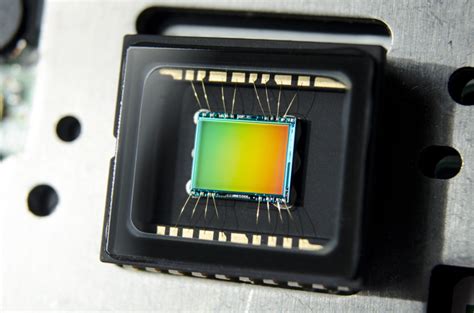
In the realm of digital photography, raw file formats are highly prized for the unparalleled creative control they offer. These formats capture the unadulterated data from a camera's sensor, allowing photographers to make extensive adjustments to parameters like white balance, exposure, and color grading during post-processing. However, the landscape of raw file formats is a fragmented one, with numerous camera manufacturers employing proprietary specifications that are often not publicly disclosed. This lack of standardization can lead to compatibility issues, where a raw file from one camera might not be readable by a different software application.
To address this challenge, Adobe introduced the Digital Negative (DNG) format. DNG is an openly published, archival format designed to store raw image data generated by a wide array of digital cameras. The core philosophy behind DNG is to provide a universal, uncompressed, and non-proprietary raw file format, thereby enhancing interoperability across different software and hardware platforms. This initiative has garnered significant support from hundreds of software manufacturers, including major players like Apple and Google, who have developed robust support for the DNG format within their applications.
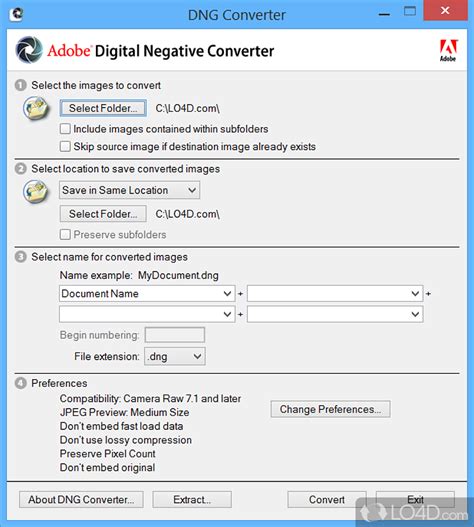
Adobe not only champions the DNG format through its specification but also provides practical tools to facilitate its adoption. The free Adobe DNG Converter, available for both Windows and macOS, is a key utility that simplifies the translation of proprietary raw files from many popular cameras into the DNG format. This conversion process ensures that photographers can work with a standardized raw file, regardless of their camera's origin. For software developers and hardware manufacturers looking to integrate DNG support into their products, Adobe offers the complete DNG Specification in PDF format, along with the DNG SDK. The SDK provides essential support for reading and writing DNG files, as well as for converting DNG data into formats that are easily processed and displayed by imaging applications. The DNG format is an extension of the well-established TIFF 6.0 format, lending it a solid foundation in image file standards.
The Power of Custom Camera Profiles
While the DNG format itself offers a standardized approach to raw data, the nuances of how different camera sensors interpret color can still vary. This is where the Adobe DNG Profile Editor and the concept of custom camera profiles become crucial for achieving precise and consistent color reproduction.
Adobe provides the free Adobe Lens Profile Creator, a utility designed to streamline the creation of lens profiles for use within Adobe's suite of professional photography software, including Photoshop, the Camera Raw plug-in, and Lightroom. Although the Adobe Lens Profile Downloader is no longer developed, Adobe's development team actively adds new lens profiles with each software release, ensuring that users have access to a growing library of lens corrections.
However, the true depth of color control lies in the ability to create custom camera profiles. These profiles are essential for calibrating how your software interprets the raw color data from your specific camera model under particular lighting conditions. The Adobe DNG Profile Editor application, which can be downloaded from Adobe (requiring a free Adobe account), is the tool for this purpose.
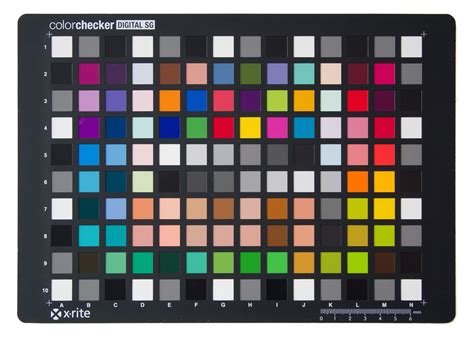
The fundamental principle behind creating a custom DNG profile involves capturing an image of a known color reference chart, such as an X-Rite (formerly Gretag MacBeth) ColorChecker chart. This chart contains a set of precisely defined color values. The DNG Profile Editor uses these known values to establish a baseline calibration for your raw files, ensuring that the software accurately represents the colors captured by your camera.
The process within the DNG Profile Editor typically involves several key steps:
Baseline Color Measurement: The application analyzes the color patches on the ColorChecker chart, comparing them against their known numerical values. This establishes an initial, accurate representation of the colors in your raw file.
Individual Color Fine-Tuning: Once the baseline is set, the DNG Profile Editor offers an intuitive interface to fine-tune individual colors. You can adjust the hue, saturation, and lightness of each color patch to achieve a more precise match to your desired output or to compensate for subtle variations in your camera's sensor.
Custom Curve Creation: Beyond color, contrast is a critical aspect of image rendering. The DNG Profile Editor allows you to create a custom curve for the image. This enables you to precisely control the contrast and tonal range of your images, ensuring they meet your specific aesthetic goals.
Global Color Fine-Tuning: As an optional but powerful step, you can further refine the RGB color channels and the overall white point of the file. This global adjustment allows for overarching color and tonal modifications that can significantly impact the final look of your images.
Once these steps are completed, the newly created custom profile can be loaded into applications like Lightroom (specifically version 2, hence the mention of "LR2" in some contexts) or Camera Raw. This custom profile then acts as the baseline "look" for your files, offering a significant advantage over relying on generic presets or profiles designed for different camera systems.
For photographers shooting with specific camera models, the ability to create custom profiles tailored to their gear and shooting conditions offers immense flexibility. For instance, a user might create a set of film-emulation profiles that perfectly match their camera's output, eliminating the need to constantly adjust presets or struggle with inaccurate color renderings.
Implementing and Utilizing DNG Profiles
Integrating custom DNG profiles into your workflow is a straightforward process, though the exact file path for installation can vary slightly between operating systems. For Mac users, custom camera profiles are typically installed in the following location: Home Folder/Library/Application Support/Adobe/CameraRaw/CameraProfiles. While the precise path for PC users might differ, it generally follows a similar hierarchical structure within the Adobe application support directories.
Once a custom profile is installed, you will need to restart your Adobe applications, such as Lightroom or Photoshop, for the new profile to be recognized. Within these applications, you can then access the profile through the Camera Calibration tab. In the upper right-hand corner of this tab, a dropdown menu will appear, allowing you to select your newly created custom profile.
It is important to note that custom profiles are often camera-specific. For example, a profile created for a Nikon D3 might only appear in the list when you are working with a DNG file originating from a Nikon D3. Files from other camera models will not display this specific profile, highlighting the tailored nature of these calibrations.
How to create custom color profiles for photoshop and lightroom
For those who prefer not to go through the manual process of creating profiles, Adobe also offers a selection of pre-made profiles that can be downloaded. These canned profiles can serve as a starting point or a convenient solution for users seeking readily available color adjustments. Furthermore, workshops and tutorials are often available, providing hands-on guidance for manually creating these essential profiles.
The Adobe DNG Converter plays a vital role in this ecosystem, not only by converting proprietary raw files to the universal DNG format but also by installing a set of essential color profiles required for its proper functioning. The converter can be launched by double-clicking its icon or by dragging and dropping individual images or entire folders of images onto the icon. The file extension is automatically set to DNG.
The compatibility of DNG files with various Adobe applications has evolved over time, with newer versions of Camera Raw and Lightroom offering support for DNG files created with specific versions. For instance, DNG files created with Camera Raw 4.1 and later are readable by Camera Raw 4.1 (Photoshop CS3) and Lightroom 1.1 and later. This backward and forward compatibility ensures that DNG remains a relevant and future-proof format for digital photography workflows. As of Camera Raw 13.2 (Photoshop 22) and Lightroom 10.2, DNG files are fully supported, indicating the format's enduring importance.
DNG: An Archival Standard for Raw Data
The Digital Negative (DNG) format is more than just a file converter; it represents a strategic move towards standardization and long-term archival of photographic data. A raw file, in essence, is the unprocessed data captured directly by the camera's sensor. Unlike JPEGs or TIFFs, which undergo in-camera processing and compression, raw files preserve the maximum amount of image information. This allows for greater flexibility in post-processing, with parameters like white balance being stored as metadata rather than being baked into the image data itself.
The DNG specification extends this concept by providing an openly published format that can store not only the pixel data but also a wealth of proprietary metadata that many manufacturers include with their raw files. This includes standard EXIF data such as date, time, camera model, and shooting settings, as well as manufacturer-specific information. By making the DNG Specification publicly available, Adobe encourages widespread implementation and aims to create a de facto standard for raw image archiving.
The DNG format offers two primary options for storing image data:
- Default Mosaic Format: This option preserves the extent of data captured by the sensor, maintaining the mosaic pattern as it was recorded. This maximizes the data preserved for future processing.
- Linear (Demosaiced) Format: In this option, the image data is interpolated, or "demosaiced," before being stored. This can be beneficial if a particular camera's mosaic pattern is not well-supported by a DNG reader, as it presents the data in a more universally readable format.
The "Essential Claim" clause within the DNG Specification relates to patent licensing. It ensures that Adobe has the right to license patents that are unavoidably infringed by the implementation of the DNG Specification, without requiring royalty payments. A claim is considered unavoidably infringed only when there is no technically feasible alternative to avoid infringement while still conforming to the specification. This provision aims to foster trust and encourage widespread adoption by mitigating patent-related concerns.
The commitment to an open standard, combined with robust tools like the DNG Converter and the DNG Profile Editor, positions the DNG format as a reliable and future-proof solution for photographers seeking to maintain the integrity and accessibility of their raw image files for years to come. The ability to create custom profiles further enhances the workflow, allowing for precise color control that can be applied consistently across a photographer's entire library. This comprehensive approach to raw file management, from conversion to calibration, empowers photographers with greater creative freedom and ensures the longevity of their digital assets.
The integration of DNG into workflows alongside powerful editing tools like Photoshop and Lightroom Classic underscores Adobe's dedication to providing a complete ecosystem for photographers. Photoshop, with its extensive capabilities for photo editing, compositing, digital painting, animation, and graphic design, allows users to bring their creative visions to life across desktop and iPad. The integration of AI-powered features further enhances image transformation. Lightroom Classic, on the other hand, offers a streamlined desktop editing experience focused on bringing out the best in photos. It provides tools to enhance colors, revitalize dull shots, remove distractions, and correct perspective. The seamless "roundtrip" functionality between Lightroom and Photoshop enables pixel-level editing and compositing when needed, creating a fluid and efficient workflow. This synergy between DNG, the DNG Profile Editor, and Adobe's flagship editing software exemplifies a powerful and adaptable approach to modern digital photography.