Creating art traditionally, with its tactile brushes, vibrant paints, and the satisfying mess, holds a special charm. However, the practicalities of setup and cleanup often lead artists to explore the realm of digital art. For many, Procreate has emerged as a premier paid application, lauded for its intuitive interface, extensive brush library, and powerful tools suitable for both casual sketching and professional digital painting. Yet, the digital art world is vast, and the pursuit of a Procreate-like experience doesn't necessitate a premium price tag. A well-rounded drawing app should strike a balance between user-friendliness and robust functionality, and fortunately, numerous alternatives cater to various needs and budgets.
The Allure of Procreate and the Quest for Alternatives
Procreate, an Apple Design Award-winning iPad painting app, has set a high bar for digital art creation on iOS devices. Its smooth, responsive touch-based interface, coupled with a wide canvas and a wealth of features like brush customization, perspective rulers, clipping masks, and text tools, makes it an attractive option for artists of all levels. The app even provides an instructional video and high-quality sample artwork upon first opening, easing the learning curve. However, Procreate's exclusivity to the iPad ecosystem presents a significant limitation for users on Windows or Android platforms. While Procreate Pocket exists for the iPhone, it offers a reduced feature set. This limitation fuels the search for versatile alternatives that can bridge the gap between iPad's streamlined experience and the broader creative freedom offered by other operating systems.
Free and Generous: Adobe Fresco and Sketchbook
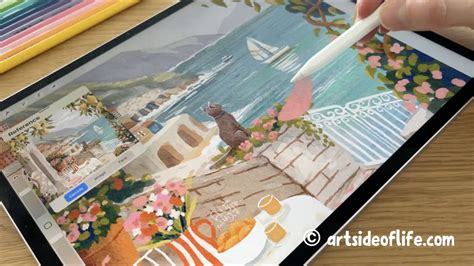
For those seeking a powerful, free digital art experience, Adobe Fresco stands out. It transitioned from a paid subscription model to a completely free application in late 2024, offering its full suite of features without paywalls. Fresco boasts impressive capabilities for a free app, including full pressure sensitivity, robust layer support, and an extensive selection of brushes, encompassing both vector and texture effects. Its live brushes are particularly noteworthy, mimicking the natural mixing and bleeding of traditional paints, allowing for nuanced color blending. Fresco is an excellent choice for iPad users, offering a professional-level toolset that complements other Adobe Creative Cloud applications.
Everything you need to get started w/ Adobe Fresco
Similarly, Sketchbook offers a polished and intuitive workspace that is entirely free. It provides essential features for digital drawing and coloring, such as pressure sensitivity, unlimited layers with opacity and blending options, and a wide array of brushes and pens. Handy extras like symmetry tools, geometric shapes, and timelapse recording further enhance its appeal. Sketchbook is praised for its ease of use, making it suitable for both quick sketches and more detailed work, and it earns a top spot for Android users looking for a reliable and comprehensive drawing application.
Procreate-Inspired Workflows on Android and iOS: HiPaint
For artists on Android and iOS who desire an experience closely mirroring Procreate, HiPaint emerges as a strong contender. Its clean layout will feel instantly familiar to Procreate users. HiPaint offers essential features like layer support, pressure-sensitive brushes, and blending tools. Navigation and common actions like undoing are made quick and natural with two-finger gestures. The app also includes canvas rotation, selection tools, and a convenient one-click flat-color fill, particularly useful for casual comic creation. HiPaint is free to install and use, with optional subscriptions or one-time purchases for additional brushes and advanced tools. While the free version may display pop-up ads, a small one-time fee can remove them, though this doesn't unlock other premium features. A minor point to note is that some users have found the default pressure sensitivity requires significant force to reach full opacity, potentially leading to stylus nib wear.
Specialized Tools for Comic and Illustration Artists: MediBang Paint and Ibis Paint X
MediBang Paint is meticulously designed with comic artists and illustrators in mind. It offers pressure-sensitive brushes, specialized comic panel tools, layer management, cloud synchronization, and cross-platform compatibility. Like Ibis Paint X, MediBang Paint allows users to unlock a vast library of over 900 premium brushes by watching short advertisements. This ad-supported model provides access to powerful tools for free, making it an attractive option for those on a budget. MediBang Paint also provides essential features for manga creation, including frame borders and screentones, along with ample cloud storage for seamless work across devices.
Ibis Paint X is another popular free app gaining traction for illustration and manga production, particularly on smartphones and tablets. It boasts an impressive collection of over 47,000 brushes and textures, more than 80 filters and tones, and dedicated tools for paneling and manga templates. Users can also record their drawing process as a timelapse video, which can be shared on the app's community site or social media. While the free version includes ads and limits brush access, temporary unlocks are possible by viewing ads.
Open-Source Powerhouses: Krita and GIMP
For those who prefer open-source software, Krita is a completely free and powerful application designed for digital painting and animation. Originally developed for Windows, its interface, particularly the menus, reflects this heritage. Krita is highly versatile, supporting an unlimited number of layers, including vector layers that allow for scalable and transformable text and shapes without quality loss. It also features a symmetry drawing tool, enabling the creation of intricate patterns. A notable drawback is its brushstroke performance, which can be sluggish across devices, requiring an adjustment period. Despite this, Krita's extensive features and open-source nature make it a compelling choice for digital artists, especially those on Linux.
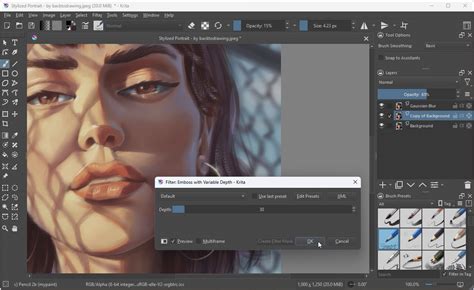
GIMP, another long-established open-source program, is renowned for its extensive image processing capabilities and support for user-created plugins. While originally developed for web image development rather than print or animation, GIMP rivals paid applications in areas like color adjustment and image processing. However, GIMP is a desktop-only program, limiting its use on tablets and smartphones. Users may also need to adjust default settings to optimize it for drawing and sketching, as its primary focus is image manipulation.
Vector Graphics and Design: Affinity Designer and Adobe Illustrator
For artists and designers who work with scalable graphics, vector-based applications are essential. Affinity Designer is a powerful vector drawing app suitable for creating everything from illustrations and UI designs to logos and product mock-ups. A standout feature is its ability to paint over vector paths with raster brushes, adding texture while maintaining vector flexibility. With robust shape tools, grids, guides, and alignment snapping, precise control is easily achieved. Affinity Designer also offers advanced text editing capabilities and is well-suited for print-ready designs. While there isn't a dedicated support team, a community forum addresses user questions and issues.
Adobe Illustrator remains the industry standard for vector graphics, logos, and intricate designs. Its iPad version provides access to a vast library of fonts and color palettes, with files automatically stored in the cloud for cross-device accessibility. For a monthly subscription, users gain access to extensive font libraries, live tutorials, and the full suite of Illustrator's powerful vector creation tools. Illustrator is ideal for users with a clear design vision who are comfortable with software customization and require professional-grade vector capabilities.
Simplicity and Accessibility: Kleki, PenUp, and ArtFlow
For those seeking a truly accessible and free drawing experience, Kleki is a web-based app that runs on any device with a web browser, including Android and Apple devices, as well as desktops. None of its features are locked behind paywalls, making it entirely free to use.
PenUp is designed with Samsung tablets and styluses in mind but functions well on other Android devices. It's completely free but offers limited features, lacking layer control, advanced brushes, masks, and blending modes. Its lighter focus on community sharing makes it a good starting point for absolute beginners looking to test digital drawing in a relaxed, social environment.
ArtFlow is a beginner-friendly Android drawing app with a clean interface. It supports pressure sensitivity, though its responsiveness for light sketching can be inconsistent. The app includes a brush creator and inking tools that many users enjoy. However, accessing unlocked features may require watching ads once the premium period concludes. ArtFlow is noted for being lightweight compared to other applications.
Bridging the Gap: Transitioning to Windows/Android and Pen Displays
For artists transitioning from Procreate to Windows or Android platforms, the process doesn't necessitate abandoning established creative habits. Key strategies include exporting Procreate files to universal formats like PSD to preserve layers, recreating go-to brushes by importing .abr files or using built-in tools to match pressure taper, texture grain, and stabilization, and adapting to different input methods, such as keyboard shortcuts and mouse inputs common in desktop applications.
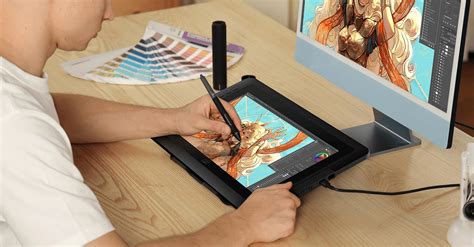
For illustrators who desire a larger screen for detailed work and efficient multitasking, a pen display monitor can be invaluable. Devices like the ugee UE16 offer a budget-friendly option with a 15.4-inch display, vibrant colors, and compatibility across various operating systems and creative software. With features like 16K pressure sensitivity, a fully laminated display to minimize parallax, and ergonomic design options, these displays aim to provide a refined and accurate drawing experience comparable to or exceeding that of styluses like the Apple Pencil. Customizable shortcuts on both the tablet and screen further enhance workflow efficiency, allowing users to replicate Procreate's gesture-driven approach.
Recommendations for Different User Levels
For Students: Pairing Krita with a pen display like the ugee UE16 offers an affordable yet powerful solution. Krita's extensive features, combined with the UE16's high-pressure sensitivity and customizable shortcuts, provide a seamless transition for those moving from Procreate, offering a robust learning environment without a significant financial outlay.
For Hobbyists or Animation Workers: Combining professional tools like Clip Studio Paint or Adobe Fresco with a capable pen display caters to more advanced needs. These premium applications, when used with a precise input device and ergonomic design, elevate the digital drawing experience. Clip Studio Paint, in particular, stands out for its comprehensive comic and manga creation tools, multi-frame animation support, and integrated 3D model assistance, making it a more suitable choice than Procreate for professional animators.
For Vector Design Enthusiasts: Linearity Curve (formerly Vectornator) is a powerful vector-based design software that works seamlessly on iPad, iPhone, or Mac. It empowers users to create infinitely scalable graphics and digital assets that maintain a sharp, polished look regardless of size. Linearity Curve integrates effortlessly with Procreate, allowing users to import their .procreate files and continue refining designs in a versatile vector environment. It also supports importing color palettes from Procreate and other applications, as well as various file formats from other design software, streamlining the creative workflow. Its Sketch mode can even transform hand-drawn sketches into editable vector paths, and a vast library of over 1,000 design templates helps jumpstart creative projects.
Ultimately, the choice of a drawing app depends on individual art goals, preferred device, budget, and desired feature set. Experimenting with a few options, taking advantage of free trials, and considering factors like brush customization, compatibility, and cloud storage availability will help artists find the perfect digital companion for their creative journey.