In the ever-evolving landscape of digital content creation, the ability to enhance and refine images is paramount. Whether you are a creator, marketer, or an everyday user, the desire to sharpen details, refine textures, and breathe new life into existing visuals is a common pursuit. Fortunately, advancements in artificial intelligence have paved the way for powerful, intuitive editing tools that fit diverse creative styles and needs. This article delves into the capabilities of Photoshop's Generative Upscale feature, exploring how AI-powered upscaling can transform low-resolution images into high-quality, detailed masterpieces. We will examine the various models available within Generative Upscale, understand their unique strengths, and provide a step-by-step approach to utilizing this transformative technology.
Understanding Image Upscaling and Its AI Revolution
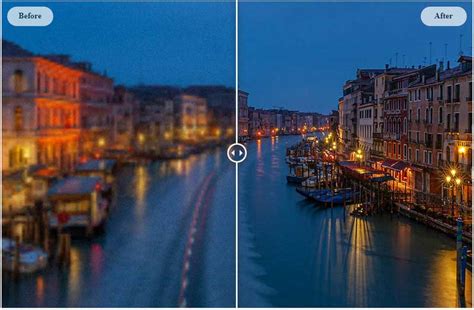
Image upscaling, at its core, is the process of increasing the resolution of an image. Traditionally, this involved simply stretching the existing pixels, which inevitably led to a loss of clarity, resulting in blurry or pixelated outputs. However, the advent of AI has revolutionized this process. An AI image upscaler employs artificial intelligence to not only enlarge an image but also to intelligently fill in missing details, thereby improving its resolution, clarity, and sharpness. Instead of merely stretching pixels, AI upscaling analyzes the existing data within the photograph and adds realistic detail as it enlarges the image. This results in visuals that appear crisp and polished, even when viewed at larger sizes or printed.
The power of AI in image upscaling lies in its ability to analyze and reconstruct image data. This sophisticated approach ensures that the enlarged image maintains its sharpness and natural appearance, avoiding the common pitfalls of traditional scaling methods. For creators and marketers, this means user-created content, which is crucial for successful marketing campaigns, can be optimized for various platforms and applications without compromising on quality.
Intro to Photo AI
Generative Upscale in Photoshop: A Powerful New Tool
Adobe Photoshop, a long-standing leader in image editing software, has integrated advanced AI capabilities into its platform. The Generative Upscale feature, particularly with its inclusion of partner models, offers users a robust solution for enhancing image resolution and detail. Previously, this feature primarily utilized Adobe's own Firefly model, which is known for its intuitive AI photo editing tools. However, with the evolution of Photoshop, particularly versions like Photoshop 2026, the Generative Upscale feature now incorporates powerful third-party AI upscaling technologies, namely Topaz Gigapixel and Topaz Bloom.
This integration means that users no longer need to rely on separate software or subscriptions for professional-grade upscaling. Topaz Labs, an industry leader in AI image enhancement, has partnered with Adobe to bring Gigapixel and Bloom directly into Photoshop's Generative Upscale. This allows for seamless upscaling directly within the familiar Photoshop environment.
Navigating Generative Upscale Models in Photoshop
Generative Upscale in Photoshop offers a selection of AI models, each designed with specific strengths and use cases in mind. Understanding these models is key to achieving the desired results.
Firefly Upscaler: The All-Rounder
By default, the Generative Upscale feature often selects the Firefly Upscaler. This model is a versatile option that works well for a wide range of images. It excels at adding clarity and detail when an image is enlarged, ensuring it stays sharp. For general purposes, such as restoring old or scanned photos where resolution and detail may have been lost over time or during the scanning process, the Firefly Upscaler is an excellent choice. It aims to maintain the original look of the image while enhancing its quality. When upscaling by 4x, the Firefly Upscaler adds just enough new detail to make a visible difference while still keeping the image true to its original essence. It is particularly effective at producing a cleaner, more natural result, preserving aspects like skin texture and film grain in a way that feels authentic, even when enlarged.
Topaz Gigapixel: The Realism Specialist
Topaz Gigapixel is an industry-standard upscaler renowned for its ability to preserve realistic textures and fine details. When the goal is to maintain the utmost realism, especially with photographs taken by modern digital cameras that already possess abundant fine detail, Gigapixel is often the superior choice. It does not add creative detail in the same way as Bloom; instead, it focuses on enhancing the existing detail with remarkable precision.
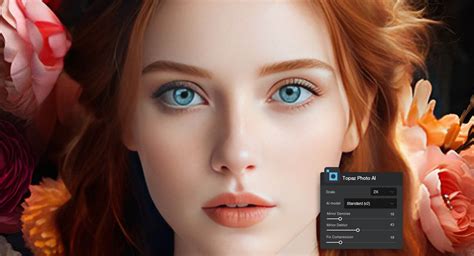
A notable feature of the Topaz Gigapixel model within Generative Upscale is its "Face recovery" setting. This dedicated function is specifically designed to recover detail in blurry or low-resolution faces, making it invaluable for portraits and images where facial features are critical. While Gigapixel can deliver incredibly sharp and clean results, it's important to note that its aggressive enhancement might sometimes alter subtle elements like skin texture or film grain, potentially making them appear slightly "plastic" or removing grain altogether compared to the more natural output of Firefly.
Topaz Bloom: The Creative Enhancer for AI Art
Topaz Bloom is a creative upscaler specifically designed for upscaling AI-generated images. Unlike Gigapixel, which prioritizes realism and the preservation of existing detail, Bloom's primary function is to rebuild and generate new, believable detail that may be lacking in the original AI artwork. This makes it ideal for situations where the original image is an AI creation that suffers from low resolution and low detail, common issues with many AI image generators that often max out at resolutions like 1024x1024 pixels.
Bloom doesn't just make an image larger; it analyzes the input and uses its AI to create new, imaginative details, thus enhancing the artistic quality of AI-generated art. This creative reconstruction means that preserving the exact original look isn't the primary goal; rather, it's about enriching the image with plausible and aesthetically pleasing new information.
Using Generative Upscale: A Practical Workflow
The Generative Upscale feature in Photoshop is designed to be intuitive, but understanding the nuances of each model and its settings can significantly improve the outcome.
Accessing Generative Upscale
Once you have an image open in Photoshop, you can typically find the Generative Upscale feature within the "Image" menu, often under "Image Size" or a dedicated "AI Enhancements" section, depending on the Photoshop version. For users of Adobe Firefly, the process begins by uploading your image. You'll then find the Quick Actions menu on the left side of the Edit screen, where AI image upscaling tools are readily available.
Selecting Models and Scale Factors
Generative Upscale typically offers three AI upscaling models: Firefly Upscaler, Topaz Gigapixel, and Topaz Bloom. After selecting your desired model, you will have options for the upscale amount, usually presented as "2x" or "4x."
It's important to be aware of the resolution limits associated with each model. For instance, Topaz Bloom has a resolution limit of approximately 9 MP (around 3000x3000 pixels). If you attempt a 4x upscale with an image that would exceed this limit, Photoshop will issue a warning, and you may be restricted to a 2x upscale when using Topaz Bloom. In such cases, you can upscale further using another model like Topaz Gigapixel after the initial Bloom upscale.
The Creativity Slider in Topaz Bloom
When using the Topaz Bloom model, a crucial control is the "Creativity" slider. This slider dictates how much freedom Bloom has to invent new detail.
- Low Settings (0-3): At lower settings, Bloom operates conservatively. It sharpens edges and adds subtle textures while ensuring the overall look remains consistent with the original.
- Medium Settings (4-7): These settings generally offer the best balance for most AI-generated images. You'll observe richer textures, finer details, and more defined surfaces without the results becoming overly stylized or unnatural.
- High Settings (8-10): While it can be tempting to push the slider to its maximum, higher settings give Bloom more creative latitude. This can lead to significant artistic interpretation and the generation of entirely new visual elements. Be mindful that using higher settings, especially for multiple upscales, will consume more generative credits.
Experimenting with all 11 settings (from 0 to 10) can be a rewarding way to explore the full potential of Bloom, provided you have the generative credits available. Each upscale with Bloom typically consumes a set number of these credits, such as 35 credits per upscale.
Understanding the Output
After initiating the upscale process, Generative Upscale will generate a new document containing the enhanced image. This new document typically includes at least two layers:
- The Upscaled Layer: This layer contains the version of your image that has been processed by the selected AI model (e.g., Topaz Bloom).
- The Original (or Standard Upscale) Layer: This layer often shows the image upscaled using Photoshop's more traditional methods or serves as a baseline for comparison.
By default, Photoshop should automatically zoom to the 100% level for viewing the upscaled image, allowing for detailed inspection. You can then use the Spacebar to activate the Hand Tool for easy navigation and examination of different image areas.
Case Studies: Firefly vs. Gigapixel for Different Scenarios
To illustrate the practical differences between the upscaling models, let's consider a couple of scenarios.
Scenario 1: Restoring an Old Photograph
Imagine you have a scanned, low-resolution image of your parents from an old photograph, showing signs of wear and tear. In this instance, a realistic upscaling approach is desirable, but initial restoration might be beneficial. You could first use Generative Fill with a prompt like "Restore and colorize this photo," utilizing partner models like FLUX Kontext Pro (which, based on some observations, might outperform Gemini 2.5 Flash Image, also known as Nano Banana, for specific restoration tasks).
Once the image is restored and colorized, you would then proceed to upscale it using Generative Upscale. For such a vintage photo, the Firefly Upscaler often produces the most natural and pleasing results. It adds just enough detail to make the image appear sharper and more refined, while crucially preserving the authentic feel of a vintage photograph. Even at a 4x upscale, Firefly manages to maintain the image's inherent character without making it look artificially enhanced. The skin texture remains soft yet natural, and elements like film grain are retained effectively.
Scenario 2: Enhancing a Modern Digital Photo with Fine Detail
Now, consider a newer photograph taken with a modern digital camera, featuring abundant fine detail. For example, a portrait with intricate hair strands, detailed clothing textures, or complex background elements like clock gears and Roman numerals. In this case, Topaz Gigapixel is likely to deliver a superior result.
When using Gigapixel, you would select this model within Generative Upscale and choose your desired upscale factor (e.g., 2x or 4x). The output from Gigapixel will be noticeably sharper and cleaner than results from other models. The individual strands of hair and beard become more defined, intricate details within objects like clock gears become crisper, and fine text, such as Roman numerals, appears clearer. The Face Recovery setting within Gigapixel is particularly beneficial here, sharpening and enhancing facial features.
However, it's worth noting that while Gigapixel excels at sharpness, its aggressive enhancement might sometimes lead to a slightly less natural appearance in skin textures compared to Firefly. It might also remove subtle film grain that was present in the original image. Therefore, the choice between Firefly and Gigapixel often comes down to whether the priority is preserving the original character and naturalness (Firefly) or achieving maximum sharpness and detail definition (Gigapixel).
Scenario 3: Maximizing Detail in AI-Generated Art
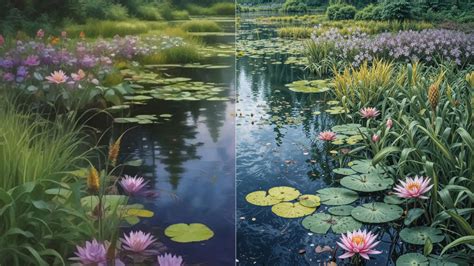
For images originally created by AI, which often suffer from a lack of fine detail and low resolution, Topaz Bloom is the ideal choice. As mentioned, its purpose is to "rebuild" the image by generating new, believable detail.
When upscaling an AI-generated steampunk inventor image using Bloom, the results can be dramatic. Individual strands in hair and beards become sharper and more defined. Intricate elements like gears within a clock become much more detailed, and inscriptions, such as Roman numerals on a clock face, become clearer. The "Creativity" slider allows for fine-tuning how much new detail is generated. A medium setting (e.g., 5) often strikes a good balance, enriching the textures and defining surfaces without introducing elements that feel out of place.
If, after using Bloom, you find the result is still not as sharp or detailed as you'd like, you can always use Generative Upscale again, this time selecting the Topaz Gigapixel model to further enhance the Bloom-generated output. This multi-stage approach can yield exceptionally detailed results.
Considerations and Best Practices
When utilizing Generative Upscale, keep the following points in mind:
- Generative Credits: Features like Generative Upscale, especially when using partner models like Topaz Gigapixel and Topaz Bloom, consume Adobe generative credits. Be mindful of your credit balance, particularly when performing multiple upscales or using higher upscale amounts.
- Resolution Limits: Always be aware of the resolution limits for each model. Exceeding these limits can prevent the upscale from completing or force a lower upscale factor.
- Objective-Based Selection: The most crucial aspect is understanding which upscaling model best fits your specific goal. Use Firefly for general restoration and natural enhancement, Gigapixel for maintaining realistic textures and sharpness in real photos, and Bloom when you aim for a more creative or imaginative result, especially with AI-generated art.
- Inspection at 100% Zoom: Always view your upscaled images at the 100% zoom level to accurately assess the detail and quality improvements.
- Iterative Upscaling: For extremely low-resolution images or when pushing the boundaries of detail, consider an iterative approach. Upscale with one model (e.g., Bloom for creative detail) and then use another (e.g., Gigapixel for sharpness) to refine the result further.
Generative AI, while incredibly powerful, mimics human intelligence rather than replacing it entirely. Tools like Generative Upscale are fantastic for testing ideas, exploring new themes, and creating specific content for designs or compositions. They offer a practical, creative, and sometimes even fun way to enhance digital visuals. By understanding the capabilities of each model within Photoshop's Generative Upscale feature, users can effectively transform their images, breathing new life into old memories and elevating their digital creations to professional standards.
tags: #generative #upscale #in #photoshop