Adobe Photoshop, a leading software in digital imaging and graphic design, is a powerful tool that empowers creativity. However, like any complex software, it can sometimes encounter issues, leading to unexpected crashes. When Photoshop crashes, it can disrupt workflows and cause frustration. Fortunately, a systematic approach to troubleshooting can often resolve these problems, allowing users to get back to their creative endeavors. This guide delves into various solutions, starting from the most common and straightforward fixes to more in-depth diagnostic steps, ensuring that users can tackle a wide range of crashing scenarios.
Resetting Photoshop Preferences: The First Line of Defense
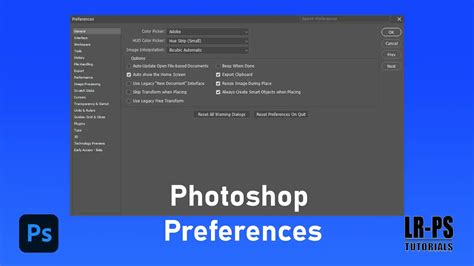
When Photoshop crashes, the very first action to consider is resetting your Photoshop preferences. This process involves deleting the current settings file, which often becomes corrupted or misconfigured, leading to instability.
For Windows users, this is achieved by pressing and holding Alt+Control+Shift immediately after launching Photoshop. You will be prompted to confirm the deletion of the current settings. On macOS, the key combination is Option+Command+Shift. Again, a prompt will appear asking if you wish to delete the current settings.
This action specifically targets the items found within the General Preferences dialog box. It's important to note that numerous program settings are stored in the Adobe Photoshop Preferences file. These include general display options, file-saving options, performance options, cursor options, transparency options, type options, and options for plug-ins and scratch disks. Importantly, this preference reset does not affect your brushes or many other custom settings.
If Photoshop is already running but exhibiting instability, you can also reset preferences upon quitting. Navigate to General Preferences > General > Reset on Quit.
Manually Deleting Photoshop Preferences
In some cases, a manual deletion of the preferences file might be necessary. To do this:
Quit Photoshop.
Navigate to Photoshop's Preferences folder.
- macOS: Users/[user name]/Library/Preferences/Adobe Photoshop [version] Settings
- Windows 10: Users/[user name]/AppData/Roaming/Adobe/Adobe Photoshop [version]/Adobe Photoshop [version] Settings
Note: The user Library folder is hidden by default on macOS. To access it, hold down the Option key when using the Go menu in the Finder.
After manually deleting the preferences folder, relaunch Photoshop. This action is akin to the shortcut method but provides a more direct approach if the shortcut is not functioning as expected.
Performance Settings: Optimizing Photoshop's Engine
If resetting preferences doesn't resolve the crashing issue, the next step involves adjusting performance settings within Photoshop. These settings dictate how Photoshop utilizes your system's resources, and misconfigurations can lead to instability.
Disabling Multithreaded Compositing
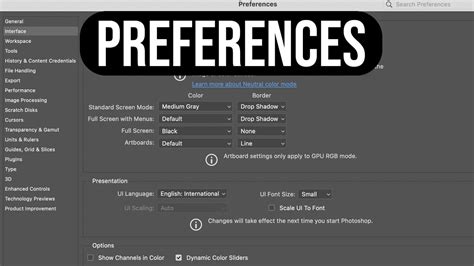
Go to Preferences > Performance… and uncheck the option for Multithreaded Compositing. After making this change, restart Photoshop. Multithreaded compositing allows Photoshop to use multiple processor cores for rendering images, which can improve performance. However, in some configurations or with certain hardware, it can lead to crashes. Disabling it can help diagnose if this feature is the culprit.
Disabling GPU Compositing
If the problem persists, navigate back to Preferences > Performance…. Click on Advanced Settings… and uncheck "GPU Compositing". Then, restart Photoshop. The Graphics Processing Unit (GPU) plays a significant role in Photoshop's rendering capabilities. While enabling GPU acceleration generally enhances performance, issues with graphics drivers or the GPU itself can cause crashes. Disabling GPU compositing isolates whether the graphics card or its drivers are contributing to the instability.
Investigating Launch Issues: When Photoshop Refuses to Start
Photoshop crashing or freezing upon launch is a particularly disruptive problem. Several factors can contribute to this, and specific troubleshooting steps are available.
The Shift Key Trick for Launch Issues
If Photoshop crashes or freezes on launch, try holding down the Shift key while launching the application. If Photoshop launches successfully with the Shift key held down, it strongly suggests that an installed optional or third-party plug-in is causing the problem. These plug-ins, while often useful, can sometimes conflict with Photoshop or become corrupted, leading to launch failures.
To resolve this, you would then need to systematically disable or remove third-party plug-ins one by one until the crashing stops. This methodical approach helps pinpoint the offending plug-in.
Photoshop Crashing and Freezing Easy Fix! (Full Tutorial)
Fonts and Photoshop Instability
A common, yet often overlooked, cause of general performance issues, including crashes or hangs when launching or using Photoshop, is a corrupted or problematic font. The Photoshop font cache is a crucial component that contains an enumerated list of fonts and font features installed on the system that Photoshop can utilize.
The Impact of Bad Fonts
When Photoshop encounters a bad font or a collection of problematic fonts, it can lead to a variety of issues. This includes:
- Crashes during the launch sequence.
- Hangs when selecting the Type tool.
- Crashes or freezes when making the Character panel active or visible.
- General sluggishness and performance degradation.
Font Cache Management
To address font-related issues, it's often necessary to manage or clear the Photoshop font cache. The exact procedure for clearing the font cache can vary slightly depending on your operating system and Photoshop version, but generally involves locating and deleting the font cache files. Users can also utilize system-level font management tools to validate and repair fonts.
Permissions and macOS Specific Issues
On macOS, a lack of correct permissions can lead to a cascade of problems within Photoshop. These issues can manifest as crashes, slow performance, launch difficulties, and even cross-app workflow problems. Ensuring that Photoshop and its associated files have the necessary read and write permissions is critical for stable operation.
Verifying File Permissions
Users on macOS can check and adjust file permissions through the Finder. By selecting a file or folder, using "Get Info" (Command+I), and expanding the "Sharing & Permissions" section, users can verify that their user account has the appropriate access levels. Resetting permissions for Photoshop's application folder and its preferences folders can often resolve these permission-related crashes.
Third-Party Utilities and Their Impact
Certain third-party disk clean-up utilities, such as CleanMyMac or MacKeeper, can inadvertently cause problems for Photoshop. These utilities are designed to free up disk space by removing unnecessary files, but they can sometimes mistakenly identify and delete files that are essential for Photoshop's operation.
The Risk of Overzealous Cleaning
The deletion or modification of these required files can lead to various update errors, launch issues, and stability problems within Photoshop. If you are experiencing persistent crashes or update failures, it's advisable to:
- Keep your clean-up utilities up to date, as newer versions may have improved detection mechanisms.
- Consider temporarily discontinuing the use of such utilities to see if Photoshop's stability improves.
- If a specific clean-up action is suspected, try reinstalling Photoshop to restore any potentially removed or corrupted files.
Plug-ins and Extensions: Potential Sources of Conflict
While plug-ins enhance Photoshop's functionality, they can also be a source of instability. As identified by the "Shift key trick," third-party plug-ins are a frequent cause of crashes, especially during launch.
Starting Up in Safe Mode (macOS)
On macOS, starting up in Safe Mode can be a valuable diagnostic tool. Safe Mode disables all third-party extensions and startup items. If Photoshop launches and runs without crashing in Safe Mode, it strongly indicates that a third-party extension or startup item is interfering with its operation. This is a more general approach than the Shift key trick and can help identify conflicts with other applications or system extensions that might indirectly affect Photoshop.
Dealing with Missing Tools and Workspaces
Occasionally, users might find that a tool or multiple tools are missing from the Toolbar, or that their workspace seems incorrectly configured. This can sometimes be related to crashes or unexpected behavior.
Resetting Toolbar Customization
If you've noticed missing tools, try resetting your Toolbar customization to its default settings. Photoshop offers various workspaces (like Essentials, Photography, etc.), and each of these workspaces customizes the Toolbar to present a different set of tools. By selecting a workspace other than Essentials, you might be using a configuration that hides certain tools.
To reset the Toolbar customization:
- Go to Window > Workspace > Essentials (or your preferred default workspace).
- If toolbars are still missing, you can also try resetting the entire workspace by going to Window > Workspace > Reset [Workspace Name].
Using the Discover Panel
Photoshop also includes a Discover panel that can help you search for and identify tools. You can use the keyboard shortcut Command/Control + F to bring up the search dialog box. Typing the name of the tool you're looking for and selecting the desired result can help you locate missing tools quickly and also confirm if they are present but perhaps not visible in your current configuration.
Camera Raw and File Recognition Issues
A frequently asked support question pertains to Photoshop not recognizing new camera's raw files. This is a common issue because Adobe continuously updates Photoshop to support the latest camera models and their proprietary raw formats.
Keeping Photoshop and Camera Raw Updated
Adobe provides technical support and security fixes for the current version of Photoshop and the prior version. Bug fixes, including support for new cameras, are typically only provided for the current version. To ensure compatibility with your new camera's raw files, it is essential to keep your Photoshop installation updated to the latest release.
The Adobe Camera Raw plug-in is also updated independently and is crucial for raw file processing. Ensure that both Photoshop and the Camera Raw plug-in are up to date. You can check for updates through the Adobe Creative Cloud desktop application.
Submitting Crash Reports and Seeking Further Help
If you have performed all the troubleshooting steps above and still encounter persistent crashes, it is crucial to submit all crash reports. These reports contain valuable diagnostic information that Adobe engineers can use to identify and resolve the underlying issue.
The Importance of Crash Logs
When Photoshop crashes, it often generates a crash log. This log can provide detailed information about the state of the application and the system at the moment of the crash. Submitting these logs to Adobe through their feedback channels or bug reporting tools significantly aids in the development and improvement of Photoshop.
Leveraging the Adobe Photoshop Community
For additional assistance, the Adobe Photoshop Community forums are an excellent resource. You can find answers to many common questions and issues by searching existing discussions. Furthermore, you can share your specific crash issue and any available crash log information to help Adobe resolve the problem for you. Participating in the community also allows you to share your ideas and contribute to the future development of Photoshop.
Legacy Features and Future Considerations
It's worth noting that as software evolves, certain features may be deprecated or removed. For instance, as of July 2024, Photoshopâs legacy 3D features have been removed. While this specific change might not directly cause crashes for all users, it's an example of how software updates can alter functionality. Staying informed about these changes can prevent confusion and ensure users are leveraging the current capabilities of the software.
By systematically working through these troubleshooting steps, users can effectively address most Photoshop crashing issues, ensuring a smoother and more productive creative experience.