The art of digital creation often hinges on the ability to imbue static images with a sense of life and realism. For graphic designers, photographers, and digital artists, achieving this level of authenticity can be a meticulous process. One of the most effective tools in achieving naturalistic detail, particularly in outdoor scenes, is the use of specialized brushes within Adobe Photoshop. Among these, realistic grass brushes have emerged as a powerful asset, enabling users to add depth, texture, and believability to their work with unprecedented ease. This article delves into the multifaceted applications and benefits of employing such brushes, exploring how they can transform ordinary digital canvases into vibrant, lifelike environments.
The Genesis of Digital Flora: Understanding Grass Brushes
At their core, Photoshop grass brushes are pre-designed digital tools that mimic the appearance of natural grass. Unlike standard brush types that produce uniform strokes, grass brushes are meticulously crafted to replicate the varied shapes, sizes, and densities of real grass blades. This complexity is achieved through a combination of brush dynamics, textures, and scattering parameters within Photoshop. When applied, these brushes deposit a series of organic, irregular shapes that collectively form a convincing representation of a grassy surface. The effectiveness of these brushes lies in their ability to automate a process that would otherwise be incredibly time-consuming and challenging to execute manually.
The development of these brushes often draws inspiration from actual photographic references of various grass types, from short, manicured lawns to wild, overgrown fields. Artists and developers analyze the subtle nuances of light and shadow, the random growth patterns, and the overall texture to create brushes that are not only visually accurate but also behave intuitively within the Photoshop environment. This attention to detail ensures that the digital grass blends seamlessly with existing images, creating an illusion of reality that is both subtle and impactful.
Beyond Basic Application: Diverse Use Cases for Grass Brushes
While the most obvious application of grass brushes is to depict grassy areas in digital art, their utility extends far beyond simple landscape creation. Their ability to introduce organic texture and fill negative space makes them incredibly versatile.
Enhancing Real Estate Photography
In the realm of real estate marketing, first impressions are paramount. Photographs of properties are often scrutinized for every detail, and even minor imperfections can detract from a listing's appeal. This is where realistic grass brushes can play a crucial role. For instance, a slightly patchy or worn lawn in a property photograph can be easily enhanced. By adding a new layer in Photoshop and utilizing grass brushes, agents and editors can strategically paint over these imperfections, creating a fuller, more vibrant lawn. The process involves selecting greens that match the existing tones of the photograph and then "sampling from your photo to match your composition." This technique ensures that the added grass looks natural and integrated, rather than appearing as a superficial overlay. The brushes can effectively "hide lawn imperfections on real estate photos," presenting the property in its best possible light and potentially attracting more interest.

Elevating Sports Poster Design
Sports posters aim to capture the dynamism and intensity of athletic performance. Often, these designs incorporate elements that evoke the environment in which the sport is played. When creating a poster for an athlete, for example, adding realistic grass textures can significantly enhance the visual narrative. Imagine an athlete in action, their cleats firmly planted on the ground. Using grass brushes, artists can seamlessly "add grass to the bottom of an athlete's cleat," creating a believable connection between the athlete and their environment. This detail can make the poster feel more grounded and immersive, drawing the viewer into the scene. The brushes, by pulling from both foreground and background colors in Photoshop, allow for subtle color blending that makes the integration appear effortless. This isn't just about filling space; it's about storytelling, adding a layer of authenticity that resonates with the spirit of the sport.
Digital Painting and Concept Art
For digital painters and concept artists, grass brushes are invaluable tools for building believable environments. Whether creating a fantasy landscape, a post-apocalyptic wasteland, or a serene park scene, the ability to quickly and effectively render grassy terrain saves significant time and effort. These brushes can be used to lay down base textures, add details to foreground elements, or even create entire fields. By varying the brush size, opacity, and flow, artists can achieve a wide range of grass densities and heights, from sparse tufts to lush meadows. The interaction of these brushes with Photoshop's color blending modes further allows for sophisticated integration with other elements in the artwork, creating a cohesive and visually rich final piece.
Texture and Detail Enhancement
Even in images where grass is not the primary subject, the subtle application of grass brushes can add a layer of detail and realism. For instance, a portrait shot outdoors might benefit from a hint of grass texture in the foreground or background, grounding the subject within its environment. Similarly, architectural visualizations can be enhanced by adding realistic ground cover, making the rendered buildings feel more integrated into their surroundings. The key lies in the judicious use of these brushes, understanding that a little can go a long way in achieving a more polished and believable final image.
The Mechanics of Realism: How Grass Brushes Work
The effectiveness of realistic grass brushes in Photoshop stems from a sophisticated interplay of settings and design principles. Understanding these mechanics allows users to harness their full potential.
Brush Dynamics and Scattering
The magic of grass brushes lies in their dynamic settings. When a brush is designed to mimic grass, it typically incorporates several key dynamics:
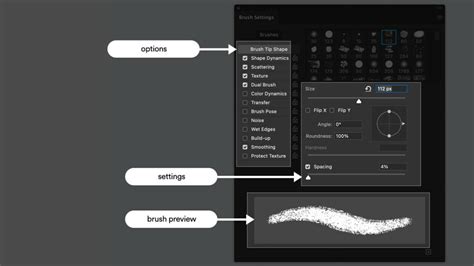
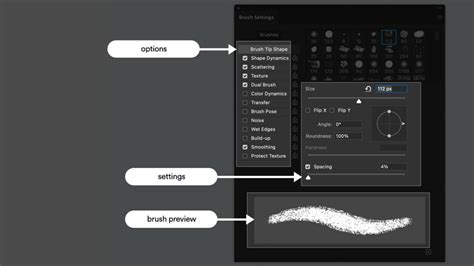
- Shape Dynamics: This setting controls the variation in the size, angle, and roundness of each individual "blade" or clump of grass. This randomness is crucial for avoiding a repetitive, artificial look.
- Scattering: This parameter dictates how the individual elements (grass blades) are distributed across the brush stroke. By adjusting the scatter, artists can control the density and randomness of the grass, creating anything from tightly packed turf to sparse, windswept patches.
- Texture: Some grass brushes incorporate subtle textures within the brush tip itself, adding an extra layer of detail and depth that mimics the natural variations found in real grass.
- Color Dynamics: This setting allows the brush to pick up variations in hue, saturation, and brightness, enabling it to pull from both the foreground and background colors in Photoshop. This is essential for creating natural color transitions and ensuring the grass blends with the overall lighting and color palette of the image.
Color Blending and Integration
A significant advantage of many modern grass brush sets is their ability to intelligently blend with existing colors. As mentioned in the context of real estate photography, these brushes can be configured to sample colors from the surrounding image. This is often achieved through layer blending modes and by setting the brush to utilize foreground and background colors. When you "add a new layer and start with the greens we selected then sample from your photo to match your composition," you are essentially instructing Photoshop to use the brush strokes to not only add shape but also to pick up and integrate the existing color information. This sophisticated color picking ensures that the digitally added grass appears to be a natural part of the scene, responding to the ambient light and color temperature.
Selecting and Using Your Grass Brushes Effectively
The quality of the grass brushes themselves can vary significantly. Investing in high-quality, well-designed brushes is crucial for achieving professional results.
What to Look For in Grass Brushes
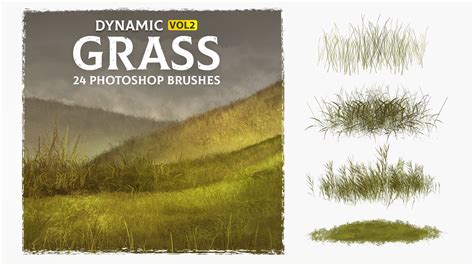
When considering a set of Photoshop grass brushes, such as the "Realistic Grass Brush for Photoshop" which includes 10 brushes, several factors contribute to their effectiveness:
- Variety: A good set will offer a range of brush types, simulating different grass lengths, densities, and even types (e.g., fine blades, clumpy grass, wildflowers).
- Realism: The design should prioritize natural shapes and textures, avoiding overly stylized or repetitive patterns.
- Photoshop Compatibility: Ensure the brushes are compatible with your version of Photoshop and are easy to install and use.
- Customization Potential: Brushes that respond well to Photoshop's built-in dynamics (size, angle, scattering, opacity) offer greater flexibility.
Practical Application Tips
- New Layer is Key: Always apply grass brushes on a new, separate layer. This provides flexibility for editing, blending, and adjusting opacity without affecting the original image.
- Color Sampling: As highlighted, sampling colors from your existing image is vital for seamless integration. Use the Eyedropper tool (I) to pick colors from your photo and set them as your foreground color before painting.
- Vary Brush Size and Opacity: Don't use a single brush size and opacity for your entire grass area. Vary these settings to create natural depth and texture. Smaller brushes and lower opacity can be used for finer details and background elements, while larger, more opaque brushes can build up denser areas.
- Utilize Scattering: Experiment with the scattering settings in the Brush Settings panel (Window > Brush Settings). Adjusting the scatter and count can dramatically alter the density and spread of the grass.
- Layer Blending Modes: Explore different layer blending modes (e.g., Multiply, Overlay, Soft Light) to further integrate the grass layer with your base image. This can help simulate how light interacts with the grass.
- Consider Direction: Think about the direction of growth. If there's a perceived wind or slope, try to orient your brush strokes accordingly.
- Don't Overdo It: Sometimes, less is more. A few strategically placed clumps of grass can be more effective than an entire field rendered with brushes.
The Future of Digital Nature
The evolution of digital art tools continues to push the boundaries of what is possible. Realistic grass brushes are a testament to this progress, offering a powerful yet accessible way to enhance digital creations. As technology advances, we can anticipate even more sophisticated brushes that offer greater realism, more intuitive control, and seamless integration with other digital art techniques. The ability to "buy individually" may become less of a concern as comprehensive toolsets become more readily available, offering a complete solution for digital artists looking to bring the natural world into their digital canvases.
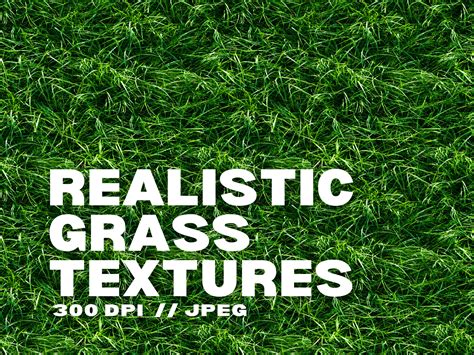
Seamless texture for pattern stamp and fill in Photoshop
The impact of these brushes is undeniable, transforming the way artists approach digital landscapes. From enhancing the curb appeal of a property to adding a dynamic element to a sports poster, the utility of realistic grass brushes is a clear demonstration of how specialized tools can elevate the quality and impact of digital artwork. They empower creators to achieve a higher level of detail and realism, making their digital worlds more immersive, believable, and visually stunning.