Adobe Lightroom stands as a cornerstone for professional photographers, offering robust tools for image management and editing. However, the true potential for optimizing workflow often lies beyond its native capabilities, within the realm of third-party plugins. These specialized software additions can automate time-consuming tasks, introduce novel creative avenues, and ultimately, liberate photographers to focus more on their craft and business growth. At its heart, a Lightroom plugin is a piece of software developed by an external provider, designed to extend Lightroom's features and functionality. While Lightroom is undeniably powerful, its inherent capabilities cannot cater to every specific need out-of-the-box. This is precisely where plugins become indispensable.
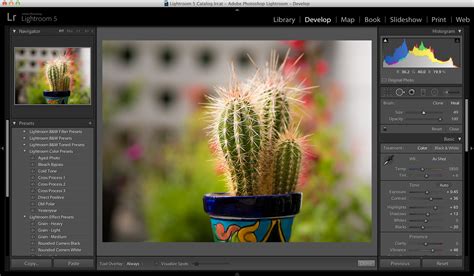
The Indispensable Role of Lightroom Plugins
Plugins serve as crucial extensions to Lightroom's core functionality, addressing various aspects of a photographer's workflow. Their importance can be broadly categorized:
Automation of Repetitive Tasks
Consider the arduous process of culling thousands of images from an event, meticulously searching for the sharpest focus and most compelling expressions. Similarly, applying a consistent set of detailed adjustments to hundreds of portraits can be an overwhelmingly tedious endeavor. These tasks are not merely time-consuming; they are profoundly mentally draining, detracting from the creative and strategic aspects of a photographer's work. Plugins can automate many of these repetitive processes, freeing up valuable cognitive and temporal resources.
Enhanced Creative Control
Certain plugins offer tools that significantly surpass Lightroom's native capabilities. This can range from sophisticated black and white conversion algorithms and unique special effects to advanced sharpening techniques. These tools empower photographers to achieve distinctive artistic visions and push creative boundaries.
Streamlined Workflow Integration
Many photographers rely on a diverse ecosystem of tools and services, encompassing everything from online client galleries to professional printing labs. Plugins can act as bridges, seamlessly integrating these disparate elements into a cohesive and efficient workflow. This ensures a smoother transition between different stages of post-production and client delivery.
Consistency at Scale
For photographers tasked with delivering a uniform aesthetic across a vast number of images, plugins can be an invaluable asset. They provide the means to maintain a consistent look and feel, regardless of the volume of work, ensuring brand integrity and client satisfaction.
The Pic-Time Lightroom Plugin: Seamless Gallery Creation and Upload
The Pic-Time Lightroom Plugin is a prime example of a tool designed to streamline the client delivery aspect of a photographer's workflow. With this plugin, photographers can efficiently create galleries for their Pic-Time accounts and upload images directly from within Lightroom. Once the plugin is installed and configured, the process of creating and managing galleries becomes remarkably straightforward.
Creating a New Gallery
To initiate the creation of a new gallery, photographers can simply right-click on the "Pic-Time Publish Service" within Lightroom and select "Create Gallery…". This action prompts a dialog box where the gallery can be named. A crucial feature here is the option to utilize previously created "Gallery Templates," ensuring brand consistency across different projects. Additionally, photographers can choose to automatically add their currently selected photos to the new gallery. These photos are typically placed in the first scene, but their organization can be easily adjusted later.
Connecting an Existing Gallery
For workflows that involve external CRMs like Honeybook, or for scenarios requiring the reconnection of a gallery at a later stage (such as for Vendor Registration Links or Guest Pre-Registration Links), the plugin offers the ability to "Link to Existing Gallery." By selecting this option, photographers can choose a pre-existing gallery from their Pic-Time account. This action imports the gallery's scene structure. If the image files are present locally on the computer, the plugin will attempt to recover and restore the gallery's content.
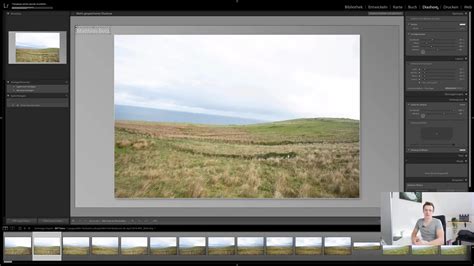
Advanced Gallery Management within Lightroom
The Pic-Time plugin goes beyond basic gallery creation, offering sophisticated tools for organizing and managing content directly within Lightroom.
Adding and Editing Scenes
Photographers can add new "Gallery Scenes" by clicking "Add Scene…". Each scene can be named to reflect its content or purpose. Once created, scenes can be reordered or reorganized by right-clicking on the gallery and selecting "Edit Gallery…", then choosing "Sort Scenes." Within this sorting interface, scenes can be moved up or down, or assigned a specific sequence number by typing it in and clicking "Set #."
Moving and Organizing Photos
After a gallery is established, Lightroom automatically generates folders labeled "Scenes," "Selections," "Highlights," and "Cover Photo." Photos can be moved into these designated areas through a simple drag-and-drop mechanism. Photographers can select images from their catalog and drag them directly into the desired scene or the "Cover Photo" folder.
Smart Scenes for Dynamic Content
A powerful feature is the "Smart Scene." Once a gallery is created, a smart scene can be added. This type of scene is dynamically updated with photos from the Lightroom Catalog based on predefined filter options. Any changes made to the smart scene's criteria in Lightroom are automatically reflected in the Pic-Time gallery upon clicking the "Publish" button, eliminating the need for manual updates. To create a smart scene, right-click on the gallery name and select "Create Smart Scene…".
The Highlights Scene
The "Highlights Scene" is designed to showcase curated selections of photos. Images can be dragged from existing gallery scenes into the Highlights scene. This scene is positioned at the top of the gallery and functions by creating virtual copies of the photos, preserving the original organization within the main scenes. Changes made to the Highlights scene in Pic-Time can be synchronized back to the plugin using the "Sync" option.
Optimizing Export and File Naming Settings
A critical step after gallery creation involves refining export and file naming settings to ensure maximum efficiency and organization.
File Renaming and Export Presets
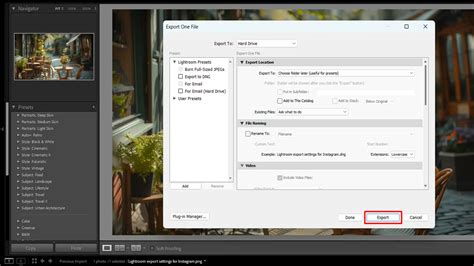
To customize file names and sizes for uploaded photos, photographers can access the "Pic-Time Publishing Manager" by double-clicking it under "Publishing Services." Within the "Pic-Time File Naming" section, the "Rename To" option can be checked, allowing the selection of a predefined file naming template from a dropdown menu. For highly specific naming conventions, a "Preset Editor" is available. Here, new presets can be created by selecting desired data elements, their positions, and inserting them into the file name. The option to "Reset sequence number on each scene" ensures a fresh count for each scene. Once configured, presets can be saved with a unique name.
Backup Copies to Computer
The plugin also facilitates the creation of backup copies on the photographer's computer during the export process to Pic-Time. Under "Pic-Time Export Backup Copy," the "Export Copy to" option can be enabled, allowing the selection of a destination folder. This ensures that exported photos are saved with a structure mirroring the Pic-Time gallery, including gallery and scene names, for easy backup and retrieval.
File Settings, Image Sizing, and Metadata
For optimal print quality, it is generally recommended to set "File Settings > Quality" to "100" and "Image Sizing > Resolution" to "300 pixels per inch." However, it's important to note that cropping can affect the final print size. Photographers can also decide which "Metadata" to include in the exported files before saving their changes.
Renaming Images After Publishing
A common query revolves around renaming images after they have been published. It's important to understand that once a gallery image is published, its filename cannot be directly altered within the system, as the system identifies images by their filename for updates. To effectively change filenames after publishing, a specific workflow is recommended:
- Edit Scene Name: In Lightroom, right-click on the scene containing the images and select "Edit Scene." Change the scene name to something indicative of its older status, such as "SceneName-old."
- Edit Gallery: Right-click on the gallery and select "Edit Gallery…"
- Create New Scene: Create a new scene for the updated images, naming it appropriately (e.g., "SceneName").
- Move Images: Drag the images from the old scene ("SceneName-old") to the corresponding new scene ("SceneName").
- Publish: Click "Publish" to upload the reorganized images with their new scene association.
- Delete Old Scene: Once the new scene is published, the old scene can be right-clicked and deleted.
The Power of AI in Post-Production: Introducing Imagen
While the Pic-Time plugin streamlines gallery management, the broader landscape of Lightroom plugins is evolving rapidly, particularly with the advent of Artificial Intelligence. Imagen stands out as a revolutionary platform that addresses nearly every aspect of a photographer's post-production workflow. It operates as a desktop application that integrates seamlessly with Lightroom Classic, Lightroom, and Photoshop, but crucially, its AI-powered processing occurs in the cloud. This architecture ensures that the photographer's computer remains unburdened, leading to exceptionally fast results.

AI-Powered Culling: Eliminating Tedium
For event photographers, cullingâthe process of selecting the best images from thousands of shotsâis often the most dreaded and time-consuming part of the job. Imagen's AI culling automates this arduous task. Photographers can define their preferences, such as selecting the best photo from a group of similar shots or delivering a specific number of images. The AI then intelligently analyzes photos for technical quality (focus, exposure) and content (faces, duplicates, closed eyes, even kisses). Within minutes, a culled gallery is presented for review, with the AI handling the heavy lifting, while the photographer retains final control. A unique aspect of Imagen's culling is the ability to "Cull Edited Previews," allowing photographers to see a preview of their edits applied to photos even during the culling process.
AI Editing: Learning Your Unique Style
Imagen's AI editing distinguishes itself from traditional presets. Instead of applying a fixed set of adjustments, Imagen's AI learns and replicates a photographer's unique style through "AI Profiles."
- Personal AI Profile: Photographers can train a Personal AI Profile by providing Imagen with at least 2,000 previously edited photos directly from their Lightroom Classic catalogs. Imagen's neural network analyzes these edits, learning the photographer's specific adjustments across exposure, white balance, HSL sliders, and tone curves. This training process typically takes about 24 hours.
- Lite Personal AI Profile: For those with fewer than 2,000 edited photos, a Lite Personal AI Profile can be created using a single preset and a brief survey about editing style.
- Talent AI Profile: Alternatively, photographers can leverage "Talent AI Profiles" created by leading professional photographers, offering a range of styles from "light and airy" to "dark and moody."
- Fine-Tuning: The Personal AI Profile is not static. Photographers can "Fine-Tune" their profile by uploading final, tweaked edits back to Imagen, ensuring the AI remains current with evolving styles.
Additional AI Tools and Cloud Integration
Beyond culling and editing, Imagen offers a suite of supplementary AI tools, such as AI Crop and Smooth Skin, available for an additional per-photo charge. The platform also completes the workflow loop with integrated cloud storage and delivery options. Photos uploaded for culling or editing can be automatically backed up to the cloud. Once edits are finalized, JPEGs can be delivered directly from Imagen, either to a local folder or published directly to a Pic-Time gallery.
Exploring the Broader Plugin Ecosystem
While Imagen offers a comprehensive solution, the world of Lightroom plugins is vast, with many excellent tools focusing on specialized tasks:
- Exposure X7: Functions as both a standalone editor and a Lightroom plugin, excelling in creative effects, film simulation, and advanced masking.
- Luminar Neo: Known for its AI-powered tools, Luminar Neo can address specific issues, such as its renowned "Sky AI" for realistic sky replacement and detailed portrait editing tools.
- Topaz Denoise AI: Utilizes AI to remove noise while preserving intricate detail.
- DxO PureRAW: A pre-processor that applies advanced noise reduction and lens corrections to RAW files, creating cleaner DNG files before importing into Lightroom.
- Photo Mechanic: While not a traditional plugin, it's an essential companion for rapid culling and keywording, particularly for sports and news photographers, due to its speed in previewing embedded JPEGs.
- LR/Mogrify 2: A powerful export plugin offering extensive control over watermarks, borders, text annotations, resizing, and sharpening.
- ProSelect: An in-person sales tool designed for portrait and wedding photographers selling prints, albums, and wall art.
- AlbumStomp: Integrates with Lightroom for intuitive album design with a drag-and-drop interface, streamlining the process of sending final files to print labs.
How to Use the New Advanced Color Grading Feature | In A Lightroom Minute | Adobe Lightroom
Integrating Plugins for an Optimized Workflow
The key is not to install every available plugin but to strategically integrate those that best serve a photographer's specific needs. A potential workflow integrating AI culling and editing might look like this:
- AI Culling with Imagen: Upload an entire shoot to Imagen, allowing its AI to perform the initial pass, group photos, and select the best shots.
- AI Editing with Imagen: Send the culled photos to be edited using the photographer's Personal AI Profile.
- Download and Review in Lightroom: Once the AI edits are ready, download them into the Lightroom Classic catalog.
- Final Touches in Lightroom: Make any final creative adjustments or refinements within Lightroom.
- Export and Deliver: Utilize Lightroom's native export features or a plugin like LR/Mogrify 2 to prepare final JPEGs for delivery, potentially directly to a service like Pic-Time.
Frequently Asked Questions About Lightroom Plugins and Pic-Time
Pic-Time Plugin Functionality and Workflow
Q: How does the Pic-Time Plug-in streamline my workflows?A: The plug-in allows for the direct creation and upload of galleries from Lightroom, syncing images, and automating tasks. If you edit or retouch images for your clients, you may want to automatically sync the images they select. In addition, you can use Lightroom Filters to quickly create Blogs, Slideshows, favorites lists, products, send photos, and more.
Q: Where does the Plug-in export photos to on my computer?A: The Plug-in exports photos to one of the folders in the hidden Uploader folder on your computer, and the temporary files are deleted after they've been uploaded to the site. You can also back up the photos via export settings.
Q: How do I rename my filenames when they upload? / How can I create unique filenames for each gallery?A: You can rename files when they upload by creating an export preset within the plugin's settings. This ensures consistency without needing to update export settings each time.
Q: How do I use the Plug-in with multiple brands?A: For multiple brands, create distinct Gallery Templates for each brand within your Pic-Time account. When creating galleries with the Plug-in, you can select the appropriate Gallery Template to ensure the gallery is set to that particular brand.
Q: How do I preserve the custom order/arrangement of images?A: When you move or rearrange images within a scene in Lightroom, this custom order will be reflected in the gallery after you publish that specific scene. If "Rename on Publish" is selected, file renaming will also be based on this custom order. Otherwise, images are sorted by Lightroom's default order (capture time).
Q: What can be changed on a Republish?A: When you make edits to published images in Lightroom, these changes are recognized, and the images are marked for republishing. This allows you to update existing images in your Pic-Time gallery.
Q: How do I check for updates to the Plug-in?A: Updates to the Plug-in typically occur automatically. You may need to restart Lightroom for the updates to take effect.
Q: Does the Plug-in support multiple catalogs?A: Yes, you can switch between catalogs within the same device and user account.
Q: When should I create a new catalog?A: It is recommended to create a new catalog once a year or when it reaches approximately 300GB, whichever comes first, after completing your last pending gallery within that catalog. If you experience issues or slowness before reaching these thresholds, optimizing Lightroom performance or creating a new catalog is advised.
Q: Does the Plug-in support 2-factor authentication?A: Yes, 2-factor authentication can be enabled within your Pic-Time account settings.
Q: How do I log in/out of the Lightroom Publish Service?A: Specific steps for logging in and out of the Publish Service are available in the plugin's documentation.
Q: How do I modify a CSV list and use it in Lightroom?A: You can use a downloaded CSV list to search for images within Lightroom, providing a way to manage and locate specific media.
Q: What metadata do my images retain?A: Your images can retain as much or as little metadata as you choose, offering flexibility in how information is carried with your files.
Q: How do I find the Project ID?A: The Project ID can be easily found within the specific gallery URL in your Photographer Dashboard on the Pic-Time website.
Imagen AI and Workflow Integration
Q: Do I need Lightroom Classic to use Imagen?A: While Imagen is most powerful with Lightroom Classic, it is also compatible with Lightroom, Photoshop, and Bridge, offering extended Adobe compatibility.
Q: How is Imagenâs AI editing different from using a preset?A: Unlike presets, which apply fixed adjustments, Imagen's AI dynamically analyzes each photo's characteristics (lighting, subject, color) and applies unique adjustments to achieve your target style for that specific image.
Q: Will using an AI editor make my photos look generic?A: With Imagen's Personal AI Profile, the AI learns directly from your past edits, ensuring the results reflect your unique style.
Q: Is my data safe with Imagen? Who can see my photos?A: Imagen prioritizes data security. Photos are uploaded to secure AWS servers for processing. Access by Imagen personnel is strictly controlled and requires explicit consent for technical support.
Q: How much does Imagen cost?A: Imagen's pricing is pay-per-use for AI Editing, with additional costs for optional tools. AI Culling is available via monthly or annual subscription, as is optional Cloud Storage.
Q: Can I use Imagen for different photography styles, like weddings and real estate?A: Yes. It is highly recommended to create separate Personal AI Profiles for distinct editing styles to maintain accuracy and consistency.
Q: What if I donât have 2,000 edited photos to create a Personal AI Profile?A: You can create a Lite Personal AI Profile using a favorite preset and a style survey, or utilize one of the Talent AI Profiles created by professional photographers.
Q: Does Imagen work on both Mac and PC?A: (Information not explicitly provided in the user's text, but generally, such applications are cross-platform).
Q: Can I still make my own final adjustments after Imagen edits my photos?A: Yes, and it is encouraged. Imagenâs edits are applied directly to Lightroom sliders, giving you 100% control for final tweaks.
Q: What is âfine-tuningâ and how often should I do it?A: Fine-tuning is the process of updating your Personal AI Profile with your latest edits. After making final tweaks in Lightroom, you can upload those versions back to Imagen. Imagen will prompt you to fine-tune your profile when enough new edits have accumulated, keeping the AI current with your evolving style.
Q: Is Imagen a subscription service?A: Imagen's AI Editing is pay-per-use. AI Culling, Cloud Storage, and other features may be subscription-based.
Q: Can multiple people on my team use the same Personal AI Profile?A: Yes, a Personal AI Profile can be shared with up to three other Imagen accounts, ideal for studios with multiple photographers or editors.
Q: What happens to my Lightroom catalog when I use Imagen?A: Imagen works non-destructively. It updates metadata in your Lightroom catalog by adjusting sliders in the Develop module, without altering original RAW files.
The integration of tools like the Pic-Time Lightroom Plugin and advanced AI platforms like Imagen represents a significant leap forward in photography workflow efficiency. By automating repetitive tasks, enhancing creative control, and streamlining delivery processes, these technologies empower photographers to dedicate more time to their artistic vision and the strategic growth of their businesses. The continuous evolution of plugins ensures that the tools available to photographers will continue to adapt, offering ever more sophisticated solutions for the challenges of modern image creation and management.