In the digital age, sharing and viewing images seamlessly across a multitude of devices and platforms is a common necessity. While Apple devices, including iPhones and Macs, have adopted HEIC (High Efficiency Image Compression) as their default image format, this efficiency comes at the cost of universal compatibility. Many users find themselves encountering the ".heic" extension and wondering how to make their photos accessible to a wider audience. This is where the need for an HEIC to JPEG converter becomes apparent, offering a bridge to the more widely supported JPG format.
The Advantages and Limitations of HEIC
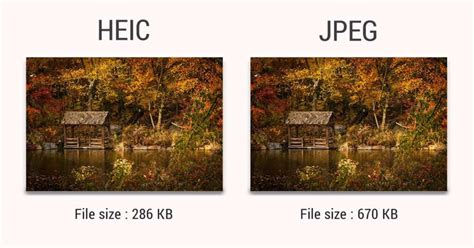
HEIC is a modern image format designed for high efficiency. It leverages advanced compression algorithms, allowing for significantly smaller file sizes compared to traditional formats like JPEG, without a noticeable compromise in image quality. This means users can store more high-quality photos on their devices, optimizing precious storage space. Furthermore, HEIC supports advanced features such as Live Photos, which capture a short video clip along with a still image, and can store multiple images within a single file.
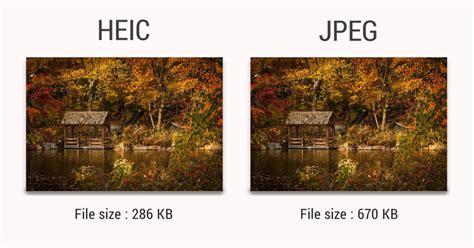
However, the primary drawback of HEIC lies in its limited native support. While it excels within the Apple ecosystem, non-Apple PCs, Android phones, older software, and many web services struggle to open or display HEIC files without specialized applications. This lack of interoperability can be a significant hurdle for users who need to share their images with a broader audience or use them in applications outside of Apple's integrated environment. Attempting to view HEIC files on a non-Apple device often requires the installation of special software, which can be costly and inconvenient.
Why Convert to JPEG?
The JPEG (Joint Photographic Experts Group) format, often recognized by its ".jpg" or ".jpeg" extension, has long been the de facto standard for digital photography. Its ubiquity means that JPG files can be opened and viewed on virtually any device, operating system, or web browser without the need for additional software. This universal compatibility makes JPG the ideal format for sharing photos, whether it's through email, social media, or across different operating systems.
While JPG is a "lossy" format, meaning some image quality may be slightly reduced during compression or editing, the trade-off for its widespread compatibility is often considered worthwhile. For most everyday sharing and viewing purposes, the difference in quality is imperceptible to the average user. Therefore, converting HEIC files to JPG ensures that your cherished memories and important images are accessible to everyone, regardless of their device or software.
Converting HEIC to JPEG: A Seamless Process
Fortunately, transforming HEIC files into the more accessible JPG format is a straightforward process, with various tools and methods available across different platforms.
On macOS: The Built-in Preview App
For Mac users, converting HEIC to JPG is remarkably simple thanks to the built-in Preview application. This powerful tool allows for quick and easy image manipulation.
- Open the HEIC file in the Preview app.
- Navigate to the File menu.
- Select Export….
- In the export dialog box, choose JPEG from the Format drop-down menu.
- Adjust any quality or compression settings as desired.
- Click Save to create a JPG version of your HEIC image.
For users who prefer all their photos to be in JPG format by default, macOS also offers a system-wide setting to change the default image capture format. This ensures that future photos taken on your Mac are automatically saved as JPGs, streamlining your workflow and eliminating the need for manual conversion.
On Windows: Leveraging Native and Third-Party Tools
Windows users may initially be surprised to find that their operating system doesn't natively support HEIC files. However, Microsoft provides a solution through its Microsoft HEIF Image Extensions, available for free from the Microsoft Store. Once installed, you can open HEIC files directly in the Photos app.
For conversion, Windows offers the HEIF/HEVC extensions which can be purchased or sometimes obtained for free depending on the version. Alternatively, many third-party applications and online converters are available. A simple drag-and-drop interface in many of these tools makes the conversion process intuitive.
- Native Microsoft Converter: Some users report the existence of a native converter app within Windows that allows for drag-and-drop conversion. This tool is often free and works on both PCs and tablets, simplifying the process to a few clicks.
iPhone and iPad: On-Device and App-Based Conversions
For iPhone and iPad users, converting HEIC to JPG can be done directly on the device or through specialized apps.
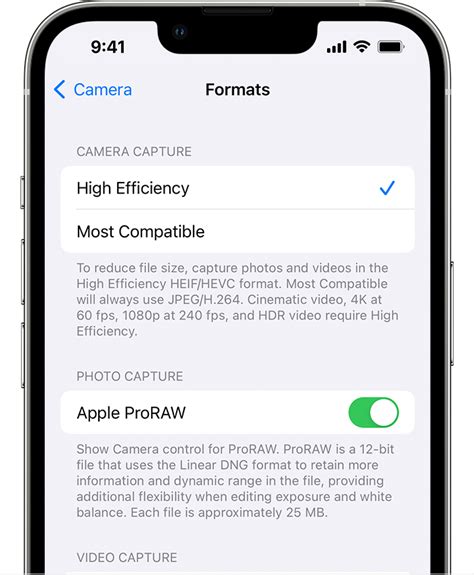
- Changing Default Camera Settings: To ensure all future photos are saved as JPGs, you can adjust your iPhone's camera settings. Go to Settings > Camera > Formats and select Most Compatible. This will set your iPhone to capture images in JPG format by default.
Using the "HEIC to JPEG Image Converter" App: Several apps on the App Store are designed specifically for this purpose. The "HEIC to JPEG Image Converter" app, for instance, is highlighted for its ability to convert HEIC files to JPEG format seamlessly. It promises to preserve the original quality of images during conversion and offers greater flexibility in sharing photos due to JPEG's universal support. Such apps often feature user-friendly interfaces where you can select HEIC files, choose JPG as the output, and complete the conversion with ease.
Using Cloud Services and Online Converters: Services like Canva offer online HEIC to JPG conversion. You can simply drag and drop your HEIC image onto their platform, and it will automatically convert it into an editable JPG file ready for download. This is particularly useful for creative projects where you need to integrate your photos into designs.
Online Converters: Quick and Accessible Solutions
For users seeking a quick, no-installation solution, numerous free online HEIC to JPG converters are available. These services typically allow you to upload your HEIC files directly from your web browser, select JPG as the output format, and download the converted files. While convenient, it's important to consider data privacy and security when using online tools, especially for sensitive images. Reputable online converters often specify their data handling practices, such as whether files are stored or deleted after conversion.
Streamlining Image Sharing with PDF
Beyond converting to JPG, another highly effective method for ensuring broad image accessibility and shareability is converting images to PDF format. While JPG is ideal for individual image files, PDF is a versatile document format that excels at preserving the integrity of content, including images, across all devices and operating systems.
Adobe Acrobat, for example, offers robust tools for converting various file types, including HEIC images, into PDFs. This process not only makes your images universally viewable but also allows for bundling multiple images into a single, easily manageable document. This is particularly useful for presentations, reports, or portfolios where maintaining layout and quality is crucial. Converting to PDF can be seen as an additional layer of assurance for compatibility, as PDF readers are virtually ubiquitous.
How to Convert Jpg to PDF in Adobe Acrobat [2025 Full Guide]
Considerations for Conversion
When converting HEIC to JPG, it's important to be aware of a few nuances:
- Image Quality: As mentioned, JPG is a lossy format. While modern converters strive to minimize quality degradation, some slight reduction might occur, especially if aggressive compression is applied. For most users, this difference is negligible.
- EXIF Metadata: HEIC files can store EXIF (Exchangeable image file format) metadata, which includes information such as camera settings, date, time, and location. Some conversion tools offer the option to retain or remove this metadata. If the embedded information is important to you, ensure your chosen converter supports EXIF preservation.
- Live Photos: HEIC's ability to store Live Photos (a combination of a still image and a short video) is a feature that is lost in a standard JPG conversion. If you need to preserve the video aspect of Live Photos, you might need to export them separately before converting the still image component.
The Future of Image Formats and Conversion Tools
The ongoing evolution of digital imaging formats means that tools for conversion will continue to adapt. While HEIC offers compelling advantages in compression and quality, the practical need for universal compatibility ensures that formats like JPEG and PDF will remain essential. The availability of user-friendly HEIC to JPG converter apps and online services underscores the demand for seamless integration of new technologies with existing digital workflows. Whether you're a casual user wanting to share vacation photos or a professional integrating images into marketing materials, the ability to convert HEIC to JPG is a vital skill in today's interconnected digital landscape. The HEIC to JPEG Image Converter app, for instance, highlights the user-centric approach taken by developers to address this need, offering convenience, compatibility, and quality in managing image files.