Overlaying images in Photoshop is a powerful and versatile technique that allows for the seamless integration of various visual elements. Whether you're aiming to craft a compelling branded social media post, a cherished family keepsake, or a professional product mockup, understanding how to effectively layer photos, logos, textures, and graphics is fundamental. This process enables the construction of polished, eye-catching designs and can be used to create everything from intricate photo collages and sophisticated event invitations to dynamic visual compositions. Photoshop provides a suite of tools designed to make this layering process intuitive and accessible, even for beginners.
The Fundamentals of Image Overlay in Photoshop
At its core, image overlay is the art of placing one image on top of another to create a unified, layered composition. Photoshop simplifies this process through its intuitive interface and drag-and-drop functionality. The journey typically begins with opening the main image you intend to work with, often referred to as the base image.
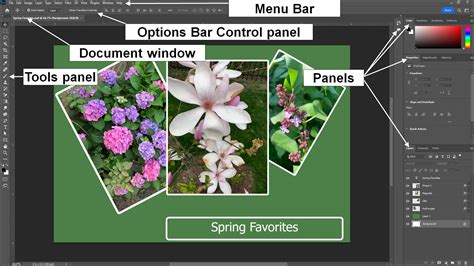
Once your base image is loaded, adding another image is as straightforward as dragging and dropping a second file directly into your Photoshop workspace. Upon release, Photoshop automatically recognizes this new file and places it as a distinct layer above your existing content. This immediate segregation into layers is crucial, as it allows for independent manipulation of each element without affecting the others.
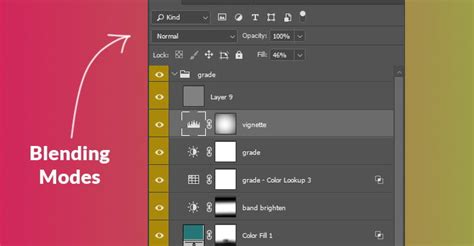
The true power of image overlay lies in the control you have over how these layers interact. Photoshop offers a range of layer settings, including opacity, blending modes, and layer masks, to precisely dictate this interaction. Opacity controls the transparency of a layer, allowing the underlying image to show through. Blending modes, a more advanced feature, determine how the pixels of one layer interact with the pixels of the layers below it, leading to a wide array of creative effects. Layer masks, on the other hand, provide a non-destructive way to hide or reveal portions of a layer, enabling intricate blending and selective editing.
For those seeking a quick and seamless match between an overlay and the base image, Photoshop offers the Harmonize feature. This intelligent tool can automatically align the color and tone of the overlay with your base image, ensuring that every element feels organically integrated and that lighting, color, and shadows are consistent across the composition. This feature is particularly useful when combining photographs with different lighting conditions or color casts.
New Harmonise Tool in Photoshop Beta
Layering for Creative Compositions
The ability to overlay images extends beyond simple photo combinations. You can expertly layer photos, graphics, and textures to build custom visuals tailored to any project. Whether your goal is to assemble a personal vision board, design a captivating branded YouTube thumbnail, or create a unique holiday card, Photoshop's image overlay tools are instrumental in transforming concepts into polished results with remarkable speed.
Each image or graphic added to your composition is treated as a separate layer. This affords you the flexibility to move, resize, and blend these layers to achieve your desired unified design. The process is remarkably accessible, even on mobile devices. With the Photoshop mobile app or Photoshop online, you can layer images with ease, whether you're on the go, at a photoshoot, or working from your tablet or phone. This cross-device synchronization ensures you can stay in sync with your projects from anywhere.
Understanding Blending Modes for Dynamic Effects
Blending modes are a cornerstone of advanced image overlay techniques in Photoshop. They dictate how the pixels of a layer blend with the pixels of the layers beneath it. While the default mode is "Normal," exploring other modes can unlock a world of creative possibilities.
- Multiply: This mode darkens the image by multiplying the color information of the base color with the blend color. It's excellent for darkening images or creating shadow effects.
- Screen: The opposite of Multiply, Screen mode lightens the image by inverting and multiplying the color information. It's ideal for creating highlights, glows, or adding light effects.
- Overlay: This mode combines the effects of Multiply and Screen. It darkens darker areas and lightens lighter areas, increasing contrast and saturation, and is often used to add texture or intensity.
- Soft Light: Similar to Overlay, but with a gentler effect. It appears as if a diffused spotlight is shining on the image, softening highlights and deepening shadows.
- Hard Light: A more intense version of Soft Light. It increases contrast and saturation, creating a harsher, more dramatic effect.
Experimenting with these blending modes, often in conjunction with adjusting the opacity of the overlay layer, allows for subtle or dramatic transformations. For instance, applying a texture overlay with a "Multiply" blend mode can imbue a photograph with a gritty, aged feel, while using "Screen" with a light leak overlay can add a dreamy, vintage aesthetic.
Leveraging Layer Masks for Precision
Layer masks are indispensable tools for achieving sophisticated image overlays. They offer a non-destructive method to control the visibility of a layer. Instead of permanently erasing parts of an image, a layer mask allows you to selectively hide or reveal areas. This is achieved by painting on the mask with black to hide, white to reveal, and shades of gray for semi-transparency.
Gradients, brushes, or selections can be used to paint on layer masks, enabling smooth transitions, the blending of edges, or the precise hiding of unwanted elements. For example, if you're overlaying a texture onto a portrait, a layer mask can be used to ensure the texture only appears on the background, or subtly blends into the subject's hair, creating a more integrated and artistic effect. This flexibility means your original images remain entirely intact, allowing for endless experimentation and refinement.
Practical Applications and Creative Possibilities
The applications of image overlay in Photoshop are vast and varied, catering to both professional and personal creative endeavors.
Product Mockups and Branding
For businesses and designers, image overlays are crucial for creating realistic product mockups. Overlaying logos, designs, or branding elements onto product templates (like t-shirts, mugs, or packaging) provides a clear visualization of the final product before it goes into production. Similarly, creating branded social media posts often involves overlaying logos, taglines, or graphic elements onto background images to maintain brand consistency.
Photo Collages and Keepsakes
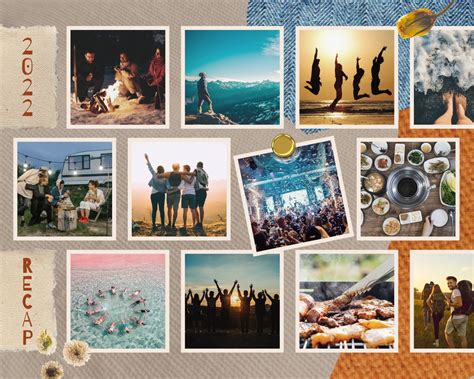
Personal projects benefit immensely from overlay techniques. Creating photo collages for digital scrapbooking, personalized greeting cards, or commemorative albums involves layering multiple family photos, decorative elements, and text. The ability to combine images, graphics, and textures in a single composition with Photoshop makes these personal keepsakes both meaningful and visually appealing.
Artistic Expression and Special Effects
Beyond practical applications, image overlays are a gateway to artistic expression. Techniques like double exposure, where two images are layered to create a surreal and dreamlike effect, are easily achieved. Adding textures, patterns, or atmospheric elements like fog, light rays, or particles can transform ordinary photographs into extraordinary works of art. These overlays can be sourced from various collections, including Adobe Stock, where you can preview watermarked versions before licensing them for high-resolution use.
Holiday Cards and Thematic Designs
The creation of holiday cards is a popular example of using overlays. A base photo can be enhanced with festive graphics, borders, and text elements. For instance, a tutorial might guide users through creating a holiday card by adding a background color, a family photo, and decorative overlays. If an overlay file appears black and doesn't integrate correctly, a common solution is to use the "Color Overlay" option within the layer's Blending Options. This allows you to apply any color to the overlay, which can then be changed as needed without compromising the design's integrity.
Advanced Techniques and Workflow Tips
To achieve professional-looking results, several advanced techniques and workflow tips can be employed.
Utilizing the Harmonize Feature
As mentioned earlier, the Harmonize feature is invaluable for ensuring color and tonal consistency. When overlaying images, especially photographs, it's common for different light sources and color temperatures to create a disconnect. Harmonize analyzes the base image and applies similar color and tonal adjustments to the overlay layer, making the integration appear much more natural. This is particularly effective for matching shadows and highlights, making the overlay feel like it was always part of the original scene.
Working with Transparency and PNG Files
When seeking overlays online, it's crucial to look for files with transparent backgrounds, such as PNG, SVG, or PSD files. JPEG files, by contrast, typically have solid backgrounds and are not suitable for seamless overlaying without further editing. Transparent overlays allow the underlying image to show through naturally, forming the basis of many sophisticated effects.
Fine-Tuning with Fill and Opacity
Beyond blending modes, the "Fill" and "Opacity" settings for a layer offer granular control. While opacity affects the entire layer, fill specifically affects the pixel data of the layer, leaving layer styles (like drop shadows or strokes) unaffected. Adjusting the fill percentage can create subtle transparency effects, making overlays appear more integrated. For example, a semi-transparent brush stroke graphic can be used to create a soft background for text, making it more legible against a busy image. Lowering the fill percentage for this layer will increase its translucency.
Saving Your Work Effectively
Understanding how to save your Photoshop projects is essential. Saving as a .PSD file retains all layers, masks, and settings, allowing for future edits. However, .PSD files are proprietary to Photoshop and cannot be directly used for web display or printing. For final output, you'll need to export your work in formats like JPEG, PNG, or TIFF, depending on your intended use.
New Harmonise Tool in Photoshop Beta
Embracing Experimentation and Continuous Learning
The world of Photoshop image overlays is one of constant exploration. Don't hesitate to experiment with different overlays, blend them together, or even create your own unique combinations. Try different blending modes, adjust opacity and fill, and use layer masks to refine your creations. The possibilities are virtually limitless, allowing you to craft everything from surreal dreamscapes to polished marketing materials.
Photoshop's accessibility extends to its online and mobile versions, making it possible to overlay images online for free, from anywhere. This democratization of powerful editing tools means that anyone with an idea can begin to bring their visual concepts to life. Whether you're a seasoned professional or a curious beginner, Photoshop provides the tools and flexibility to elevate your images and tell compelling visual stories. The journey of mastering image overlays is one of continuous learning and creative discovery, where each project offers an opportunity to refine your skills and unlock new artistic potential.
The ability to layer images with transparency in Photoshop opens up a vast array of creative avenues. You can overlay two images, or indeed, many more, with each contributing to a complex and unified final composition. This process is not limited to photographs; graphics, textures, and even hand-drawn elements can be integrated seamlessly. The key lies in understanding how each element interacts with the others, a principle that Photoshop's layer-based system elegantly supports. By mastering these techniques, users can transform ordinary visuals into extraordinary works of art, capable of conveying specific messages, evoking emotions, or simply delighting the viewer with their aesthetic appeal.