Encountering persistent sign-in prompts for your Adobe account, especially when powering on your PC, can be a frustrating experience. This article aims to demystify the process, address common issues, and provide actionable solutions for users seeking seamless access to Adobe Lightroom and other Creative Cloud applications. We will delve into the intricacies of account authentication, explore potential conflicts with network connectivity, and highlight troubleshooting steps that have proven effective in resolving these sign-in hurdles.
Understanding Adobe Account Authentication
Adobe employs a multi-layered approach to account security, which often includes a two-stage authentication process. This is designed to protect your account from unauthorized access. When you are prompted to sign in, especially after powering on your PC, it signifies that the system is verifying your identity. While this is a crucial security measure, it can sometimes lead to repetitive prompts if not configured correctly or if underlying issues interfere with the authentication process.
The user experience described, where a sign-in prompt appears each time the PC is powered on, suggests that the authentication session might not be persisting correctly. This could be due to various factors, including system configurations, network interruptions, or even background processes that are not completing their intended functions. The fact that working through provided information in a link (as mentioned by the user) and subsequent power cycles seemed to clear the issue, only for it to resurface, points to a potentially intermittent or underlying problem that is not fully resolved.
Network Connectivity: A Crucial, Yet Often Overlooked, Factor
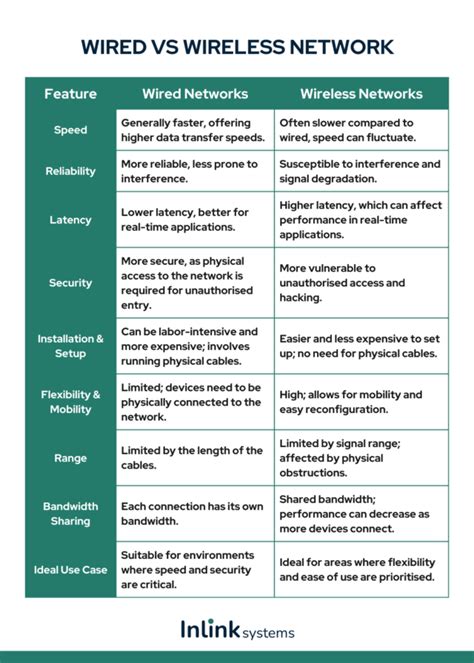
A significant point of contention in the user's experience was the intermittent ignoring of the wired LAN connection in favor of wireless connectivity. This seemingly unrelated issue can have a direct impact on Adobe's sign-in process. Adobe applications, like most cloud-based services, rely on a stable and consistent internet connection to authenticate your license and sync your data.
When your PC is experiencing network instability or is switching between wired and wireless connections unexpectedly, it can disrupt the communication between your computer and Adobe's servers. This disruption can lead to authentication failures or repeated sign-in requests. The user's observation that disabling the wireless connection prevented the wired connection from being enabled further highlights a deeper network configuration problem on their PC. Such issues often require a thorough examination of network adapter settings, driver integrity, and potential conflicts between different network protocols.
A restart typically resolves temporary network glitches, but when a problem persists, it indicates a more systemic issue. This could involve corrupted network drivers, incorrect IP address configurations, or even interference from security software. For Adobe applications to function optimally, a reliable network connection is paramount, and troubleshooting network issues should be a primary step when encountering persistent sign-in problems.
Troubleshooting Sign-In Issues: A Step-by-Step Approach
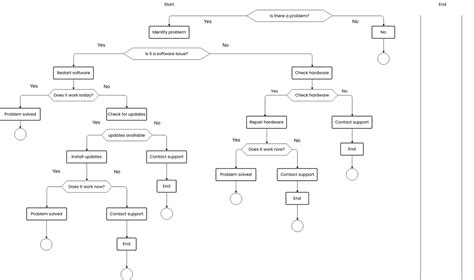
When faced with repeated Adobe sign-in prompts, a systematic troubleshooting approach is essential. The following steps, drawing from common solutions and the user's experience, can help diagnose and resolve the problem:
Verify Adobe Account Credentials: The most basic step is to ensure you are using the correct Adobe ID and password. A typo or an outdated password can prevent successful sign-in. Consider resetting your password through the Adobe website if you suspect an issue.
Check Adobe Creative Cloud Desktop App: The Creative Cloud desktop application is central to managing your Adobe subscriptions and sign-in status.
- Sign Out and Sign In: Within the Creative Cloud app, navigate to your account settings and sign out. Then, restart the application and sign back in. This can often refresh your authentication token.
- Update the App: Ensure that the Creative Cloud desktop app is updated to the latest version. Updates often include bug fixes and performance improvements that can resolve sign-in issues.
Address Network Connectivity Problems: As highlighted, network issues are a common culprit.
- Restart Router and Modem: A simple power cycle of your router and modem can resolve temporary network glitches.
- Check Wired LAN Connection: If you prefer a wired connection, ensure the Ethernet cable is securely plugged in at both ends. Try a different Ethernet cable or port on your router.
- Troubleshoot Wireless Interference: If relying on Wi-Fi, ensure your router is not experiencing interference from other devices. Try moving closer to the router or changing the Wi-Fi channel.
- Reset Network Settings (Windows): In Windows, you can reset your network settings. Go to Settings > Network & Internet > Status > Network reset. Be aware that this will remove and reinstall all network adapters and reset other networking components to their original settings. You might need to reinstall VPN clients or other network software afterward.
- Disable and Re-enable Network Adapters: Sometimes, simply disabling and then re-enabling your wired and wireless network adapters in the Device Manager can resolve conflicts.
Examine System and Windows Updates: The user mentioned a Windows update appearing and subsequent shutdowns due to problems.
- Check Update History: Review your Windows update history to see if any recent updates coincided with the onset of the sign-in issue. Sometimes, a problematic update can cause unexpected behavior. You might consider temporarily uninstalling a recently installed update if you suspect it's the cause, though this should be done with caution.
- Ensure Windows is Fully Updated: Conversely, ensure your Windows operating system is fully up-to-date. Pending updates can sometimes cause system instability.
Clear Adobe Cache and Preferences: Corrupted cache files or preference settings for Adobe applications can lead to various issues, including sign-in problems.
- Adobe Creative Cloud Cleaner Tool: Adobe provides a Creative Cloud Cleaner Tool that can help resolve installation and update issues. While not directly for sign-in, it can address underlying problems that might contribute to it.
- Manually Clear Preferences: For specific applications like Lightroom, you can try resetting preferences by holding down specific keys (e.g., Alt + Shift on Windows) while launching the application. Consult Adobe's official documentation for the correct key combinations for your version of Lightroom.
Check Adobe Genuine Software Integrity Service: This service ensures that your Adobe software is genuine. Issues with this service can sometimes affect authentication. Ensure it is running and not encountering errors.
Firewall and Antivirus Software: Occasionally, overly aggressive firewall or antivirus software can block Adobe's authentication processes. Temporarily disabling these (with caution and for testing purposes only) can help determine if they are the cause. If they are, you will need to configure them to allow Adobe applications and services to communicate freely.
Understanding Second-Stage Authentication and Potential Complications
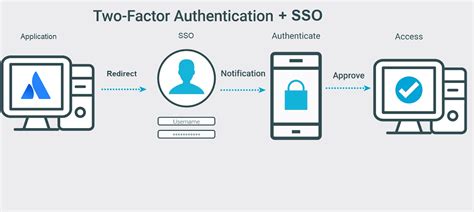
The mention of a "two stage account security authentication" is critical. This typically refers to processes like two-factor authentication (2FA) or multi-factor authentication (MFA), where after entering your password, you are asked for a second piece of verification, such as a code from your phone or an authenticator app.
If this second stage is not completing successfully, it will prevent you from signing in. This could be due to:
- Issues with the second factor device: Your phone might not be receiving codes, or the authenticator app might be out of sync.
- Network problems affecting code delivery: SMS codes rely on mobile network reception, and app-based codes rely on internet connectivity.
- Time synchronization issues: If the time on your computer or your second factor device is significantly out of sync with Adobe's servers, time-based codes may be rejected.
Resolving these issues involves ensuring your second factor device is functioning correctly, has a reliable connection, and that your system's time is synchronized automatically with an internet time server.
Two Factor Authentication for Adobe Experience Manager 6.4
Advanced Troubleshooting and System Integrity
When the above steps do not yield results, it may be necessary to delve into more advanced troubleshooting. This can include:
- Checking System Time and Date: Ensure your PC's date, time, and time zone are set correctly. Incorrect system time can interfere with secure connections and authentication protocols. Synchronize your clock with an internet time server.
- Investigating Windows Updates: The user's experience with a Windows update and subsequent system shutdowns warrants a closer look. It's possible a recent update introduced a conflict or bug. Checking Microsoft's support forums or Adobe's community forums for similar reported issues related to recent Windows updates can provide valuable insights.
- System File Checker (SFC) and DISM: Corrupted system files in Windows can lead to a wide range of problems, including network and authentication failures. Running the System File Checker (
sfc /scannowin an elevated Command Prompt) and the Deployment Image Servicing and Management tool (DISM /Online /Cleanup-Image /RestoreHealth) can help repair these files.
The Importance of a Stable Environment
Ultimately, the ability to sign in to Adobe Lightroom and other services hinges on a stable computing environment. This includes a reliable operating system, up-to-date drivers, consistent network connectivity, and correctly configured security software. The user's experience, with simultaneous issues in network connectivity, Windows updates, and sign-in prompts, underscores how interconnected these elements are. Addressing each potential point of failure systematically is key to achieving a resolution. By following a structured troubleshooting process, users can identify and rectify the underlying causes of persistent Adobe sign-in challenges, ensuring uninterrupted access to their creative tools.