Adobe Photoshop, a powerhouse in the digital imaging industry, offers a vast array of tools for creative professionals and hobbyists alike. However, its inherent functionality can be further expanded and tailored to specific needs through the use of plugins. These are separate files that interact with Photoshop, introducing new features and capabilities, ranging from unique filters and patterns to specialized brush and pen styles. Understanding how to install and manage these plugins is crucial for unlocking the full potential of your Photoshop experience.
The Role and Benefits of Photoshop Plugins
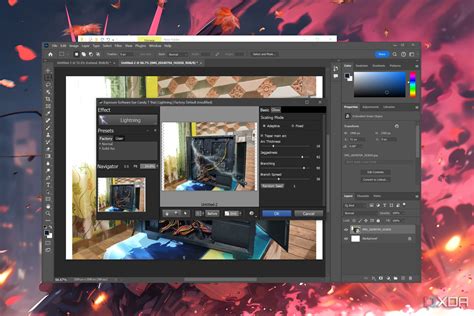
Plugins, also known as plug-ins or extensions, are essentially add-on programs that integrate seamlessly with Adobe Photoshop. They are developed by both Adobe itself and a vibrant community of third-party developers. The primary purpose of a plugin is to augment Photoshop's existing features or introduce entirely new ones, thereby streamlining workflows, enabling specialized techniques, and providing access to unique creative assets.
For instance, a photographer might install a plugin that offers advanced noise reduction algorithms, while a graphic designer might opt for a plugin that provides a vast library of custom brushes or intricate pattern fills. Some plugins are designed to automate repetitive tasks, such as batch processing images or applying complex stylistic effects. The spectrum of plugin functionality is broad, encompassing everything from subtle enhancements to radical transformations of the Photoshop interface and capabilities. This adaptability makes Photoshop a truly versatile tool, capable of meeting the demands of an ever-evolving creative landscape.
Acquiring Photoshop Plugins: From Official Marketplaces to Third-Party Sources
There are several avenues through which you can acquire plugins for Adobe Photoshop. The most straightforward and often the safest method is to utilize the Adobe Creative Cloud desktop application. Within the Creative Cloud app, you can navigate to "Stock & Marketplace" and then select "Plugins." This section serves as a central hub for a wide variety of plugins, many of which are officially vetted by Adobe.
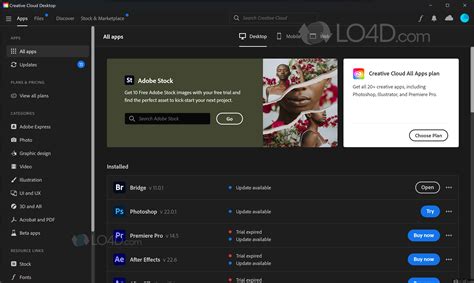
The Creative Cloud Marketplace offers a curated selection of plugins, making it easy to browse, discover, and install new tools. You can search for specific plugins by name or explore categories to find ones that align with your creative interests. Many plugins are available for purchase directly through the marketplace, while some are offered as free downloads. The convenience of this method lies in its integrated nature; once installed via Creative Cloud, plugins are typically managed and updated directly through the application.
Beyond the official Adobe channels, you can also find plugins on third-party websites. These unofficial sources may offer a broader selection, including niche or experimental plugins, and sometimes even free options that are not available on the Creative Cloud Marketplace. However, it is important to exercise caution when downloading from third-party sites. Ensure that the source is reputable and that you understand the terms of use and any potential licensing requirements. Some plugins, especially those related to patterns or specific artistic styles, may be protected by copyrights, so always be mindful of intellectual property rights.
Installation Methods: Automated Installers vs. Manual Placement
The installation process for Photoshop plugins can vary depending on how the plugin developer has packaged their product. Some of the more advanced or robust plugins come with their own dedicated installer file. These installers are typically executable files, often with an .exe extension on Windows. When you encounter such a plugin, the installation is usually a simple, guided process. You'll typically double-click the installer file and follow the on-screen prompts, which will often include selecting the desired Photoshop installation directory.
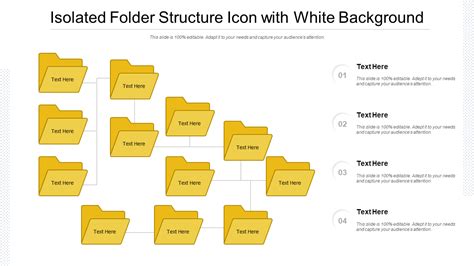
For plugins that do not come with a dedicated installer, the files are most commonly compressed within a RAR or ZIP folder. This compression is done for efficient transfer and storage. To install these plugins manually, you will first need to extract the contents of the compressed folder. Once extracted, you will find the plugin files, which might be individual files or a set of related files. The key step here is to locate the "Plug-ins" folder within your Adobe Photoshop installation directory.
On Windows, this folder is typically found within "Program Files" (e.g., C:\Program Files\Adobe\Adobe Photoshop [Version]\Plug-ins). On a Mac, it's usually located inside the "Applications" folder within the Adobe Photoshop application bundle (e.g., /Applications/Adobe Photoshop [Version]/Plug-Ins). After locating the "Plug-ins" folder, you can then copy the entire extracted folder containing the plugin files, or the individual plugin files themselves, and paste them directly into the Photoshop "Plug-ins" folder. Photoshop is designed to recognize plugins located in subfolders and subdirectories within this main "Plug-ins" folder, allowing you to organize your plugins by developer or by task by creating new folders within the "Plug-ins" directory.
Integrating Plugins within Photoshop
Once a plugin has been installed, whether through an automated installer or manual placement, it needs to be recognized by Photoshop. This usually requires a restart of the application. If Photoshop is running during the installation, you must quit it completely (using File > Quit on Mac or File > Exit on PC) and then relaunch it. Upon reopening, Photoshop will scan its designated plugin directories for new additions.
The location where a plugin appears in Photoshop's interface can vary. Many filter-based plugins will be listed at the bottom of the Filter menu. However, some plugins might appear in different menus or panels. For example, some plugins that affect image size or resolution might be found under the File > Automate menu. Others might appear as new panels that can be accessed through the Window menu. If you're unsure where a specific plugin can be found, consulting the plugin's documentation or the developer's website is recommended.
How to Install Plugin for Photoshop 2025 (EASY GUIDE)
It's also worth noting that Photoshop recognizes shortcuts (on Windows) and aliases (on Mac OS) within the "Plug-ins" folder and its subfolders. This means you can install plugin filters into a folder located outside of the main Photoshop installation directory and then create a shortcut or alias to the plugin's .8bf file (or equivalent) and place that shortcut/alias into the "Plug-ins" folder. This can be a convenient way to manage plugins, especially if you have a large collection or want to easily move or back them up.
Advanced Plugin Management: Additional Folders and Preferences
For users who manage a substantial number of plugins or prefer a more organized file structure, Photoshop offers the ability to designate additional plugin folders. This feature can be accessed through the Photoshop Preferences. On Windows, navigate to Edit > Preferences > Plug-ins, and on a Mac, go to Photoshop > Preferences > Plug-ins. Within the preferences, you'll find an option to "Select Additional Plug-ins Folder." By clicking the "Choose" button, you can then navigate to and select any folder or directory on your computer that contains plugin files.
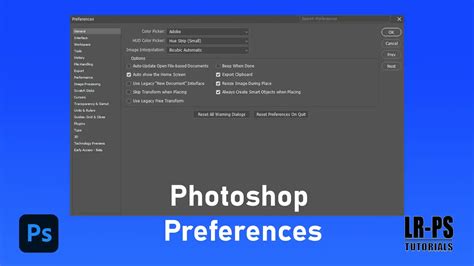
This capability allows you to keep your plugins organized in a location separate from the main Photoshop installation, which can be particularly useful for managing plugins from different developers or for plugins that are updated frequently. However, a crucial point to remember is compatibility. If you are using a 32-bit version of Photoshop, it's essential to ensure that any additional plugin folders you designate do not contain 64-bit plugin files. Mixing these can lead to errors and prevent the plugins from loading correctly. Conversely, if you are using the 64-bit version of Photoshop, you can generally use both 32-bit and 64-bit plugins, though it's always best practice to use the version that matches your Photoshop installation for optimal performance and stability.
Troubleshooting Common Plugin Issues
Despite following the installation steps, you might occasionally encounter issues where plugins are not appearing in Photoshop or are not functioning as expected. One of the most common reasons for this is that Photoshop was running during the plugin installation. As mentioned earlier, always ensure Photoshop is closed before installing new plugins and restart it afterward.
Another frequent cause of problems, particularly with manually installed plugins, is incorrect placement. Double-check that you have copied the plugin files or the entire plugin folder into the correct "Plug-ins" directory for your specific Photoshop version and operating system. If you've used the "Additional Plug-ins Folder" preference, verify that the path you've selected is accurate and that the folder itself contains the plugin files.
For plugins downloaded from third-party sources, especially those that come in ZIP or RAR files, ensure that you have fully extracted all the contents. Sometimes, only a portion of the necessary files might be extracted, leading to a non-functional plugin. Always look for a readme file within the downloaded archive, as it often contains specific installation instructions or troubleshooting tips provided by the developer.
If you are trying to install plugins like the NIK Collection, which is a suite of multiple applications, it's important to follow the developer's recommended installation procedure. Simply copying individual application files into the Photoshop plugins folder might not be sufficient. The NIK Collection, for example, often works best when its main folder, containing all its components, is placed directly into the Photoshop "Plug-ins" directory. If you encounter issues with a suite of plugins, consult the official support documentation for that specific suite.
Finally, remember that older versions of plugins might not be compatible with newer versions of Photoshop, and vice-versa. If you've recently upgraded Photoshop, or if you're trying to use a plugin on a new computer, it's a good idea to check if there's an updated version of the plugin available that is compatible with your current Photoshop version.
By understanding these installation methods and troubleshooting common issues, you can effectively expand Photoshop's capabilities and tailor it to your unique creative workflow.