In the dynamic landscape of social media, visuals remain paramount. As of 2025, images continue to be the driving force behind engagement, shaping how brands and content creators forge connections with their audiences. Understanding the specific requirements of each platform, particularly image aspect ratios, is key to crafting visually appealing and effective posts. This guide delves into the latest image aspect ratio requirements for major social media platforms in 2025, with a special focus on how to master these with Kapwing's intuitive resizing tools.
The Ever-Evolving World of Social Media Aspect Ratios
While certain aspect ratios have become standard, others fluctuate based on the platform and the nature of the content. Staying abreast of these dimensions ensures your visuals are presented optimally, preventing awkward cropping or wasted space. Let's explore the specific image aspect ratio requirements for each major platform, recognizing that other common ratios such as 16:9, 2:3, and 3:4 are also prevalent.
Instagram: The Visual Powerhouse
Instagram, a platform built on visual storytelling, demands precise aspect ratios for maximum impact.
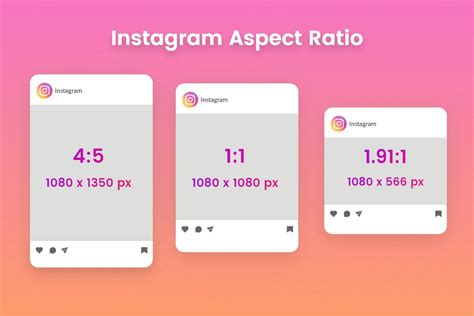
- Feed Posts: For standard feed posts, a 1:1 (square) aspect ratio (1080 x 1080 pixels) has long been a staple, offering a balanced presentation. However, 4:5 (portrait) aspect ratio (1080 x 1350 pixels) has gained significant traction, allowing for taller images that occupy more screen real estate and thus capture more attention. While 16:9 can be used, it often results in significant cropping in the feed preview.
- Stories and Reels: These vertical formats are crucial for engagement. The 9:16 aspect ratio (1080 x 1920 pixels) is the standard for Instagram Stories and Reels, providing a full-screen immersive experience.
- Profile Pictures: Instagram profile pictures are displayed in a circular frame. While the platform doesn't strictly enforce a specific aspect ratio for uploads, using a 1:1 square image with a minimum resolution of 400 x 400 pixels is recommended to ensure clarity and prevent distortion when cropped into a circle.
Threads: The New Contender
Launched in 2023, Threads aims to foster conversations, blending elements of Instagram with a text-based social media experience.
- Mobile Users: When posting images on Threads via mobile, users can utilize 3:4 and 16:9 aspect ratios. These dimensions, introduced a few years prior, remain relevant in 2025, offering flexibility for varied visual content.
- Multiple Images in a Tweet (Threads): The preview of multiple images within a single post on Threads adapts based on the number of images:
- Two images: Both are displayed at an 8:9 aspect ratio.
- Three images: The first image uses an 8:9 aspect ratio, while the second and third images adopt a 16:9 aspect ratio.
- Four images: All four images are displayed at a 16:9 aspect ratio.
It's important to note that X (formerly Twitter) automatically resizes image previews when multiple images are posted simultaneously.
X (formerly Twitter): Evolving Image Display
X continues to evolve its visual presentation, impacting how images are displayed in the feed.
- Single Images: While X supports various aspect ratios, images are often displayed with a 1:1 (square) preview in the feed, with the option to click and view the full image. However, 16:9 remains a common and well-supported ratio.
- Multiple Images: As mentioned above, X automatically resizes image previews when multiple images are posted at once, with specific aspect ratios applied depending on the quantity: 8:9 for two images, a mix for three, and 16:9 for four.
Grok Images: AI-Generated Visuals
Grok, a feature added in late 2024, allows users to generate images using AI.
- Image Dimensions: Grok images are generated at 1024 x 768 pixels.
- Aspect Ratio: The standard aspect ratio for Grok images is 4:3.
- Watermark: A distinctive "GROK ⧄" watermark is present in the bottom-right corner of every generated image, visible in fullscreen or export views.
- File Format: Grok images are provided in JPEG format.
YouTube: Beyond Video
Although YouTube is primarily a video platform, images play a crucial role in professional presentation and channel branding.
- Channel Art (Banner): The recommended size for YouTube channel art is 2560 x 1440 pixels, with a safe area of 1546 x 423 pixels for text and logos that will be visible on all devices. The 16:9 aspect ratio is standard.
- Video Thumbnails: Custom thumbnails are vital for attracting clicks. The recommended dimensions are 1280 x 720 pixels (with a minimum width of 640 pixels), maintaining a 16:9 aspect ratio.
- Profile Pictures: Similar to Instagram, YouTube profile pictures are circular. A 1:1 square image with a minimum resolution of 800 x 800 pixels is advised.
- If your media doesn’t fit this size, you can zoom, crop, or add a background for adjustment.
Pinterest: Vertical Dominance
Pinterest is a highly visual platform where optimizing images for maximum engagement is imperative.
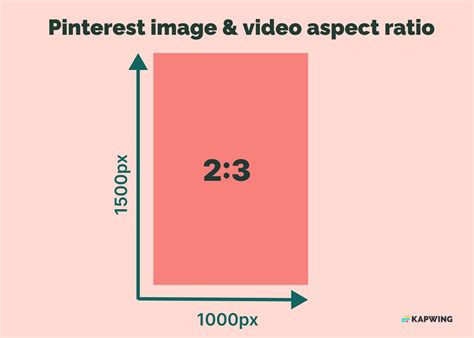
- Standard Pins: Pinterest strongly recommends using a 2:3 aspect ratio for images. Taller images may be cut off in some views, while shorter images fail to utilize the available space effectively. The recommended dimensions for optimal resolution across devices are 1000 x 1500 pixels.
- Pro Tip: The width of Pins is fixed. Therefore, aiming for the tallest possible dimensions within the recommended 2:3 ratio (or even 1:2 on desktop) will result in better visual performance. Pinterest strictly prioritizes images in a 2:3 aspect ratio.
- Idea Pins: These are Pinterest's answer to vertical, full-screen content, supporting both videos and images. The 9:16 aspect ratio is ideal for Idea Pins. While smaller dimensions can be uploaded, adhering to this ratio ensures a polished and professional look.
Reddit: Flexible Yet Specific
Reddit offers flexibility in image dimensions but displays content differently across its various viewing modes.
- General Guidelines: While there are no strict dimension limits, following certain guidelines can optimize posts.
- Card View: Images slightly taller than a square will have side padding, up to a 16:9 aspect ratio. Taller images will be cropped, requiring users to click a "See Full Image" button.
- Classic View: All images are cropped to a 5:4 aspect ratio. It is crucial to keep important content within this frame to ensure visibility.
- Maximizing Visibility: To maximize visibility, ensure the most critical parts of your image are centered and fit within the 5:4 cropping used in Classic View. Reddit allows most aspect ratios, but aiming for 9:16 or 1:1 is often recommended for universal sharing.
Bluesky: Adapting to Screens
Bluesky supports all image aspect ratios, but their display varies between desktop and mobile.
- Desktop: The feed on desktop is wide enough to accommodate 16:9 images. Other image sizes are left-aligned. For optimal space utilization on desktop, 4:5 aspect ratio images (e.g., 1080 x 1350 pixels) are ideal.
- Mobile: All images are center-aligned on mobile. Taller images, such as those with a 9:16 aspect ratio (e.g., 1080 x 1920 pixels), receive larger display windows compared to shorter ones, making them perform best on the mobile app.
- Profile Pictures and Banners:
- Profile Picture: Profile images are round. A minimum resolution of 400 x 400 pixels is recommended for clarity.
- Profile Banner: Banners display differently on desktop and mobile. While official guidelines are absent, community consensus suggests using a 1:1 (square) aspect ratio with a resolution of 1500 x 1500 pixels. Banner images on mobile will appear cropped compared to their desktop presentation.
Bluesky Flashes: Instagram-Esque Experience
Flashes, a companion app to Bluesky, aims to replicate an Instagram-style timeline.
- Optimal Aspect Ratios: While there's no strict limit on Flashes photo aspect ratios, they are scaled to fit the feed. Sticking to 1:1 (square), 4:5 (portrait), or 3:2 (horizontal photos) is the safest approach to prevent cropping.
- Maximum Image Size: Flashes does not appear to have a maximum image size, with users reportedly uploading images as large as 10,000 x 10,000 pixels. The feed resembles Pinterest, displaying content in a side-by-side vertical format.
RedNote: Prioritizing Verticality
RedNote supports a range of image aspect ratios, with a clear preference for vertical formats to maximize prominence in the feed.
- Feed Images:
- 1:1 (1080 x 1080 pixels): Square images.
- 3:4 (1080 x 1440 pixels) and 4:5 (2080 x 1350 pixels): Slightly taller images ideal for vertical posts.
- 9:16 (1080 x 1920 pixels): Fullscreen vertical images.
- Feed Prominence: Taller images (3:4 or 9:16) occupy more vertical space in the feed, making them more visually prominent. Using these ratios is recommended for maximizing visibility.
- Carousel Posts: For carousel posts (multiple images in one post), it's recommended to use images with the same aspect ratio. Consistent aspect ratios prevent padding or cropping issues, ensuring a smoother visual experience.
- Profile Pictures and Banners:
- Profile Picture: Profile images are displayed in a circular frame. Use a 1:1 square image with a minimum resolution of 400 x 400 pixels.
- Profile Banner: The banner uses a 4:3 aspect ratio (e.g., 1200 x 900 pixels), offering a narrower display compared to other platforms.
Mastering Image Resizing with Kapwing
Understanding these diverse aspect ratios is only half the battle. The other half is efficiently resizing your images to meet these requirements. Kapwing's suite of online tools offers a streamlined and user-friendly solution for this exact purpose. Whether you're a seasoned content creator or just starting, Kapwing makes image resizing accessible and effective.
How to Resize Images Using Kapwing's Resize Tool
Kapwing's Resize Image Tool is designed for simplicity and efficiency, allowing you to adapt any photo to the precise dimensions needed for various social media platforms.
Open Kapwing's Resize Tool: Navigate to Kapwing’s Resize Image Tool and click "Resize Image" to launch the editor.
Upload Your Content: You can upload your image by pasting a link to it or by clicking "Click to upload" and selecting it from your file browser. Kapwing also integrates with Google Photos and Google Drive for cloud-based imports.
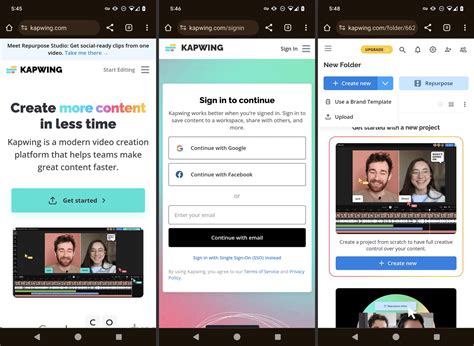
Select and Add Your Media: After uploading, your image will appear in the "Media" tab on the left sidebar. Hover over the desired file and click the blue plus button to add it to the canvas.
Access Resize Project Options: To resize your project, select the background of your canvas. Then, find the "Resize Project" option on the right-hand side menu. Click on your project background and choose 'Resize Project' from the right-hand menu.
Choose Your Desired Aspect Ratio: Within the "Resize Project" menu, you'll find a variety of pre-set aspect ratio templates. You can also enter custom dimensions to resize your image to any specific size. Choose from over 15 available templates or input your own custom dimensions.
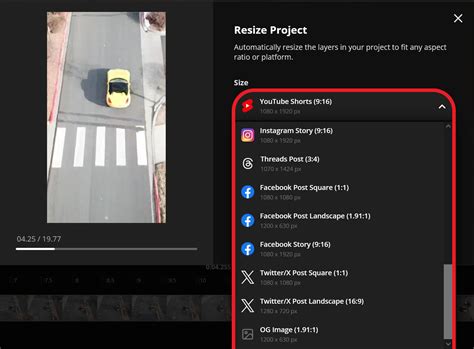
Adjust the Framing: Use the "Crop" option to reposition or frame your content as desired. Drag and adjust the cropped area to ensure it perfectly highlights your subject or removes unwanted details.

Export and Save: Export your resized image with Kapwing’s automatic settings applied. If you need different versions for various platforms, you can reuse the same project to create multiple variations and keep them ready for future use.
Beyond Resizing: Kapwing's Comprehensive Editing Capabilities
Kapwing Studio is more than just a resizing tool; it's a full-fledged online editor that empowers you to enhance your visuals and videos further.
- Uploading Content: Kapwing supports nearly every file type for video and photo uploads. Signing up for an account allows for watermark-free exports and project saving. You can import content via URL or by dragging and dropping files.
- Adding Audio: Enhance your videos with music or sound effects. Upload your own audio files or explore Kapwing's library. You can also mute original video audio and adjust volume levels.
- Adding Text and Subtitles: Incorporate text overlays, titles, or essential subtitles. Kapwing offers auto-generation for subtitles and extensive customization options for font, color, background, and animation.
- Adding Shapes and Elements: Enhance your designs with various shapes and graphic elements available within the editor.
- Cropping, Resizing, and Rotating Layers: Beyond resizing the entire canvas, you can crop, resize, and rotate individual layers within your project for precise control.
- Trimming Video Layers: Easily trim video clips to the desired length using sliders or by inputting specific start and end times.
- Adding Filters and Adjustments: Apply pre-made filters or make precise visual adjustments to brightness, contrast, saturation, and blur.
- Adjusting Video Speed: Modify the playback speed of your videos, from slow-motion to accelerated playback.
- Making GIFs: Convert videos into animated GIFs, perfect for various social media applications.
Repurposing Content with Kapwing
In today's content-saturated environment, repurposing existing content is a smart strategy. Kapwing's tools, particularly the Repurpose Studio, make this process remarkably efficient.
- From Long-Form to Short-Form: Upload long videos (like webinars or YouTube videos) into the Repurpose Studio. Kapwing analyzes the transcript and automatically generates short, social-ready clips based on topics and highlights.
- Speaker Focus: This feature ensures that active speakers remain centered in the frame, preventing them from being cropped out, which is crucial for vertical video formats.
- Customization: Once clips are generated, you can download them directly or open them in the Kapwing Studio for further editing, including adding subtitles, resizing for vertical formats, or trimming further.
- Resizing for Different Platforms: Kapwing's "Resize Canvas" feature allows you to effortlessly convert horizontal videos to vertical formats (like 9:16 for Instagram Stories and Reels) or square formats (1:1 for Instagram posts), ensuring your content looks its best across all platforms. You can choose presets or define custom dimensions.
AI-Powered Content Creation
Kapwing is increasingly integrating AI to streamline the creative process:
- AI Video Generator: Create multi-scene videos from a single text prompt. Provide details about the topic, tone, and audience, and Kapwing's AI will generate a video, complete with stock clips, music, and subtitles.
- Text-to-Speech: Generate realistic voiceovers from text, supporting over 20 languages.
- Generative AI Tools: Explore tools like Script Generator and B-Roll Generator to further assist in content creation.
By leveraging Kapwing's intuitive interface and powerful features, creators can navigate the complexities of social media aspect ratios with ease, ensuring their visuals are always optimized for maximum impact and engagement.