DaVinci Resolve, a powerhouse in video editing, offers sophisticated tools for animating and refining your footage. Among these, keyframes are fundamental to creating dynamic motion, transitions, and visual effects. This tutorial delves into the intricacies of adding and manipulating keyframes, with a particular focus on the significant enhancements introduced in Resolve 20, ensuring both clarity for beginners and depth for experienced editors.
Understanding the Concept of a Keyframe
At its core, a keyframe is a specific setting of a specific parameter for a specific frame of video. Think of it as a bookmark in time for your video's properties. When you set a keyframe, you are essentially telling DaVinci Resolve: "At this exact moment in the video, I want this particular setting (like position, zoom, or rotation) to be this specific value."
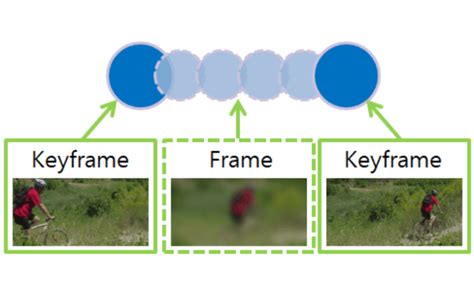
The software then interpolates, or smoothly transitions, between these keyframes to create animation. For instance, if you set a keyframe for the zoom property at the beginning of a clip with a zoom value of 1.0 (no zoom) and another keyframe at the end of the clip with a zoom value of 2.0 (zoomed in), Resolve will automatically create a gradual zoom effect over the duration between those two points.
A visual indicator of a keyframe's existence is a red diamond that appears next to the parameter it affects. There is no inherent limit to the number of keyframes you can create within a single clip, allowing for intricate and nuanced animations. In fact, almost all parameters within DaVinci Resolve can be animated using keyframes, from simple transformations like position and scale to more complex effects and color grading adjustments.
Setting Up Your First Keyframes for Movement
To begin creating movement within your video clip, you'll first need to load the clip into the timeline. Once the clip is in place, position the playhead on the specific frame where you want your movement to start. With the clip selected, navigate to the Video Inspector panel. Within this panel, locate the "Retime and Scaling" option and set it to "Crop." This setting is crucial for ensuring that when you zoom in, you are effectively zooming into the existing image data rather than stretching it.
Higher up in the Video Inspector, you will find the parameters for "Zoom" and "Position." To establish the starting point of your animation, set the initial keyframes for these properties. This establishes your opening position. If you were to play the clip at this stage, you would observe that the entire clip remains frozen at this first position. This is because, in order to create any form of movement or change, you need to define at least one more set of keyframes to indicate where the parameter should end up.
Defining Position and Zoom Parameters
The "Position" settings within the inspector dictate the placement of the center of your image within the frame. A "Position" setting of 0,0, for example, places the center of the image precisely at the center of the viewer. For a standard 1080p image, positioning the center of the image in the upper-left corner of the program monitor would translate to "Position" settings of -960,540. Generally, moving the image upwards or to the right will increase these "Position" values, while moving it downwards or to the left will decrease them.
To control the zoom, you can either drag the white dots that appear in the viewer when the "Transform" option is enabled (accessible by clicking the icon in the lower-left corner of the Viewer, indicated by a top red arrow, and then selecting "Transform"), or, as is often found to yield smoother results, you can directly adjust the "Zoom" settings within the Inspector.
Creating the Animation: Setting the End Keyframes
After defining your starting keyframes, the next step is to move the timeline playhead to the frame where you want the movement to conclude. At this new position, adjust the image using the "Position" and "Zoom" controls until you achieve the desired final shot. DaVinci Resolve will automatically create a new keyframe at this point for any parameter you have modified, effectively defining the end of your animation.
By default, Resolve does not automatically render these animations. This means that when you play back the timeline, the software calculates the animation on the fly, which can sometimes lead to playback stuttering or inaccurate previews, especially with complex effects.
Understanding Resolve 20's Enhanced Keyframe Editor
A significant advancement in Resolve 20 is its entirely revised Keyframe Editor. This updated interface provides more intuitive and powerful tools for fine-tuning your animations.
DaVinci Resolve for Beginners - Easier KEYFRAMES & Animations in DaVinci Resolve 20
To access this editor, you typically navigate to the keyframe view within the Inspector or the dedicated Fusion page, depending on the context of your animation. Within the editor, keyframes are visually represented, and a keyframe is considered selected when it displays a red border. You can select multiple keyframes simultaneously by using Shift-click, Cmd-click (or Ctrl-click on Windows), or by dragging a selection rectangle around the keyframes you wish to manipulate.
The real power of the Keyframe Editor lies in its ability to control the interpolation between keyframes. This is often visualized as a curve. Dragging the white dot associated with a keyframe horizontally allows you to alter the acceleration or deceleration of the animation - essentially controlling how quickly the parameter changes as it approaches or leaves that keyframe. Draging vertically changes the shape of the curve itself, influencing the ease-in and ease-out of the animation, which can dramatically affect the perceived smoothness and naturalness of the movement. You can make these curves as straight (for linear, constant speed) or as "twisty" (for more organic, accelerating or decelerating motion) as you desire.
The Importance of Rendering for Accuracy
It is crucial to understand that "Unrendered animations are woefully inaccurate." This statement cannot be stressed enough. While Resolve attempts to preview animations in real-time, especially for complex sequences or when dealing with high-resolution footage, the live playback might not perfectly represent the final rendered output.
To ensure accurate playback and a true representation of your keyframed animations, you must enable render caching. In the main Resolve interface, navigate to Clip > Render Cache and set Render Cache Fusion Output to On. (The specific rationale behind this menu path might seem obscure, but enabling it is essential for optimizing performance and accuracy.) Once this is set, you will observe a visual indication on your timeline: a red line will appear over portions of the clip that are unrendered, while a blue line will signify the parts that have been rendered and cached.
The default setting in Project Settings often dictates that Resolve waits for a specific duration, typically around 5 seconds, before automatically initiating the rendering process for cached sections. It is always advisable to allow ample time for rendering to complete before expecting smooth, accurate playback.
Image Resolution and Zooming Considerations
When performing moves on images, such as zooming and panning, it is critically important to have images that are larger than the frame size of your video. If your source image is the same resolution as your timeline (e.g., a 1920x1080 image on a 1920x1080 timeline), any attempt to zoom in will result in pixelation and a loss of quality.
While there isn't an exact, universally prescribed image size, a general guideline that yields excellent results is to use images that are 2 to 3 times the frame size of your video. For instance, if you are working on a 1080p project (1920x1080 pixels), using source images that are at least 3840x2160 pixels (4K resolution) or even larger will provide ample detail to work with when zooming. This allows for smooth, high-quality zooms and pans without compromising the visual fidelity of your footage. Experimentation is key to discovering what image sizes work best for your specific projects and desired aesthetic.
Understanding Digital Zoom Artifacts
Barton's initial query about achieving an "even, constant rate of speed where I am panning across an image but also zooming in" touches upon a common point of confusion in digital media. Larry's reply highlights that "What you are seeing is an artifact of how digital media zooms."
Let's consider an example: starting with a red box representing an image that originally contains 90,000 pixels. In terms of actual magnification, the speed of the zoom might appear constant. However, what the zoom also does is increase the size of each original pixel so that the remaining image still fills the frame, even though there are fewer original pixels within the visible shot. This stretching of pixels is what can lead to a perceived loss of sharpness or detail, especially when zooming significantly.
This is why using high-resolution source material is so important. By starting with more pixels than you need, you have a larger pool of detail to draw from as you zoom, mitigating the artifact of pixel stretching. The goal is to maintain the integrity of the image's detail even as the digital zoom is applied.
DaVinci Resolve's Approach vs. Other Editors
It's worth noting that DaVinci Resolve's approach to animation and keyframing, particularly with its advanced tools like the Keyframe Editor, can differ from other non-linear editing (NLE) software such as Final Cut Pro or Adobe Premiere Pro. While the fundamental concept of keyframing remains the same across these platforms, the specific interfaces, tools for curve manipulation, and rendering workflows can vary. Resolve's emphasis on node-based compositing (in its Fusion page) and its comprehensive color grading tools often lead to a more integrated and powerful animation workflow for those who master its capabilities.
By understanding these principles and leveraging the tools within DaVinci Resolve, you can create professional-grade animations that elevate the visual storytelling of your projects. Remember to practice, experiment with different curve shapes, and always ensure your footage is rendered for the most accurate and polished results.