The world of digital design and print production often involves navigating different color systems, and a fundamental conversion that designers frequently encounter is changing colors from the CMYK model to the RGB model. This process is crucial for ensuring that the colors intended for a printed piece accurately translate to their appearance on digital screens, and vice-versa. Understanding the differences between these two color models and the methods for conversion is key to achieving consistent and accurate visual results across various media.
Understanding the CMYK Color Model
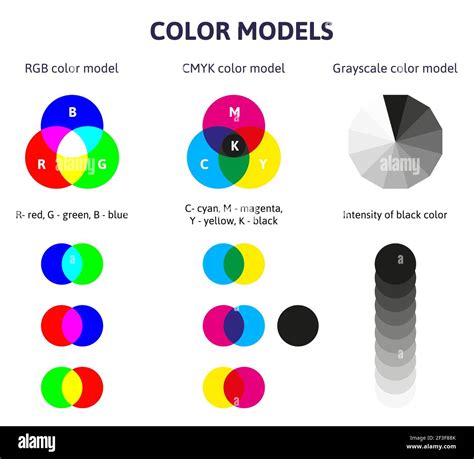
The CMYK color model is a cornerstone of the printing industry. CMYK stands for Cyan, Magenta, Yellow, and Key (which refers to Black). This model is subtractive, meaning that colors are created by subtracting light from a white surface. In practical terms, this involves mixing different amounts of these four ink colors on a white background (like paper). The more ink you add, the darker the resulting color becomes.
This subtractive nature makes CMYK ideal for printing because printers apply inks to paper, and the paper's white surface reflects light. The inks absorb certain wavelengths of light, and the wavelengths that are reflected are what we perceive as color. The inclusion of "Key" or black ink is vital. It allows for richer, deeper blacks and helps to reduce the amount of cyan, magenta, and yellow ink needed to achieve dark tones, thereby saving ink and improving print quality.
When you create designs for physical outputs such as posters, magazines, brochures, business cards, or packaging, CMYK is the color mode you will typically work with. The CMYK color model has a more limited color gamut compared to RGB, meaning it cannot reproduce as wide a range of colors. This limitation is a primary reason why direct conversion to RGB is often necessary for digital display.
Understanding the RGB Color Model
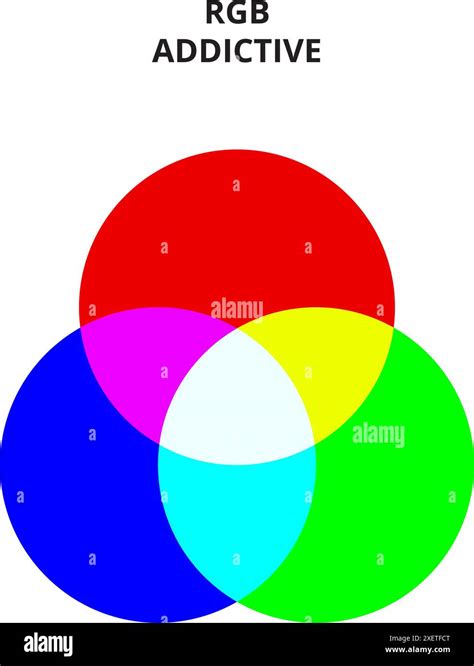
In contrast to CMYK, the RGB color model is additive. RGB stands for Red, Green, and Blue, the three primary colors of light. In this model, colors are created by adding different amounts of red, green, and blue light together. When you combine these three light colors in various proportions, you can reproduce a vast spectrum of colors.
The RGB model is fundamental to digital displays, including computer monitors, televisions, smartphone screens, and other electronic devices that emit light. When you view an image on your screen, the pixels are emitting light in varying intensities of red, green, and blue to create the colors you see. Adding more light in the RGB model results in brighter colors, with a full combination of all three primary lights at their maximum intensity producing white.
The RGB color space has a significantly larger gamut than CMYK. This means it can display and represent a broader range of colors, including many vibrant and luminous hues that cannot be accurately reproduced using CMYK inks. This larger color range is a key advantage of RGB for digital applications. However, the main disadvantage of RGB is that it is not ideal for print. Colors that appear vibrant on digital displays may look dull or inaccurate when translated to a printed CMYK format.
Why Convert CMYK to RGB?
The necessity for converting CMYK to RGB arises from the fundamental differences in how these color models function and where they are used. There are several key reasons for undertaking this conversion:
Software Compatibility
Some digital platforms, software applications, or specific online tools are designed to work exclusively with RGB images. If you have an image or design element in CMYK format, you may need to convert it to RGB to ensure it can be properly imported, displayed, or manipulated within these systems.
Expanding Color Range for Digital Use
As mentioned, RGB possesses a larger color gamut than CMYK. This means that certain colors, particularly bright and saturated ones, can be accurately represented in RGB but fall outside the printable range of CMYK. When you want to showcase these vibrant colors on a screen, or when a design originally created for print is being adapted for web or digital use, converting to RGB allows for the full display of these colors.
Web and Digital Media Suitability
CMYK colors are not ideal for web use. While they are designed for creating colors by combining four ink colors on paper, RGB is the standard for screens. RGB is much more suitable for web design, social media graphics, digital advertisements, and any visual content intended for online viewing. Converting CMYK to RGB is a quick but key move when taking your designs from print to digital.
Design Coherence and Optimization
When preparing digital versions of print designs, accurate color conversion helps maintain visual coherence across various frameworks. Converting CMYK to RGB can also help avoid unexpected results during the design process and save time and energy in color corrections. By ensuring that the colors are represented in the appropriate mode for their intended medium, designers can maintain the integrity of their visual message.
Color Spaces: Explained from the Ground Up - Video Tech Explained
Methods for Converting CMYK to RGB
Fortunately, converting CMYK values to RGB is a straightforward process that can be achieved through various tools and software. The method you choose will depend on your technical expertise, the software you have available, and the precision required.
Online CMYK to RGB Converters
For a quick and simple conversion, free online color converter tools are an excellent option. These tools are fast and very simple to use. You typically input your CMYK values (often as percentages or decimals between 0 and 1) into a designated field, press a "Convert" button, and the tool will display the corresponding RGB values.
One such tool is ShortPixel's online converter, which not only converts CMYK to RGB but also offers options for compression. After uploading your CMYK file, the tool converts it, and you'll see a download button with a compression percentage. You can choose between lossy compression for significant file size reduction or lossless compression to preserve original quality.
The procedure for using these online tools is generally as follows:
- Input CMYK Values: Enter the color values (e.g., from 0-100 for percentages).
- Initiate Conversion: Press the "Convert" key to process the CMYK values.
- Obtain RGB Results: The tool will display the corresponding RGB values in the results section.
- Copy and Use: Copy the RGB color code and use it where desired.
- Recalculate: Modify the CMYK values and recalculate them to get new RGB results.
These online converters are designed to make the process simple and precise, ensuring that colors desired for print using CMYK are precisely showcased on live screens, which use RGB.
Professional Design Software (Adobe Photoshop and Illustrator)
For more professional workflows and greater control over color profiles, software like Adobe Photoshop and Adobe Illustrator are invaluable. These programs offer robust features for managing color conversions and minimizing color shifts.
Adobe Photoshop
In Adobe Photoshop, you can convert CMYK to RGB using the "Convert to Profile" command. Here's a common method:
- Open the Image: Open your CMYK image in Photoshop.
- Navigate to Color Settings: Go to
Edit > Convert to Profile. - Choose Destination Space: Under "Destination Space," select your desired RGB profile. A common and widely compatible choice is "Working RGB - sRGB." sRGB is the standard RGB color space for the internet and most displays.
- Manage Conversion Options: You can choose an Intent (Perceptual or Relative Colorimetric are common) and select "Use Black Point Compensation" to help maintain tonal relationships.
- Apply Conversion: Click "OK." If your image has multiple layers, Photoshop may ask if you want to flatten the layers or discard any adjustment layers.
Using professional software like Photoshop allows for precise control over color profiles and helps to minimize color shifts during the conversion process.
Adobe Illustrator
Adobe Illustrator is another excellent tool for converting CMYK to RGB efficiently and easily. It offers multiple methods for this conversion, often related to document color modes:
- Open or Create Document: Open your CMYK document or create a new one.
- Change Document Color Mode: Navigate to the top menu:
File > Document Color Mode. - Select RGB Color: Choose "RGB Color" as the document color mode.
Illustrator will then convert the colors within your document to the RGB color space. Similar to Photoshop, it's advisable to understand color profiles and choose the appropriate RGB profile (like sRGB) for your intended use.
When converting RGB to CMYK accurately, specialized tools like Adobe Photoshop or Adobe Illustrator are recommended as they allow precise control over color profiles and help manage color shifts effectively.
Python for Programmatic Conversion
For developers or those who prefer a programmatic approach, Python offers a simple and easy way to convert CMYK to RGB, provided you have Python coding knowledge. This method is particularly useful for batch processing or integrating color conversions into larger applications.
The process typically involves using a Python imaging library, such as Pillow (a fork of the Python Imaging Library, PIL).
Install Pillow: First, install the Python Image Library, available as Pillow:
bashpip install PillowWrite and Run the Python Script: You would then use a script to open an image or define CMYK values and convert them. Here’s a conceptual example of how you might approach this:
from PIL import Image# Example CMYK tuple (values from 0 to 255 for simplicity, often represented as 0-1 or 0-100%)# In practice, you might read this from an image file or another source.cmyk_color = (200, 150, 50, 10) # Example CMYK values# Convert CMYK tuple to RGB tuple (this is a simplified representation,# actual conversion involves color profiles for accuracy)# For precise conversion, you'd typically use a library that handles ICC profiles.# Pillow's Image.convert('RGB') can handle conversions if the image mode is 'CMYK'# If working with an image file:try: img = Image.open("your_cmyk_image.tif") # Ensure the image is CMYK if img.mode == 'CMYK': rgb_img = img.convert('RGB') # Now rgb_img is an RGB image object # You can save it or process its pixels rgb_img.save("output_rgb_image.png") print("Image converted and saved as RGB.") else: print(f"Image mode is {img.mode}, not CMYK. Conversion skipped.")except FileNotFoundError: print("Error: Image file not found.")except Exception as e: print(f"An error occurred: {e}")# If working with specific CMYK values and need RGB values:# This requires a more sophisticated approach, often involving color profile conversion# libraries or formulas that account for the specific CMYK and RGB profiles.# For basic, non-profile-aware conversion, you might use approximate formulas,# but this is generally not recommended for professional accuracy.The actual conversion of CMYK values to RGB values, especially for accurate color representation, involves understanding and applying color profiles (like ICC profiles). Libraries like
colour-sciencein Python can provide more advanced color space transformations.
Key Reasons for Color Mode Conversion
Understanding and utilizing the proper color modes is essential for the right color representation across different media. Here is why converting CMYK to RGB matters:
Color Accuracy
RGB colors commonly shine more on screens compared to CMYK. The conversion ensures that what you see on your screen closely matches the printed output. While perfect 1:1 matching is not always possible due to gamut differences, a proper conversion minimizes discrepancies.
Design Coherence
When preparing digital versions of print designs, accurate color conversion helps maintain visual coherence across various frameworks. This is vital for branding and ensuring that a design looks consistent whether it's viewed online or in print.
Optimization
Properly changed colors help avoid unexpected results during the design process. It saves time and energy in color corrections. For instance, if you're using a CMYK color in a web design tool that expects RGB, you'll encounter issues. Converting to RGB upfront resolves these potential problems.
CMYK vs. RGB: A Summary of Differences
CMYK and RGB are two different color models with distinct purposes and characteristics:
- Color Model Type: CMYK is subtractive (inks absorb light), while RGB is additive (lights emit light).
- Primary Colors: CMYK uses Cyan, Magenta, Yellow, and Key (Black). RGB uses Red, Green, and Blue.
- Primary Use: CMYK is for printing (physical media). RGB is for screens (digital displays).
- Color Gamut: RGB has a larger color gamut (wider range of colors) than CMYK.
- Color Mixing: In CMYK, adding colors darkens the result. In RGB, adding colors brightens the result.
- File Size: RGB files tend to be smaller than CMYK files, which is advantageous for web and digital use.
- Web Suitability: CMYK isn’t ideal for web use; RGB is much more suitable.
The conversion from CMYK to RGB is a necessary step when bridging the gap between print and digital, ensuring that your designs are accurately represented across all intended platforms. Whether you’re using a simple online tool, professional software like Adobe Photoshop or Illustrator, or even a bit of Python scripting, there’s an option that works for everyone, even if you’re new to this.