Adobe Photoshop, a cornerstone of digital image manipulation, offers a robust set of tools for managing and enhancing images. Among the most fundamental yet powerful techniques is the ability to copy and duplicate layers. This capability is essential for a myriad of creative and practical purposes, from creating complex compositions to non-destructive editing. Whether you're a seasoned professional or a budding enthusiast, understanding how to efficiently copy layers between images and duplicate them within the same document is a skill that can significantly streamline your workflow and unlock new creative possibilities. This article will delve into the various methods for achieving layer duplication and transfer in Photoshop, providing clear, step-by-step instructions and exploring the underlying principles that make these techniques so effective.
The Power of Layers: A Foundation for Manipulation
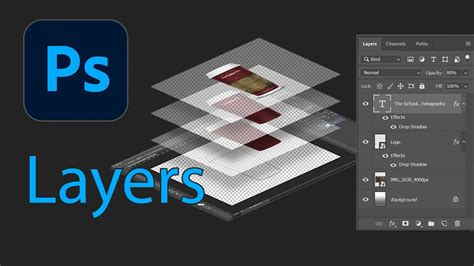
Before diving into the mechanics of copying layers, it's crucial to appreciate the concept of layers themselves. In Photoshop, layers are like stacked images on panes of glass. Each layer can contain different elements of an image-text, graphics, or parts of photographs-and can be edited independently of the others. This non-destructive workflow allows for immense flexibility, as changes made to one layer do not affect those beneath it. The ability to copy or duplicate these independent elements is therefore a natural extension of this powerful paradigm.
Transferring Layers Between Images: A Seamless Workflow
One of the most common scenarios requiring layer duplication is the transfer of elements from one image to another. This could involve importing a specific graphic, a background element, or even a meticulously edited section of a photograph into a new project. Photoshop provides remarkably intuitive methods for accomplishing this, making the process feel almost effortless.
Method 1: The Drag-and-Drop Technique
This is arguably the most straightforward and widely used method for copying layers between open Photoshop documents. It leverages the intuitive drag-and-drop functionality that is common across many software applications.
- Open Both Source and Destination Images: Ensure that both the image you wish to copy from (the source image) and the image you wish to copy to (the destination image) are open in Photoshop. The arrangement of these windows-whether they are docked side-by-side or floating independently-does not affect the functionality of this method.
- Activate the Source Image: Make the source image the active document. This is usually indicated by its name appearing at the top of the Photoshop application window and its content being visible.
- Locate the Layers Panel: Open the Layers panel if it's not already visible. This is typically found in the bottom right-hand corner of the Photoshop interface, though its position can be customized.
- Select the Desired Layer(s): In the Layers panel of the source image, identify and click on the layer (or layers) you wish to copy. To select multiple layers simultaneously, hold down the
Ctrlkey (orCommandkey on a Mac) while clicking on each additional layer. - Initiate the Drag: Click and hold down the mouse button on the selected layer(s) in the Layers panel.
- Drag to the Destination Tab: Without releasing the mouse button, drag the selected layer(s) upwards towards the tab of the destination image at the top of the Photoshop window. As you hover over the destination image's tab, Photoshop will automatically switch to display that image as the active window.
- Drop into the Image: Continue dragging the layer(s) down into the canvas area of the destination image. Once the layer(s) are positioned where you want them, release the mouse button.
The selected layer(s) will now appear in the destination image, typically above the currently active layer in its Layers panel. This method is exceptionally fast and efficient, making it a go-to technique for many Photoshop users. Believe you me, eliminating the chore of placing the images side by side makes things go lickety split! By the way, this works whether or not your windows are docked or floating.
Method 2: Dragging to the Tab and Then Dropping
This method is a slight variation of the drag-and-drop technique, offering an alternative way to manage the transition between documents.
- Open Both Source and Destination Images: As with the previous method, ensure both images are open in Photoshop.
- Activate the Source Image: Make the source image the active document.
- Locate the Layers Panel: Ensure the Layers panel is visible.
- Select the Desired Layer(s): Click on the layer or layers you wish to copy in the source image's Layers panel.
- Drag to the Destination Image Tab: Click and drag the selected layer(s) towards the tab of the destination image.
- Do Not Let Go Yet: Crucially, do not release the mouse button when you hover over the destination image's tab. Keep holding down the mouse button. The destination image will become active.
- Drag Down into the Image and Release: Now, drag your cursor down from the tab and into the canvas area of the destination image. Once positioned where desired, release the mouse button.
This approach provides a bit more control over when the destination image becomes fully active and allows you to visually confirm the target area before the layer is dropped.
Method 3: Using Copy and Paste
The classic "copy and paste" command is another reliable method for transferring layers between documents. This approach is particularly useful when you want to copy a selection from one layer to a new layer in another document or when the drag-and-drop methods feel less intuitive for a specific task.
- Open Both Source and Destination Images: Ensure both images are open.
- Activate the Source Image: Make the source image active.
- Select the Layer(s) to Copy: In the Layers panel, click on the layer you want to copy.
- Select Pixels (Optional but Recommended): To copy only the visible pixels of the layer, choose
Select > Allfrom the menu bar. This selects all the pixels within the canvas boundaries of the active layer. If you only want to copy a specific part of the layer, use Photoshop's selection tools (e.g., Marquee tools, Lasso tools) to make a selection before proceeding. - Copy the Selection: Go to
Edit > Copy. Alternatively, you can use the keyboard shortcutCtrl+C(Windows) orCommand+C(Mac). - Activate the Destination Image: Switch to the destination image, making it the active document.
- Paste the Layer: Go to
Edit > Paste. Alternatively, use the keyboard shortcutCtrl+V(Windows) orCommand+V(Mac).
The copied layer will appear in the destination image, typically above the active layer in the Layers panel. If you selected "All" pixels, the entire layer content will be copied. If you made a specific selection, only the content within that selection will be copied.
Considerations When Transferring Layers
- Layer Size: If the layer you’re dragging or copying is larger than the destination image, only part of the layer will be visible. You can then use the Move Tool (
V) to reposition it within the destination canvas. - Layer Order: When you paste or drag a layer into a new document, it is usually placed above the currently active layer in the Layers panel. You can then reorder it by dragging it to the desired position in the Layers panel.
- Linked Layers: If you copy multiple layers that were linked in the source document, they will typically be pasted as separate, unlinked layers in the destination document. You may need to re-establish links if necessary.
Duplicating Layers Within a Single Document
Beyond transferring layers between different images, duplicating layers within the same document is a fundamental technique for creating variations, building complex effects, or working non-destructively.
Method 1: Dragging to the "New Layer" Button
This method is a quick way to create an exact copy of a layer within the same document.
- Open the Source Image: Ensure the image you want to duplicate a layer within is open.
- Locate the Layers Panel: Make sure the Layers panel is visible.
- Select the Layer to Duplicate: Click on the layer you wish to duplicate.
- Drag to the "New Layer" Button: Click and drag the selected layer down to the "New Layer" icon at the bottom of the Layers panel (it usually looks like a folded piece of paper).
- Release: Let go of the mouse button. A duplicate of the layer will be created directly above the original layer in the Layers panel.
Method 2: Using the "Duplicate Layer" Command
Photoshop offers a dedicated command for duplicating layers, providing a slightly more formal approach.
- Open the Source Image: Ensure the image is open.
- Locate the Layers Panel: Make sure the Layers panel is visible.
- Select the Layer to Duplicate: Click on the layer you wish to duplicate.
- Access the "Duplicate Layer" Command: You can do this in a couple of ways:
- From the Layers Menu: Go to
Layer > Duplicate Layer.... - From the Layers Panel Menu: Click on the "hamburger" menu (three horizontal lines) in the top-right corner of the Layers panel and select
Duplicate Layer....
- From the Layers Menu: Go to
- Specify Options (Optional): A dialog box will appear allowing you to name the new layer and choose a destination document if you wish to duplicate it to another open image.
- Confirm: Click "OK".
A duplicate of the selected layer will be created. If you named it, it will appear with that name; otherwise, it will be named "[Original Layer Name] copy."
Method 3: Right-Click and Duplicate
A highly efficient shortcut for duplicating layers within the same document.
- Open the Source Image: Ensure the image is open.
- Locate the Layers Panel: Make sure the Layers panel is visible.
- Select the Layer to Duplicate: Click on the layer you wish to duplicate.
- Right-Click on the Layer: Right-click directly on the layer in the Layers panel.
- Select "Duplicate Layer…": From the context menu that appears, choose "Duplicate Layer…".
- Confirm: Click "OK" in the dialog box that appears.
This method is functionally identical to using the menu command but is often faster for those who prefer keyboard-driven or context-menu workflows.
How to Copy Layer Effects in Photoshop
Advanced Layer Management: Merging and Linking
Once you have duplicated or transferred layers, you might want to combine them or manage their relationships for further editing.
Merging Layers
Merging layers combines two or more selected layers into a single layer. This can simplify complex documents and reduce file size, but it's a destructive process, meaning you lose the individual editability of the merged layers.
- Select Layers to Merge: In the Layers panel, select more than one layer by holding down the
Ctrlkey (orCommandkey on Mac) and clicking each layer you want to merge. - Initiate Merge:
- Merge Selected Layers: Go to
Layer > Merge Layers(orCtrl+E/Command+E). This merges only the selected layers. - Merge Visible Layers: If you want to merge all layers that are currently visible (i.e., have their eye icon enabled), go to
Layer > Merge Visible(orShift+Ctrl+E/Shift+Command+E). - Flatten Image: To merge all layers into a single background layer, effectively discarding all layer information, go to
Layer > Flatten Image. This also fills transparent areas with white.
- Merge Selected Layers: Go to
Important Note: If the bottom layer in a pair you are merging is a shape, type, or fill layer, you may need to simplify the layer first before merging.
Linking Layers
Linking layers allows you to move or transform multiple layers simultaneously while maintaining their relative positions. This is useful when elements are designed to move together.
- Select Layers to Link: In the Layers panel, select the layers you would like to link. Hold down
Ctrl(orCommandon Mac) and click on each layer. - Create the Link: Click the "Link Layers" icon at the bottom of the Layers panel. It looks like a chain.
- Moving Linked Layers: When layers are linked, selecting one and using the Move Tool will move all linked layers together.
To unlink layers, select them and click the "Link Layers" icon again to deselect it.
Understanding Layer Properties and File Size
It's important to be aware that layers, especially complex ones with many effects or high resolutions, can significantly increase the file size of an image. Duplicating layers naturally increases file size, as you are essentially creating more data. Merging layers, on the other hand, can reduce file size by consolidating data.
When you duplicate a layer, the new layer inherits all the properties of the original, including its dimensions, resolution, and any applied effects or adjustments. If the original layer had transparency, the duplicated layer will also have transparency.
Creating a New Document from a Layer
Photoshop also allows you to create an entirely new document based on the content of a single layer. This is a powerful way to isolate elements or prepare them for use in other projects.
- Open the Source Image: Ensure the image containing the layer you want to use is open.
- Select the Layer: In the Layers panel, select the specific layer you wish to base a new document on.
- Access the "New Document from Layer" Command:
- Go to
Layer > New > Layer from Background...(if your layer is the background). - Alternatively, you can select the layer and then go to
File > New > From Layer....
- Go to
- Configure New Document: A dialog box will appear allowing you to set the dimensions, resolution, and color mode for the new document. By default, it will often match the dimensions of the selected layer.
- Create: Click "OK".
A new Photoshop document will be created containing only the content of the selected layer. It's worth noting that a document created by duplicating a layer often has no background layer by default, meaning it will have transparency if the original layer had it.
Conclusion: Empowering Your Photoshop Workflow
Mastering the techniques for copying and duplicating layers in Photoshop is fundamental to efficient and creative image editing. Whether you are transferring elements between different compositions, creating variations of a design, or simply organizing your workflow, the methods outlined above provide flexible and powerful solutions. From the intuitive drag-and-drop to the precise copy-and-paste commands, Photoshop empowers users to manipulate layers with ease. Understanding these core functionalities will not only save you time but also unlock a deeper level of control over your digital creations, allowing you to bring even the most ambitious visual ideas to life.