Adobe InDesign is a powerful tool for creating professional page layouts, and at the heart of efficient document design lies the concept of master pages. Master pages, often referred to as parent pages, are templates that allow designers to maintain consistency and streamline the creation of multi-page documents. They are instrumental in ensuring that elements like page numbers, headers, footers, and consistent graphic elements appear uniformly across a publication. Understanding and effectively utilizing master pages can significantly enhance workflow, reduce repetitive tasks, and elevate the overall quality of your InDesign projects, from simple brochures to complex books.
Understanding the Fundamentals of Master Pages
At its core, a master page in InDesign is a non-printing page that acts as a blueprint for regular document pages. Any elements placed on a master page-such as text frames for page numbers, logos, or decorative borders-will automatically appear on all document pages that are based on that master. This is a fundamental principle that underpins efficient document design in InDesign. When you create a new document, InDesign automatically provides a default "A-Master." You can then create additional master pages with different layouts or elements to apply to specific sections of your document. The key benefit is that if you need to make a change to a recurring element, you only need to edit it once on the master page, and the change will propagate to all associated document pages. This saves an immense amount of time and prevents inconsistencies that can easily creep into a design when elements are manually duplicated.
Creating and Applying Master Pages
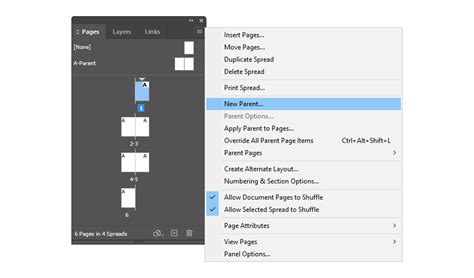
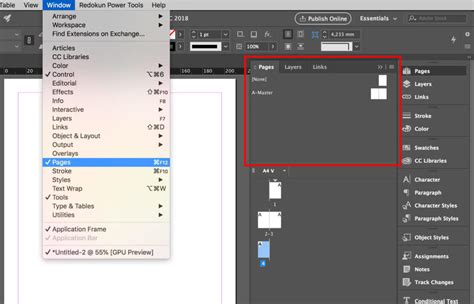
Creating a new master page in InDesign is a straightforward process. You can access the Master Pages panel via the Window menu or by navigating to the Pages panel. Within this panel, you'll find options to create a new master page. When creating a new master, you can name it descriptively (e.g., "Chapter Start," "Left Page with Logo," "Right Page Numbered") and specify the number of pages it should contain. This allows for master pages with different front and back elements if your document has facing pages.
Once a master page is created, you can design it just like a regular InDesign page. Drag and drop images, create text frames, and set up your recurring elements. To apply a master page to your document pages, you simply drag the desired master page from the Master Pages panel onto the thumbnail of the document page(s) in the Pages panel. You can apply the same master to multiple pages simultaneously by selecting them in the Pages panel before dragging the master. This is where the power of master pages truly shines, enabling rapid application of consistent design elements across an entire publication.
Leveraging Master Pages for Consistent Elements
The practical applications of master pages are vast. One of the most common uses is for page numbering. You can create a text frame on a master page, insert a special character for the current page number, and position it in the header or footer. When this master is applied to document pages, InDesign automatically updates the page numbers accordingly. Similarly, headers and footers containing document titles, chapter names, or company logos can be placed on master pages to ensure they are present and correctly aligned on every page.
Beyond text and basic graphics, master pages can also contain complex layouts. For instance, in a book with different styling for chapter start pages, you might create a separate master page with a larger text frame for the chapter title and author name, and perhaps a different background element. This allows for distinct visual treatments for specific page types without disrupting the overall document consistency. For publications that use facing pages (e.g., books, magazines), you can create master pages with different layouts for left-hand and right-hand pages, allowing for asymmetrical designs and element placement that complements the reading flow.
Advanced Master Page Techniques
InDesign offers advanced features to enhance master page functionality. You can create multiple master pages within a single document, each with its own unique set of elements and layouts. This is crucial for documents with varying design requirements, such as introductory sections, main content, appendices, and indexes. You can even override specific elements on a document page without affecting the master page itself. To do this, you typically hold down the Shift and Ctrl (Windows) or Shift and Command (Mac) keys while clicking on the element you wish to modify on the document page. This "detaches" the element from its master, allowing for localized changes.
Another powerful feature is the ability to "base" master pages on other master pages. This creates a hierarchical structure, where changes to a parent master page can automatically update all child master pages that are based on it. This is incredibly useful for managing complex design systems where a core set of elements needs to be consistent across many variations. For example, you might have a base master for all basic page numbering and footers, and then several other master pages that inherit these elements and add unique graphical embellishments or specific content placeholders.
Create & Apply MASTER PAGES | Adobe Indesign Tutorial
Avoiding Common Pitfalls with Master Pages
Despite their utility, designers sometimes encounter issues with master pages. One common mistake is forgetting to apply a master page to document pages, leading to inconsistent elements. Always double-check the Pages panel to ensure the correct master is applied. Another pitfall is making direct edits to elements on document pages that are intended to be controlled by a master. If you need to change something that's on a master, you should go back to the master page itself. If a specific instance needs to be different, use the override functionality carefully.
Over-reliance on a single master page can also lead to inflexibility. For documents with diverse needs, creating multiple, well-defined master pages is essential. Consider the different types of pages you will have and design masters that cater to these specific requirements. For example, a magazine might need masters for covers, feature articles, advertisements, and regular content pages, each with distinct layout needs. Understanding the difference between editing the master and overriding an element on a document page is key to efficient workflow.
The Impact of Master Pages on Workflow and Efficiency
The strategic use of master pages fundamentally transforms the design process in Adobe InDesign. It shifts the focus from repetitive manual tasks to higher-level design decisions. Instead of spending time ensuring every page number is correctly placed or every logo is in the right spot, designers can concentrate on typography, image placement, and the overall aesthetic appeal of the document. This not only speeds up the production timeline but also significantly reduces the likelihood of human error.
For projects involving large volumes of content, such as books, technical manuals, or annual reports, master pages are not just helpful-they are indispensable. They ensure a level of uniformity that would be virtually impossible to achieve manually. The ability to quickly update recurring elements means that last-minute changes, which are common in publishing, can be implemented with far greater ease and confidence. This efficiency translates directly into cost savings and improved client satisfaction. The structured approach that master pages encourage also makes collaboration easier, as team members can work on different sections of a document while maintaining a consistent design language dictated by the master pages.
Master Pages in the Context of Design Principles
Beyond the technical aspects, master pages are a tangible embodiment of fundamental design principles, particularly consistency and hierarchy. By defining recurring elements and layouts on master pages, designers establish a visual hierarchy that guides the reader's eye and reinforces the document's structure. Consistent placement of headers, footers, and page numbers creates a predictable and comfortable reading experience. This predictability is crucial for usability, especially in lengthy or complex documents.
Furthermore, master pages facilitate the application of brand guidelines. Logos, color schemes, and specific typographic treatments can be embedded in master pages, ensuring that every page of a publication adheres to brand standards. This is vital for corporate communications, marketing materials, and any document where brand identity is paramount. The master page acts as a guardian of the design system, ensuring that the visual integrity of the document is maintained from beginning to end.
Expanding the Use of Master Pages: Beyond Basic Layouts
The utility of master pages extends beyond simple page numbering and headers. They can be used to pre-set complex grid systems for content placement, ensuring that text and images are always aligned within a defined structure. For instance, a complex magazine layout might use different masters for different article types, each with pre-defined columns, image placeholders, and text flow regions. This allows content creators to focus on the narrative and imagery, confident that the underlying layout will remain consistent and professional.
Master pages can also incorporate non-printing guides that assist in the precise placement of elements on document pages. These guides, set up on the master, can define margins, column guides, or specific zones for different types of content. When the master is applied, these guides appear on the document pages, providing a framework for designers and content creators. This level of pre-planning significantly enhances the efficiency and accuracy of the layout process, particularly in team environments where multiple individuals might be contributing to a single document.
The Future of Master Pages and Digital Publishing
As digital publishing continues to evolve, the role of master pages in InDesign remains critical. While interactive elements and dynamic content are becoming more prevalent, the foundational need for consistent layout and branding persists. Master pages provide the stable framework upon which these dynamic elements can be built. For publications intended for both print and digital formats, master pages offer a way to define core layout elements that can be adapted across different media.
For example, a master page designed for a print brochure can serve as the blueprint for its digital counterpart, with adjustments made for screen readability and interactive features. The principles of consistent pagination, headers, and branding established on the master page remain relevant, ensuring a cohesive user experience regardless of the medium. As tools like InDesign continue to integrate with other Adobe Creative Cloud applications and adopt new technologies, the capabilities of master pages are likely to expand, further solidifying their position as an indispensable feature for professional designers.
Master pages are a cornerstone of efficient and professional design in Adobe InDesign. By understanding their fundamental purpose, mastering their creation and application, and exploring their advanced capabilities, designers can unlock significant improvements in workflow, consistency, and overall output quality. They represent a powerful abstraction that allows for the creation of complex, multi-page documents with remarkable ease and precision, ensuring that every element of a design serves its intended purpose with unwavering uniformity.