Step into the world of endless possibilities with Corel Painter, a trusted, professional digital art software designed to empower artists of all levels. This comprehensive suite offers a vast array of tools and features that cater to every imaginable creative workflow, from traditional painting techniques to advanced digital manipulation. Whether you're a seasoned professional or an aspiring artist, Corel Painter provides the canvas and the brushes to bring your visions to life with unparalleled realism and flexibility.
The Analog Experience, Digitally Reimagined
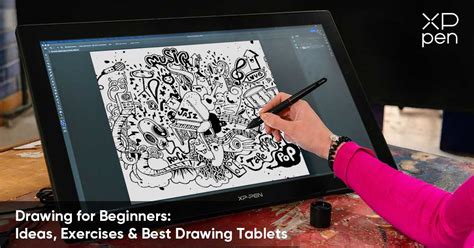
For artists transitioning from traditional media, Corel Painter offers a remarkably tactile and intuitive digital experience. RC Aradio, a Creative Director, highlights this crucial aspect: "Coming from a world of pencil, paints and clay, I’m always looking for that tactile connection to the analog world, and I get that when I’m working in Corel Painter. The experience is incredibly realistic, the way the paints and inks bleed and run, and how the brushes react to the surface and pressure." This sentiment underscores the software's ability to emulate the nuanced behavior of physical art materials, providing a bridge between the tangible and the digital. This makes it a preferred choice for any type of painting and sketching, especially when paired with a responsive pen tablet like the Xencelabs Pen Tablet.
Unleashing Creative Potential with Advanced Features
Corel Painter is more than just a collection of brushes; it's a comprehensive ecosystem designed to accelerate and enhance the creative process. The software embraces cutting-edge technology, integrating artificial intelligence to help jump-start the painting process. This means artists can leverage AI to generate initial concepts or lay down foundational elements, freeing them to focus on refining and personalizing their work.
The platform's versatility is further amplified by its extensive library of creative assets. Artists can enhance their artwork by utilizing a wide range of elements, including:
- Papers: Realistic paper textures that influence brush stroke behavior and the overall look of the artwork.
- Flow Maps: Tools that control the flow and direction of paint, mimicking natural liquid dynamics.
- Patterns and Textures: Pre-designed or custom patterns and textures to add depth and detail.
- Gradients: Smooth transitions between colors for sophisticated shading and color blending.
- Nozzles: Unique brush tip shapes and behaviors for specialized effects.
- Looks: Pre-set filters and color grading options to achieve specific artistic styles.
- Weaves: Fabric-like textures that can be applied to artwork.
- Images and Selections: The ability to incorporate external images and precisely select areas for manipulation.
Furthermore, Corel Painter champions user customization. Artists have the power to create their own custom brushes, palettes, and workspace layouts, tailoring the software to their individual preferences and workflows. The ability to import custom content from other users fosters a collaborative environment and expands the creative possibilities exponentially.
Optimizing the Mac Workflow
For Mac users, Corel Painter offers significant enhancements to their workflow. The software is designed to leverage the unique capabilities of Apple hardware and software, including:
- Trackpad gestures: Intuitive control and navigation using the Mac trackpad.
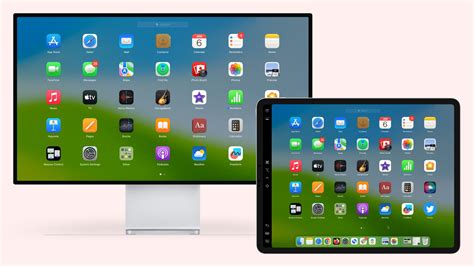
- Sidecar integration: The ability to use an iPad as a secondary display, mirroring the Mac desktop, which is invaluable for artists who prefer to draw on their iPad while managing tools and palettes on their Mac.
- Apple Pencil tilt and pressure sensitivity: Precise control over brush strokes, mimicking the natural feel of traditional drawing tools.
- Core ML integration: Leveraging Apple's machine learning framework for enhanced performance and intelligent features.
These integrations culminate in a smoother, more responsive, and more intuitive creative experience. Notably, the software boasts significant performance improvements on Apple Silicon, with brushes running up to 4.7 times faster when utilizing the Apple M1 chip.
Streamlining Selections and Enhancing Precision
Corel Painter continually refines its core functionalities to improve user efficiency. The selection tools have seen substantial enhancements, particularly for artists who frequently work with intricate selections.
- New Color Overlay Option: This feature improves the visibility of selected areas by overlaying them with a distinct color, making it easier to discern boundaries and refine selections.
- New Selection Panel: This redesigned panel provides quick access to all selection-related controls, streamlining workflows for selection-intensive tasks.
- Improved Keyboard Shortcuts: Enhanced keyboard shortcuts allow for faster switching between addition and subtraction selection modes, further accelerating the selection process.
- Combined Magic Wand and Selection Brush: The ability to combine the power of the Magic Wand tool with the versatility of the Selection Brush allows for quick and precise selection of image portions based on color.
- Color Selection for Any Selection Brush: Enabling color selection for any brush type allows artists to select specific areas on the canvas based on their color, offering a highly targeted approach to image editing.
The Brush Accelerator in Painter continues to be a cornerstone of performance optimization, with most popular brush engines now fine-tuned to maximize the capabilities of the user's machine.
Corel PHOTO-PAINT: A Powerful Companion for Photo Editing and Design
While Corel Painter is renowned for its digital painting capabilities, its sibling, Corel PHOTO-PAINT, offers a robust suite of tools for photo editing and graphic design, often bundled within the CorelDRAW Graphics Suite. PHOTO-PAINT empowers users to modify existing images or create new artwork from a blank canvas using a variety of drawing and painting tools, including lines, shapes, and brushstrokes.
Basic Image Editing and Touch Up in Corel PHOTO-PAINT (Windows)
AI-Powered Image Enhancement and Adjustments
Corel PHOTO-PAINT embraces artificial intelligence to elevate image editing:
- AI-Powered Upsampling: Improve the size and quality of images quickly with machine learning, producing sharper and more detailed results.
- Non-Destructive Stackable Adjustment Presets: Get creative with new, non-destructive adjustment presets that can be stacked and modified without permanently altering the original image data.
- Transformed Adjustments: Work more efficiently with a completely transformed Adjustments menu that is up to 10 times faster than before, featuring new tools, shortcuts, and commands.
- AI Bitmap Effects: Experiment with effects that leverage artificial intelligence to replicate techniques from popular art movements. These can be applied as bitmap effect lenses, altering the appearance of objects beneath them.
- Machine Learning for Mask Accuracy: Create masks with greater accuracy thanks to machine learning algorithms.
Precision Editing and Composition Tools
Beyond AI enhancements, PHOTO-PAINT provides a comprehensive set of tools for precise image manipulation and composition:
- Cropping and Straighten Tool: Improve composition by cropping images or correcting crooked photos interactively.
- Interactive Perspective Correction Tool: Adjust the perspective of buildings, landmarks, or objects in photos for a more accurate representation.
- Smart Carver: Paint over an area to eliminate unwanted photo elements seamlessly.
- Sharpening Filters and Effects: Reveal image details with a range of sharpening filters, effects, and brushstrokes.
- Color Balance and Tone Correction: Open the Adjustments menu to correct color balance and tone issues, with manual or automatic adjustments for temperature, tint, saturation, brightness, and contrast.
- Filters for Greater Control: Filters offer granular control over the image correction process, allowing adjustments to color and tone on entire images, specific object layers, or editable areas.
Advanced Object and Masking Capabilities
Corel PHOTO-PAINT's object-based workflow provides immense flexibility:
- Objects: Work with independent image elements layered on top of one another, allowing for non-destructive editing and easy manipulation.
- Clip Masks: Create clip masks to adjust the properties of a group of objects without altering the individual objects within the group.
- Mask Tools: Edit and adjust specific areas of an image without affecting the rest of the photo. The Smart Selection tool, in particular, allows for quick and accurate selections around parts of an image that need modification. Mask tools also enable cutting and pasting regions, as well as applying transformations like rotate, mirror, and scale.
Special Effects and Text Manipulation
PHOTO-PAINT is a powerhouse for creative effects and text design:
- Special Effects Filters: Apply a wide array of transformations to images using special effects filters and camera effects. These effects can be applied, modified, and experimented with on an object without altering the original. The Effects hub is dedicated to non-destructive editing.
- Text Addition and Effects: Add text to images and create compelling text effects. Fitting text to a path allows for placement along uneven lines, creating dynamic compositions. Text can be filled with textures, patterns, and more.
- Variable Font Support: Enjoy unprecedented font flexibility with support for variable fonts, allowing interactive experimentation with font properties like width, weight, and slant for precise fine-tuning.
Realistic Brushwork and Fill Tools
The core painting and filling functionalities are where PHOTO-PAINT truly shines:
- Brushstrokes: Apply brushstrokes that imitate watercolors, felt markers, and other mediums. The Image Sprayer tool allows for painting with bitmaps.
- Pen/Stylus Integration: Use a pen or stylus to vary brushstroke appearance based on pressure, tilt, bearing, and rotation, offering a natural and responsive drawing experience.
- Drawing, Color, and Fill Tools: Create or modify images with a diverse set of tools for drawing, coloring, and filling. Objects, editable areas, and entire images can be filled with colors, patterns, and textures.
- Industry-Standard Color Tools: Utilize industry-standard color palettes, color mixers, and color models for accurate color management.
- Web-Ready Image Creation: Find all the necessary tools to create images optimized for the web.
Mastering the Paint Tool in PHOTO-PAINT: A Practical Example
To illustrate the versatility of the Paint tool in PHOTO-PAINT, consider a practical example of creating a "washed" blackboard effect:
- Create a New Object: To ensure the paint is a separate layer and not part of the background, go to Object > Create > New Object.
- Activate the Paint Tool: Select the Paint tool (or press 'P').
- Choose a Brush: Select a brush, such as "Wispy Light Wash." The nib size can be adjusted by holding the Shift key and dragging the mouse.
- Select a Color: Choose a color from the palette; for a blackboard effect, a dark grey is suitable.
- Apply Paint Strokes: Drag the mouse to create the paint strokes.
- Experiment with Brush Types: To add different brush stroke textures, select a new category and brush from the "Brush" dropdown. For instance, the "Square Chalk" brush from the "Chalk" category can be used.
- Adjust Transparency: Hold the Alt key while dragging to add transparency to brush strokes.
- Configure Pen Pressure: To set the default pen pressure for a stylus, navigate to Tools > Options > Corel PHOTO-PAINT.
- Advanced Brush Settings: Beyond basic properties, advanced brush settings are available in the "Brush Settings" docker. For creating fog, the "Soft Wide Cover" brush from the "Airbrush" category can be used with an increased nib size (e.g., around 250) and transparency (e.g., around 50).
- Applying Effects: Use the "Effects" tools to add further modifications. For example, the "Smear" tool can add motion to fog, and the "Twirl" tool can add effects to elements like an orange halo around lights.
- Lens Application: Before painting, a lens can be used to darken the entire image. In the "New Lens" window, select the "Adjust" category and the "Brightness/Contrast/Intensity" effect. Ensure the new object is placed above this lens in the "Objects" docker.
- Creating Rain Effects: Start with a dotted brush nib. In the "Brush Settings" docker, expand "Dab Attributes." You can also experiment with blend modes like "Difference."
- Custom Brush Nibs: Create your own brush nibs by setting a reasonable size and clicking OK. To modify a brush, open "Brush Settings." In "Nib Properties," add transparency and enable nib rotation. Under "Color Variation," increase the "Hue Range" to introduce color deviation.
Corel Painter Essentials: For the Home Artist
Corel Painter Essentials is a dedicated home software studio designed for transforming photographs into paintings. Its "Photo Painting" workspace allows users to create a painting from a photograph with a variety of styles available at a single click. Painter Essentials offers a comprehensive range of brushes and media, including oil, acrylic, watercolor, gouache, and ink wash paints, alongside pencils, pens, charcoal, pastels, chalks, and blenders.
The program includes tutorial videos by John Derry, guiding users through techniques from automatic photo-to-painting conversion and manual touch-ups to creating cartoons or painting from scratch. Sample files are provided for hands-on learning. Painter Essentials is essentially a hobbyist version of the professional Corel Painter line, offering many of the same core features and capabilities as its more advanced counterparts.
Corel Painter and Corel PHOTO-PAINT represent powerful, versatile, and feature-rich software solutions for digital artists and photographers. Their continuous development, embracing both traditional artistic principles and cutting-edge technology, ensures they remain at the forefront of creative digital tools.