Photoshop, a cornerstone of digital image manipulation, offers a plethora of tools to refine and enhance visual content. Among its most powerful features is the ability to seamlessly blend elements, a crucial skill for tasks ranging from compositing objects onto new backgrounds to creating sophisticated masks. At the heart of this blending capability lies the technique of feathering, a method designed to soften hard edges and create a natural transition between different parts of an image. This tutorial will delve into the intricacies of feathering and related edge-softening techniques in Photoshop, empowering you to achieve professional-looking results.
Understanding the Concept of Feathering in Photoshop
Feathering is a fundamental technique used to soften the hard edges of an object or selection within an image. It achieves this by gradually fading between the colors of the pixels on the edge and the pixels in the surrounding area. This gradual transition is what helps a newly added element, such as a cut-out subject, blend in harmoniously with the rest of the image, preventing a stark, unnatural appearance. When you feather an edge, you are essentially making it semi-transparent, allowing for a smoother integration with its new environment.
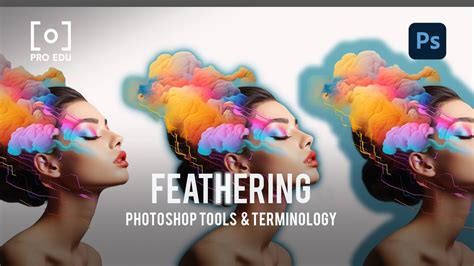
This process is particularly vital when you are combining elements from multiple images. Without smoothing out jagged edges, subjects can appear to be "pasted" onto a new background, detracting from the overall realism of the composition. Feathering is the go-to solution when you want to blend edges seamlessly, especially in scenarios like compositing objects onto new backgrounds or creating intricate layer masks.
Selecting and Applying Feathering to Your Image
The process of feathering begins with a selection. You'll typically use a shape-based selection tool, such as the Elliptical Marquee tool or the Lasso tool, to define the area of your image that you wish to feather. Once your selection is in place, you can then apply the feathering effect.
To initiate feathering, you will enter a number into the "Feather Radius" field within Photoshop's selection options. This numerical value dictates the extent of the feathering effect. Specifically, it determines how many pixels away from the edge of your selection the Feather tool will operate before it begins smoothing and blending.
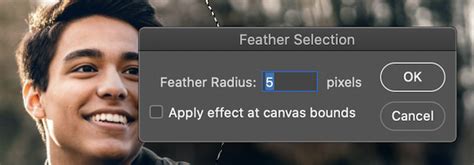
The optimal feather radius can vary significantly depending on the size of your selection and the desired outcome. As a general guideline, it's advisable to start with a small radius, often in the range of 0.5 to 2 pixels. This minimal feathering can provide subtle softening without introducing noticeable blur. For wider, more pronounced feathery edges, you might increase the radius to between 5 and 20 pixels. When working with larger selections or significantly sized objects, using larger feather amounts is generally recommended to achieve a balanced and integrated look.
It's important to be mindful that feathering, by its nature, makes edges semi-transparent. While this is crucial for blending, it can lead to a slight increase in file size, particularly for low-resolution web images. Therefore, it's wise to use feathering conservatively on such images to avoid compromising loading times.
Beyond Feathering: Exploring Other Edge Softening Techniques
While feathering is a powerful tool, it's not the only method Photoshop offers for softening edges. Understanding these alternatives allows for a more nuanced approach to image editing.
Anti-aliasing: Preserving Clarity and Detail
Anti-aliasing is another technique that plays a role in smoothing edges, but its function is distinct from feathering. Anti-aliasing gently softens the opacity and color transition between edge pixels and background pixels. Its primary advantage is that it preserves the image's clarity and detail while smoothing out jaggedness. Unlike feathering, which introduces a blur or fade, anti-aliasing aims to reduce the "stair-step" appearance often seen on diagonal or curved lines in digital images. This is achieved by introducing intermediate colors between the edge pixel and the background pixel, creating a smoother visual transition.
Defringe: Refining Transparent Edges
For specific scenarios, such as when dealing with elements that have transparent pixels on their edges, Photoshop provides the "Defringe" command. This feature can be accessed through the Layer menu by navigating to Layer > Matting > Defringe. The Defringe tool is particularly useful for feathering just the transparent pixels on the inside of a selection, which can help to clean up halos or fringing that might appear after cutting out an object, especially against a contrasting background.
Layer Styles: Non-Destructive Edge Adjustments
Photoshop's Layer Styles offer a non-destructive way to apply effects, including edge adjustments, without permanently altering the original image pixels. By double-clicking on a layer in the Layers panel, you can open the Layer Style dialog box. Within this dialog, you can find various options that can indirectly contribute to edge softening or control how edges interact with the background. While not a direct feathering tool, understanding how to access and utilize Layer Styles is crucial for comprehensive image editing.
Advanced Techniques: Fading Images and Layer Masks
The concept of "fading" in Photoshop extends beyond just softening selection edges. It can also refer to the gradual disappearance of an entire image or a specific element within it. This effect is often achieved using layer masks and gradient tools.
Creating a Fade Effect with Layer Masks
To create a fade effect, particularly when you want to blend one image into another or have an element gradually disappear, layer masks are indispensable. A layer mask controls the visibility of a layer, allowing you to selectively reveal or hide parts of it.
Let's consider an example: you might want to fade an image of an African female portrait into a solid color background. The process often involves selecting the layer mask of the element you wish to fade. By pressing 'D' on your keyboard, you can reset the foreground and background colors to their default black and white. Then, pressing 'X' switches these colors. You would then utilize a gradient tool on the layer mask. By dragging the gradient tool across the mask, you can create a smooth transition. For instance, dragging from left to right with a black-to-white gradient will cause the image to fade from opaque (white mask) to transparent (black mask).
How to unlock the magic of gradient mask in photoshop #easy #creative #design #tutorial #photoshop
The beauty of this method lies in its iterative nature. You can repeat this process several times, each time starting the drag from a different point and using different lengths for the gradient. This allows for experimentation and the creation of unique fade effects tailored to your specific needs. You can fade an image in Photoshop, fade edges in Photoshop, and create a fade Photoshop effect with remarkable precision.
The Power of Selections and Layer Masks in Compositing
One of Photoshop's most powerful features is its ability to cut out an element from an image using selection tools and then combine it with another image using layer masks. This is a fundamental component of the photo editing process, enabling the creation of entirely new visual narratives. Once you've combined elements from multiple images, the need to smooth out their potentially jagged edges becomes paramount to ensure they look natural within their new context.
When adding something new to an existing image, the goal is to make it appear as if it truly belongs. Anti-aliasing plays a crucial role here by gently softening the opacity and color transition between the edge pixels of the added element and the background pixels of the new image. This preserves the image's clarity and detail, making the integration seamless.
Strengthening the Fade Effect
Beyond the initial feathering or gradient application, you can further refine the fade effect. The "Strength" drop-down menu, often found at the top of the screen or within specific tool options, allows you to select how intense you want the blurring or fading to be. Minimal smoothing might have little effect on image quality, while a stronger setting will produce a more pronounced fade. Experimenting with this setting is key to achieving the desired level of integration.
Conclusion: Achieving Seamless Edges for Professional Results
Mastering the techniques of feathering, anti-aliasing, and using layer masks in Photoshop is essential for any serious digital artist or photographer. These tools empower you to blend elements seamlessly, smooth out jagged edges, and create professional-looking composites. Whether you're compositing a product onto a clean background, creating artistic photo manipulations, or simply refining a portrait, understanding how to fade edges effectively will elevate the quality of your work. By practicing these techniques and experimenting with different settings, you can achieve natural-looking transitions and make your edited images truly stand out. Congratulations, you have now learned how to fade an image in Photoshop, how to fade edges in Photoshop, and how to create a fade Photoshop effect. You can now tackle complex compositing tasks and add any content you like into colored or transparent areas with confidence.