Working with digital art software often involves a suite of tools that, while seemingly simple, are crucial for refining an artwork. Among these, the ability to manipulate the canvas - rotating, flipping, zooming, and panning - stands out as a fundamental technique. Clip Studio Paint, a robust application favored by many artists, offers a streamlined approach to these operations, allowing for intuitive and efficient workflow adjustments. Understanding how to effectively utilize these canvas manipulation tools can significantly enhance an artist's ability to spot errors, improve composition, and ultimately, elevate the quality of their final piece. This guide delves into the various methods for flipping and rotating your canvas within Clip Studio Paint, exploring both quick view adjustments and permanent transformations, as well as touching upon other essential canvas management features.
Understanding the Difference: View Manipulation vs. Canvas Transformation
Before diving into the specifics of flipping and rotating, it's essential to distinguish between two primary ways these actions can be performed in Clip Studio Paint: modifying your view of the canvas versus permanently transforming the canvas itself.
Rotating and Inverting Your View
The most common and often the most useful way to flip or rotate your canvas is by adjusting your view. This method does not alter the actual orientation of your artwork file. Instead, it changes how you perceive the canvas on your screen. This is incredibly useful for checking proportions, symmetry, and overall composition. Our brains can become accustomed to seeing an artwork in a single orientation, making it difficult to spot errors that become apparent when the image is viewed from a different perspective.
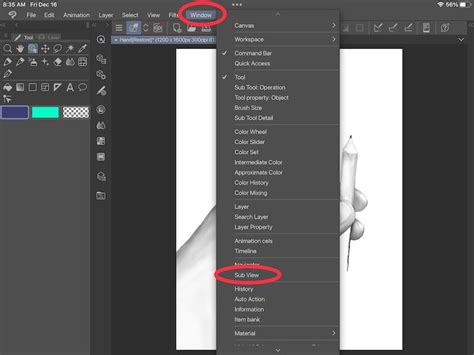
To access these view manipulation options, navigate to the ‘View’ menu. At the very top of this menu, you will find several rotating and inverting options. Specifically, selecting ‘View -> Rotate/Invert’ will present you with a submenu. From here, you can choose to ‘Flip Horizontal’, ‘Flip Vertical’, or select various rotation angles.
A key benefit of using these view options is their non-destructive nature. If you've rotated your canvas and forgotten to reset it before saving, Clip Studio Paint provides a simple solution. Within the same ‘Rotate/Invert’ submenu under the ‘View’ menu, you will find an option to ‘Reset Rotation’. This ensures that your original canvas orientation is always easily retrievable.
Transforming the Canvas Permanently
While adjusting your view is excellent for checking your work, there are instances where you might want to permanently alter the orientation of your canvas. This is particularly relevant if you decide, for aesthetic reasons, that your artwork would look better flipped. For these situations, Clip Studio Paint offers transformation options that actually change the orientation of your drawing data.
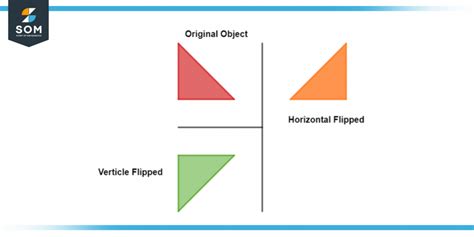
To permanently flip your canvas, you should go to the ‘Edit’ menu, then navigate to ‘Rotate/Invert canvas’. Here, you will find the options to ‘Flip Horizontal’ or ‘Flip Vertical’. Unlike the ‘View’ menu options, these actions will alter the underlying data of your canvas, effectively reorienting your artwork.
It is worth noting that when you are working with specific selections or layers, you might need to employ transformation tools to flip those elements. For example, if you want to copy and flip an element like an eye to create a symmetrical counterpart, you would typically select the relevant part of your drawing, copy its layer, and then use the Ctrl + T (or equivalent) transform tool. Within the properties of this transform tool, you can then find an option to ‘Flip Horizontal’ or ‘Flip Vertical’. This allows for precise manipulation of individual elements while maintaining their relative positions and the overall canvas orientation.
How To Flip A Selection in Clip Studio Paint
Efficient Canvas Navigation and Manipulation
Beyond simple flipping and rotating, efficient navigation of your canvas is paramount for a smooth workflow. Clip Studio Paint provides several tools and shortcuts to facilitate panning, zooming, and quick access to manipulation functions.
Panning Your Canvas
Moving around your canvas, or panning, is a frequent action. You can activate the Hand Tool by navigating to the tool tab and selecting the second icon from the top. Once the Hand Tool is active, you can click and drag to move your canvas freely without affecting any of your drawing tools.
A highly convenient shortcut for panning is to press and hold the ‘Space’ bar on your keyboard. While held down, a small hand icon will appear as your cursor, allowing you to pan your canvas with ease, regardless of which tool you are currently using. This is a universally useful shortcut that can save a significant amount of time.
Zooming In and Out
The ability to zoom in for detailed work and zoom out to assess the overall composition is fundamental. Clip Studio Paint offers multiple ways to control the zoom level.
- Toolbar: The magnifying glass tool in the toolbar can be used for zooming. Clicking and dragging on the canvas will adjust the zoom level.
- Bottom Bar: At the bottom of your screen, there is a dedicated bar for zooming. You can use the slider or the adjacent magnifying glass icons to zoom in or out.
- Mouse Wheel: For a more fluid zoom experience, using your mouse wheel is highly effective. Scrolling up typically zooms in, and scrolling down zooms out.
- Shortcuts: Keyboard shortcuts are invaluable for quick zoom adjustments. Pressing ‘Ctrl +’ (or ‘Cmd +’ on Mac) will usually zoom in, while ‘Ctrl -’ (or ‘Cmd -’ on Mac) will zoom out.
- Navigation Window: The Navigation Window, typically located on the right side of your interface, also provides zoom controls. You can use the slider within this panel to adjust your zoom level, and it often includes rotation and flip options as well.
Customizing Your Workflow with Shortcuts
As mentioned, shortcuts are a digital artist's best friends. They streamline repetitive actions and allow for a more fluid creative process. While Clip Studio Paint comes with default hotkeys, customizing them to your personal preferences can be a game-changer, especially for frequently used actions like flipping and rotating.
To customize shortcuts, go to ‘File -> Shortcut Settings’. In the settings area, select ‘Main Menu’. Scroll through the list until you find the ‘View’ menu and expand it. Here, you will see all the available view-related options, including various rotation and inversion commands. You can then assign your preferred keys to these actions.
The default shortcut for flipping the canvas horizontally is often Ctrl + Shift + H on Windows. Rotating the canvas can be initiated by pressing the R key and then dragging your mouse left or right. To reset the canvas rotation, the shortcut is typically Ctrl + Shift + R, or you can use the ‘View’ menu as previously described.
Assigning quick keys to flip horizontal, flip vertical, and reset rotation can drastically speed up your workflow, especially if you are an artist who frequently checks their work from different angles.
Changing Canvas Size
While not directly related to flipping or rotating, the ability to adjust the canvas size is another critical aspect of canvas management. Clip Studio Paint makes this process quite intuitive, allowing you to visualize changes as you make them.
When you decide to change your canvas size, a new window will typically prompt you. This window allows you to specify the Width and Height of your canvas, as well as the desired Unit (e.g., pixels, inches, centimeters).
One of the most user-friendly features is the ability to directly manipulate a frame that appears around your canvas. This frame allows you to visually resize the canvas by dragging its edges or corners, providing a more direct and controlled method compared to simply inputting numerical values. This visual feedback is invaluable for quickly adjusting the working area to suit your needs.
The Importance of Flipping and Rotating for Artists
The act of flipping and rotating your canvas, whether it’s a view adjustment or a permanent transformation, serves a crucial purpose in the artistic process. It’s not merely a cosmetic change; it’s a diagnostic tool.
When an artist spends hours on a drawing, their perception of it can become ingrained. They may overlook significant issues with proportions, perspective, or symmetry because they’ve grown accustomed to the artwork’s current orientation. Flipping the canvas horizontally, in particular, is a powerful technique for revealing these hidden flaws. Suddenly, a lopsided eye or an incorrectly angled limb becomes glaringly obvious. This is because flipping essentially presents the artwork as if it were being seen by a new viewer, unburdened by the artist's prolonged exposure.
This is why experienced artists often advocate for regularly flipping their canvas, especially during the sketching and refining stages. It’s a quick and effective way to gain a fresh perspective and ensure that the fundamental structure of the artwork is sound before proceeding to more detailed rendering or coloring. The ability to perform these actions quickly and easily, thanks to Clip Studio Paint's intuitive interface and shortcut customization, makes this essential practice readily accessible to all users.