Photoshop, a titan in the realm of digital image manipulation, offers a spectrum of tools that cater to both intricate professional workflows and straightforward user needs. Among these fundamental yet powerful capabilities is the ability to flip an image. This technique, essentially mirroring a visual, is indispensable for a variety of creative endeavors, from achieving aesthetic balance and shifting focus within a composition to constructing elaborate patterns and symmetries. Whether you are a seasoned professional or a budding enthusiast, understanding how to effectively flip images and manipulate their orientation in Photoshop can significantly enhance your design process and the final output of your projects. This guide delves into the various methods for flipping both entire canvases and individual layers, alongside related techniques like rotation, providing a thorough understanding of these essential Photoshop functionalities.
Flipping the Entire Canvas: A Global Transformation
When the objective is to mirror the entirety of your image, Photoshop provides a direct and efficient route. This action affects the entire canvas and all its contents, treating the image as a single unit for the flip operation. This is particularly useful when you need to correct the overall orientation of a photograph or when a specific artistic effect requires the entire image to be mirrored.
To flip the whole image horizontally or vertically, follow these simple steps:
- Open your image in Photoshop. Ensure the image you wish to manipulate is loaded into the workspace.
- Navigate to the Image menu. In the top menu bar, locate and click on "Image."
- Select Image Rotation. From the dropdown menu that appears, choose "Image Rotation."
- Choose your flip option. You will be presented with two primary choices: "Flip Canvas Horizontal" and "Flip Canvas Vertical." Selecting "Flip Canvas Horizontal" will mirror the image across a vertical axis, as if looking into a mirror placed on the right side of the image. Conversely, "Flip Canvas Vertical" will mirror the image across a horizontal axis, like looking into a mirror placed below the image.
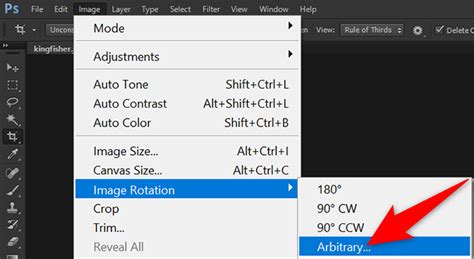
This method allows for a quick image flip in just one click, making it an efficient way to achieve the desired mirroring effect for the entire project.
Flipping Individual Layers: Precision Control
Often, the need to flip an image doesn't extend to the entire canvas. You might be working with a logo, a watermark, text, or a specific element within a larger composition that requires independent mirroring. In such scenarios, flipping only the layer containing the element is crucial to avoid unintended alterations to other parts of your design. This granular control is a cornerstone of effective image editing in Photoshop.
There are at least three primary methods to flip a specific layer:
Method 1: Using the Edit Menu
This is a direct and commonly used approach for layer transformations.
- Select the image layer you want to flip. In the Layers Panel (typically found on the right side of the Photoshop interface), click on the specific layer you wish to transform.
- Navigate to the Edit menu. Click on "Edit" in the top menu bar.
- Choose Transform. From the "Edit" dropdown, select "Transform."
- Select Flip Horizontal or Flip Vertical. Within the "Transform" submenu, you will find "Flip Horizontal" and "Flip Vertical" options. "Flip Horizontal" mirrors the selected layer across its vertical center, and "Flip Vertical" mirrors it across its horizontal center.
Method 2: Through Free Transform
The Free Transform tool offers a visual and interactive way to manipulate layers, including flipping.
- Select the layer to flip. As with the previous method, first select the desired layer in the Layers Panel.
- Activate Free Transform. Go to "Edit" > "Free Transform," or use the keyboard shortcut Ctrl+T (Windows) or Command+T (Mac). A bounding box will appear around the selected layer.
- Right-click within the transform box. Once the bounding box is active, right-click anywhere inside it. This action will open a small contextual menu.
- Choose Flip Horizontal or Flip Vertical. From this dropdown menu, select either "Flip Horizontal" or "Flip Vertical" to apply the mirroring effect to the layer.
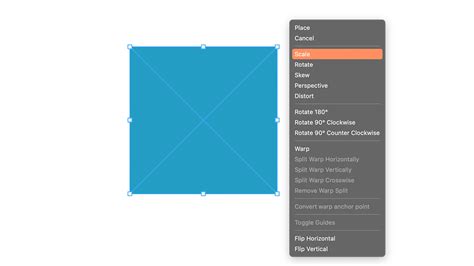
Method 3: Using Keyboard Shortcuts with Free Transform
This method combines the efficiency of Free Transform with direct keyboard commands for flipping.
- Activate Free Transform. Select your layer and press Ctrl+T (Windows) or Command+T (Mac) to enter Free Transform mode.
- Right-click on the image within the transform box. This brings up the contextual menu.
- Choose Flip Horizontally or Flip Vertically. Select the desired flip option from the menu.
These methods ensure that only the selected layer is affected, preserving the integrity of other elements in your composition. This is particularly important when working with text or logos, where incorrect flipping can render them unreadable or aesthetically unpleasing.
Understanding the Difference: Flipping vs. Rotating
It's crucial to distinguish between flipping and rotating an image, as they produce distinct visual outcomes. Flipping an image is akin to looking at its reflection in a mirror, reversing its orientation along a specific axis. Rotating an image, on the other hand, is like tilting your head to the side, changing its orientation by a specific degree without mirroring.
- Flipping: Reverses the image across a horizontal or vertical axis.
- Rotating: Turns the image around a central point by a specified angle (e.g., 90, 180, 270 degrees).

While both are fundamental transformation tools, their applications differ. Rotating is useful for correcting the orientation of a photograph taken at an angle or for creative compositions involving layered elements at various angles. Flipping is essential for creating symmetry, achieving mirror effects, or correcting the direction of elements within a design.
Rotating Images and Canvases in Photoshop
Beyond flipping, rotating is another core manipulation technique in Photoshop. You might need to rotate an image by 90, 180 degrees, or even to a custom angle.
Rotating an Image (Affects Layers Independently)
If your image has multiple layers, rotating through the "Image" menu will typically affect only the currently selected layer.
- Open the image in Photoshop.
- Select the layer you wish to rotate. If you want to rotate all layers simultaneously, you would use the "Rotate Canvas" option instead.
- Navigate to Image > Image Rotation.
- Choose the desired rotation. Options include "90° CW" (Clockwise), "180°," and "90° CCW" (Counterclockwise). You can also enter custom angles.
- Save or export your image once you are satisfied with the rotation.
Rotating the Canvas: A Global Rotation
When you need to rotate the entire workspace, including all layers, you would use the "Rotate Canvas" function. This is especially useful for tasks like correcting the horizon in a wide landscape shot or for applying global rotations to an entire project.
The most intuitive way to rotate the canvas temporarily for viewing or editing is using the Rotate View Tool:
- Locate the Tools panel. Find the "Rotate View Tool" (it often looks like a compass rose or a hand with a curved arrow). It might be nested under the Hand Tool.
- Select the Rotate View Tool.
- Place the cursor in the image window. Click and hold down the mouse button.
- Drag to rotate. A compass rose will appear, indicating the rotation. Drag your cursor clockwise or counterclockwise to rotate the canvas.
- Release the mouse button when you reach the desired angle.
- Resetting the View: To return the canvas to its original zero-degree rotation, click the "Reset View" button in the Options bar at the top of the screen, or use the shortcut Edit > Undo Rotate View. Note that using the standard Undo function (Ctrl+Z or Cmd+Z) or the History panel will revert your image to its state before the rotation was applied.
"Photoshop video quick tips" Rotate view tool
The Options bar also allows you to input a precise angle for rotation and offers the "Rotate All Windows" option, which enables simultaneous rotation of all open documents.
Troubleshooting Common Flipping Issues
While flipping images in Photoshop is generally straightforward, occasional challenges can arise. Here's a guide to resolving common problems:
Can't Locate the Flip Option
If you are unable to find the flip options as described, it's possible you are using a different version of Photoshop. Most versions have similar menu structures, but slight variations exist.
- Solution: Click on "Help" in the top menu bar and use the search function for "flip." Photoshop will guide you to the relevant tools and commands.
Logo or Text Flipped Unreadably
When flipping an entire canvas, text or logos can become mirrored and unreadable.
- Solution: This is precisely why understanding how to flip individual layers is essential. Isolate the text or logo onto its own layer and then apply the layer-specific flip commands (Edit > Transform > Flip Horizontal/Vertical). This ensures the element is flipped independently without affecting its legibility within its own context.
Image is Flipped the Wrong Way
Flipping horizontally versus vertically results in dramatically different outcomes. It's easy to select the wrong axis.
- Solution: Carefully consider whether you need to mirror the image along its vertical axis (left-to-right reversal) or its horizontal axis (top-to-bottom reversal). A quick mental check or preview can prevent this error. If you make a mistake, simply use the Undo function (Ctrl+Z or Cmd+Z) and reapply the correct flip.
Rotating Instead of Flipping
The terms "flip" and "rotate" are sometimes used interchangeably in casual conversation, but in Photoshop, they are distinct operations. Confusing them can lead to unexpected results.
- Solution: Remember that flipping is a mirror image, while rotating is a turn. If you intended to flip but accidentally rotated, use Undo and reapply the correct flip command. If you intended to rotate but flipped, do the same.
People Look Unnatural After Flipping
Flipping portraits can sometimes create an unsettling effect because we are accustomed to seeing individuals in a specific orientation. This can make them appear "off" or unnatural.
- Solution: This is less a technical issue with the flip tool itself and more an artistic consideration. While flipping can be used creatively, for realistic portraits, it's often best avoided unless there's a specific artistic intent. If you need to adjust a portrait for balance, subtle edits using other Photoshop tools might be more appropriate than a direct flip. Often, the "naturalness" of a portrait relies more on the photographer's ability to make the subject feel at ease during the shoot than on post-processing manipulation like flipping.
Creative Applications of Flipping and Rotating
The ability to flip and rotate images in Photoshop opens a gateway to numerous creative possibilities, transforming ordinary photographs into extraordinary visual art.
The Mirror Effect
By flipping a layer or a portion of an image, you can create compelling mirror effects. For instance, flipping a photograph of a building horizontally can make it appear to extend infinitely into the sky and earth, resulting in an abstract and intriguing composition. Similarly, flipping an image of an animal vertically can create a whimsical "two-headed" creature.
To achieve a mirror effect:
- Unlock the background layer in the Layers panel.
- Add canvas space if needed to accommodate the mirrored portion. Use "View" > "New Guide" to create a precise vertical guide down the middle.
- Move your subject to one side of the guide using the Move tool.
- Select the image and use "Edit" > "Transform" > "Flip Horizontal."
- Position the flipped element to create the mirror effect.
- Clear guides and trim excess space before exporting.
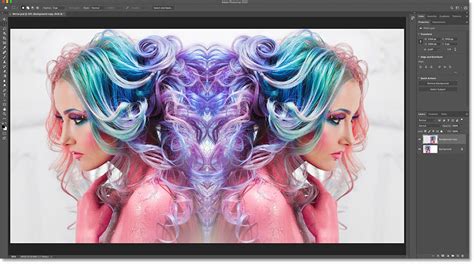
Creating Fun Patterns and Kaleidoscopic Effects
Flipping an image multiple times, often in conjunction with duplication and merging, can lead to mesmerizing patterns and kaleidoscopic visuals.
To create a pattern:
- Duplicate your background layer.
- Double the width of the canvas.
- Drag the duplicated photo to the right side of the canvas.
- Flip the right-hand image horizontally.
- Merge the two layers.
- Repeat the process vertically: Duplicate the merged layer, double the height of the canvas, drag the new image below the original, and flip it vertically. Merge these layers.
- Rotate the resulting layer 90 degrees clockwise, crop the canvas, and merge again. This process can generate intricate, repeating patterns.
"Photoshop video quick tips" Rotate view tool
Alternative Solutions: Luminar Neo
While Photoshop is a powerhouse for image editing, its complexity can sometimes be a barrier for users seeking simpler solutions. For those who find Photoshop overwhelming or wish for a more streamlined experience, alternatives like Luminar Neo offer a user-friendly interface with powerful editing capabilities. Luminar Neo can function as a standalone application or as a plugin for Photoshop, allowing for quick application of "Looks" (pre-set filters and edits) and more intuitive adjustments. It provides features that can help achieve effects like image flipping with ease, making it an attractive option for both beginners and professionals looking for efficiency.
In conclusion, mastering the techniques of flipping and rotating images in Photoshop is fundamental for any digital artist or photographer. Whether you're performing a simple correction or embarking on complex creative projects, these tools offer the precision and flexibility required to bring your vision to life. By understanding the nuances between flipping the canvas and flipping layers, and by distinguishing these actions from rotation, you can confidently navigate Photoshop's editing landscape and unlock a world of visual possibilities.