In the realm of digital photography, capturing the most pristine image data is paramount. RAW files, the uncompressed and unprocessed output directly from a camera's sensor, offer an unparalleled level of detail and quality. However, translating this raw data into a visually stunning image often requires sophisticated software tools. Adobe Lightroom, a cornerstone for photographers, provides a suite of enhancement features, among which "Raw Details" plays a crucial, albeit sometimes overlooked, role. This article delves into the intricacies of what Raw Details does in Lightroom, exploring its capabilities, ideal use cases, and its relationship with other powerful AI-driven enhancements like Denoise and Super Resolution.
Understanding the Foundation: What are RAW Files?
Before dissecting Raw Details, it's essential to grasp the nature of RAW files. A RAW file is essentially the digital equivalent of a film negative. It contains the unprocessed information captured by a digital camera or scanner's sensors, holding a high level of image detail with large file sizes and lossless quality. Unlike JPEGs, which are processed and compressed in-camera, RAW files are not images themselves but rather a collection of data that requires specialized software, such as Adobe Photoshop or Lightroom, to be interpreted, edited, and exported into viewable formats like JPEGs or TIFFs. This uncompressed nature allows for greater flexibility in post-processing, enabling adjustments to exposure, white balance, color balance, and much more without significant degradation of image quality. The primary advantage of RAW files lies in their ability to retain the most detail compared to other raster and vector file types, offering a greater color range and depth for vibrant images.
The Evolution of Image Enhancement in Lightroom
Adobe has continually advanced its image processing capabilities, introducing powerful AI-driven tools to elevate image quality. Initially, the "Enhance Details" feature, now known as "Raw Details," was a significant step in improving the raw conversion process. This was followed by the introduction of "Denoise," designed to reduce image noise, and "Super Resolution," which enlarges images while maintaining detail.
Raw Details: Beyond Basic Demosaicing
Raw Details is an advanced feature that works on images captured using both Bayer and X-Trans sensors. Its core function is to improve the rendering of small-scale details and prevent artifacts that can arise during the demosaicing process. Demosaicing is the critical step where the information captured by the camera sensor, which records color information for only one pixel at a time in a mosaic pattern, is converted into the full-color photograph we see.
For images captured with Bayer sensors (common in Canon, Nikon, and Sony cameras), Raw Details often results in cleaner rendering of diagonal lines, reducing jaggedness. For X-Trans sensors (used in Fujifilm X-series cameras), it enhances small-scale and color detail, minimizing artifacts like false colors and moiré patterns. The original "Enhance Details" feature, which paved the way for Raw Details, was particularly beneficial for Fujifilm shooters who experienced artifacting issues with default raw conversions.
When applying Raw Details, Lightroom Classic traditionally created a new DNG (Digital Negative) file to accommodate both the mosaic data and the enhanced RGB data, resulting in a larger file size. However, recent updates have made Raw Details, along with Denoise and Super Resolution, non-destructive and no longer require the creation of a separate DNG file. This means the enhancement is applied as a setting that can be toggled on or off without recalculating the entire image each time, offering a more streamlined workflow.

When to Employ Raw Details: Specific Use Cases and Considerations
While Raw Details offers significant benefits, its necessity can depend on several factors, including image content, intended output, and the specific camera sensor used.
Large Prints and Displays: Magnifying Fine Details
One of the most compelling reasons to use Raw Details is for making large prints or displaying images on large screens. When an image is enlarged, fine details become more prominent, and any artifacts or jaggy edges can be readily apparent. Raw Details excels in producing crisp detail, more accurate renditions of edges, and improved color rendering, making it especially useful in these scenarios. For photographers who regularly produce prints of formats such as 90 x 60 cm or larger, employing Raw Details can significantly elevate the final output. Similarly, when showcasing images on large TV screens to friends and family, the enhanced detail can be quite noticeable.
Addressing Specific Artifacts: Moiré and Aliasing
Beyond general detail enhancement, Raw Details can be instrumental in correcting specific image anomalies. Moiré patterns, often seen in fabrics or finely detailed textures when viewed through a digital sensor, and aliasing, which causes jagged edges on diagonal lines, can be effectively mitigated by Raw Details. While traditional methods like using a brush with a "de-moire" setting can help, they often do so by blurring chroma channels, which can also affect surrounding colors. Raw Details, by contrast, addresses the root cause of these artifacts during the raw decoding process, offering a more precise and less destructive solution.
Camera Sensor Specifics: Bayer vs. X-Trans
As mentioned, Raw Details can yield different benefits depending on the camera sensor. Fujifilm X-series shooters, in particular, may find Raw Details to be a valuable tool for improving the quality of their default raw conversions, addressing issues that were historically more prevalent with their sensor technology. However, this does not diminish its utility for users of Bayer sensor cameras. Even when Lightroom's default demosaicing is already producing excellent results, there can still be instances where applying Raw Details provides a discernible improvement in fine detail rendering.
Image Size and Resolution: A Matter of Visibility
The user's provided context highlights a common question: at what image size does Raw Details become essential? While the provided information suggests it's "especially useful for making large prints, where fine details are more visible," and that the resolution of the enhanced image stays the same as the original, it's the visibility of these details that matters. For images with dimensions around 6000x4000 pixels, which are then exported at 360 dpi for printing, the potential for detail to be noticed is high. Therefore, even if not strictly "essential" for every image, it's a beneficial step for maximizing quality when the output demands it. The decision to use it may also be influenced by the viewing distance and the viewer's perception.
Raw Details in Conjunction with Other Enhancements
The introduction of AI-driven features like Denoise and Super Resolution has led to questions about how Raw Details interacts with them.
Denoise and Raw Details: A Synergistic Approach
Denoise is designed to reduce noise in images, particularly those shot in low light or at high ISO settings. Raw Details, on the other hand, focuses on detail enhancement and artifact reduction. These are not mutually exclusive functions; in fact, they can be used together to achieve superior results.
When the "Enhance" function is triggered in recent versions of Lightroom, Denoise, Raw Details, and Super Resolution can all be selected within the same dialog box. This allows for a comprehensive enhancement process. It's important to note that once an image has been enhanced with Denoise or Super Resolution, it cannot be processed again. However, with the non-destructive updates, you can now apply Denoise and then adjust the amount of noise reduction using a slider without needing to recalculate, and similarly, you can toggle Raw Details on or off.
The question of whether to use them together or separately is addressed by the fact that they are now integrated into a single "Enhance" process. While you can technically apply Raw Details on its own, it's often beneficial to consider Denoise as well, especially if noise is present. The enhanced image can then be stacked with the original by selecting "Create Stack," keeping your library organized.
Clean Up Your Noisy Photos with Lightroom AI Denoise
Super Resolution: Scaling Up Detail
Super Resolution is another powerful AI feature that works in tandem with Raw Details. It aims to create an enhanced image with 2x the linear resolution of the original, meaning 4x the total pixel count. This is particularly useful for creating extremely large prints or for situations where significant cropping is anticipated. Super Resolution provides similar detail enhancement benefits as Raw Details but at an amplified resolution. This feature also supports a wider range of file types, including JPEGs and TIFFs, in addition to RAW formats.
Practical Implementation and Workflow Considerations
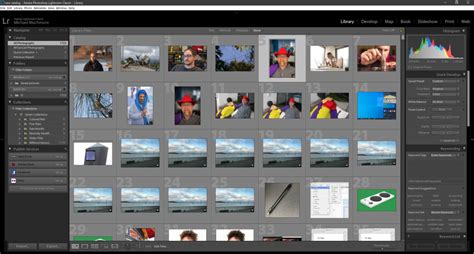
Lightroom Classic offers several ways to apply these enhancements. In the Library or Develop module, you can select one or more images and choose "Enhance" from the context menu. The "Batch Enhance Preview" dialog box will show a preview of the first image or an image that supports all the selected options.
For multiple images, Lightroom Classic will directly start the DNG creation process (in older workflows) or apply the non-destructive enhancements. You can also save these options as presets or copy and paste them to new images, streamlining your workflow, especially for batches of similar photos. For Fujifilm X-series shooters using Raw Details as an import preset, it's important to remember to manually update AI settings after import by selecting all images and choosing "Photo > Develop Settings > Update AI settings."
The non-destructive nature of these enhancements in newer versions of Lightroom is a significant improvement. Previously, if you wanted to try different values for Denoise or other enhancements, you had to create a new DNG file each time. Now, the adjustments are stored as metadata, and you can fine-tune them without re-processing the entire image. This metadata's storage location is not explicitly detailed by Adobe, but it's managed internally by Lightroom, possibly within XMP sidecar files, the Camera Raw Cache, or Preview Data.
Conclusion: A Powerful Tool for Discerning Photographers
Raw Details is a sophisticated tool within Lightroom that goes beyond basic image processing to refine the very foundation of your digital images. While its impact might be subtle in everyday viewing, it becomes indispensable when producing large prints, displaying images on high-resolution screens, or when dealing with specific image artifacts like moiré and aliasing. By understanding its function and its synergy with other AI enhancements like Denoise and Super Resolution, photographers can leverage Raw Details to unlock the full potential of their RAW files, ensuring that every detail is rendered with exceptional clarity and accuracy. Whether you're a professional pushing the boundaries of print size or an enthusiast seeking the highest possible image quality, incorporating Raw Details into your workflow is a worthwhile endeavor.