Procreate, the powerhouse digital art application for iPad, offers a robust set of tools for artists and designers. Beyond its impressive brush engine and layering capabilities, Procreate provides a rich typographic environment, allowing users to enhance their creations with a vast array of fonts. While Procreate comes equipped with a selection of default typefaces and seamlessly integrates with your iPad's system fonts, the true magic lies in the ability to import custom fonts, thereby unlocking an almost limitless creative potential. This guide will walk you through understanding Procreate's built-in typographic resources and then delve into the practical steps of importing and utilizing your own font library.
Exploring Procreate's Native Font Offerings
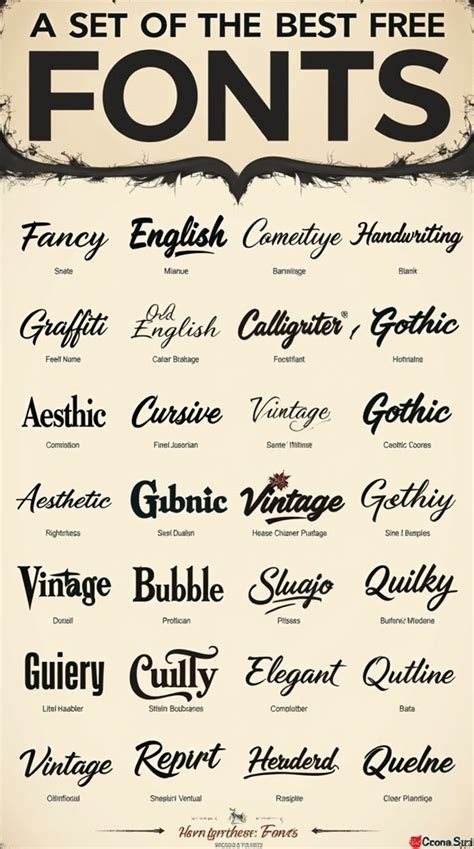
Your iPad, and by extension Procreate, comes pre-loaded with a diverse collection of nearly a hundred built-in fonts. These typefaces are designed to cater to a wide spectrum of artistic needs, ranging from the whimsical and playful to the sophisticated and professional. Within this extensive library, you'll discover various styles, including elegant cursive scripts, bold capitalized lettering, informal handwritten styles, and more traditional type-based fonts.
To get a feel for the typographic landscape available within Procreate, the process is straightforward. Begin by adding some text to your artwork. Once you have a text layer active, navigate to the "Edit Text" panel. Within this panel, you will find a comprehensive "Font" list. As you scroll through this list, you'll notice that the name of each font is immediately accompanied by a visual representation of its appearance. This allows for a quick and intuitive way to browse and select the perfect typeface for your project directly within Procreate.
Among the default fonts provided by Procreate, you'll find notable examples such as "Eina," a versatile and neutral sans-serif font that offers a clean and modern aesthetic. For those seeking a more expressive and characterful option, "Jack Armstrong BB" presents a playful, comic-inspired typeface that can inject a sense of fun and dynamism into your designs. Procreate also includes "Impact," a classic, bold sans-serif font that commands attention and is excellent for strong headlines.
Beyond these specific inclusions, Procreate also grants access to all the fonts installed on your iOS system. This means that any fonts you've added to your iPad through other applications or system-wide installations will be readily available for use within Procreate's text editing environment. This integration ensures a cohesive typographic experience across your iPad.
Understanding Font File Types: The Building Blocks of Typography
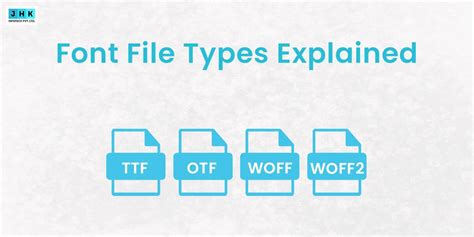
Before embarking on the journey of importing custom fonts, it's crucial to understand the different file formats that Procreate can recognize. Procreate supports three primary font file types: OTF, TTF, and TTC. Familiarizing yourself with these formats will help ensure a smooth import process and prevent compatibility issues.
OTF (OpenType Font): Developed collaboratively by Adobe and Microsoft in the 1990s, OpenType Fonts are a highly advanced and versatile format. OTF files contain rich data for both printing and rendering, offering superior control over typographic settings. A key feature of OpenType is its extensive character support, capable of holding over 65,000 glyphs. A glyph is essentially a graphic symbol used to represent a character, and the vast number available in OTF files allows for a wide range of linguistic support, ligatures, stylistic alternates, and more. OpenType fonts are cross-platform compatible, meaning they function seamlessly on both macOS and Windows operating systems, making them a preferred choice for professional designers.
TTF (TrueType Font): TrueType Fonts were originally developed by Apple in the late 1980s and have since become a widely adopted standard. TTF files can be used on both Mac and Windows platforms. While they might generally have a larger file size compared to some other formats, TrueType fonts are known for their reliability and are often favored by users who may not require the deep typographic control offered by OpenType but still need a robust and easy-to-use font solution. They are a great choice for general use by non-designers.
TTC (TrueType Collection): TrueType Collection files offer a space-saving solution by allowing multiple font files to be bundled together into a single file. This is particularly useful when dealing with font families that have numerous variations (e.g., light, regular, bold, italic, condensed, expanded). By consolidating these into one TTC file, you simplify storage and management while ensuring all related font styles are kept together.
If you encounter font files with a ".zip" extension, this indicates that the font has been compressed into a zipped folder. Procreate, like many applications, cannot directly read zipped font files. Therefore, before you can import a .zip font, you will need to decompress (or "unzip") it. This is typically a simple process: navigate to the zipped file within your iPad's Files app and tap on it once. iPadOS will usually automatically create a new folder containing the unzipped font files.
Navigating the Font Marketplaces and Foundries
The world of typography is vast, and finding the right fonts can sometimes feel overwhelming. Understanding where to source high-quality typefaces is the first step. Fonts are created and sold through various channels, each offering a unique selection and often catering to different needs and budgets.
Marketplaces: These platforms act as central hubs where numerous independent font creators and foundries sell their digital goods. You'll find a wide variety of styles, from experimental to highly professional. Some well-known marketplaces include "I Love Typography," "Creative Market," and "Design Cuts." These sites often feature curated collections, sales, and bundles, making them excellent resources for discovering new fonts.
Type Foundries: Type foundries are companies, which can range from large established organizations to small, independent studios or even individual designers, dedicated to the creation and sale of fonts. These entities often specialize in particular styles or offer a unique design philosophy. Some highly regarded foundries include "Positype," "Lettermatic," and "Sudtipos." Engaging with type foundries directly can provide access to meticulously crafted typefaces with a distinct artistic vision.
When you purchase a font, it's essential to pay attention to the licensing agreement. This document, often referred to as an End User License Agreement (EULA), clearly outlines how you are permitted to use the font. Common license types include:
- Personal Use: These licenses permit the use of the font in non-commercial projects, meaning you cannot use them for anything that generates revenue.
- Commercial Use: Commercial use licenses allow you to employ the font in projects intended for sale or promotion, such as advertising, product packaging, or merchandise.
- Desktop License: A desktop license typically covers both personal and commercial uses but may restrict the number of users or the specific machines on which the font can be installed.
- Web License: When using a font on a website, a web license is usually required. These licenses are often based on the estimated number of monthly web page views, with higher view counts incurring a greater cost.
Understanding these licensing terms is critical to ensure you are using fonts legally and ethically.
Importing Fonts into Procreate: Step-by-Step
With your font files ready and an understanding of the supported formats, you can now import them into Procreate. Procreate offers several intuitive methods for adding custom fonts to your workflow.
Method 1: Using the Files App (Drag and Drop)
This is often the most direct and efficient method for importing fonts.
- Open the Files App: Launch the "Files" app on your iPad.
- Navigate to Your Font Folder: Browse through your saved locations to find the folder where your desired font files are stored.
- Activate Split View (Optional but Recommended): To facilitate the drag-and-drop process, you can open the Files app in Split View. Swipe up from the bottom of your screen to reveal the Dock, then drag the Files app icon to the left or right edge of the screen. This will open a second instance of the Files app.
- Locate Your Font: In one of the Files app windows, navigate to your font folder. In the other window, you will need to access Procreate's font storage. To do this, navigate to "On My iPad" > "Procreate" > "Fonts."
- Drag and Drop: With both font files and the Procreate font folder visible, simply tap and hold your chosen font file(s) in one window and drag them over to the "Fonts" folder in the other window. Release your finger to drop the files.
Once the files are in the Procreate > Fonts folder, they should become available within Procreate.
Method 2: Importing Directly Through Procreate's Text Interface
This method integrates the import process directly into your creative workflow.
- Add Text: In Procreate, start by adding a text layer to your artwork. You can do this by tapping the "Add" button (wrench icon) in the Actions menu, then selecting "Add Text."
- Access Font Options: Once the text is on your canvas, tap on the text layer to select it, and then tap the "Edit Style" button (which appears as a stylized 'A' or similar icon in the top right of the on-screen keyboard or in the text editing panel). This will open the text editing interface.
- Browse Files: Within the text editing interface, you should see an option to add or import fonts. Tap the "+" icon or a similar "Add Font" button. This action will open the iPadOS Files app browser.
- Select Your Font: Navigate through the Files app to locate the font file you wish to import. Tap on the font file to select it.
- Import: Procreate will then import the selected font, and it should appear in your font list for immediate use.
Method 3: Using the Files App (Tap and Hold)
This method is similar to drag-and-drop but uses a slightly different interaction.
- Open the Files App: Launch the "Files" app.
- Navigate to Your Font Folder: Locate the font file you want to import.
- Tap and Hold: Tap and hold on the chosen font file. A context menu will appear.
- Select "Share" or "Open In": From the context menu, choose "Share" or "Open In."
- Choose Procreate: In the sharing options or the list of compatible apps, select "Procreate." If Procreate doesn't appear immediately, you might need to tap "More" or "Edit Actions" to enable it.
- Import Confirmation: Procreate will then import the font.
Exploring Diverse Font Styles and Their Applications
The world of typography is incredibly rich, offering a vast array of styles that can dramatically influence the mood and message of your artwork. Understanding these categories can help you select the perfect font for any project.
Serif Fonts: Classic Elegance and Readability
Serif fonts are characterized by small strokes, known as serifs, attached to the end of the larger strokes of each letter. These fonts often evoke a sense of tradition, formality, and elegance, making them a popular choice for literature, academic papers, and designs aiming for a classic feel.
Balzak: This font possesses an organic feel and a subtle texture, giving it a stunningly convincing appearance. Its flowing lines are reminiscent of modern calligraphy, which often deviates from the strict rules of traditional calligraphic styles, embracing a looser and more free-flowing aesthetic. Balzak was created by PeachCreme, a creative team known for curating premium digital products for artists.
The Super Brush font bundle: While not a single font, this bundle offers 13 brush pen fonts designed to mimic the feel of using a brush pen without the physical tool. It also includes bonus files for swashes, adding extra flair. These fonts were crafted by Rangga Subekti of Subectype Studio.
Malice Stencil: This font exudes a dark and mysterious elegance, blending hand-lettering with calligraphy. It was created by Gabriel Martinez Meave of the renowned font foundry Sudtipos, a collective of graphic designers whose work has graced campaigns for major brands like Coca-Cola and The History Channel. Malice Stencil, as its name suggests, often incorporates stencil-like elements, giving it a grungy yet modern feel, making it suitable for packaging and posters.
Decorata: This font family is beautifully designed with intricate details within each letter. It includes eight styles that work harmoniously to add sophistication to designs. Decorata is a collaboration between lettering artist Martina Flor and type designer Neil Summerour of Positype, merging artistic flair with technical precision.
Huai: This font boasts 12 distinct styles, ranging from Extra Light to Black Italic. Its personality shines through in its sharp corners and fluid curves, conveying a warm, playful, and fun impression. Huai was created by award-winning type designer Potch Auacherdkul, inspired by handwriting, Thai lettering, and Latin typefaces.
Mogan: At first glance, Mogan might appear as an average serif display typeface. However, its classic design, inspired by historical lettering, is presented with a distinctly modern sensibility. Mogan strikes a nice balance with its curves and beautiful swashes, and it comes from Heritage Type Co., a company known for high-quality vintage type and graphics.
Matrona: Upon closer inspection, Matrona reveals that all its letters are incredibly bold and of uniform height. This font was designed by Hubert Jocham, a type designer with over 30 years of experience, beginning his career as an apprentice typesetter.
LiebeHeide: This font captures the charm and authenticity of a handwritten note, going a step further by incorporating the texture and color of a blue ballpoint pen. LiebeFonts, founded by Ulrike Rausch, utilized color font technology to achieve this unique effect, aiming for the natural unevenness and color variation of a pen.
Northwell Regular and Northwell Clean: Northwell Regular is a perfect blend of a handwritten font and a brush script, offering dry brush strokes for those who enjoy textured fonts. For a simpler aesthetic, Northwell Clean provides a solid version with smooth edges. These fonts are from Set Sail Studios, an independent foundry by designer Sam Parrett.
Lumios: Created with a Pilot Sign Pen, Lumios is a beautifully rendered font that makes text appear as if crafted by a brush marker. It was designed by Elena Genova and published by My Creative Land, with an accompanying style called Lumios Marker Design Elements.
Luminaire: While script fonts are often associated with elegance, Luminaire maintains a sophisticated yet casual vibe, suitable for ad campaigns. Its imperfections add to its organic feel and overall appeal. The inspiration for Luminaire comes from pop culture, urban culture, and handwriting, making it versatile for book covers, packaging, and cards. Winston Type offers this font in four styles with extensive language support.
Bourton Hand Script: This charming font is available in Light and Bold styles, offering a playful and non-traditional take on script typography. Its lowercase letters, like 'E' and 'R', are notably similar to their capital counterparts, adding to its distinctive character. Bourton Hand Script was designed by Kimmy Kirkwood of Kimmy Design Co.
Alex Brush: A long-time personal favorite for many, Alex Brush features playful, wispy tails on its end strokes and a slight angle that gives the font a dynamic, dancing quality. It was designed by Rob Leuschke of TypeSETit.
Sans-Serif Fonts: Modernity and Clarity
Sans-serif fonts, as the name suggests, lack the serifs found on serif typefaces. This absence gives them a clean, modern, and often more approachable appearance. They are highly versatile and commonly used for headings, body text in digital interfaces, and designs that aim for a contemporary or minimalist aesthetic.
Eina: This is a neutral sans-serif font, offering a clean, unobtrusive, and highly readable option for a wide range of design applications.
Impact: A classic and powerful sans-serif font, Impact is known for its condensed letterforms and bold weight, making it ideal for strong headlines and attention-grabbing text.
Baloo: This sans-serif font is characterized by its pleasing roundness, giving it a friendly and approachable feel that almost seems to "bounce." The team at EK Type created Baloo, a collective focused on contemporary Indian typefaces, and it's available in multiple languages, including Gujarati, Telugu, and Bangla.
Amatic: This font possesses a unique vibe with its slender forms and slightly rough edges. It's categorized as "condensed" due to the narrow width of its characters. Amatic is an all-caps font, meaning it lacks lowercase letters, though the "lowercase" versions are slightly shorter than their uppercase counterparts, providing a subtle distinction.
Calder: This font bundle is a comprehensive collection that includes bold sans-serif styles designed to complement a looser script style. It's offered by Inhouse Type Foundry, a UK-based foundry committed to positive values.
Script Fonts: Flow, Elegance, and Personality
Script fonts are designed to mimic the fluidity and artistry of handwriting or calligraphy. They can range from formal and elegant to casual and playful, adding a touch of personal flair and sophistication to designs.
Jack Armstrong BB: This is a playful, comic-inspired font that brings a sense of fun and energy to any design.
Balzak: While also categorized under serif due to its organic feel, Balzak's flowing lines strongly evoke a calligraphic style, making it suitable for designs seeking a modern calligraphic touch.
The soul of this typeface: This font is characterized by its mysterious and elegant aura, a blend of hand-lettering and calligraphy. It was created by Gabriel Martinez Meave of Sudtipos.
Slight: This font stands out with its extreme right slant, making it ideal for elegant applications like wedding invitations or premium stationery. Slight was created by Up Up Creative, an independent foundry focused on well-performing and aesthetically pleasing fonts.
The Super Brush font bundle: As mentioned, this bundle offers brush pen fonts that mimic handwritten script styles.
LiebeHeide: This font effectively captures the essence of a handwritten note with the added texture and color of a ballpoint pen, giving it an authentic and personal feel.
Northwell Regular: This font is a delightful fusion of handwritten and brush script styles, featuring textured dry brush strokes.
Lumios: This font, created with a Pilot Sign Pen, offers the beautiful rendering of a brush marker, making text look meticulously crafted.
Luminaire: This script font balances casual vibes with sophistication, suitable for various design applications. Its organic imperfections enhance its appeal.
Winston Type: Inspired by Spencerian scripts of the 1800s, its capital letters are highly detailed, contrasting with their lowercase counterparts. Winston Type Co. is the creator of this font, offering it in four styles with extensive language support.
Seventies: This font captures a retro feel with its "groove," featuring fat bottom curves and high contrast reminiscent of the 1970s. Designed by Maximiliano Sproviero of Lián Types, it incorporates characteristics of copperplate calligraphy.
Blue Vinyl Fonts: Jess Latham's font foundry offers a variety of styles.
The Honest Designers Script: This exclusive collaboration from Design Cuts features Ian Barnard's signature hand-lettered style, evident in the stroke slant, subtle curves, and beautiful connections. It is available in six styles.
Alex Brush: This font is known for its playful, wispy end strokes and a slight angle that creates a dynamic, dancing effect.
Handwriting and Display Fonts: Unique Character and Impact
Handwriting and display fonts are designed to be distinctive and eye-catching, often conveying a strong personality or aesthetic. They are typically used for titles, headings, logos, and other elements where visual impact is paramount.
Jack Armstrong BB: A playful, comic-inspired font that adds a fun and energetic personality.
Malice Stencil: This font combines grunge and modern aesthetics, suitable for impactful display purposes.
Decorata: With its intricate details, Decorata is excellent for adding a sophisticated and visually rich element to designs.
Huai: Its sharp corners and fluid curves give Huai a warm, playful, and fun character, making it suitable for display where personality is key.
Matrona: The bold, uniform height of its letters makes Matrona a striking choice for impactful headings or titles.
LiebeHeide: The authentic feel of a ballpoint pen makes this a unique handwritten display font.
Amatic: Its condensed, all-caps style with rough edges gives Amatic a distinctive and bold presence.
Lumios: The brush marker appearance makes Lumios a visually appealing choice for decorative text.
Bourton Hand Script: Its playful and non-traditional script style makes it a charming display font.
Seventies: The retro 70s vibe and flowing curves make this a highly impactful display font for specific themes.
Managing Imported Fonts in Procreate
Once fonts are imported, they are stored within Procreate's dedicated font folder. You can access this location through the iPadOS Files app: navigate to "On My iPad" > "Procreate" > "Fonts." This is where Procreate keeps all the fonts you've added. When you go to select a font within Procreate's text editing panel, your imported fonts will appear alongside the default and system fonts, ready for use.
Important Considerations for Font Usage
- Licensing: Always ensure you have the appropriate license for any font you import and use, especially for commercial projects.
- Font Quality: The quality of font files can vary. Poorly made fonts might have rendering issues or missing characters. It's best to source fonts from reputable foundries and marketplaces.
- File Size: While Procreate is generally efficient, importing a very large number of high-resolution font files could potentially impact performance on older devices.
- Organization: Keeping your font files organized in dedicated folders on your iPad or cloud storage will make the import process smoother and easier to manage.
By understanding the built-in capabilities of Procreate and mastering the art of importing custom fonts, you can significantly expand your creative toolkit and elevate your digital artwork to new heights. The ability to wield a diverse typographic arsenal empowers you to communicate more effectively, express a wider range of emotions, and truly bring your artistic visions to life.