The synergy between Adobe Photoshop and After Effects is a cornerstone of modern digital content creation, enabling artists to transition static designs into dynamic, animated experiences. Understanding and optimizing this workflow is crucial for efficient and professional results, whether you're crafting intricate motion graphics, visual effects, or animated social media content. This guide delves into the various methods and best practices for integrating your Photoshop creations into After Effects, ensuring a fluid and productive creative process.
The Power of Layered Design: Preparing Your Assets in Photoshop
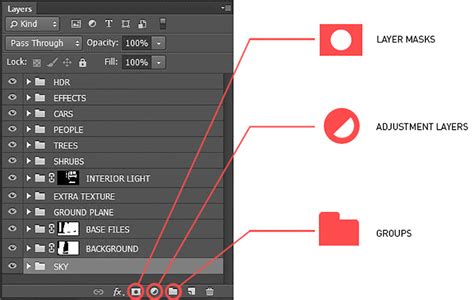
Photoshop's robust layer-based system is the foundation for a successful After Effects workflow. The ability to meticulously organize elements into distinct layers and folders in Photoshop directly translates into greater control and flexibility when animating in After Effects.
Creating Organized Designs for Animation:Before even opening After Effects, the preparation within Photoshop is paramount. Start by establishing a clear layer structure. Group related elements into folders, which will later be recognized as sub-compositions in After Effects. This organizational strategy not only streamlines the import process but also simplifies the management of complex projects. When creating specific design elements, such as lower thirds or animated logos, carefully select fonts, colors, and shapes, ensuring they are grouped logically. Effects like drop shadows or other layer styles can be applied to refine the design.
File Formats for Import:Photoshop documents (PSD) are the primary format for importing into After Effects, preserving all layers, masks, and effects. However, other file formats can also be suitable. For instance, saving individual elements as PNG files with transparency can be beneficial if you only need specific assets without the entire Photoshop document structure. The key is to maintain the integrity of your design elements for seamless transfer.
Saving and Closing for Transition:Once your design is finalized in Photoshop, save the document in PSD format. This is critical as it retains the layered structure necessary for After Effects. Crucially, close the Photoshop document before importing it into After Effects. This action ensures that After Effects can properly access and interpret the file without encountering conflicts.
Importing Photoshop Files into After Effects: Multiple Pathways to Integration
Adobe After Effects offers several import methods, each with its own nuances, allowing users to choose the approach best suited to their project's needs.
Direct File Import:The most straightforward method is to navigate to File > Import > File… within After Effects. This opens a file browser where you can select your PSD file. Alternatively, you can right-click within the Project panel and choose Import > File…. This method is ideal for importing specific files or a group of files into your composition.
New Composition from Footage:If you are starting a new composition and want to bring in your Photoshop file directly as a composition, select File > Import > New Composition From Footage. This option creates a new composition based on the dimensions and settings of your imported Photoshop document.
CC Libraries Integration:For users who leverage Adobe Creative Cloud Libraries, assets can be easily integrated. Simply locate your Photoshop file within your CC Library, right-click, and select Add to Project. You can also drag and drop the asset directly from the CC Library panel into your After Effects Project panel or an existing composition.
Drag and Drop Simplicity:Often the quickest method, dragging and dropping your PSD file directly from your operating system's file browser into the After Effects Project panel is a popular choice. This method, like many others, will typically trigger the import options window.
Import and Organize Files in After Effects - AE Fundamentals
Navigating the Import Options Window
Upon selecting your Photoshop file and initiating the import process, a crucial pop-up window appears, dictating how the file will be interpreted by After Effects.
Importing as Flattened Footage:One option is to import the Photoshop document as a single, flattened image. In this scenario, After Effects treats the entire PSD as one footage item. While this method is simple, it offers limited flexibility for animation as all layers are merged. However, it maintains a link to the original Photoshop file, meaning any subsequent edits and saves in Photoshop will be reflected in After Effects, facilitating quick design touch-ups. This approach is useful for static elements that require minimal manipulation.
Importing as a Composition - Retain Layer Sizes:This is arguably the most powerful and commonly used method for integrating Photoshop designs into After Effects. When you select Import Kind > Composition - Retain Layer Sizes, After Effects creates a new composition that mirrors your Photoshop document's dimensions. Crucially, each Photoshop layer is imported as a separate layer within this new composition, and importantly, each layer retains its original dimensions and position relative to its bounding box. This allows for precise animation of individual elements.
Within this option, you can also choose to keep Photoshop layer styles editable or merge them into the layers, providing further control over the imported assets. Photoshop layer groups are converted into pre-compositions, which act similarly to nested compositions or smart objects, allowing for further organization and manipulation.
Importing as a Composition - Document Size:This import method also creates a composition from your Photoshop file. However, unlike "Retain Layer Sizes," all imported layers are scaled to fit within the composition's dimensions, and their anchor points are centered within the composition. This can limit animation flexibility, as the original bounding box information and individual layer positions might be altered. It's important to understand that changes made to layer positions or masks in Photoshop after importing with this method might not affect the layer's bounding box or size in After Effects.
Refining and Animating Your Imported Designs
Once your Photoshop layers are successfully imported into After Effects, the real creative work begins. After Effects excels at bringing static elements to life through animation and dynamic effects.
Layer Management in After Effects:After importing a PSD as a composition, you'll find a composition in your Project panel, along with a folder containing all the individual layers. The layer order will typically match that of your Photoshop document. Each layer's anchor point will be centered within its own bounding box, providing precise control over transformations like position, scale, and rotation.
Adjustments and Edits:After Effects provides extensive capabilities to modify imported layers without needing to return to Photoshop for every minor adjustment. You can adjust layer opacity, modify layer styles (if imported as editable), and fine-tune effects like drop shadows or glows. These adjustments can significantly enhance the visual appeal and dynamism of your designs.
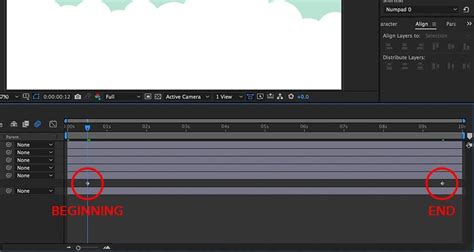
The Art of Animation:This is where After Effects truly shines. By setting keyframes on various properties such as position, scale, rotation, and opacity, you can create sophisticated animations. The timeline panel in After Effects allows for precise control over the timing and duration of these animations, bringing your Photoshop elements to life with fluid motion.
Advanced Workflows and Integration with Other Adobe Applications
The Photoshop and After Effects workflow is often part of a larger ecosystem of Adobe Creative Cloud applications, each offering unique strengths.
Dynamic Link with Premiere Pro:Adobe Dynamic Link is a powerful feature that creates seamless, live links between After Effects and Premiere Pro. This means you can create or edit After Effects compositions and have them update in real-time within your Premiere Pro sequence without the need for rendering. Conversely, you can bring Premiere Pro sequences into After Effects for further compositing. This bidirectional link significantly speeds up editing and motion graphics workflows.
You can copy layers from an After Effects composition and paste them into Premiere Pro, where they are converted to clips. Similarly, you can copy Photoshop layers, solid-color layers, nested compositions, and audio layers directly into Premiere Pro. After Effects compositions can be nested within Premiere Pro sequences, and Premiere Pro sequences can be nested within After Effects compositions.
Editing Video Frames:While After Effects is primarily for motion graphics and compositing, Photoshop offers powerful tools for frame-by-frame editing of video. You can import video frames into Photoshop, allowing you to use tools like the Patch tool or paint tools to remove unwanted elements, draw on individual frames, or refine specific areas. These edited frames can then be re-imported into After Effects for further animation or compositing.
Color Correction and Preparation:It's often beneficial to perform color correction, scaling, and cropping of still images in Photoshop before importing them into After Effects. Using the "Film & Video" presets in the Photoshop New File dialog box can help set up documents with appropriate dimensions and color profiles for video output.
Audio Integration with Adobe Audition:For advanced audio editing, After Effects can integrate with Adobe Audition. While editing an audio-only file in Audition will modify the original file, editing an audio layer within a composition requires saving as a new file to maintain the integrity of the original project.
Working with Adobe XD:For UI/UX designers, exporting layers and artboards from Adobe XD to After Effects is a streamlined process. This allows for the creation of advanced micro-interactions and refined transitions by leveraging the animation capabilities of After Effects on designs originating from XD.
Exporting Your Final Project:Once your animation is complete and you are satisfied with the results, After Effects provides robust export options. You can choose from a wide array of codecs and output settings, often leveraging Adobe Media Encoder for advanced encoding capabilities, including formats not directly available in After Effects, such as H.264 and MPEG-2.
By understanding and implementing these integrated workflows, creators can harness the full potential of Photoshop and After Effects, transforming static designs into captivating animated content with efficiency and artistic precision.