Photoshop, the industry-standard software for image manipulation, offers a versatile array of methods for bringing external visual content into your creative projects. Whether you're working with existing photos from your computer, capturing new ones from a mobile device, or even pulling graphics from the web, Photoshop provides intuitive tools to ensure a smooth import process. This guide delves into the various techniques for importing images, from simple drag-and-drop operations to more advanced placement options, catering to both novice users and seasoned professionals.
Importing from Your Computer: The Foundation of Digital Artistry
The most common way to bring an image into Photoshop is from a local computer. This process is straightforward and forms the bedrock of most digital workflows.
1. Using the "Place" Command: Precision and Control
For users who need to insert an image into an existing Photoshop document, the "Place" command is a powerful tool. This method allows you to import an image as a new layer, which can then be freely resized, rotated, and manipulated without affecting the original artwork.
- Initiating the Process: To begin, open your desired Photoshop project. Then, navigate to the File menu at the top of the screen. From the dropdown, select Place. Depending on your version of Photoshop, you might see two options: Place Embedded and Place Linked.
- Place Embedded: This option embeds a copy of the image directly into your Photoshop document. The image becomes part of the PSD file, making it self-contained.
- Place Linked: This option creates a link to the original image file. The image remains separate, and if the original file is updated, the linked image in Photoshop will reflect those changes. This is useful for managing large files or when you want to maintain a connection to an external asset.
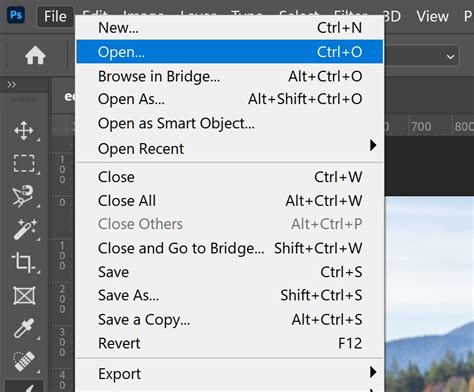
Navigating Your Files: After selecting "Place," a file browser window will appear. Use this window to navigate through your computer's folders and locate the image file you wish to import. Once you've found it, double-click on the file to select it.
Immediate Manipulation: Upon selection, the image will be placed onto a new layer within your Photoshop document. Crucially, Photoshop will automatically activate the document bounding box around the imported image. This allows you to immediately resize, rotate, or reposition the image using your mouse before committing to the placement. To confirm the placement and exit the transformation mode, press Enter (or Return on a Mac) or click the checkmark icon in the options bar at the top of the screen.
2. Drag-and-Drop: The Quickest Route
Photoshop also supports the intuitive drag-and-drop feature, offering a rapid way to import images.
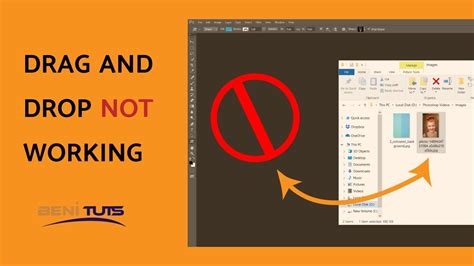
- From File Explorer/Finder: If you have your image file visible in your computer's file explorer (Windows) or Finder (macOS), you can simply click and drag the image file directly into your open Photoshop canvas.
- Maximizing the Canvas: For optimal results with drag-and-drop, it's often beneficial to maximize the canvas of your existing PSD file first. This ensures that the imported image has ample space to be placed and manipulated.
- Direct Placement: As soon as you drag the file into the canvas, it should be placed as a new layer, again activating the bounding box for immediate transformation - resizing or rotating as needed before confirming the placement.
3. Opening Files Directly: Starting a New Project
If you want to open an image as a standalone project rather than importing it into an existing one, the "Open" command is your go-to.
- Accessing the Command: Go to File > Open. This will bring up the file browser window, identical to the one used for the "Place" command.
- Selecting Your Image: Navigate to and select the image file you want to open.
- Confirmation: Click "Open" to load the image into its own Photoshop document. This method is ideal for when you're starting a new project from scratch with a specific image.
4. Importing from Digital Cameras and Scanners:
Photoshop can also work with images directly from your camera or scanner.
- Camera Imports: Certain digital cameras can import images using Windows Image Acquisition (WIA) support on Windows or Image Capture on macOS. Ensure that the option "Open Acquired Images in Photoshop" is selected during the import process. Some scanner software also allows you to designate Photoshop as the external editor for an image after scanning is completed. Scanner software and drivers are typically provided by the scanner manufacturer, not Adobe.
Importing from the Web: Leveraging Online Resources
When you find an image online that you want to use, Photoshop offers a straightforward method for importing it.
- Copy and Paste: Locate the image on a webpage. Right-click on the image (or Ctrl-click on a Mac if you don't have a right mouse button) and select Copy image.
- Pasting into Photoshop: Switch to your Photoshop document and go to Edit > Paste (or use the keyboard shortcut Ctrl+V on Windows, Cmd+V on Mac). The image will be pasted onto a new layer.
Importing on Mobile Devices: Photoshop Mix and Express
For users on mobile devices, Adobe provides specialized apps for image editing and importing. It's important to note the distinction between Photoshop Express and Photoshop Mix.
Photoshop Express: This app is designed for quick edits and supports working with one image at a time. To import an image, open Photoshop Express and tap Open from the File menu. This will typically take you to your device's local image folder, allowing you to select a photo.
Photoshop Mix: This app is more robust and allows for layering and compositing multiple images, a feature crucial for more complex edits. To use Photoshop Mix, you'll need to download it from either the Google Play Store (for Android) or the App Store (for iOS). Photoshop Mix allows you to overlay photos, creating more advanced compositions. For instance, you can import a second image, and it will appear on a separate layer within Photoshop Mix, ready for blending and manipulation. However, it's important to be aware that Photoshop Mix requires a subscription to the Adobe Creative Suite to unlock its full functionality.
The app icon for Photoshop Mix typically looks like two overlapping circles. While Photoshop Express is generally free, Photoshop Mix operates on a subscription model.
Advanced Import Options: PDF and Beyond
Photoshop's import capabilities extend to more complex file formats, including PDFs.
- Opening PDF Files: You can open PDF files directly in Photoshop. When you select a PDF file and choose File > Open, a PDF import dialog box will appear. This dialog allows you to specify which pages or individual images within the PDF you wish to open. You can also define rasterization options, such as resolution, color mode, and bit depth, which determine how the vector or bitmap data from the PDF is converted into Photoshop's pixel-based format.
- Page Size Options: Within the PDF import dialog, you'll encounter options for how the page is cropped:
- Crop To: This refers to the original size of the page.
- Art: This crops to the smallest rectangular region that includes all the text and graphics of the page.
- Trim: This accounts for the inherent bleed areas in production processes such as cutting, folding, and trimming.
- Bleed: This includes the bleed area, which is the extra margin designed to be trimmed off after printing.
- Media: This refers to the full dimensions of the page, including any surrounding blank areas.
- Page Size Options: Within the PDF import dialog, you'll encounter options for how the page is cropped:
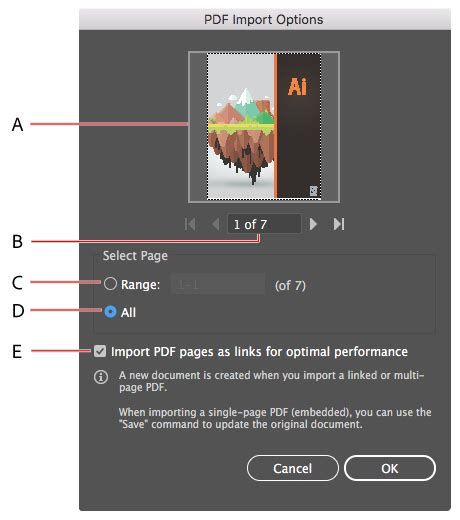
PDF as Layers: When opening a PDF, you have the option to import its content as layers. This can be particularly useful for preserving the structure of multi-element PDFs. You can also choose to import the PDF data into another application, such as Adobe Illustrator, which is primarily designed for vector graphics.
Smart Objects: When importing certain file types, especially those that retain vector information or are intended for non-destructive scaling, Photoshop may offer to import them as a Smart Object. A Smart Object is like a container that holds your original image data. This allows you to scale, rotate, and transform the layer multiple times without losing image quality, as Photoshop references the original data rather than permanently rasterizing it with each transformation.
Understanding File Formats and Import Considerations
Photoshop supports a vast array of file formats, thanks to its use of plug-in modules. This ensures that you can import nearly any image type you encounter. Beyond common formats like JPEG, PNG, and TIFF, Photoshop can also open and edit video files and image sequence files.
PSD (Photoshop Document): While you can open PSD files in Photoshop, if you import a PSD file into another PSD file using the "Place" command, by default, the layers are merged, and the artwork is rasterized. This means you lose the individual layer structure of the nested PSD.
Color Management: When importing images, especially from different sources or with varying color profiles, it's important to consider color management. Photoshop provides options, such as "Don't Color Manage This Document," which can be selected during the import process or in document settings. Understanding color profiles (like sRGB or Adobe RGB) is crucial for ensuring consistent color representation across different devices and print outputs.
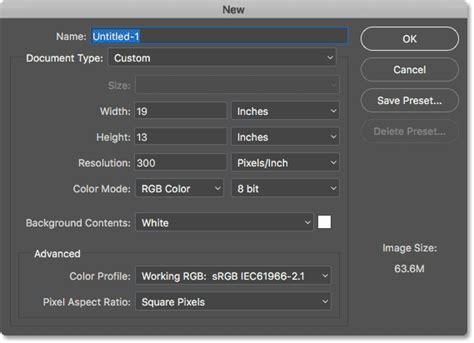
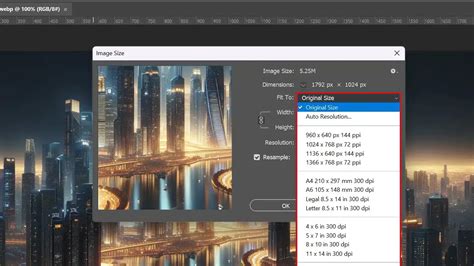
Resolution and Dimensions: The resolution (measured in pixels per inch or PPI) and dimensions (width and height in pixels or inches) of an imported image will affect its quality and how it appears in your project. When importing, Photoshop will use the image's native resolution. You can adjust these settings during the import process or later through the "Image Size" dialog. For web use, a resolution of 72 PPI is common, while for print, 300 PPI is generally recommended.
By mastering these various import techniques, you can efficiently bring any visual asset into your Photoshop workflow, unlocking a world of creative possibilities. Whether you're a beginner learning the ropes or an experienced professional seeking efficiency, understanding how to import images is a fundamental skill that empowers your digital artistry.