In the evolving landscape of social media, Instagram has become a primary platform for visual storytelling. While individual photo uploads are straightforward, the desire to share multiple moments or a cohesive visual narrative often leads users to explore the art of the Instagram collage post. This guide delves into the various methods and tools available to create compelling collages, transforming your Instagram feed from a series of isolated snapshots into a dynamic gallery of interconnected stories.
The Power of the Multi-Image Post
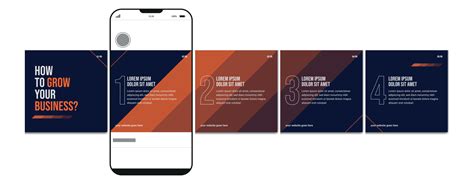
Posting pictures to Instagram is super easy, but what about when you want to share more than one? Adding a bunch of stories can be annoying, and posting a bunch of pictures at once can clog up your followers’ feeds. Instagram’s carousel feature, allowing users to swipe through multiple images or videos within a single post, offers a sophisticated solution to this common challenge. This format is ideal for showcasing different angles of a product, a step-by-step tutorial, a series of related events, or simply a collection of your favorite memories from a trip or occasion. The ability to present a curated selection of visuals within one post enhances user engagement by encouraging deeper interaction with your content. Instead of a rapid-fire succession of individual posts that might overwhelm your audience, a carousel allows for a more deliberate and immersive viewing experience.
Leveraging Instagram's Native Features: The "Layout" App
Instagram itself offers a powerful, albeit sometimes overlooked, tool for creating collages directly within its ecosystem. The app called "Layout" is available for download on both iOS and Android devices. If you’re on iOS, open up your App Store and search for “Layout.” If you’re on an Android, open up the Play Store and search for the same thing. Once installed, this app opens the gallery section of the app so you can start making a new collage.
To begin creating a collage with Layout, head to the top left corner of Instagram and tap on the camera icon to open up a new story. While Layout is primarily for feed posts, understanding its interface and capabilities is foundational. The core functionality of Layout is to arrange multiple photos into a single frame. You can select up to 9 photos to include in your collage. The different layout options are displayed in a scroll bar at the top of your screen. This allows you to experiment with various grid configurations, determining how your chosen images will be positioned relative to each other.
Within the Layout app, you gain significant creative control. You can resize your photos, move them around, add filters, or change the border size between images. This granular control ensures that your collage is not just a random assembly of pictures but a thoughtfully composed visual piece. Once you feel like your collage is perfect, you can save it to your camera roll. This will save your collage to your camera roll so that you can post it or send it to a friend.
The "Copy and Paste" Trick for Stories
While Layout is excellent for feed posts, a clever workaround exists for creating multi-image content directly within Instagram Stories, which can then be compiled into a single story segment. This method involves a "copy and paste" technique that leverages your phone's native camera roll.
This works best if you keep both Instagram and your camera roll open at the same time, so don’t swipe either of them away. Open up the camera roll (the app on your phone, not the one on Instagram), and scroll to the photo you’d like to add to your collage. Copy the photo. Then, head to the top left corner of Instagram and tap on the camera icon to open up a new story. If you’ve copied your photo and gone back to Instagram fast enough, a little tab with your photo should pop up at the bottom of your screen. Tap on this tab, and your photo will appear in your story.
If the tab doesn't pop up, don’t worry! It’s not a collage without multiple pictures, right? You can keep copying photos from your camera roll and going back to the same story to add them one by one! You can add a bunch of different photos or the same one over and over again. This method is particularly useful for creating dynamic and visually rich stories that tell a sequential narrative or present a variety of elements in a single frame.
Exploring Third-Party Collage Apps for Enhanced Creativity
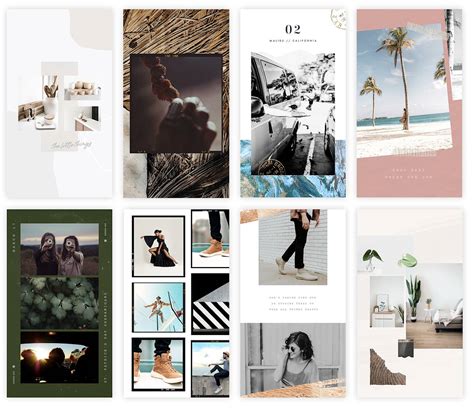
Beyond Instagram's native offerings, a plethora of third-party applications provide advanced features and more sophisticated design options for creating collages. These apps often offer a wider range of templates, editing tools, and aesthetic styles, catering to users who want to elevate their visual content.
Canva is a prime example. Canva is another collage app that you can download on iOS or Android to make aesthetically pleasing collages with beautiful backgrounds. It's a versatile design platform that extends beyond simple photo collages, offering a vast library of templates, fonts, graphics, and design elements. With Canva, you can create collages that are not only visually appealing but also align with specific branding or thematic requirements. Its intuitive drag-and-drop interface makes it accessible to beginners, while its extensive features satisfy the needs of more experienced designers.
Unfold is another popular choice, offering a slightly more elevated look and feel. Unfold is known for its minimalist and elegant templates, which are perfect for creating sophisticated and modern collages. It's particularly favored by those who aim for a curated and refined aesthetic on their Instagram feed. The app provides a variety of page layouts and typography options that can transform simple photos into polished visual stories.
Addressing the Limitations: Video Collages
While most collage apps excel at arranging photos, they often fall short when it comes to incorporating video. The main drawback of using collage apps is that they only support photos. If you’d like to add multiple videos to one post, try the app called Video Collage on the App Store. This specialized application allows you to select multiple video clips and arrange them within a single frame, where they can play simultaneously. This opens up new possibilities for dynamic content, enabling users to showcase different perspectives of an event, compile short clips into a montage, or create a more engaging and multi-dimensional story.
Advanced Techniques: Deconstructing and Reassembling Images
For those seeking a more advanced and artistic approach, consider deconstructing a high-definition image into multiple smaller components that can be reassembled on Instagram. Take a high definition image and chop it up into 3 square photos that match up to make the final image. This technique requires careful planning and precise execution, often involving image editing software to divide a single photograph into several square sections. When uploaded sequentially in an Instagram carousel post, these individual squares combine to form a larger, cohesive image when swiped through. This method can create a striking visual impact, drawing viewers into your feed and encouraging them to explore your content further.
How to create SEAMLESS 3-post Instagram banners with NEW 2025 grid IN PHOTOSHOP (+FREE OVERLAY)
Considerations for Visibility and Aesthetics
When crafting your collages, consider the impact of background elements. You can use a solid color for the most visibility, or you can take a pic of whatever’s around you. Solid colors can help your collage elements stand out, ensuring that the focus remains on your photos or videos. Alternatively, using a background image can add context, mood, or a thematic connection to your collage. The choice between these options depends on the overall message you aim to convey and the aesthetic you wish to achieve.
Expert Insights and Best Practices
A.J., who has worked with brands to curate content that has garnered thousands of interactions for various social media campaigns, is passionate about contributing to innovative and trending articles. A key takeaway from such expertise is the importance of thoughtful composition. When creating a collage, consider the balance of colors, the flow between images, and the overall narrative you are trying to tell. Think about the "happy accidents" that can occur during the creative process, and embrace them. Sometimes, unexpected arrangements or color combinations can lead to the most compelling results.
The "Screenshot and Print" Method: A Niche Solution
While less common for direct Instagram posting, it's worth noting that there are unconventional ways to capture and share visual information. Yes, one way is taking a screenshot of it and printing it. This method, while not directly applicable to creating a digital collage for Instagram, highlights the diverse approaches to visual content manipulation and preservation that exist.
Finalizing Your Instagram Collage Post
Once your collage is complete, whether created through Layout, a third-party app, or a clever workaround, the final step is to upload it to Instagram. Close the Layout app and head on over to Instagram, then tap the camera icon to make a new post. Select your collage from your camera roll, then pop a filter on it (if you want to) and add a funny caption. The caption is your opportunity to provide context, tell a story, or engage your audience with a question. Remember that the goal is to create a compelling visual narrative that resonates with your followers and encourages interaction.
By understanding and utilizing the various tools and techniques available, you can transform your Instagram posts from simple uploads into engaging and visually rich collages that capture attention and tell your story effectively.