Adobe Photoshop, a cornerstone for digital artists, photographers, and designers alike, can sometimes present a frustrating bottleneck when its performance lags. This can transform intricate creative processes into sluggish, time-consuming endeavors. Fortunately, a comprehensive suite of practical optimizations exists to ensure your creative flow remains fluid and uninterrupted. By understanding how Photoshop utilizes your computer's resources and by implementing strategic adjustments, you can unlock a significantly faster and more efficient working experience.
Hardware Foundations: The Bedrock of Speed
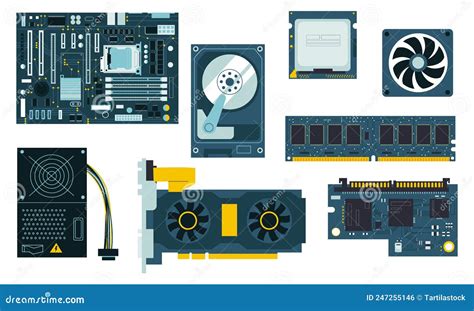
The most profound impact on Photoshop's performance stems from the underlying hardware of your computer. To run Photoshop optimally, your system must meet or exceed certain minimum system requirements. Investing in faster and more powerful hardware is the most dramatic way to increase performance. While software optimizations are crucial, they can only go so far without a robust physical foundation.
Photoshop generally runs faster with more processor cores, although some features take greater advantage of the additional cores than others. However, you’ll experience diminishing returns with multiple processor cores; the more cores you use, the less you gain from each additional core. Therefore, Photoshop doesn’t run four times as fast on a computer with 16 processor cores as on a computer with four cores.
Memory Management: The Lifeblood of Photoshop
Photoshop is a memory-intensive application, and how it manages your computer's Random Access Memory (RAM) is paramount to its speed. RAM serves as Photoshop's digital workspace, actively processing and storing image data. More RAM directly translates to smoother performance, particularly when handling large files, multiple projects, or memory-intensive tasks. Adequate RAM allows Photoshop to maintain real-time access to data, significantly reducing its reliance on the much slower scratch disk when system memory is exhausted.
Optimizing RAM Allocation
Photoshop provides a set of preferences (Preferences > Performance) to help you make optimum use of your computer's resources, including memory. You can improve performance by increasing the amount of memory/RAM allocated to Photoshop. The Memory Usage area of the Performance preferences dialog (Preferences > Performance) clearly indicates how much RAM is available to Photoshop.
To increase the RAM allocated to Photoshop, change the value in the "Let Photoshop Use" box. It is crucial to strike a balance; allocating an excessive amount of memory to Photoshop can potentially hinder the performance of other critical system applications. Therefore, a recommended guideline is not to allocate more than 85% of your computer's memory to Photoshop. If you experience out-of-RAM or out-of-memory errors, try increasing the amount of RAM allocated to Photoshop. However, the best long-term solution to persistent memory issues is to increase the total amount of RAM installed in your computer. For substantial performance gains, consider installing 16GB to 32GB of RAM, especially for tasks involving extensive data processing.
Caching Mechanisms: Accelerating Redraws
Photoshop employs image caching to significantly speed up the redrawing of high-resolution documents while you are actively working on them. Increasing cache levels generally improves Photoshop’s responsiveness during your workflow, although it may lead to slightly longer initial image loading times.
The cache tile size is another critical setting that determines the amount of data Photoshop operates on at any given time. Larger tile sizes can accelerate complex operations, such as the application of sharpening filters. Within the Performance preferences, you'll find three cache presets designed for different workflows:
- Web/UI Design: This option is ideal if your primary use of Photoshop is for web, app, or screen design.
- Default/Photos: This preset is recommended if you primarily retouch or edit moderate-sized images.
The number of cache levels you should utilize depends on your typical file sizes and layer complexity. If you work with relatively small files-roughly 1 megapixel or 1280 by 1024 pixels-and a large number of layers (50 or more), setting Cache Levels to 1 or 2 might be sufficient. Conversely, if you work with files that have significantly larger pixel dimensions-say, 50 megapixels or larger-setting Cache Levels higher than 4 can yield better performance.
Scratch Disk Optimization: The Fallback for Insufficient RAM
When your system runs out of RAM, Photoshop utilizes hard-disk space, known as a scratch disk, to process information. Accessing data in RAM is inherently much faster than accessing data on a hard disk. Photoshop reads and writes image information to the scratch disk when your system doesn't have enough RAM to hold all of it.
Transitioning to Solid State Drives (SSDs)
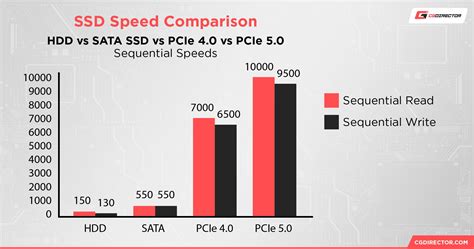
If your computer still relies on a traditional Hard Disk Drive (HDD), transitioning to a Solid State Drive (SSD) can dramatically improve Photoshop's speed and responsiveness. An SSD is considerably faster at loading images, saving files, and launching Photoshop compared to an HDD. The Efficiency indicator in Photoshop can help you determine whether upgrading to a faster hard disk or solid-state disk would improve your performance.
To gain the greatest benefit from an SSD, it is highly recommended to use it as your primary scratch disk. This offers significant performance improvements, especially for images that do not fit entirely in RAM. Even a basic SSD offers a data writing speed over three times that of the fastest HDD, while an M.2 NVMe PCIe5.0 SSD can be over sixty times faster.
If your SSD doesn't have much free space (as the scratch file can grow quite large), consider adding a secondary or tertiary hard disk to supplement it. It's important to note that SSDs vary widely in their performance capabilities, much more so than traditional hard disks. If the Efficiency indicator is already consistently high, an SSD might not provide a noticeable performance boost.
Streamlining Your Work Environment: Reducing System Load
To achieve optimal Photoshop performance, it is advisable to close all other running programs while actively working on your projects. Running multiple applications simultaneously consumes your computer's RAM and CPU resources, which can directly impact Photoshop's speed and responsiveness. Memory-intensive applications like video editing software or resource-intensive games will have a more noticeable negative impact on Photoshop's performance than less demanding programs. By dedicating your computer's resources primarily to Photoshop, you can ensure it operates at its peak efficiency and speed.
Minimizing Open Documents and Presets
An "out of RAM" error message or generally slow Photoshop performance can also be caused by having too many images open simultaneously. To reduce the amount of scratch disk space Photoshop uses, minimize the number of open documents. Furthermore, reducing the number of presets you keep loaded in Photoshop can also help free up resources.
Efficient Workflow Practices: Beyond Preferences
Beyond the core performance settings, adopting efficient workflow practices can significantly contribute to a snappier Photoshop experience.
Managing History States
You can save scratch disk space and improve performance by limiting or reducing the number of history states Photoshop saves in the History panel. The amount of space saved varies depending on how many pixels an operation changes. For instance, a history state based on a small paint stroke or a non-destructive operation, such as creating or modifying an adjustment layer, consumes minimal space. For newer versions like Photoshop 2025, reducing history states to 20-30 in Edit > Preferences > Performance > History & Cache is recommended. For truly non-destructive editing, consider using snapshots or layer comps instead.
Clipboard Management
The contents of the clipboard can often be quite large, especially if you've been copying and pasting data within large documents. These large clipboard contents are of little use once you're finished pasting. Dragging layers or files directly from one window to another is a more efficient method than copying and pasting. Dragging bypasses the Clipboard entirely and transfers data directly, freeing up valuable memory.
Image Resolution and Bit Depth
The greater the image resolution, the more memory and disk space Photoshop requires to display, process, and print an image. For images intended for onscreen display, focus on total pixel dimensions. To reduce image dimensions, navigate to Image > Image Size and ensure the "Resample" option is selected. For printed images, increasing resolution beyond approximately 360 DPI typically yields marginal benefits. Experimentation is key to finding the optimal resolution for your prints. To reduce the resolution for printing, go to Image > Image Size, select "Resample," and adjust the Width and Height values to reflect the desired physical print size. If you need to increase image resolution for printing, perform this step as one of your final actions before printing.
Photoshop can perform many operations on 16-bit and 32-bit images. However, converting to 8 bits per channel permanently deletes data from your image. Consider this conversion only when absolutely necessary for specific output requirements.
Thumbnail Previews
Each time you modify a document, Photoshop updates all visible thumbnails in the Layers and Channels panels. This update process can impact responsiveness, especially when rapidly painting, moving, or nudging layers. To minimize or disable these thumbnail previews, click the Panel menu and choose "Panel Options."
Leveraging Advanced Features: Compositing and GPU Acceleration
Modern versions of Photoshop incorporate advanced features designed to enhance performance, particularly in complex compositing tasks.
Multithreaded Compositing
With the April 2022 release (version 22.3), Photoshop introduced the ability to activate multithreaded compositing. This is achieved by navigating to Preferences > Performance and enabling the "Multithreaded Compositing" checkbox. This feature can significantly improve the speed at which complex compositions are rendered.
GPU Compositing
The same April 2022 release also brought GPU compositing to Photoshop, aimed at improving the responsiveness of certain layer operations within a document. GPU compositing can only be utilized if Photoshop correctly detects your GPU during startup. You can find the checkbox to enable or disable GPU compositing within the "Advanced Settings…" in the Performance preferences.
As document complexity increases, the compositor in Photoshop may need to perform more real-time processing, potentially leading to longer display times for results on screen. With very complex documents, you might notice a slight delay in screen updates when moving layer contents or changing opacity. If you suspect multithreaded compositing is causing redrawing errors, you can disable it in Preferences > Performance.
GPU Acceleration Error! Photoshop CAMERA RAW : And HOW to RESOLVE IT immediately
Advanced Settings and Troubleshooting: Fine-Tuning and Resetting
Photoshop 2025 (version 26.8) introduces features like Dynamic Text and enhanced cloud processing, making performance optimization even more critical.
Cloud Processing and Internet Connection
Photoshop 2025's cloud processing powers tools like precise selections and Neural Filters. This functionality, however, demands a stable internet connection. If you are working offline, consider disabling cloud-dependent features like Neural Filters to maintain performance.
Font Management
An excessive number of active fonts can bog down Photoshop 2025, particularly with the new Dynamic Text feature. Utilize font management tools like FontBase or Adobe Fonts to activate only the essential fonts required for your current projects.
Temporary Data and Purging
Photoshop 2025 stores temporary data in memory, which can sometimes clog your system. Be cautious when purging this data, as the action is irreversible. For repetitive workflows, consider automating the purging process with scripts (File > Scripts).
VRAM Allocation for 3D Features
The 3D section of the Performance dialog box includes a VRAM slider, similar to the memory control. Use this slider to set the upper limit of video RAM (VRAM) available to the Photoshop 3D engine. A setting of 100% still reserves a portion of VRAM for the operating system. If the VRAM indicator is below 100%, it suggests Photoshop has used all available RAM and is resorting to the scratch disk, which slows performance. If efficiency drops below 90%, consider allocating more RAM to Photoshop in the Performance preferences.
Resetting Preferences
When all other optimization attempts fail, resetting your Photoshop preferences can resolve many issues. Trashing the preferences file prompts Photoshop to build a new one upon launching, effectively resetting all settings and libraries to their factory defaults. This process removes corrupted or problematic presets and can often fix persistent bugs. For instance, some users experienced issues after upgrading to CC 2019, which were resolved by resetting preferences. Newer versions simplify this process by presenting a dialog box asking if you wish to delete the settings file. Remember to back up your custom presets before performing this action.
Embracing Modern File Formats
Photoshop 2025 supports modern file formats like AVIF and JPEG XL, which offer superior compression compared to traditional JPEG or PNG files. When exporting TIFF files, avoid using ZIP compression for added speed. When exporting, consider using File > Save As and selecting AVIF or JPEG XL, adjusting the quality setting as needed (e.g., 80% for AVIF).
By implementing these hardware considerations, software optimizations, workflow adjustments, and advanced feature utilization, you can significantly enhance Photoshop's performance, ensuring a faster, smoother, and more productive creative experience.