In today's digitally interconnected world, the ability to seamlessly bridge the gap between print and online content is paramount for designers. QR codes, or Quick Response codes, have emerged as an indispensable tool for achieving this integration. These machine-readable representations of data, resembling a more complex barcode, offer a swift and efficient method for directing smartphone users to hyperlinks, text messages, or plain text with a simple scan. While numerous online tools exist for QR code creation, many produce raster-based images that can suffer from low resolution and scanning inaccuracies. Fortunately, Adobe InDesign, a cornerstone of professional design software, offers a robust, built-in solution for generating high-quality, vector-based QR codes directly within your print and digital layouts. This capability, available since the initial launch of the Creative Cloud series, empowers designers to embed dynamic content into their static designs, enhancing versatility and user engagement across various platforms.
The Power of Vector-Based QR Codes in InDesign
One of the most significant advantages of generating QR codes within Adobe InDesign is the output format. Unlike many external online generators that provide raster images (like JPEGs or PNGs), InDesign produces vector-based QR codes. This distinction is crucial for print and digital design. Vector graphics are resolution-independent, meaning they can be scaled to any size-from a tiny icon on a business card to a large banner-without any loss of quality. This ensures that your QR codes remain crisp, clear, and scannable, regardless of their final dimensions. Furthermore, these generated QR codes function as high-fidelity graphic objects within InDesign, behaving precisely like native vector art. This allows for extensive manipulation: you can easily scale them, fill them with custom colors using swatches, apply transparency effects, and even utilize advanced printing attributes such as overprinting, spot inks, and trapping. This level of control is often not available when using external QR code generators.
Step-by-Step Guide to Generating QR Codes in InDesign
Creating your own custom QR codes within Adobe InDesign is a straightforward process, accessible to designers of all experience levels. The built-in functionality simplifies what might otherwise be a multi-step endeavor involving external tools. Here's a detailed breakdown:
Accessing the QR Code Generation Tool
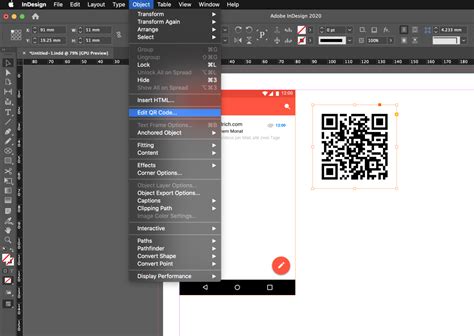
- Navigate to the Object Menu: Begin by opening your Adobe InDesign document. In the top menu bar, click on "Object."
- Select "Generate QR Code": From the dropdown menu that appears, choose the "Generate QR Code" option. This action will open the "Generate QR Code" dialog box, presenting you with various configuration choices.
Configuring Your QR Code
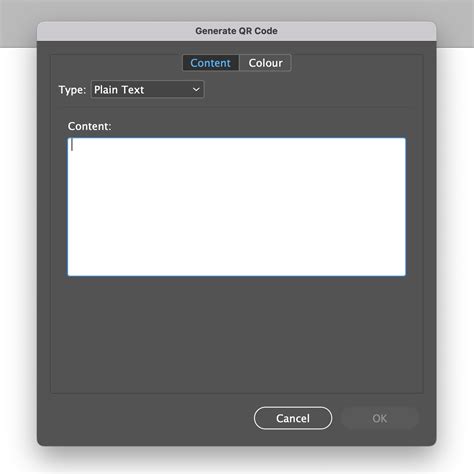
The "Generate QR Code" dialog box is divided into two primary tabs: "Content" and "Color."
The Content Tab: Defining Your Data
This is where you specify what information your QR code will encode.
Choose the Data Type: Under the "Type" dropdown menu in the "Content" tab, you'll find several options for the kind of data you want to embed:
- Hyperlink: This is the most common use case. Select "Hyperlink" to direct users to a specific web page. You will then be prompted to enter the URL.
- Text Message: This option allows you to pre-populate a text message on the recipient's smartphone. You can define both the phone number and the message content.
- Plain Text: Use this for embedding simple text, such as contact information, a short message, or a product detail.
- Email: This option will open the user's email client with a pre-filled recipient address and subject line.
- SMS: Similar to Text Message, but specifically for initiating an SMS.
- vCard: This is a highly useful option for sharing contact information. Selecting vCard allows you to input details like name, phone number, email address, and website, which can then be directly saved to the recipient's contacts.
- Wi-Fi: This option enables you to embed Wi-Fi network credentials (SSID and password), allowing users to connect to a network with a simple scan.
- Calendar Event: You can create a QR code that, when scanned, prompts the user to add a specific event to their calendar.
Enter Your Data: Based on the selected data type, you will be presented with fields to input the relevant information. For a "Hyperlink," you would copy and paste or type the full URL (e.g.,
https://www.example.com). For a "Text Message," you'd enter the phone number and the message. For a "vCard," you would fill in all the contact details.
The Color Tab: Customizing Appearance
While the default black QR code on a white background is standard and often recommended for scannability, InDesign provides options to customize its appearance.
- Default vs. Custom Colors: By default, the QR code will be black, and its background will be transparent.
- Applying Colors: To change the color of the QR code itself, click on the "Color" tab. Here, you can select a swatch from your document's Swatch List. This allows you to maintain brand consistency by using your established brand colors.
- Important Note on Color Edits: It's crucial to understand that if you edit a swatch after creating the QR code, the QR code's color will not update automatically. To apply a color change after the initial generation, you must re-edit the QR code. To do this, select the QR code object, then navigate back to "Object > Edit QR Code." This will reopen the dialog box, allowing you to reselect or modify the color.
Placing Your QR Code in the Layout
Once you have configured your QR code's content and color, click "OK" in the dialog box. Your cursor will transform into a loaded place cursor, holding the newly generated QR code. You have several ways to place it into your InDesign document:
- Clicking into the Document: Simply clicking anywhere in your document will place the QR code at its default size.
- Clicking into an Existing Frame: If you click inside an existing frame (a text frame or an image frame), the QR code will be placed within that frame, resizing to fit its dimensions.
- Click and Drag: You can click and drag on your page to draw a new frame of a specific size. Releasing the mouse button will place the QR code within this newly created frame, maintaining its aspect ratio.
Editing and Manipulating Your QR Code
After placement, your QR code is a fully editable InDesign object.
- Moving, Resizing, and Rotating: Use the Selection tool (V) to move, resize, or rotate the placed QR code object just like any other graphic element. When you drag the frame's bounding box, only the frame resizes.
- Scaling from the Center: To scale the frame from its center while preserving its aspect ratio, hold down the Shift key. To scale from the center without preserving the aspect ratio, hold down both the Shift and Alt (Windows) or Option (Mac) keys.
- Editing Content or Color: If you need to change the data encoded in the QR code or its color, select the QR code object and go to "Object > Edit QR Code." This will reopen the "Generate QR Code" dialog box, allowing you to make the necessary adjustments.
Develop your personalized QR Codes using Illustrator and InDesign
Efficient Image Replacement in InDesign: A Complementary Skill
While focusing on QR code generation, it's worth noting a related workflow enhancement in InDesign that significantly boosts efficiency, especially when dealing with multiple images. A common pitfall for new users is replacing images one by one. This can be a time-consuming process, particularly under tight deadlines. InDesign offers a powerful method for replacing multiple images simultaneously.
Replacing Multiple Images Instantly
- Initiate the Place Command: Navigate to "File > Place" or use the keyboard shortcut: Command+D (Mac) or Control+D (Windows).
- Select Multiple Files: In the "Place" dialog box, select the new images you wish to use. To select multiple files, click on the first image, then hold down the Command (Mac) or Control (Windows) key and click on additional images.
- Order Your Images (Optional): Once you have selected all the desired files, click "Open" or "OK." Your cursor will now be loaded with all the selected images. You can use the left and right arrow keys on your keyboard to cycle through them, arranging them in the order you intend to place them.
- Replace Existing Images: Hover your cursor over an existing image frame that you want to replace. While holding down the Option (Mac) or Alt (Windows) key, click inside the frame. This action will replace the previous image with the currently selected image from your loaded cursor.
- Repeat the Process: Move to the next image frame you wish to replace and repeat the Option/Alt-click process. This method allows for rapid, non-destructive replacement of multiple images across your layout, saving considerable time and effort.
Creative Applications for QR Codes in Design Projects
The utility of QR codes extends far beyond simple website links. Their integration into print materials can transform static designs into interactive experiences, offering richer content and improved user engagement. Here are several creative ways to leverage QR codes in your InDesign projects:
Business Cards
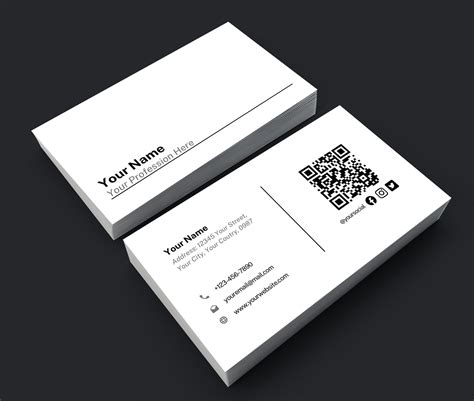
Elevate your business cards by incorporating a QR code. This can provide potential clients with more comprehensive information than can fit on the card itself. Consider linking to:
- A detailed online portfolio showcasing your work.
- A company's "About Us" page for a deeper dive into their mission and values.
- A downloadable PDF of services or product catalogs.
- A direct link to schedule a consultation or appointment.
Ensure the information linked is evergreen and represents you or your company effectively.
Promotional Stickers
Stickers are a fantastic tool for guerrilla marketing. When paired with a strategically placed QR code, they can drive significant brand awareness and traffic. Design trendy, visually appealing stickers that people will want to display on laptops, water bottles, or notebooks. The QR code on these stickers could lead to:
- A special landing page with a discount code for first-time buyers.
- A social media profile to encourage follows.
- A contest or giveaway entry page.
- A short, engaging brand video.
Product Labels
Product labels often have limited space for essential usage instructions or cautionary statements. A QR code can provide a gateway to a wealth of supplementary information, enhancing the customer's experience without cluttering the physical label. Examples include:
- Detailed usage guides or tutorials for complex products.
- Ingredient lists, nutritional information, or allergen warnings for food and beverage items.
- Care instructions for apparel or home goods.
- Links to customer support or warranty registration.
- Behind-the-scenes content about the product's creation or sourcing.
From artisanal olive oils and handcrafted candles to baby clothing and homeware, QR codes can add significant value to virtually any product label.
Retail Storefronts
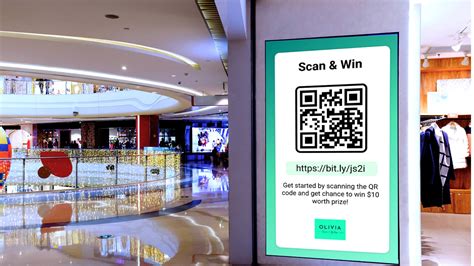
Your physical storefront can become an interactive marketing hub with the strategic placement of QR codes. Consider these applications:
- Window Displays: Use custom wrapping paper or large decals on your storefront windows to display imagery that includes a QR code. This code could offer:
- An exclusive discount for shoppers who scan it.
- Access to your store's loyalty program sign-up page.
- Information about current promotions or upcoming events.
- A virtual tour of the store or a preview of new arrivals.
- In-Store Placement: Place stickers with QR codes in fitting rooms, near checkout counters, or on product displays. These could link to:
- Online product reviews or testimonials.
- Related product suggestions.
- An augmented reality (AR) experience related to your products.
- A feedback form to gather customer insights.
The Enduring Relevance of QR Codes
While some may question the continued relevance of QR codes, their adaptability and ease of use suggest they are here to stay. As a dynamic marketing tool, brands are continuously finding innovative ways to integrate them into their strategies. The ability to generate and edit high-quality, vector-based QR codes directly within Adobe InDesign makes this process more efficient and integrated for designers. These codes act as vital connectors between the physical and digital realms, offering a simple, quick, and valuable method for sharing information. From restaurant menus and museum exhibits to consumer advertising and product packaging, QR codes remain a versatile asset in the modern designer's toolkit, enhancing user experience and driving engagement in an increasingly smartphone-centric world.