DaVinci Resolve, a powerhouse in video editing software, offers a versatile suite of tools for incorporating text into your projects. Whether you're aiming for simple subtitles, dynamic animated titles, or sophisticated 3D text, this guide will walk you through the process, from basic implementation to advanced customization. Understanding how to effectively use text can significantly elevate your video's storytelling, provide context, and add a professional polish.
Accessing Text Tools Across DaVinci Resolve Pages
DaVinci Resolve is structured into distinct "pages," each dedicated to specific editing tasks. Text can be added and manipulated across several of these, with the most common being the Cut Page, Edit Page, and Fusion Page. While the Fusion Page offers the most granular control for advanced users, this guide will primarily focus on the more accessible Cut and Edit pages for adding and customizing text.
Adding Text on the Cut Page
The Cut Page is designed for rapid editing and a streamlined workflow. To add text here:
- Locate the "Titles" Menu: In the top bar of the Cut Page interface, you'll find a button labeled "Titles."
- Select the "Text" Tool: Within the Titles menu, you should see an option simply called "Text."
- Drag to the Timeline: Click and drag this "Text" title onto your timeline where you want it to appear.
Once the text title is on your timeline, you can select it and navigate to the Inspector panel (typically found in the top-right corner) to modify its content and appearance. For this specific text title, you can also click directly in the viewer to reposition it. If you wish to reset any adjustments to position, zoom, or rotation, a "Reset" button is conveniently located next to the relevant controls in the Inspector.
Adding Text on the Edit Page
The Edit Page provides a more traditional timeline-based editing experience, offering greater control over your project.
- Open the Effects Library: On the left-hand side of the Edit Page, you'll find the "Effects Library."
- Navigate to "Titles": Within the Effects Library, scroll down to the "Toolbox" and locate the "Titles" section.
- Select the "Text" Tool: Here, you'll find the "Text" tool, among other title options.
- Drag to the Timeline: Drag and drop the "Text" tool onto your timeline, positioning it above your video clip.
Similar to the Cut Page, once the text title is placed on the timeline, you can select it to access the Inspector panel. Here, you can change the text content, adjust its appearance, and modify its duration by dragging the edges of the text clip on the timeline.
The Inspector on the Edit Page offers extensive options for customizing your text. You can alter the title's color, add strokes (outlines), apply drop shadows, and much more. For creating smooth transitions, you can utilize the fader controls directly on the title clip in the timeline. If these fader controls are not immediately visible, slightly expanding the height of the track in the timeline should reveal them.
Exploring DaVinci Resolve's Text Options
DaVinci Resolve offers a variety of text functionalities, each suited for different needs and levels of complexity. Beyond the basic "Text" tool, you'll encounter:
- Titles: A broad category encompassing preset text elements, including simple text overlays, scroll titles, and titles that appear on the left, middle, or right of the screen.
- Fusion Titles: These are more advanced, often animated titles created within DaVinci Resolve's powerful Fusion compositing environment. They are ideal for more complex motion graphics, cinematic titles, or credits.
- 3D Text: For creating text with depth and three-dimensional properties, allowing for more dynamic visual treatments.
- Subtitles: A dedicated feature for efficiently creating and managing subtitles and closed captions.
- Text+: An advanced text generator that offers significantly more control and customization options than the standard "Text" tool, especially when it comes to animation and complex styling.
The "Text" Tool vs. "Text+"
A common point of confusion for new users is the distinction between the basic "Text" tool and the "Text+" generator.
The "Text" tool functions much like a standard rich text editor. It's straightforward to use for basic titles and captions, allowing for easy adjustments to font, size, color, and position. However, its animation capabilities are somewhat limited, often relying on applying keyframes to properties like position and scale. Applying external effects or Fusion effects directly to a standard text clip on the Edit Page can also be problematic.
The "Text+" generator, originating from DaVinci Resolve's integrated Fusion page, offers a far more robust set of features. It's a node-based system within Fusion, but when accessed from the Edit Page's Effects Library, it appears as a powerful generator. Text+ provides granular control over every aspect of the text, including advanced layout options, multiple shading layers for complex outlines and fills, and extensive keyframing capabilities for intricate animations. While it uses more system resources, Text+ is the go-to for dynamic text animations and sophisticated text treatments.
Adding and Customizing Text with Text+
To leverage the power of Text+:
- Add to Timeline: In the Effects Library on the Edit Page, find "Text+" under the Titles section and drag it onto your timeline.
- Edit Content and Position: Select the Text+ clip and use the Inspector to enter your desired text in the "Text" field. You can also adjust its position.
- Customize Font and Appearance: Within the Inspector, navigate to the "Font" section to change the typeface, size, and style. Further down, you'll find advanced customization options.
- Text Tab: Edit the main text content, typeface, size, style, fill color, and tab spacing. Advanced controls allow for detailed text animations.
- Layout Tab: Control text alignment, distribution, rotation, and add a background element.
- Transform Tab: Modify the position, size, pivot, shear, and rotation of your text.
- Shading Tab: This is where you can add and animate outlines, shadows, and other effects using multiple style layers.
Animating Text with Keyframes
Keyframes are fundamental to creating motion and dynamic changes in DaVinci Resolve. You can animate almost any property of your text, whether using the standard "Text" tool or "Text+".
- Enable Keyframing: In the Inspector panel, next to the property you wish to animate (e.g., Position, Scale, Opacity, Rotation), you'll see a diamond icon. Click this icon to create the first keyframe at the current playhead position.
- Set Initial Values: Adjust the property to its starting value.
- Move Playhead: Advance the playhead on the timeline to where you want the animation to end.
- Set Final Values: Change the property to its desired end value. DaVinci Resolve will automatically create a new keyframe.
- Refine Animation: You can add multiple keyframes to create complex animations. To visualize and fine-tune your keyframes, click the small diamond icon located at the bottom of the text clip in the timeline. Right-clicking on keyframes allows you to set interpolation to "Linear" or "Ease-in/Ease-out" for smoother motion.
For specific animations like a "typewriter effect," you can utilize the "Write On" property within the Text+ settings and animate its values using keyframes.
Creating Subtitles
DaVinci Resolve simplifies the creation of subtitles and closed captions.
- Add a Subtitle Track: On the Edit Page, right-click in the track header area (where track names like "V1," "A1" appear) and select "Add Track." Choose "Subtitle Track."
- Add a Subtitle Clip: From the Effects Library, drag a "Subtitle" effect onto the newly created subtitle track.
- Edit Subtitles: Select the subtitle clip and use the Inspector to type your text, adjust font, color, size, and position. Each subtitle clip on the timeline represents a line of dialogue or text.
This method is significantly more efficient than creating individual text clips for every line of dialogue.
Advanced Text Techniques: Fusion Titles and 3D Text
For those seeking more visually striking text elements, DaVinci Resolve's Fusion page and its associated titles offer advanced capabilities.
Fusion Titles
Fusion Titles, accessible from the Effects Library, are pre-built effects created within Fusion. They often include sophisticated animations, particle systems, and 3D elements. To use them:
- Drag to Timeline: Simply drag the desired Fusion Title from the Effects Library onto your timeline.
- Customize in Inspector: Select the Fusion Title clip and use the Inspector to modify its content, colors, and animation parameters. Fusion Titles can be resource-intensive, so ensure your system is capable of handling them smoothly.
3D Text
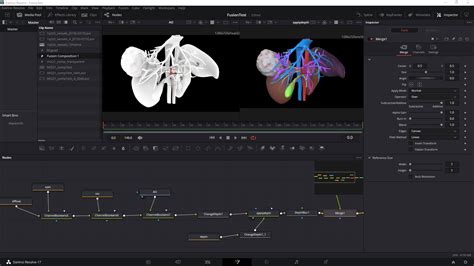
DaVinci Resolve allows for the creation of 3D text, adding a new dimension to your titles. This is typically achieved within the Fusion page using specialized 3D nodes, but some Fusion Titles may incorporate 3D elements directly. The process involves setting up 3D geometry, applying materials, and rendering with depth.
Best Practices for Adding Text to Videos
To ensure your text enhances your video rather than detracting from it, consider these best practices:
- Clarity and Readability: Choose fonts that are easy to read on screen. For professional content, sans-serif fonts like Arial, Montserrat, or Open Sans are often preferred. For more creative projects, experiment with decorative fonts, but always prioritize legibility.
- Contrast: Ensure your text has sufficient contrast with the video background. Use color pickers and outlines to make text stand out.
- Consistency: Maintain a consistent style for your text throughout the video. Use the same fonts, colors, and sizes for similar elements (e.g., all lower thirds).
- Conciseness: Avoid overcrowding your video with too much text. Stick to essential information and use clear, brief phrasing.
- Purposeful Animation: Use text animations strategically to draw attention to key points, introduce sections, or add visual interest. Overuse of animation can be distracting.
- Branding: Incorporate your brand's colors and fonts where appropriate, but ensure they don't compromise readability.
- Accessibility: Subtitles and captions are crucial for accessibility, especially for viewers who watch videos with the sound off or have hearing impairments.
Streamlining Your Workflow with Templates and Third-Party Tools
To save time and maintain consistency, consider creating and saving your custom text presets as templates within DaVinci Resolve. This allows you to quickly apply your preferred styles to future projects.
For even greater efficiency, especially with subtitle creation and translation, third-party tools like Simon Says offer native integration with DaVinci Resolve. These tools can automate transcription and captioning, significantly reducing the time spent on these tasks.
SMOOTH Sliding TEXT ANIMATION In Davinci Resolve
Conclusion
Mastering text in DaVinci Resolve is an essential skill for any video creator. From the straightforward "Text" tool on the Cut and Edit pages to the advanced capabilities of Text+ and Fusion Titles, the software provides a comprehensive toolkit for all your titling and text animation needs. By understanding the different options available and adhering to best practices, you can effectively use text to clarify your message, enhance your visuals, and create a more engaging and professional final product.