Adobe Photoshop is a powerful tool that extends far beyond image retouching, offering robust capabilities for document manipulation. Understanding how to effectively use Photoshop for document editing, particularly concerning file types and their implications for quality and usability, is crucial for a variety of professional and personal tasks. This guide delves into the intricacies of saving and editing documents within Photoshop, highlighting the distinct advantages of various file formats and offering insights into best practices for preserving quality and ensuring compatibility.
The Foundation of Document Editing: Understanding File Types
The way a document is saved in Photoshop directly impacts its editability, quality, and intended use. Different file types are designed to serve specific purposes, and choosing the right one from the outset can save significant time and prevent irreversible quality degradation. When saving your document, clicking on the Format drop-down menu reveals your file type selections, each with unique characteristics.
Photoshop Document (.PSD): The Master File
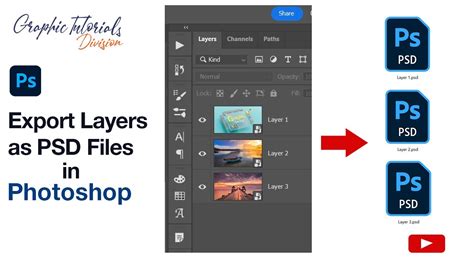
The Photoshop Document (.PSD) format stands as the most comprehensive option for preserving all aspects of your work within Photoshop. This file type grants you the most access without quality being lost and allows for files to be saved at a larger size. Crucially, it saves all layers, channels, text, or any other settings you have been working on. This is most commonly saved as your original file, serving as the master document to which any final edits should be made. The PSD format is indispensable for ongoing projects, allowing you to return to specific elements and make adjustments without compromising the integrity of the overall document.
Tagged Image File Format (.TIFF): Print-Ready Excellence
The Tagged Image File Format (.TIFF) is another robust option that shares many similarities with a PSD file. TIFFs allow for full editing capabilities, and images are also saved at the highest quality without quality being lost over time. This makes it the preferred file type when sending images to print. For optimal results, it is recommended to work on your original PSD file and then save a flattened (no layers) TIFF file when preparing for printing. This ensures that all editing information is retained in the PSD, while the TIFF provides a high-quality, print-ready version.
Joint Photographic Expert Group (.JPEG / .JPG): The Ubiquitous, Yet Compromised, Format
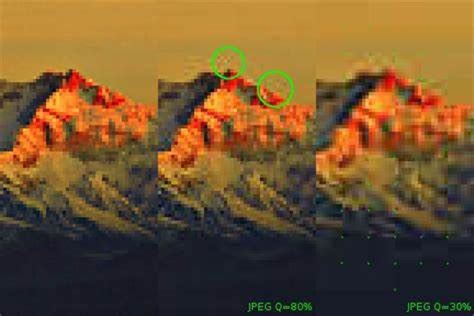
The Joint Photographic Expert Group (.JPEG/ .JPG) is arguably the most widely recognized and used file type, particularly for the web and for sharing photos with friends and family. Most often, digital cameras save image files as a JPEG/JPG. Its primary advantage lies in its ability to be saved in a much smaller file size, which frees up space and makes it more convenient for digital storage and transmission. However, this convenience comes at a cost: JPEGs are considered a "lossy" file format. In other words, they do not maintain quality and lose quality over time. Every time you open a JPEG file and re-save it, some quality is lost. For comparison, consider copying an image on a copy machine, then making a copy of that copy and doing the same thing repeatedly. You will notice the image slowly lose quality with each copy made. The same concept applies to a JPEG. Therefore, it is always best to have an original file such as TIFF or PSD you can go back to for maintained quality, and to try not to repeatedly open and re-save JPEG files, as this will further degrade their quality.
Graphics Interchange Format (.GIF): For Web Animation and Simple Graphics
Accessible through the 'Save for Web' menu in Photoshop, the GIF (Graphics Interchange Format) is an even lower quality file type in comparison to a JPEG and is primarily used for the web. It achieves its smaller file size by reducing the number of colors in the document. However, because it is lower in file size and quality, it promotes fast download times for web pages, which was a significant advantage in the early days of the internet. It is also accessible for all internet browsers. GIFs are particularly useful for simple animations and graphics with limited color palettes.
How do I Create a GIF in Photoshop - Animate your Art! | Adobe Photoshop | Creative Cloud
Portable Network Graphics (.PNG): Quality and Transparency for the Web
The Portable Network Graphics (.PNG) file type is less commonly known and used compared to JPEG and GIF, but it offers significant advantages for digital images. It was originally intended to replace GIF files because it supports transparency, just like a GIF, while also maintaining quality and containing a broader spectrum of colors. Although it is not quite as popular, it is a better file type than both GIF and JPEG for digital images. This is because it maintains the quality of an image, regardless of how many times it is opened. The only downsides are that it does not support CMYK color mode, meaning it cannot be used for printing directly, and it does not support animation. Additionally, because it is not as widely known or used as much, some Internet browsers may not support it. A key tip when choosing to save digital images is to opt for a PNG over a JPEG to maintain quality.
Portable Document Format (.PDF): The Universal Standard for Sharing and Viewing
The Portable Document Format (.PDF) is a versatile format most used for file sharing, viewing, and printing. Images can be saved as a PDF file in Photoshop, which allows for maintained file features, for example, layers. You can save it as a JPEG compression or a ZIP file to prevent loss of quality. One significant advantage of a PDF image file is its ability to use spot colors. Spot colors are specific colors used in the printing industry, and using them in a PDF ensures precise color reproduction, especially for single-color prints. By far the greatest advantage of saving in a PDF format is its accessibility. Anyone will be able to open the file on any computer as long as they have Adobe Reader installed. Adobe Reader is a free software by Adobe that is or can be installed on the majority of people's computers, making PDFs a universally accessible format.
Practical Applications in Photoshop
When working with documents in Photoshop, the workflow often involves starting with a high-fidelity format and then creating derivative versions for specific purposes. For instance, if you are designing a brochure that will eventually be printed, you would likely create the initial design in a PSD file to retain all layers and editing flexibility. Once the design is finalized, you would then export a flattened TIFF file for the printer. If the brochure also needs to be shared online as a preview, you might create a JPEG or PNG version, carefully considering the trade-offs between file size and quality.
The 'Save for Web (Legacy)' option within Photoshop is particularly useful for optimizing images for online use. This dialog box allows you to preview different file format options (JPEG, GIF, PNG) and their respective file sizes and quality settings simultaneously. This iterative process of previewing and adjusting is key to finding the right balance for your specific needs. For example, a photograph intended for a website might be best saved as a JPEG with a quality setting of around 70-80%, offering a good compromise between visual fidelity and download speed. For graphics with transparent backgrounds, PNG is the clear choice.
When dealing with text-heavy documents or forms that require precise layout and font rendering, saving as a PDF is often the most practical approach. Photoshop allows you to export documents with editable text layers preserved within the PDF, or as flattened images. The choice depends on whether the recipient needs to edit the text or simply view it. The ability to embed fonts within a PDF also ensures that the document will appear consistently across different systems, regardless of whether the recipient has those specific fonts installed.
Preserving Quality: A Continuous Effort
The overarching principle when working with documents in Photoshop, and indeed with any digital media, is the preservation of quality. This means understanding the inherent characteristics of each file format and making informed decisions about when and how to use them.
- Start with the highest quality: Always begin your work in Photoshop using a format that supports layers and preserves maximum detail, such as PSD or TIFF. Avoid making extensive edits directly on JPEG files if you intend to maintain high quality.
- Understand "lossy" vs. "lossless": Lossy formats (like JPEG and GIF) discard some data to reduce file size, leading to quality degradation. Lossless formats (like PSD, TIFF, and PNG) retain all original data, ensuring no quality is lost.
- Save intermediate versions wisely: If you need to save a working copy that is not the final master, consider formats like TIFF or even a high-quality JPEG if space is a concern, but always keep your original PSD.
- Optimize for the intended output: Whether for print, web, or sharing, choose the file format that best suits the final destination. A high-resolution TIFF for print, a optimized JPEG or PNG for web, and a universally accessible PDF for general sharing.
By internalizing these principles and understanding the nuances of each file format, users can effectively leverage Photoshop to create, edit, and distribute documents with confidence, ensuring both quality and usability. The power of Photoshop lies not just in its editing tools, but in the user's ability to strategically manage file types throughout the creative process.