Inkscape, a powerful and free vector graphics editor, offers a versatile toolkit for various design needs. For those venturing into creative hobbies like sand carving, understanding how to manipulate images for stencil creation is crucial. This guide will walk you through the process of inverting colors in Inkscape, specifically addressing the common need to create stencils from photographs. We'll explore the nuances of this process, why direct color inversion might not always yield the desired result for stencils, and how to achieve a functional white-on-black or black-on-white representation suitable for your projects.
Understanding Stencil Requirements for Sand Carving
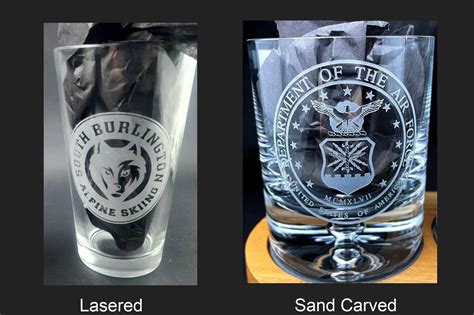
When creating a stencil for sand carving, the objective is to define the areas that will be blasted or etched onto the material, typically glass. This means you need a clear distinction between the areas to be worked on and the areas to be protected. In many sand carving applications, the stencil material (like vellum) is applied to the glass, and the areas that will be blasted are precisely where the stencil material is removed. Consequently, the design printed on the vellum needs to represent these blasted areas as a solid color, often white, so that when the vellum is placed on the glass, the white areas correspond to where the sandblaster will operate. Conversely, if you are creating a stencil where the black areas are to be blasted, you'll need to invert your image accordingly.
The original photograph or image needs to be transformed into a high-contrast graphic. This often involves converting it to grayscale and then inverting the colors. For instance, if you just need an inverted, grey-scale version of a picture, you'd be better using a photo-editing tool, such as the Gimp. However, Inkscape can effectively handle this conversion for vector-based stencils.
The Nuance of Color Inversion in Inkscape
It's important to understand that Inkscape operates primarily with vector objects, which are defined by paths and fills, not pixels in the same way a raster image editor like GIMP does. When you "touch a color" in Inkscape, you are typically interacting with the fill or stroke of a path.
A common misconception is that simply inverting the color of an object in Inkscape will automatically create a usable stencil. If your shape has no strokes and is a closed area filled with black, and you directly change its fill color to white, the shape will become invisible against the default white background of the Inkscape canvas. This is because a white object on a white background does not show up.
Inkscape Part 1: Fill and Stroke
Visualizing Transparency and Backgrounds in Inkscape
To better visualize what's happening with your object's visibility, Inkscape provides tools to adjust the display background. While this is not a "real" background color that gets exported with your design, it's invaluable for design purposes.
You can go to Edit > File > Document Properties. Within this dialog, you can choose the chequered background option. This feature displays transparent areas with a chequered pattern, making it easier to see what is truly transparent versus what has a color fill. You can then click the Page colour square and choose a light grey or any other color that provides sufficient contrast. Remember, the color you choose here is just for display purposes within Inkscape and will not affect your final exported stencil.
Achieving the Desired Stencil Effect
To create a functional stencil, you need to ensure that the areas intended for sandblasting are clearly defined and contrasted against the areas that should remain untouched.
Scenario 1: White areas to be blasted (Black areas to be protected)
If your sand carving process requires white areas to be blasted, you need to convert your image so that the desired blasted areas are represented as white, and the protected areas are black.
- Import your image: Drag and drop your photograph into Inkscape or use
File > Import. - Trace Bitmap: For photographic images, you'll likely need to convert them into vector paths. Select your imported image and go to
Path > Trace Bitmap. Experiment with the settings here (e.g., Brightness Cutoff, Edge Detection, Color Quantization) to get a good black and white representation. You may need to do this multiple times with different settings to achieve the best result. The goal is to get a clear distinction between dark and light areas. - Invert the colors: Once you have a satisfactory black and white vector representation, select the object. To invert the colors, you can use the
Fill and Strokedialog (Object > Fill and Stroke). If the object is filled black, change the fill color to white. If it's filled white and you want it black, change it to black. - Adjusting for visibility: As mentioned, a white object on a white background will be invisible. To work with this, either use the chequered background as described above, or manually set the page background color to a contrasting shade (e.g., light grey) via
File > Document Properties > Page Color.
Scenario 2: Black areas to be blasted (White areas to be protected)
In some sand carving techniques, the black areas of your design are what get blasted. In this case, you would aim to have your final stencil design show the areas to be blasted in black, and the areas to be protected in white.
- Import and Trace Bitmap: Follow steps 1 and 2 from Scenario 1.
- Color Adjustment: After tracing, you might end up with a black shape. If you want the black areas to be blasted, and the white areas (which might currently be the background of your traced image) to be protected, you need to ensure your tracing result clearly delineates these. If your trace results in a white object on a black background (or vice versa), you can use the
Fill and Strokedialog to change the colors. - Inverting for Black Blasting: If your traced image results in a white object on a white background (making it invisible), and you want the black areas of the original photo to be blasted, you would invert the colors. If the object is currently white, change its fill to black. If it's black and you want it white, change it to white. The key is to have the areas you intend to blast represented by the color that your sandblasting equipment will interact with.
Advanced Techniques and Considerations
- Grayscale to Black and White Conversion: For complex photographic images, a simple "Brightness Cutoff" in
Trace Bitmapmight not be sufficient. Consider using the "Color Quantization" option with a limited number of colors (e.g., 2 or 3) to simplify the image into distinct areas. You can then manually refine these areas. - Layering and Masks: For more intricate designs, you can use layers. Place your original image on one layer and your stencil design on another. This allows you to work on the stencil without permanently altering the original photo. Masks can also be used to reveal or hide parts of an object based on another object's shape.
- Strokes vs. Fills: Ensure your final stencil design consists of solid fills. Stencils are typically not created from strokes, as thin lines can be difficult to cut precisely and may not provide enough surface area for the sandblasting process. If your traced bitmap results in outlines, you may need to convert them to filled shapes (
Path > DifferenceorPath > Unioncan be useful here, combined with drawing shapes to fill gaps). - Exporting Your Stencil: Once your design is ready, export it as a high-resolution PNG or PDF (
File > Export PNG ImageorFile > Save as...PDF). Ensure the resolution is adequate for printing your stencil accurately. When exporting, pay attention to the background settings. If you've used a colored background for display, ensure you export with a transparent background or a white background as needed for your printing process.
Example Workflow: Inverting a Photo for White Blasting Areas
Let's illustrate with a common scenario: you have a photograph and want to create a stencil where the lighter areas of the photo will be blasted white on the glass.
- Open Inkscape and Import: Start Inkscape and drag your photo into the canvas.
- Trace Bitmap: Select the photo. Go to
Path > Trace Bitmap. In the dialog, select the "Brightness Cutoff" tab. Adjust the "Threshold" slider. A lower threshold will result in more white, a higher threshold in more black. You're aiming to get the main shapes of your subject as distinct areas. Click "OK". You will now have a vector object on top of your original image. - Remove Original Image: Delete the original raster image, leaving only the black and white vector trace.
- Invert Colors: Select the traced object. Open the
Fill and Strokedialog (Object > Fill and Stroke). In the "Fill" tab, click on the color swatch and select white. Your object should now appear white. - Set Display Background: To see this white object, go to
File > Document Properties. Check "Chequered background" and click the "Page color" swatch to choose a medium grey. Now your white object will be clearly visible against the grey display background. - Refine: You might need to go back to
Trace Bitmapand adjust the threshold, or use Inkscape's node editing tools (F2) to clean up the resulting paths, smoothing curves or removing unwanted details. The goal is to have clear, distinct white areas representing where you want to blast. - Export: Once satisfied, go to
File > Export PNG Image. Select "Selection" to export only your stencil object. Choose a high resolution (e.g., 300 DPI or higher) and ensure the background is set to "Transparent background" or "White background" as required for printing.
By understanding these principles and utilizing Inkscape's tools, you can effectively transform photographs into precise stencils for your sand carving projects, ensuring that the right areas are prepared for etching.