Ever notice your phone acting a little sluggish or your battery draining faster than usual? It can feel like a mystery, but oftentimes, the culprit might be apps running in the background. These apps stay open, even when you’re not actively using them, to refresh content, send notifications, or pick up where you left off the next time you hop on. Whether you’re using an Android or iPhone, managing background apps is easy and straightforward.
The Silent Drain: Understanding Background App Activity
Apps don't truly "turn off" when you leave them. This setup is designed to help your phone run apps faster overall. However, with our devices becoming more and more capable of doing a huge range of different tasks, rationing your battery to last a whole day is easier said than done. You may be surprised to learn that one of the biggest things draining your phone's battery may be a silent process that runs in the background, mostly without you knowing it.
Background app refresh allows the apps on your device to automatically search for new information even if they are not directly running on your screen. Although the benefit of background app refresh is that it keeps you from having to wait for new information to be fetched when you launch an app, it does come with significant downsides. Your smartphone could be burning through data for things you don’t actually need. This is because there will be apps and services that are constantly running and updating in the background without you knowing it if you have background app refresh switched on.
While one little app probably won’t use very much data, those little apps can add up to a serious drain on your data plan. In addition to being a drain on your data plan, background app refresh can also have a negative impact on your phone’s battery life. While the feature can be useful, it’s not likely that you need up-to-date information on each and every installed app on your phone. Limiting the number of apps that you allow to use background app refresh will be beneficial to your phone’s battery life.
Should You Close Apps Running in the Background?
The short answer is: usually, no. Both Android and iPhone manage memory automatically. Your phone handles most of that automatically. So, closing apps constantly can actually make your phone work harder when reopening them. Pro Tip: Closing apps that cause issues or drain battery is fine, but you don’t need to close every app all the time. Not always.
However, there are instances where manual intervention might be beneficial. For example, if an app is misbehaving, consuming excessive resources, or you suspect a security or privacy risk, closing it might be necessary. An app running in the background can continue using things like your phone's camera or mic, and this could enable a rogue app to take over the camera or mic. Yes, Android also has become very good at letting us know when an app is using either the camera or the mic, but it's always better safe than sorry-especially when it comes to our phones.
How to See What Apps Are Running on Your Phone
For Android Devices:
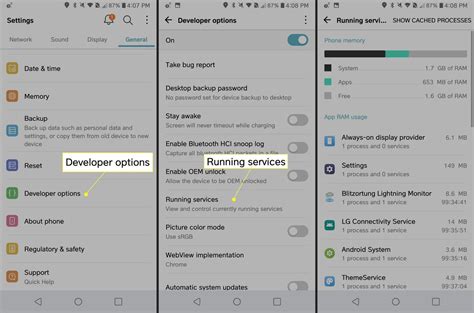
On Android, you can check which apps are actively running by going to Settings > Developer Options > Running services. This will give you a detailed look at the processes currently active on your device. You might be surprised at how many apps are still running on your device.
Managing Background Activity on Android
While Android has become quite good at managing system resources, the more apps you have running in the background, the fewer resources will be available to use. Here are a few ways to manage apps on your Android device:
Closing an App from the Overview Screen
This is generally the quickest method for most users.
- Open the App Overview: Swipe up from the bottom of your display (it has to be the bottom, otherwise it'll open the App Drawer). If the overview doesn't immediately open, keep dragging your finger up until it does.
- Locate the App: With the app overview open, swipe left or right to find the app you want to close.
- Dismiss the App: Once the app is centered, swipe up on its preview to dismiss it.
You can go through and swipe them all closed (except for the app you're currently using). That will close the app (or apps) and return those resources to the system.
Closing an App from Settings
If you prefer to go through the settings menu or need to force stop an app:
- Open Settings: Pull down the Notification Shade twice and then tap the gear icon to open Settings.
- Navigate to Apps: You should see "Apps" listed near the top. Tap that entry. Apps should be listed under "Connected devices."
- Find Your App: If the app you want to close isn't listed at the top, tap "See all X apps" (where X is the number of apps you have installed).
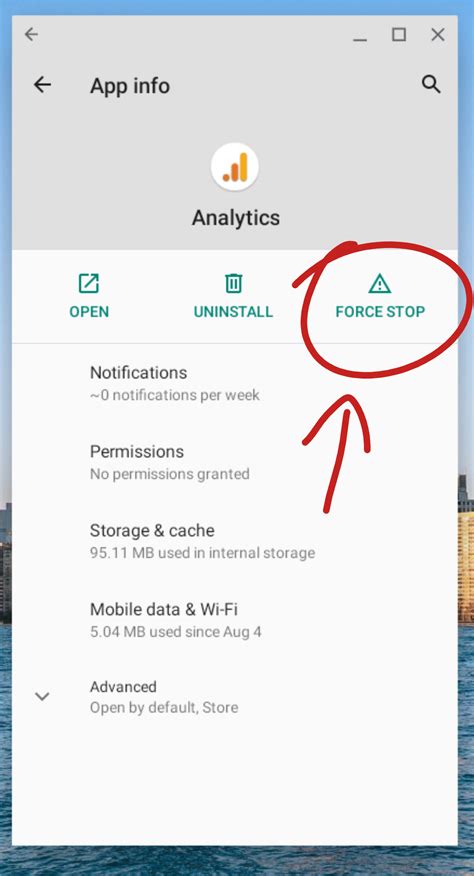
- Force Stop: Find the app you want to close and tap on it. On the app page, you should see the "Force Stop" button. Tap that to close the app.
Closing Background Services (Android 15 and later)
This method is more about closing apps that are running as background services and not so much for general apps you use. For example, an app might continue running in the background to listen for specific requests.
- Access Notification Shade: Pull the Notification Shade down twice (as though you're going to open Settings).
- Tap the Active App Pill: The "active app pill" (which first appeared in Android 15) will be visible. Tap it.
- Stop the Service: A pop-up will open, listing running apps or services. Tap the "Stop" button associated with the app you want to close.
Which method should you use on Android? It depends. If you want to stop background services, the last method is the easiest (but requires Android 15). If you're looking for the fastest method, the app overview is, hands down, the best. If you have problems getting the app overview to appear, going through the Settings app is your best bet.
Double Your Android Phone's Battery Life By Changing These Settings
Managing Background Activity on iPhone
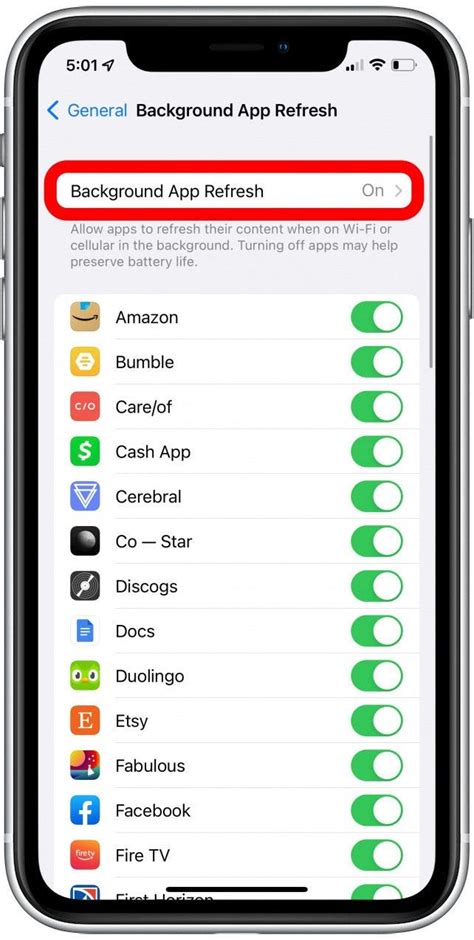
On iPhone, the primary setting for controlling background app activity is "Background App Refresh."
Turning Off Background App Refresh
- Open Settings: Go to Settings > General > Background App Refresh.
- Manage Refresh Settings:
- You can choose to turn off Background App Refresh entirely by toggling the main switch to "Off."
- Alternatively, you can choose to set apps to refresh only while connected to WiFi.
- You can also customize which individual apps are allowed to refresh in the background. Simply scroll through the list of apps and toggle the switch next to each app you wish to disable background refresh for.
Closing Apps on iPhone
Similar to Android, you can also manually close apps on an iPhone if you suspect an issue. The method depends on your iPhone model:
For iPhones with Face ID (no Home button):
- Access App Switcher: From the Home Screen, swipe up from the bottom of the screen and pause in the middle of the screen.
- Find the App: Swipe right or left to find the app that you want to close.
- Close the App: Swipe up on the app's preview to close it.
For iPhones with a Home button:
- Access App Switcher: Double-click the Home button to show your most recently used apps.
- Find the App: Swipe right or left to find the app that you want to close.
- Close the App: Swipe up on the app's preview to close it.
The Nuance of Background App Refresh
Overall, background app refresh does have some benefits, but if it is controlled well, it can save your phone's battery and a huge amount of mobile data. It's not always necessary for every app to have constant access to fresh information. By selectively managing which apps can refresh in the background, you can significantly improve your device's performance and longevity.
If you’re looking for simple, affordable wireless service and award-winning support to keep your phone running great, check out our plans and devices. Terms and Conditions apply. New service activation on approved credit.
tags: #how #to #remove #background #apps