QR codes, or Quick Response codes, are more than just intricate patterns; they are machine-readable printed representations of data with diverse industry applications. What began as a tool for industrial identification has seamlessly integrated into consumer advertising, offering a dynamic bridge between the physical and digital realms. For designers and marketers working within the Adobe ecosystem, the ability to generate and manipulate these codes directly within Adobe InDesign elevates the design process, ensuring high-fidelity graphics and unparalleled control. This guide delves into the robust features InDesign offers for creating, customizing, and refining QR codes, transforming them into integral and impactful elements of your printed collateral.
The Power of Native QR Code Generation in InDesign
Unlike many online QR code generators that produce raster-based images, Adobe InDesign empowers users to create high-quality, independent QR code graphics that function as native vector art. This distinction is crucial for maintaining print quality and design flexibility. When you generate a QR code within InDesign, you are not embedding a static image; you are creating a dynamic graphic object. This means the QR code behaves precisely like any other vector illustration within your layout.
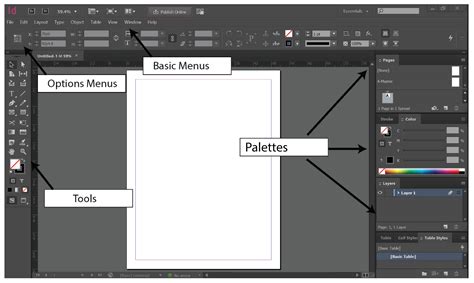
The inherent advantage of this vector-based approach is its scalability. You can effortlessly scale the QR code object to any desired size without any degradation in quality, ensuring crisp lines and scannability even at large formats. Furthermore, this graphic object can be seamlessly integrated into your design workflow. You can fill it with custom colors, apply a spectrum of effects, adjust transparency levels, and even incorporate advanced printing attributes such as overprinting, spot inks, and trapping. This level of control ensures that your QR codes not only function correctly but also align perfectly with your brand's visual identity and the specific requirements of your print production.
Generating Your First QR Code: A Step-by-Step Approach
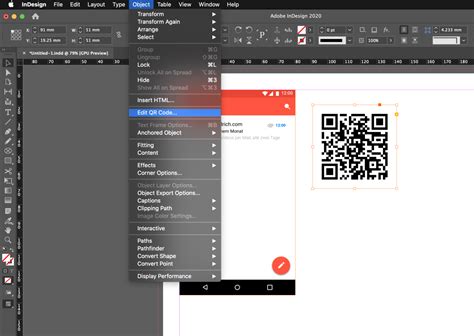
The process of generating a QR code in InDesign is straightforward and accessible. To initiate the creation of a QR code, navigate to the menu bar and select Object > Generate QR Code. This action will unveil the "Generate QR Code" dialog box, a central hub for defining the parameters of your code.
Within this dialog box, you are presented with a variety of options for generating different types of QR codes, catering to a wide range of functionalities. For instance, the "Text Message" option allows you to pre-define a text message that will be sent to a specified phone number when the QR code is scanned. This is particularly useful for promotional campaigns where you want to encourage immediate engagement through SMS.
Once you have selected the desired type of QR code, you can proceed to customize its appearance. The "Color" tab within the dialog box provides access to your InDesign Swatch List. This is where you can apply a specific color to your QR code, moving beyond the default black. By switching to the Color tab and selecting a swatch from your predefined list, you can imbue the QR code with brand-specific colors, ensuring it complements your overall design aesthetic.
It's important to note a key aspect of color application: if you edit a swatch after creating the QR code, the color of the QR code will not update automatically. To reflect such changes, you will need to reopen the QR Code dialog box by selecting Object > Edit QR Code and re-apply the swatch.
After configuring the type and color, clicking "OK" will load a placement cursor, ready for you to position your QR code within your InDesign document. You can click into an existing frame to place the code inside it at its default size, or you can click and drag on your page to define the initial dimensions of the QR code frame.
Editing and Refining Your QR Code
The flexibility of InDesign extends beyond initial generation. If you need to modify an existing QR code, the process is equally intuitive. Simply select the QR code object and navigate to Object > Edit QR Code. This will reopen the "Generate QR Code" dialog box, allowing you to adjust its type, color, or other parameters.
How to create / GENERATE 5 different types of QR CODES in Adobe® InDesign® // Real life example 2024
The default background of a QR code frame in InDesign is transparent, allowing the underlying elements of your design to show through. However, you retain full control over the object's placement and dimensions. Using the Selection tool, you can easily move, resize, or rotate the placed QR code object. When you drag the frame's bounding box, you are primarily resizing the frame itself. For more precise control over scaling, you can employ keyboard modifiers. Pressing Shift + Alt (on Windows) or Shift + Option (on Mac) while resizing will scale the frame from its center, though this action may unpreserve the aspect ratio if not handled carefully.
Understanding the Nuances of QR Code Functionality
To the uninitiated, QR codes may appear as merely a more complex iteration of traditional barcodes. In essence, they fulfill a similar function of encoding data, but their capacity and versatility far exceed that of their linear predecessors. While barcodes are primarily used for identifying products within a retail context, QR codes can store significantly more information and can be used for a vast array of purposes, including linking to websites, displaying text, sharing contact information, and even initiating actions like sending emails or connecting to Wi-Fi networks.
The benefit of using Adobe InDesign to generate your QR codes is that it offers you flexibility regarding what type of QR code you want to create. This built-in functionality eliminates the need for external online tools, which often provide raster-based images that can lead to fuzzy, low-resolution QR codes. Such low-quality codes may not scan correctly in your final output, leading to user frustration and a breakdown in communication. InDesign's vector-based generation ensures that your QR codes are always high-fidelity, sharp, and reliably scannable, regardless of the size or complexity of your design.
Beyond Basic Generation: Advanced Customization and Application
The ability to generate and edit QR codes directly within InDesign opens up a world of creative possibilities for designers. Consider the application of different QR code types:
- URL: The most common type, directing users to a website or a specific landing page. This is invaluable for print advertisements, brochures, and packaging, driving traffic and engagement.
- Text: Displays a block of plain text when scanned, useful for providing additional information, disclaimers, or short messages.
- vCard: Allows users to instantly save contact information to their device, streamlining the process of exchanging business details.
- Email: Pre-populates an email with a recipient address, subject line, and even a message body, facilitating direct communication.
- SMS: As mentioned earlier, this type allows for pre-defined text messages to be sent to a specific phone number.
- Wi-Fi: Enables users to connect to a Wi-Fi network by scanning the code, providing effortless access for visitors or clients.
- Calendar Event: Allows users to add an event to their calendar, perfect for invitations or event promotions.
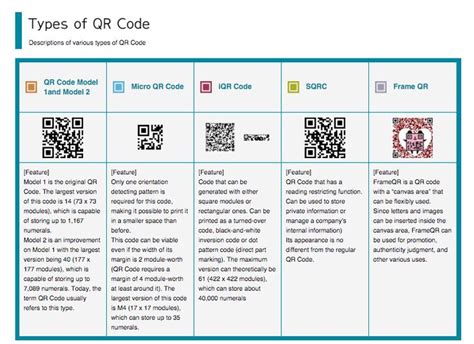
The vector nature of InDesign-generated QR codes means they can be seamlessly integrated into complex layouts. You can place them behind other design elements, apply gradients, or use them as masks. The ability to apply transparency is particularly useful when you want to subtly incorporate a QR code without it dominating the visual hierarchy of your design. Furthermore, the support for advanced printing attributes like overprinting and spot inks ensures that your QR codes can be produced accurately on high-end commercial printing presses, maintaining their integrity and scannability through professional print workflows.
Ensuring Scannability and Best Practices
While InDesign provides powerful tools for QR code creation, adherence to certain best practices is crucial for ensuring optimal scannability and user experience.
Firstly, always test your QR codes thoroughly. Scan them with multiple devices and different QR code reader applications to confirm they function as intended. This is especially important after making any edits or applying complex effects.
Secondly, consider the size and contrast. While vector graphics scale without loss of quality, extremely small QR codes can become difficult to scan. Ensure sufficient contrast between the QR code modules and their background. While InDesign allows for custom colors, avoid using very light colors on light backgrounds or dark colors on dark backgrounds. The default black on white often provides the highest degree of scannability.
Thirdly, maintain adequate quiet zone. The "quiet zone" is the clear space surrounding the QR code. InDesign automatically generates this, but if you are resizing or manipulating the frame, ensure this clear space is not encroached upon. A minimum of four modules of white space is generally recommended.
Finally, provide context. While the QR code itself is a functional element, its purpose should be clear to the user. Accompanying text indicating what will happen when the code is scanned (e.g., "Scan to visit our website," "Scan for event details") enhances usability and manages user expectations.
By leveraging the native QR code generation capabilities of Adobe InDesign, designers can create dynamic, high-quality, and fully integrated QR codes that enhance both the aesthetic appeal and the functional efficacy of their print designs. This powerful feature transforms a simple data matrix into a sophisticated design element, capable of driving engagement and delivering valuable information with precision and style.