The allure of ever-changing, visually striking desktop backgrounds can be captivating, often provided by services like Bing Wallpapers and Windows Spotlight. These features aim to enhance the user experience by introducing a dynamic visual element to the computer interface. However, for some users, these automatically updating images can become intrusive or simply undesirable, leading to a desire to revert to a static background or a personalized selection. This guide aims to provide a thorough understanding of how to remove Bing desktop backgrounds and related features, addressing common challenges and offering solutions for various operating systems.
Understanding Bing Wallpapers and Windows Spotlight
Before delving into removal methods, it's crucial to understand what Bing Wallpapers and Windows Spotlight are and how they function. Bing Wallpapers is an application that allows users to automatically set their desktop background to a variety of images curated by Bing. Windows Spotlight, on the other hand, is a feature integrated into Windows that cycles through high-quality images for both the lock screen and, in some configurations, the desktop background. These services often work in conjunction with system updates or can be installed separately, sometimes appearing as unexpected additions to a user's system.
The core issue users face is that even after uninstalling the Bing Wallpaper application, the dynamic backgrounds may persist. This can be due to lingering settings, the presence of Windows Spotlight, or incomplete uninstallation processes. The goal of this article is to systematically address each of these potential causes to ensure a clean and permanent removal of the unwanted backgrounds.
Removing Bing Wallpaper Application from Windows
The most direct approach to eliminating Bing Wallpapers is to uninstall the application itself. This process is generally straightforward on Windows operating systems.
For Windows 11 Users:
- Navigate to the Settings application. This can be done by clicking the Start menu and selecting the gear icon, or by pressing
Windows key + I. - In the left-hand panel of the Settings window, scroll down and select Apps.
- Within the Apps section, click on Installed apps.
- Scroll through the list of installed applications to find Bing Wallpaper. If it's not immediately visible, you can utilize the search bar at the top of the screen and type "Bing Wallpaper" to locate it quickly.
- Once found, locate the Uninstall button next to the Bing Wallpaper entry. This button is typically positioned above the program list, near an "Organize" option.
- Clicking "Uninstall" will initiate the removal process. You will likely be prompted to confirm the uninstallation twice. Click Yes on both prompts.
- Allow the application to complete its uninstallation process. This may take a few moments.
- After the uninstallation is finished, it is recommended to Restart your computer. This ensures that all associated processes and registry entries are properly terminated and cleared. You can restart by opening the Start menu, clicking the power icon, and selecting "Restart."
For Windows 10 Users:
The process for uninstalling Bing Wallpaper on Windows 10 is similar, often involving the Control Panel:
- Open the Control Panel. You can do this by typing "Control Panel" into the Windows search bar and selecting the application.
- Under the "Programs" category, click on Uninstall a program. If your Control Panel is in icon view, click on Programs and Features.
- Locate Bing Wallpaper in the list of installed programs.
- Select Bing Wallpaper by clicking on it, and then click the Uninstall button that appears at the top of the list.
- Follow any on-screen prompts to confirm the uninstallation.
- Once the uninstallation is complete, Restart your computer.
Troubleshooting Persistent Bing Wallpapers After Uninstall:
In some instances, even after uninstalling the Bing Wallpaper application, the dynamic backgrounds may continue to appear. This often indicates that Windows Spotlight is still active or that a residual component of the Bing Wallpaper service is running.
Addressing Windows Spotlight
If your wallpaper continues to change images after uninstalling Bing Wallpaper and restarting your computer, Windows Spotlight might be the culprit.
Disabling Windows Spotlight for Desktop Backgrounds:
- Open the Settings application (
Windows key + I). - In the left-hand panel, click on Personalization.
- Select Background.
- Look for the Personalize your background drop-down menu.
- Click on this drop-down menu. Instead of "Windows Spotlight," select one of the alternative options, such as "Picture" or "Slideshow." If you wish to use a personal image, choose "Picture" and then select "Browse" to choose your desired image.
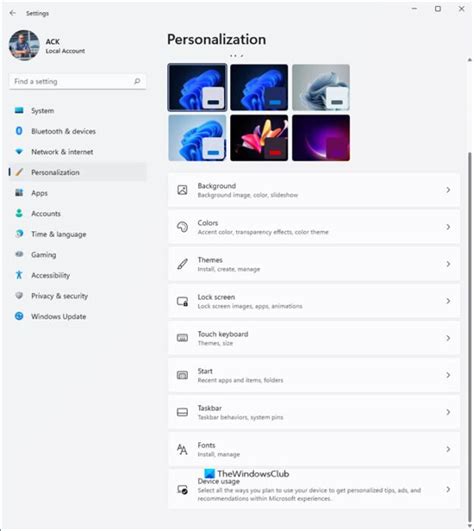
Note: Windows Spotlight is primarily associated with the lock screen. However, some users have reported it influencing desktop backgrounds, especially if Bing Wallpaper was installed as an add-on that leveraged Spotlight's capabilities. By changing the background setting away from Spotlight, you effectively disable its influence on the desktop.
Dealing with Bing Wallpapers on macOS
For users on macOS, the approach to removing Bing Wallpapers involves a different set of steps, as the application and system settings operate differently.
Uninstalling Bing Wallpapers on macOS:
- If the Bing Wallpapers icon appears in the Dock at the bottom of your screen, right-click on it and select Quit.
- To forcefully close the application if it's unresponsive or not in the Dock, click on the Apple logo in the menu bar (top-left corner of the screen) and select Force Quit. In the Force Quit Applications window, select Bing Wallpapers and click Force Quit.
- Open a new Finder window. You can do this by clicking the square face icon on the Dock.
- Navigate to your Applications folder. This is usually found in the Finder sidebar.
- Scroll through the list of applications until you find Bing Wallpapers.
- Click and drag the Bing Wallpapers icon from the Applications folder into the Trash icon on the Dock.
- To complete the removal, right-click on the Trash icon and select Empty Trash.
How to Delete Sequoia & Sonoma's New Live Aerial Wallpapers! [THEY ARE HUGE]
Once the application is uninstalled and the Trash is emptied, it's advisable to restart your Mac to ensure all related processes are terminated.
Addressing Icon Issues and User Permissions
Some users encounter a specific problem where an unfamiliar icon appears on their desktop, often beneath the Recycle Bin, and cannot be deleted through standard drag-and-drop methods. This can be a symptom of a more deeply embedded component or a misconfiguration.
The "Bothersome Icon" and Microsoft's Oversight:
Users have reported that "neither of those actions affords a way to delete the icon, and dragging it to the Recycle Bin fails." This suggests that the icon might be tied to a running process or a system-level integration that prevents its simple removal. The sentiment that this is an "oversight by the behemoth Microsoft" reflects user frustration with software that is difficult to manage or remove.
To gently correct such an "oversight," a more thorough uninstallation process might be necessary. This could involve:
- Checking for background processes: Using Task Manager (Windows) or Activity Monitor (macOS) to identify and terminate any processes related to Bing or Spotlight that might be running.
- Registry cleaning (Windows): For advanced users, a registry cleaner could potentially remove orphaned entries related to Bing Wallpaper. However, this should be done with extreme caution as incorrect registry modifications can cause system instability.
- System File Checker (Windows): Running
sfc /scannowin an elevated Command Prompt can help repair corrupted system files that might be contributing to the issue.
Administrator Privileges:
It's important to note that some of these actions, particularly uninstalling applications or modifying system settings, require administrator privileges on your computer. If you are not an administrator, you may encounter limitations. The message, "You may not be able to change your wallpaper or background if you donât have administrator privileges on your computer," highlights this dependency. If you suspect this is the case, you may need to log in with an administrator account or contact your system administrator.
Personalizing Your Background Beyond Bing
Once Bing Wallpapers and Windows Spotlight are successfully removed, you regain full control over your desktop background. The ability to "use any picture saved on your computer as your desktop background" is a fundamental customization option.
Choosing Your Own Images:
- Windows: In Settings > Personalization > Background, select "Picture" from the dropdown menu. You can then choose "Browse" to navigate to your desired image file. You can also choose to set a solid color or a slideshow of images.
- macOS: Go to System Settings (or System Preferences) > Wallpaper. Here you can select from Apple's curated images, your own photos (organized in Photos or located elsewhere), or choose a solid color.
The frustration experienced by users who find their backgrounds "hijacked" and are unable to revert to their preferred settings underscores the importance of clear and complete uninstallation procedures. The desire to "globally remove the BG image" stems from a wish for absolute control over one's personal computing environment.
By following the detailed steps outlined in this guide, users should be able to effectively remove Bing desktop backgrounds and reclaim their personalized desktop experience. The process, while sometimes requiring troubleshooting, ultimately empowers users to maintain their desired visual interface.